Using the Software Archive

May 13, 2013

Questions and Answers - Time Clock MTS Client Software

It seems to be the week for new Time Clock MTS users asking great questions. Here's a few questions I've just been asked about the Time Clock MTS Client software plus some great suggestions.

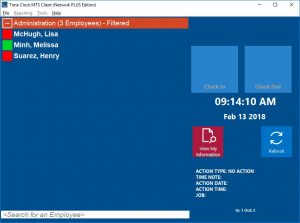
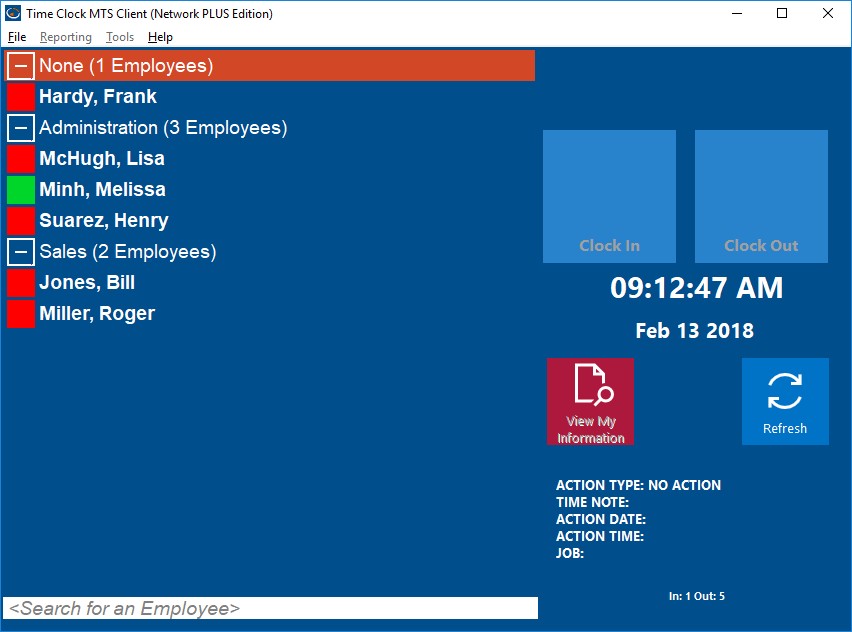
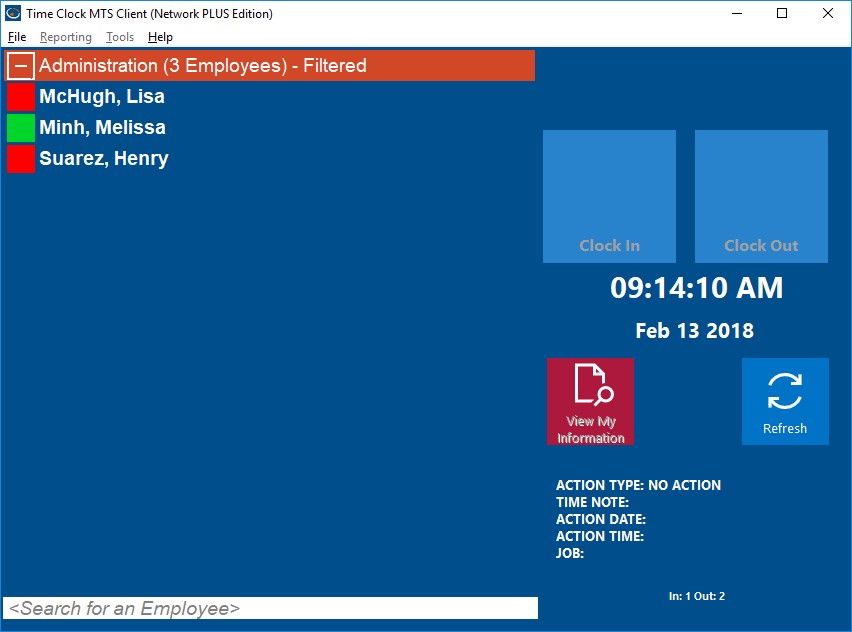
Question : The client version icons go blue after a short time; on the admin stations the icons next to the staff names stay green or red based on their clock in status; do you know why there is a difference?

Answer : This is the clients going idle to stop them clogging up the network. Whenever an employee clicks their name it will update their status. Look here for more information: http://www.timeclockmts.com/weblog/archives/2012/10/the-time-clock-mts-client-idle-state.html

Question : We also wonder why the client version does not allow for robust administrative privileges like the trial version (after logging in as administrator, of course).

Answer : The client does allow you to run reports and so on but not configure software options, add employees, and so on. This is a design choice in the software.

Question : Can you change it so that you can have multiple administrators logged in at the same time?

Answer : 3) No, you can only have one administrator logged in at once. But as I said above you can run reports from the client computers.

Suggestion : I would like to suggest that the administrators be given access to change the formatting of the "canned" reports without having to export into excel. For example, we have a few fields that we would like bold; it would be great to be able to go into the report settings and input some html code to make those fields format to our preferences.

Answer : Selective formatting of reports is under development right now.

Suggestion: We would also like to see the administrators have power to change certain defaults on the interface screen. Currently each staff member would have to go in to change certain settings (for example punchcard vs. job punchcard, view employee information etc.) when viewing or printing their time sheets. We would love it if we could set defaults so they have fewer things to choose.

Answer : Employees can only view three different reports. This provides them with a good amount of information without overwhelming them with the entire list of several dozen different reports.

Posted by By Mark Nemtsas at 8:22 AM | Comments (0)


May 7, 2013

Timesheet with Multiple Jobs

There's two mains reasons that you'd want to track the time your employees spend working on jobs. The first, is to be able to recognize and track how and where your employees are spending their time in your business. The second, is to track the time your employees spend working on external projects so that you can bill their time. Generally the two reasons require different types of software. The first generally requires a simple clock in / out interface that is quick and easy to use. The second is usually required of staff in more professional positions who are expected to submit a weekly timesheet for billing purposes.

Time Clock MTS

If you have a small staff of less than four employees and require some sort of simple job timesheet and a payroll time clock then Time Clock MTS is the tool you've been looking for. You can install it on a single computer, setup your employee and job list, and have your employees clock in and out of jobs as many times per day as you like. It's then a simple matter for you to run a payroll report like the Simple Wages Report to work out your payroll requirements. And reporting on the time they've spent working on each job is a simple matter of running the Job Time Report. All this for free if you use Time Clock MTS to track less than four employees on a single computer. Other time clock systems with job tracking charge hundreds of dollars for the same functionality. Can you afford not to give it a try?


Time Clock MTS - Free for 3 Employees


Time Clock MTS Screenshot
Click Image to Enlarge

Employee Time Tracking Software

If you're looking for project time tracking software that produces output suitable for detailed project management or for billing of external clients then you'll want to take a look at Timesheets Lite. Timesheets Lite is pure time tracking software for recording time spent working on projects and includes many different project management style reports. It does not contain any payroll features like Time Clock MTS. Timesheets Lite allows you to install a project timesheet on each of your employee's computers which they can use to record the time they spend working each day on various projects. There's a free 30 day trial available to allow you to try it out without restriction.

Free Timesheet with Multiple Jobs

Our final free job timesheet resource is a free Excel timesheet with job tracking template. This free Excel timesheet template allows employees to record their clock in and clock out time against a project selected from a pre-defined list. The template includes a simple mechanism for reporting the time the employee spends working on each job over the period of the timesheet. The Excel timesheet template is free to download and modify as you see fit.

Weekly Timesheet TemplateDownload Timesheet With Jobs Template - Excel (xlsx) Format

Posted by By Mark Nemtsas at 1:50 PM | Comments (0)


March 29, 2013

The Employee Time Off Request Report

The employee time off request report
The Employee Time Off Request Report

Above you can see the employee time off request report which is a new addition to our employee clockin software. If you're not sure what Time Clock MTS employee time off requests are you can read more about them here or watch a video explaining how employees place a request.

The employee time off request report allows users to break down requests by status and date. The way the report is generated is different to most other reports in Time Clock MTS because it is not configured from the report configuration screen but rather is run directly from the screen administrators use to manage employee time off requests. Here's an image of that screen:

The administrator manage time off requests screen
Managing Time Off Requests - Administrator

The report is run by clicking the button with the printer icon on it. The actual data displayed on the report is determined by what data is displayed on the screen at the time. So, if for example, you're showing requests from All Time (selected from the time period drop down) and only displaying Pending requests (because the Pending checkbox is ticked and the other two boxes are not) then the report will show Pending requests regardless of the date the requests were made.

Another example would be to display all Approved requests from the the previous month. To accomplish this we would select "Last Month" from the time period drop down and check the "Approved" checkbox and uncheck the others. To view the report click the Printer button.

In conclusion if you do need to record and track employee time off requests from your employee punch clock software then the time off request report is an ideal way of reporting on those requests. Don't forget that there's also dozens of other time clock reports available from within Time Clock MTS and one of those is bound to fit your requirements.

Posted by By Mark Nemtsas at 9:19 AM | Comments (0)


March 25, 2013

Punch Clock Software, Punch Card Software

Replace your Punch Clock Machine with Time Clock MTS

Hundreds of companies across the USA and around world have replaced their manual punch clock and punch card machines with Time Clock MTS. This is freeing up their time to run their business better, saving them money through elimination of payroll errors. and reducing payroll costs by stopping punch clock fraud.

"I like the layout. It allows for employees to punch in and out quickly. I also like the CuteWriter option which allows me to send timesheets via email. The product looks great and easy to use."

K.L., Pharmacy Manager

Time Clock MTS Screenshot
Click Image to Enlarge

Punch card and punch clock machines are a thing of the past and should be replaced with a computer punch clock program such as Time Clock MTS. You can completely do away with paper punch cards, the tedious task of collecting them, and the error prone process of manually tallying them up for payroll every week, two weeks, or month. Time Clock MTS will allow you to use any computer in your company for employees to punch in and out quickly, easily, and without error. Our punch clock software will collect your employee time punches into a central database where they can be reported on by your payroll department in just minutes.

As a modern employee punch clock program Time Clock MTS offers much, much more than just a replacement for your punch clock machine. It can also combine different business systems into one solution streamlining your processes and saving you real money. Time Clock MTS can track and report on employee leave and accruals as well as allowing employees to request time off directly within the punch card software. It will also enable your employees to record their time punches against jobs as they clock in or clock out giving you real control over where and how your employees are spending their time.

Eliminate Punch Clock Fraud

Punch clock fraud is believed to add 5 to 10% to the payroll costs of the average business. Mechanical punch card machines can do little to prevent buddy punching, and while modern electronic time clock machines caninclude biometric security these cost upwards of $2,000 per unit. Compare this with the cost of Time Clock MTS which can be setup as biometric time punch software for well under $200 on a single computer. You can further enhance the security of Time Clock MTS to prevent time clock fraud through the use of employee PIN security, our secure online time server, or by taking photos of employees as they punch in or punch out.

Free Punch Clock Software

One of the most exciting aspects of Time Clock MTS is that it can be completely free for a very small business that needs to track the attendance of 3 or fewer employees. And the best thing is, to get hold of our free employee punch clock software you don't have to do anything more than download and install the 30 day trial version of Time Clock MTS. When the 30 day trial period is up the software will automatically change to operate in free mode and you'll be left with free employee punch clock software installed on a single computer that will track up to 3 employees. And it'll remain free forever.

What Are you Waiting For?

Get the Free 30 Day Trial of Time Clock MTS now and start tracking your employee time punches now! There's money to be saved and time to be recovered so that you can get on with the business of running your business!

Posted by By Mark Nemtsas at 8:49 AM | Comments (0)


Free Clock In Software

A while back I wrote about 10 reasons you should be using a staff clock in system. Here's reason 11, you could be using Time Clock MTS, our popular and quick to learn employee clock in software for free! If you want to track less than 4 employees attendance information and just have one employee clock in station then all you need to do is download and install the 30 day trial version of Time Clock MTS. You'll have a full 30 days to explore the full capabilities of the clock in software before it converts to free mode when you can continue tracking 3 employees information.

Having a free employee clock in program will allow you to know when your employees arrive at work and when they leave, it'll help you get more accurate payroll data, and it'll help you to reduce your office administration expenses. Perhaps most importantly it'll free up your time to concentrate on improving your business rather than spending needless time on inefficient business processes such as processing employee clock in data. And with Time Clock MTS you can get access to all of these potential benefits for free. It's hard to argue with logic like that!

Employee List Interface
Time Clock MTS Employee List Interface - Click Image to Enlarge

Switching Jobs Screen

Even when you're using Time Clock MTS in free mode you'll get full access to all the other features of the software, including fingerprint security, employee job tracking, employee tip tracking, and employee leave or time off requests. There's no other free employee clock in software that offers those sorts of features and we don't want your email address, your credit card number, or even be told that you're using our software. Get moving and download and install Time Clock MTS now.

Be reminded though that once the 30 day trial period is up you'll be restricted to tracking 3 employees on a single computer. You won't be able to take advantage of the multi computer clock in capabilities of Time Clock MTS.

Posted by By Mark Nemtsas at 7:46 AM | Comments (0)


March 18, 2013

Dental Time Clock Software

Dentists, dental clinics, and endondontics specialists probably comprise the biggest single type of business that uses Time Clock MTS to track their employee time and attendance. As of mid-March 2013 there's 350 different companies of this type using Time Clock MTS or about 3% of companies who use the software.

It's probably no great surprise because most small dental practices comprise one or two dental professionals (who typically are the owners) and a number of technical and administrative support staff who are paid hourly. It's not unusual for the staff to work different hours to the owners and because of this tracking attendance accurately and with minimal effort is vital to minimize both payroll overheads and time clock fraud. Payroll overheads are a a real and unavoidable cost but good dental time clock software will help minimize the cost and stop payroll errors.

Time clock fraud however, can easily be eliminated. If you want to see the type of time clock fraud that goes on in the dental practice take a look at this thread on The Dental Lab Network. The examples mentioned in that thread involved an hour or more of unworked time being claimed by an employee every single day. Installation of Time Clock MTS to replace written records would eliminate that activity almost immediately saving the up-front cost of the software in just a week or so. Even if employees get more crafty and start punching in and out for each other a dental lab or dental practice could easily implement the biometric time and attendance features of Time Clock MTS to eliminate that too. In fact, just recently I wrote about how you could implement our biometric time attendance software for well under US$200.

Of course if you start using our dental time clock software you wont just save money in reduction of payroll errors and elimination of time clock fraud. You'll also get access to other time and money saving features such as employee sick time and vacation tracking and accruals, employee time-off requests, and even more interestingly, our time clock job tracking features. This could be extremely useful in a lab-based environment to track exactly what tasks the technicians are working on during the day.

Posted by By Mark Nemtsas at 1:27 PM | Comments (0)


Biometric Time Attendance Software for Under $200

Almost any business can benefit from the use of time attendance software in preference to paper based timesheets or time-cards. Further benefits can be seen by using biometric time attendance software as this will completely eliminate the practice of buddy punching. Buddy punching is when employees punch in and out for each other in an attempt to misrepresent their real work hours. Biometric security on your time and attendance software obviously eliminates because the technology makes it extremely difficult to pretend to be anyone else.

Biometric security for time clock software can take several forms but the most common and most cost-effective is fingerprint attendance tracking. Time Clock MTS can make use of a Digital Persona U.are.U fingerscanner to give you access to a fully featured biometric time clock system for a very low cost. In fact, something less than US$200. This is extremely cost effective compared with the cost of a physical biometric time clock machine at more than US$1500 per machine Let's take a look at the cost of each component of a biometric attendance system.

Time Clock Software Cost

A single computer license of Time Clock MTS to track up to 75 employees costs (at time of writing) just US$79. There's no on-going fees with this and you'll have a lifetime license to use the current major version of Time Clock MTS.

Cost So Far: US$79

Fingerprint Scanner Cost

We don't have an affiliation with any hardware seller who sells Digital Persona fingerscanners but we've had some luck buying off of California PC. Right now they are selling DigitalPersona 4500 USB scanners for US$88.95. If you hunt around you might find the same unit $10 or so cheaper. However, for this sake of this exercise we'll set the cost of a scanner at US$90.

Cost So Far: US$169

Computer Cost

Time Clock MTS needs a Windows PC to run on and the Digital Persona scanner needs a Windows PC with a USB port to plug into. Pretty much any version of Windows from Windows XP onwards will run Time Clock MTS and work with the fingerscanner. Given that very few users of our software buy a dedicated PC just to use it I'm going to assume a zero cost for a computer for your biometric time attendance software. There's a couple of reasons for this. Firstly, Time Clock MTS has very low system requirements and will run on pretty much any computer made in the last 13 years. Most businesses have old PC's in storage that can be revived for dedicated use as a time clock computer. The second reason is that Time Clock MTS is often installed on a shared computer which is used for other tasks (such as a PC in your reception area).

Total Cost: US$169

Finishing Up

That's it, US$169 for a fully featured time attendance system with biometric security. In my experience this cost will often be recovered in just a month or two through elimination of payroll errors and reduction of payroll costs due to elimination of payroll fraud. It may be a little hard to believe but I constantly get emails from users who report a real reduction in payroll hours after they implement biometric attendance tracking.

You can try out Time Clock MTS free of charge for 30 days. If you're happy with the software after the trial period go ahead and purchase a Digital Persona Fingerprint Scanner and you too can join the biometric security revolution!

Posted by By Mark Nemtsas at 12:17 PM | Comments (0)


March 14, 2013

Hotel Time Attendance Software

At the time that this blog entry was written Time Clock MTS was being used by more than 100 hotels, inns, villas, and motels to track their staff attendance, generate payroll reports, and monitor staff leave and accruals. I've had a lot of emails over the last few years from these types of users about how best to configure the software to suit their requirements so I thought it would be worthwhile listing off some of what I've learned in this time.

Split Hotel Staff by Departments

If you're using Time Clock MTS as hotel time attendance software you're going to want to split your empoyees into departments to mirror the functional areas found in a typical hotel. Obvious departments to setup and assign to Time Clock MTS employees are housekeeping, front office, reservations, uniformed services, bar and wait staff, and administrative staff. Clearly it's going to be worthwhile splitting up your hotel time attendance tracking by department so that payroll expenses for different cost centers can be tracked more easily. Also, Time Clock MTS can be much easier to use if departments are setup and the Departmental Folder View on the Interface Settings screen is used. Also don't forget that most Time Clock MTS reports can be run for a single department and that there's some reports built into the software specifically aimed at tracking departmental costs such as the Departmental Wages Report.

Use Job Tracking for Detailed Cost Tracking

Time Clock MTS is designed to be useful for companies with a single employee right up to companies with hundreds of employees. In the case of bigger hotels departmental time and attendance tracking may be sufficient, but in smaller operations where employees are expected to perform multiple roles the more detailed cost tracking offered by job tracking can be more useful. Job tracking will allow you to track your time attendance and easily see what hours are being spent on revenue generating activities and what hours are being spent on indirect costs. All this while still being able to track the time and attendance of hotel staff. Obvious jobs to setup would be similar to those discussed above in the discussion of hotel departments.

Built In Tip Tracking Makes Things Easy for Bar and Wait Staff

Most hotels or motels have staff who rely on tips and gratuities as a significant part of their income. Time Clock MTS provides an all-in-one solution to allow you to track their time attendance data and tips. You can read more about our tip tracking features here. Time Clock MTS also includes powerful tip tracking reports that fulfil the IRS reporting requirements of the hotel/motel as an employer and other reports useful for the employee directly.

Conclusions

Time Clock MTS is used across a number of industries and is both flexible and powerful enough to be truly useful in most employee time attendance tracking situations. It has certainly proven to be useful in the hotel / motel industry with a number of features that are directly applicable. If you're currently using Time Clock MTS in a hotel, motel, villa complex, or inn and there's a feature missing that you'd love to see added to the software please contact me and let me know.


Posted by By Mark Nemtsas at 12:44 PM | Comments (0)


Student Attendance Software

Sometimes it surprises me how Time Clock MTS is used out there in the "wild". For example, it's used in a lot of locations to track student attendance. At one trade and technical school in Miami, for example, it's now being used to track the attendance of all students in the classroom in an effort to replicate real attendance tracking in the work place. This is happening in more than 20 classrooms to track over 600 students attendance at that one location.

Fortunately, Time Clock MTS provides enough flexibility to allow it to be configured to track student attendance while still being simple enough to not burden down users with having to track payroll information too. I thought it might be worth looking at how it could be setup to track student attendance and what reports would be useful in a classroom or school environment.

Time Clock MTS configured as student attendance software

Customizing the Interface to Suit Students

The screens that students would see when logging their attendance in Time Clock MTS can be changed somewhat to suit the classroom environment. The Display Settings screen is where most of the labels on the main screen of Time Clock MTS can be changed. Labels such as the "Employees In", "Employees Out", "Search for Employees" and so on could be changed to reference students rather than employees. The main time clock screen of Time Clock MTS setup as student attendance software might look something like that shown above.

Student Attendance Reports

Almost any of the reports in Time Clock MTS would be fine for monitoring student attendance but clearly most of the payroll data could be safely removed or ignored. Probably the best report to use would be the Punchcard Report but I'd suggest editing various report section templates to remove extraneous information. Report section templates can be changed on the Report Settings Screen. Report section templates that could be edited for clarity would be the employee accruals section (which could really be deleted for tracking student attendance), and the employee payroll details section (where you could remove references to actual money earned).

Time Clock MTS in Schools and Universities

I thought it would be worthwhile concluding with some brief figures on how many schools and universities Time Clock MTS is being used in. At last count, this was something more than 200 different schools or universities. It's safe to assume that some of these are using the software to track staff attendance rather than student attendance. However, I do know that many of them are using it to track student attendance. With the tips I've given above I hope this will make the software even more useful for this purpose.

Posted by By Mark Nemtsas at 9:58 AM | Comments (0)


March 6, 2013

My Registration Key Does Not Work in Time Clock MTS V4

If you're a long time user of Time Clock MTS you might find that you have to re-install Time Clock MTS. This might be because your computer crashes, you get a new computer, or perhaps you just need to move Time Clock MTS to a new computer. If you didn't save the Time Clock MTS installation files when you purchased Time Clock MTS then you'll find that we do not provide old versions for download on our website. This means you'll have to download the latest version of the software. This can cause a problem because in November 2012 Time Clock MTS version 4 was released and a new registration key system was implemented. The result of this was that registration keys from versions of Time Clock MTS prior to version 4 no longer work.

If you try registering Time Clock MTS Version 4 with your old registration codes you're going to see a screen something like that above which says "Registration keys for Time Clock MTS prior to Version 4.0 no longer work. You'll need to purchase an upgrade to a newer version.". Despite what this says you might find that you can access a free upgrade to Time Clock MTS Version 4. You can see if you're eligible by clicking on the Obtain Version 4 Key button on the registration details screen (see the image below).

What to do Next

If you're not entitled to a free upgrade to Time Clock MTS V4 then you've got two options. You can either purchase an upgrade at a significant discount or you can downgrade Time Clock MTS to the last version 3 release where your registration codes will still work.

Purchasing an Upgrade

To purchase an upgrade at a discount please contact us and let us know your current registration details. We'll get back to you as soon as we can with a coupon code you can use to make your upgrade purchase. If you do purchase an upgrade you'll also be entitled to another year of email support.

Downgrading Time Clock MTS

Downgrading Time Clock MTS from Version 4 to the last release of Version 3 is fairly simple. You just need to have Time Clock MTS V4 installed on a computer and then visit the Version 3 Downgrade Installers Page. On this page you can download an installer for the Time Clock MTS Administrator program and the Time Clock MTS Client program to downgrade from V4 to the last release of V3. Note these installers will only work if you have Time Clock MTS V4 installed already.

Help I've Lost my Registration Key Completely

If you're trying to re-install Time Clock MTS altogether and you've lost your registration keys (for whatever reason) remember that you can retrieve them yourself on our lost registration keys page.

A Gentle Reminder

Remember that when you purchased Time Clock MTS it included an entitlement to a year of technical email support from us. If you're coming back to us several years after purchasing with technical support requests and you've chosen not to renew your support contract then you'll have to renew before we can help you. The cost is fairly nominal (20% of the initial purchase price or $20, whichever is higher) and realize that not only will we help you out with your immediate query but we'll help you out during the next 12 months with any other issues.

Posted by By Mark Nemtsas at 12:53 PM | Comments (0)


February 20, 2013

Free Time Keeping Software

Free Time Keeping Software for Less than Four Employees

If your business needs to track the time your employees spend working against projects as well as keeping track of employee payroll time then you're going to need some sort of time keeping software. Time Clock MTS gives the very small business with less than four employees the opportunity to download and install our time-keeping software completely for free and without obligation. Once installed you'll have a full 30 days to use Time Clock MTS without limitation and when that period is up the software will start operating in free mode which will allow you to keep and track time for up to 3 employees.

Our free timekeeping software can only be installed and used on one computer. The free version does not allow you to use the Client version of Time Clock MTS to get multi-computer time keeping software.

We all love free stuff and Time Clock MTS really is free time keeping software for companies with less than four employees. We don't want your credit card number or your email address either, just download and install Time Clock MTS and you'll be able to start keeping tracking of your employee time within just minutes. You'll get access to all of the advanced features too, including job tracking, employee tip tracking, biometric support, and employee time off requests. Can you really afford not to give it a try?

Time Clock MTS Employee List Interface
The Employee List Interface - Click Image to Enlarge

The Time Clock MTS Switch Jobs Screen
The Switch Jobs Screen

Posted by By Mark Nemtsas at 11:10 AM | Comments (0)


February 19, 2013

Upgrading Time Clock MTS to a One Client License

I received an email from an existing Time Clock MTS user who has a single computer license. He wanted to upgrade to a one client license but wanted to move the administrator software to another computer and use the original computer as a Time Clock MTS Client. It was a good question so I thought it was worth posting up my reply here for future reference.


System Options Screen - Moving the Existing Database
  1. Share a folder on your network server that is accessible to both computers. Then move your Time Clock MTS database to the folder using the Tools->Options->System Options screen while logged in as the Time Clock MTS administrator. You can move the database by clicking the MOVE button from this screen. See image above for more information.
  2. Uninstall Time Clock MTS from that computer.

  3. System Options Screen - Connect to a Different Database
  4. Install Time Clock MTS on the other computer. Run it for the first time and setup a new password. Log into that Time Clock MTS as the administrator and connect to the database you moved in step one above by going to the Tools->Options->System Options screen and clicking the CHANGE button.
  5. Purchase a one client upgrade for Time Clock MTS. Contact Me for an Upgrade Purchase Link.
  6. Install the Time Clock MTS client on the existing computer, when you run it the first time it should be connected to the database you moved in step one above.
  7. Register both computers with the new registration codes you'll get when you make the upgrade purchase.

There's a couple of things to note with this process. In Step 1, make sure the folder you share gives all Time Clock MTS computers full read/write/create/delete permissions on that folder. In Step 5 the Time Clock MTS client should pick up the settings from the administrator software that used to be on it. However, in some cases it may not and you'll be shown a First Run Wizard that will take you through the process of connecting to an existing Time Clock MTS database.

Posted by By Mark Nemtsas at 7:42 AM | Comments (0)


February 18, 2013

Employee Time Tracking Software

There are three distinct reasons that an employer would have for using employee time tracking software such as Time Clock MTS or Timesheets Lite. These reasons are completely aside from the efficiency and productivity gains that employee time tracking software can deliver, but are more the basic reason why such software would be employed.

Time Clock MTS Screenshot
Time Clock MTS - Click Image to Enlarge

Basic Employee Hour Tracking

Every employer needs know how many hours an employee works during a payroll period and in some localities they need to know what days / times those hours are worked. Employee time tracking software must be able record employee hours, and then report on it in a timely fashion. Ideally the software should provide a number of different methods of recording the employee hours. This could be via use of a mouse and keyboard, a swipe card, a bar code scanner, touch screen integration, or an RFID scanner. All reports must be highly configurable, flexible, and able to be exported to a number of different formats or other software such as payroll software or costing software.

An ideal time tracking system will also provide an amount of post processing on recorded employee hours. This could include daily and weekly overtime calculations, sick time and vacation time accrual tracking, or even automatic break deductions. There may also be ancillary features to help streamline other business processes such as employee tip/gratuity tracking, employee time off requests, preventing employees clocking too early or too late, or even biometric security.

Internal Job Cost Tracking

It's not at all unusual for a business to need to track the cost of internal jobs which will help ensure that jobs are both profitable and give some idea of when they are nearing completion. Employee hour tracking software must provide some means of allowing employees to both record their hours but also to allocate these hours to a particular job. It must do so with a minimum of fuss so as to not provide an administrative burden to the employees. Once the software is recording employee times against jobs it must also provide a means for management to track job labor costs via the reporting system. Again these reports must be able to be exported to a number of different formats, including being able to view job time reports in a spreadsheet program such as Microsoft Excel.

Timesheets Lite Screenshot
Timesheets Lite - Click Image to Enlarge

Recording Billable Hours

Many companies charge the hours their employees spend working on projects directly to their customers. Clearly in this case tracking billable hours is probably one of the most vital administrative tasks such a business can undertake. Employee time tracking software suited to this sort of environment must be particularly strong on the administrative side of the software. Projects that employees can book time to must be easy to create, must be able to have sub-tasks, must allow for budgets and budget tracking, and ideally should allow projects to be categorized. Reports for this sort of software should be much more project / budget focused rather than payroll focused. There must be reports to track project progress against budget, detailed reports showing fine grained detail of how employees have spent their time, and some basic payroll based reports such as a weekly timesheet. Again, as with any good time tracking software all reports should be able to be exported to a number of different formats.

Time Tracking Software from Timesheets MTS Software

Timesheets MTS software has two employee time tracking software programs that are ideally suited to the cases I've discussed above. Time Clock MTS is a simple to use time clock program for employees show need to track their hours and record their time against jobs. It is particularly strong at tracking employee payroll hours and includes a number of payroll oriented features to help improve your payroll process. Timesheets Lite is a project based time tracking program for employees who need to continuously record their time spent on projects or even time their activities as they perform them.

Posted by By Mark Nemtsas at 7:14 AM | Comments (0)


February 9, 2013

Time Clock Software and Salaried Employees


Salaried Employee Time Card Report

I've written about this a few times before but it's worth mentioning again. From time to time I get an email from a user of our employee time attendance software who has noticed that the total time for punches on a report do not add up to the work time in the summary section of the report. Above you can see just such a report. It's an employee punchcard report. You can see that the time punches on the report tally up to 86.27 hours but the total work time reported is 80.08 hours. What's the reason for the discrepancy?

Well it turns out that this employee is set to be paid a salary rather than paid hourly (this is configured on the employee payroll information screen). What's more they are setup for monthly salary. Thus, when Time Clock MTS generated this report it calculated how much of a month the report period was (about 46.2% it turns out). It took this fraction and multiplied it by the standard hours worked per month (173.3 hours per month) and arrived at the figure reported of 80.08 hours as opposed to the time the punches added up to.

If you do have salaried employees and you do want to report on their actual hours worked (as opposed to their calculated pro-rata hours as shown above) then there's a report section template field you can include in the payroll information and employee summary report templates. The <ACTUAL_SALARY_WORK_TIME> field will show the actual time recorded by a salaried employee during a report period. Report section templates and fields can be configured on the Time Clock Report Settings screen.

Posted by By Mark Nemtsas at 8:42 AM | Comments (0)


February 8, 2013

Approving a Time Off Request - Time Clock Video Demonstration

This video demonstration takes the administrator of our time card system through the process of approving an employee time off request. Employees can use Time Clock MTS to place time off requests. These requests are then considered by the time clock administrator for approval or denial. When a time off request is approved the administrator can automatically create time punches for the requested time period and notify the employee of the reason for approval (or denial for that matter). This time clock video demonstration will take you through the entire time off approval process. It runs for 2 minutes and has no sound.

Note that you must have the Adobe Flash player plugin for your internet browser installed to view this video. You can download this plugin from Adobe.

Posted by By Mark Nemtsas at 10:49 AM | Comments (0)


January 20, 2013

Placing a Time Off Request - Video Demonstration

This video demonstration takes time clock employees through the process of placing a time off request. Time Clock MTS allows employees to place time off requests which are then approved or denied by the time clock administrator. Time Clock MTS will automatically notify an employee of a change in the status of their request. The time clock administrator can use the time off request system to automatically create time punches for the time off if the request is approved. This time clock video demonstration runs for 1 minute and 45 seconds and has no audio.

Note that you must have the Adobe Flash player plugin for your internet browser installed to view this video. You can download this plugin from Adobe. There is no sound in this video.

Posted by By Mark Nemtsas at 10:19 AM | Comments (0)


The Job Cost Report

Time Clock MTS Job Costing Report

Above you can see an interesting report that was added to the latest version of our Job Tracking Time Clock. The Job Cost Report breaks down the total wages cost for a single job or all jobs across a date range. If you're running the report for all jobs then time spent working on NO job is also included in the report. The salary costs are split by each employee who has worked on the job during the report date range, and furthermore, their hours are categorized by hour type. This means you can see how many normal rate hours, overtime rate 1 hours, and overtime rate 2 hours have been spent by each employee on a job.

Remember that Time Clock MTS allows you to calculate overtime hours in many different ways and with two rates. You could, for example, have a two tiered daily overtime system where any hours worked between 8 and 12 on a given day are paid at overtime rate 1. Any hours worked over 12 will be paid at overtime rate 2. Overtime rates 1 and 2 can also be paid if you setup Time Clock MTS to pay overtime using the seventh day overtime rule. This rule pays overtime to an employee if they have worked the first 6 days of a working week and then work on the seventh day. The first (usually) 8 hours worked on the seventh day are paid at OT rate 1, while any hours after that are paid at OT rate 2.

Regardless of what overtime scheme you're using the Job Costing Report will report the hours worked by each employee against a job and break this down by pay rate.

Posted by By Mark Nemtsas at 6:03 AM | Comments (0)


January 7, 2013

Freeware Employee Time Clock

Freeware Employee Time Clock Software for Three Employees or Less

If you want a free employee time clock and you've got less than four employees then Time Clock MTS is perfect for you. Just download and install the trial version of Time Clock MTS. For the next 30 days you can track the time clock data of up to 75 employees. When the trial period runs out you'll find that you can still track the attendance information of 3 employees. Best of all, this will never expire and you'll still get access to regular Time Clock MTS software updates and improvements in exactly the same way that commercial Time Clock MTS users do.

The freeware version of Time Clock MTS can only be used on one computer. You cannot use the multi-client version of our employee time clock software.

Small companies with less than four employees who want freeware employee time clock software (and who doesn't love free stuff) will find that Time Clock MTS is the ideal match for them. It really couldn't be any easier, download and install Time Clock MTS onto a chosen time clock computer and start tracking employee attendance information. When 30 days is up Time Clock MTS will start operating in free mode and you can keep tracking the time of up to 3 different employees. All without needing to do a thing.

Time Clock MTS Screenshot
Click Image to Enlarge
Time Clock MTS Employee Information Screenshot
Click Image to Enlarge

Posted by By Mark Nemtsas at 4:33 AM | Comments (0)


December 31, 2012

Clocking In and Clocking Out - Video Demonstration

This video demonstration takes the new Time Clock MTS user through the two main methods that employees use to clock in and clock out. The first method uses the employee list interface and the second uses the keypad interface. Using Employee PINs is also briefly covered as are some of the reasons why you'd want to use them. I also covered the topic of employees clocking in and out in some detail a week or two back in the blog entry entitled Two Methods to Clock In and Clock Out. This time clock video demonstration runs for just over 2 minutes and has no audio.

Note that you must have the Adobe Flash player plugin for your internet browser installed to view this video. You can download this plugin from Adobe. There is no sound in this video.

Posted by By Mark Nemtsas at 6:54 AM | Comments (0)


December 29, 2012

Time Clock MTS - Running a Payroll Report Video Tutorial

This is the first in what I plan to be a series of video demonstrations explaining how to use various features within Time Clock MTS. This video tutorial gives a brief explanation of the payroll report system within Time Clock MTS, the sorts of criteria that can be used to generate a report and the actual generation of a report. The report structure is then examined briefly as are the various formats that one of our time clock reports can be exported to. The video runs for just under 2 minutes.

Note that you must have the Adobe Flash player plugin for your internet browser installed to view this tutorial. You can download this plugin from Adobe. There is no sound in this video.

Posted by By Mark Nemtsas at 3:48 PM | Comments (0)


Free Time and Attendance Software

If you want Free Time and Attendance Software and you have less than four employees then Time Clock MTS is what you are looking for.

Got less than 4 employees? Want time and attendance software on one computer in your office? Then Time Clock MTS is free to use. Not free for 30 days, not free to try, not free until you have to pay. Just FREE. That's right, free employee attendance software with no catches. Time Clock MTS Attendance Screenshot
Click Image to Enlarge

Vacation / Sick Tracking

You can track vacation days, sick days, and accruals of vacation and sick time. Your employees can also request days off using Time Clock MTS and you can approve and record those days off quickly and easily.

Yes. It's Really Free.

And free forever. Download and install the 30 day trial of Time Clock MTS and once the trial is up and you've got less than 4 employees it will start working in free mode without you having to do a thing.

Don't Wait!

Just download Time Clock MTS and install it on the computer where you want to tracking your employee attendance. Once the 30 day trial period expires you'll be working in free mode.

Take the Quick Tour»

Take the Quick Tour»

Take the Quick Tour»

Posted by By Mark Nemtsas at 5:01 AM | Comments (0)


December 28, 2012

Easy Time Clock Software

One thing that I'm happy to say about Time Clock MTS is that it's easy time clock software for a company to implement and run. I'll take a look at a few reasons why this is the case.

Time Clock MTS First Run Screen
Click Image to Enlarge

1. Simple Setup

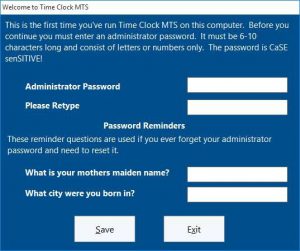
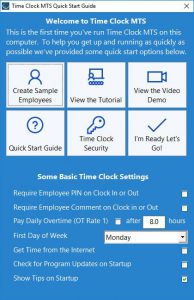
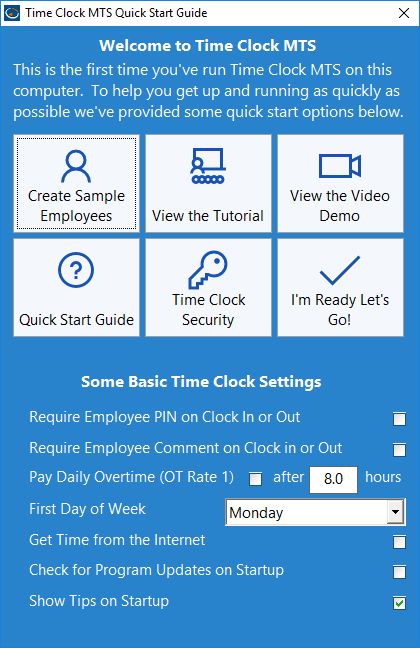
For the majority of companies Time Clock MTS will suit their needs right out of the box. The first time Time Clock MTS is run your time clock administrator will be shown the screen above. This allows them to create some sample employees to get started with, to view an in-program tutorial, and to read about various the various time clock security measures that can be taken with Time Clock MTS.

Even better, at this early stage Time Clock MTS gives your timeclock admin the chance to configure some basic settings such as requiring employee PIN entry, daily overtime limits, and retrieving the time clock times from the internet. In my experience these few settings allow Time Clock MTS to be setup to work for most companies.

2. Simple Clocking In and Clocking Out

If you invest in time clock software then it's vital that the process employees use to clock in and clock out is simple to learn and fast to accomplish. This is because employees clocking in and clocking out is what your time clock system will be used for the most often. The easiest time clock software to use will have streamlined this process to minimize the time and effort required on behalf of your employees. Time Clock MTS offers two ways for employees to clock in and clock out, both of which are remarkably simple and quick.

The Employee Status Report
Click Image to Enlarge

3. Quick and Flexible Reporting

The easiest time clock software for your business will offer flexible and fast reporting so you can get at your employee attendance and payroll data when you need it. It will offer a range of reports and flexible report criteria and it will give you timely information as and when required. Time Clock MTS has a number of different reports, including those suitable for payroll, for monitoring who is at work (see image above), for tracking time spent working on jobs, and for monitoring employee tips and gratuities.

4. Integration of Systems

It may seem a little counter-intuitive but an easy time clock software system will help you to combine,integrate, and simplify your business processes. It will help you to eliminate manual tracking systems for employee vacation days, sick days, sick and vacation accrual, employee tip tracking, employee leave requests, and job time tracking. If your chosen timeclock system includes these sorts of systems your employees will basically have one system to learn that will replace several existing processes. Even better your administration staff will no longer need to maintain these different systems. This will allow your business (and it's employees) to concentrate more on running a better and more profitable business rather than spending time on administrator tasks.

Posted by By Mark Nemtsas at 6:54 AM | Comments (0)


December 24, 2012

The Best Time Clock Software?

What is the best time clock software for your business? In this article I'll take a look at five key points you should consider before making this decision.

1. Ease of Employee Use

Any good timeclock software is designed to simplify what is the unavoidable task of collecting and reporting on employee time and attendance. To actually simplify this task the time clock software must be easy to learn, and easy to use. This ease of use must cover the two key functions of the software.

Firstly, it is critical that the what is needed for an employee to clock in or out is both easy to understand and quick to perform, ideally taking no more than a second or two. Even an extra 10 seconds taken to clock in or out adds up to a rather remarkable 80 minutes of lost time in a calendar year per employee. If you've got 20 employees these numbers can really start adding up.

Secondly, the best time clock software for your business must be easy for your administrative and payroll personnel to use. It's in this area of operation that real savings can be made with quick reporting, automatic overtime and accrual calculations, and flexible payroll reports. If all of these benefits are offset by software that is hard to use, difficult to understand, and slow to operate then you must question if the timeclock software you're looking at is the best one for your business.

2. Low Cost of Ownership

The cost of implementing employee attendance software for your business comes in two stages. Firstly, the actual cash dollar amount to purchase the time clock system and the time expended implementing the new system. Secondly, the on-going cash cost of keeping your software running and the internal administrative time spent doing the same. Clearly, a balance must be struck, software that is cheap to purchase but difficult to implement and time consuming to maintain can work out to be much more expensive in the long term. Conversely, some software can be more expensive to purchase up-front but be simple to implement and just keeps doing it's job without any work on your behalf. I'd suggest constructing some sort of costing spreadsheet to compare the up-front versus on-going costs of the time clock software you're considering before making a decision on the best solution to you.

3. On-Going Support

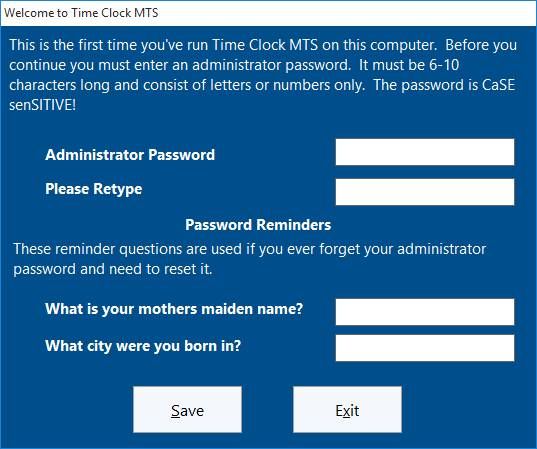
I've been writing and selling timeclock applications for a decade now and the one thing I can assure you of is that you *will* use the technical support resources for your software at least once. It's important that the time clock software you decide is best for your company has extensive online support resources AND a live person you can contact by phone or email. Without these resources you're going to be in big trouble the day your payroll person quits and no-one else in your company knows your time clock software password.

4. Established History

I always consider how long a software vendor has been in operation before purchasing software for my business. The same consideration should be made by anyone trying to find the best time clock software for them. There's a few reasons for this. The first is to ensure that when you need help with your software that there's still a company around to help you out. Secondly, a more mature software product is likely to have a lot less bugs and a lot more features and flexibility to ensure that your chosen product really is the best time clock software for you. Finally, an established company is likely to have hundreds or even thousands of customers and they'll be going out of their way to keep those companies happy with better support services and on-going software development. Choosing a product from such a company is likely to give you much better value for money in the long term.

5. Flexibility of Interface Options

It's a fairly automatic assumption by the authors of some timeclock systems that employees will clock in and out using a keyboard and mouse. It turns out this isn't the case at all. Careful consideration should be given to ensure that your chosen time clock solution can cater for some or all of the following interface options:

  • Use of a fingerprint scanner
  • Suitable for use with a touchscreen
  • Able to accept ASCII data from different devices such as barcode scanners, magnetic card readers, prox cards, or RFID readers.

Conclusions

If you're trying to determine what is the best time clock software for your business I hope that you'll consider the five points above. Each of them should allow you to create a software shortlist very quickly and set you on the path of using a new system that should result in your business saving both time and money. Of course I'd love it if you considered Time Clock MTS.

Posted by By Mark Nemtsas at 11:11 AM | Comments (0)


December 23, 2012

Two Methods to Clock In and Clock Out

Time Clock MTS includes two distinct methods for employees to clock in and clock out. The first uses the Employee List Interface and the second uses the Keypad Interface. Let's have a closer look at each method of clocking in and clocking out using Time Clock MTS.

Clocking in and Clocking out with the Employee List Interface
Clocking In and Clocking Out with the Employee List Interface

The Employee List Interface

Above you can see the employee list interface of Time Clock MTS. On the left is a list of employees. Next to each employee is a status icon showing the current status of that employee. For example, a green icon indicates an employee is clocked in and a red icon indicates they are clocked out. On the right hand side of the screen are the clock in / out buttons, below that the View My Information button and the status information area. Using the employee list interface to clock in and out is very simple. Just follow these steps:

  1. Click on the employee's name in the list who needs to clock in or clock out.
  2. Depending on their current status either the Clock In or Clock Out button will become active.
  3. Click on the Clock In or Clock Out button to clock the employee in or out. The employee may have to enter their PIN to complete the action.
  4. If the clock in or clock out action is successful the status icon for that employee will change and the status information area will show the details of the clock in or clock out.
Clocking in and Clocking out with the Keypad Interface
Clocking In and Clocking Out with the Keypad Interface

The Keypad Interface

Above you can see the keypad interface of Time Clock MTS. On the left is a virtual numeric keypad and on the right is the employee badge number field (at top) and below that is the status information area. The keypad interface is designed to be used with a touchscreen, or perhaps with a barcode reader, a magnetic swipe card reader, or even a prox card. In fact it can be used with any data reader that can output data to a computer like a keyboard. Using the keypad interface to clock in and out couldn't be any easier.

  1. An employee needs to know their Time Clock MTS badge number to be able to use the keypad interface. All they need to do is enter their badge number using the virtual timeclock keypad (or via a regular keyboard or one of the other data devices I described above). Then they need to click the Enter button. The employee may then have to enter their PIN to complete the action.
  2. Time Clock MTS will then check the status of employee with the entered badge number and clock them in or clock them out as appropriate. The status information area will show the details of the employee clock in or clock out.

So, there you have it. Two different methods for employees to clock in and clock out of Time Clock MTS. Both are simple to do and quick for your employees to learn and one of them will, no doubt, be suitable for your company.

Posted by By Mark Nemtsas at 8:10 AM | Comments (0)


December 14, 2012

Secure Your Timeclock System Before It's Too Late with Time Audit Logging

Protect your business against employee fraud by using Time Clock MTS security features you may not have been aware of.

Time clock fraud by employees is a real problem. It might be happening right now within your business and you are yet to find out. Today we received an email from a company who has had to get the police involved because an employee had been systematically defrauding the company through manipulation of their time clock system. Don't let this happen to you!

Time Clock MTS has many different security features some of which are turned on by default and some of which need to be turned on by you, the user. An important security feature of Time Clock MTS that you as the administrator can use is audit logging. This feature records the entire editing history of each clock in and clock out event tracking every change and which computer those changes were made from. If the company that has contacted us about their employee time clock fraud had audit logging turned on within their time clock software they could have provided the police with documentation to support any criminal case.

To turn the audit logging system on to monitor your employee activities go to the Tools->Options->Security Options screen and check the box for Enable Audit Logging.


Enable Audit Logging to View the Time Audit Log

Time Clock MTS includes other security features to help you prevent time clock fraud. Some of these include:

Posted by By harrisk at 6:48 PM | Comments (0)


December 10, 2012

Free Attendance Software

Time Clock MTS can be used as free attendance software.

If you want free attendance software and you've you've got 3 or fewer employees the Time Clock MTS can be used on one computer for free. That's right, for less than 4 employees, installed on one computer, Time Clock MTS is free. No strings attached. Time Clock MTS Screenshot
Click Image to Enlarge

FREE. Forever.

Just download and install the 30 day trial. Once the trial is complete and the software is installed on one computer and you've got less than 4 employees then Time Clock MTS will revert to free mode and you won't have to do anything.

Save Real Money Now

Our employee attendance software, Time Clock MTS could be saving you real time and real money. Savings of up to $5 per employee per week are possible. And you could be saving this right now at no cost to you.

Get it Now!

All you need to do is download Time Clock MTS and install it where you want to record your attendance data. Then start using your free attendance software! And, yes, there are no strings attached.

Take the Quick Tour»

Take the Quick Tour»

Take the Quick Tour»

Posted by By Mark Nemtsas at 5:37 AM | Comments (0)


December 8, 2012

A Barcode Employee Attendance System for Under $250

You might think that setting up a barcode employee attendance system is expensive and complicated. If you did think that, you'd be wrong. By my estimation you could setup an old Windows computer with Time Clock MTS, a simple USB barcode scanner, and some "home made" barcode employee badges for under $250. Here's how I'd do it.

1. Designate a Computer to be your Time Clock Computer

Almost every business has computers these days, and in my experience it's not unusual for one of these computers to either be highly under-utilized or retired and switched off all of the time. It's one of these computers that you should use as your time clock station. Cost? In most cases $0.

Total Cost to Date: $0

2. Purchase and Install Time Clock MTS

At the time of writing Time Clock MTS can be purchased for $79. This can track up to 75 employees on a single computer. Once you've installed Time Clock MTS, create an employee for each employee you want to track. You could also create many employees at once very easily using the method I describe here. Once you've created all of your required employees, print out a Badge Number Report from within Time Clock MTS.

Total Cost to Date: $79

Installing a Barcode Font
Figure 1 - Installing a Barcode Font
Click to Enlarge

3. Create Your Employee Badges

Creating barcodes is easy. And free. You can do it from within pretty much any word processor or spreadsheet these days. All you need is a barcode font. Yes, a font, just like Arial, or Times New Roman, or Trebuchet. If you do a Google search for "free barcode font" you'll get a ton of results, and to save you the trouble I did a search and found that this barcode font is free, and works just fine. To install the font just download the ZIP file, unzip it and double click on one of the files with the ttf extension (see the image above). Windows will then auto-magically install the font.

Once the font is installed you can select it from a font selector in your word processor or spreadsheet of choice. You can see below that I created some simple barcodes in Microsoft Word. Note that the barcode font I selected is "Free 3 of 9". Here's the tricky bit. When you are creating your barcodes you want each barcode to correspond to a Time Clock MTS badge number, the same badge numbers we got from the Badge Number Report we printed out in Step 2 above. In the image below I created badges for the numbers 1010 and 1020.

Installing a Barcode Font
Figure 2 - Simple Employee Badge Design
Click to Enlarge

Now the design of the badge is entirely up to you, in the image above I've done a very simple design in Microsoft Word. Given that you're doing this in a word processor or spreadsheet the sky is the limit really. Once the design is complete print out the cards. I'd suggest a heavy card stock of some type and using a laser printer. I'd also suggest laminating the cards if possible. In any event the cost of the cards is going to be minimal. Less that $0.50 each. For arguments sake let's say we're creating 75 badges for 75 employees, giving a cost of $37.50 for the badges.

Total Cost to Date: $116.50

4. Buy a USB Barcode Scanner

Barcode scanners are not expensive items these days. It's a well known and mature technology and the bugs have well and truly been ironed out. All you need to do is ensure that the scanner comes with the right sort of interface (most likely USB) to plug into your PC and that it can read the barcode that you're using. Barcodes come in many different types, with names like Code 39 (or type 3 of 9), Code 128, and EAN 2. The free barcode font we downloaded in step 3 is Code 39. While I do need to warn you to check that the reader will be able to understand your barcode type, in the VAST majority of cases readers support pretty much every type of barcode these days.

The actual type of scanner you buy is entirely up to you but I'd stick with better known brands simply for reasons of after sales support and reliability. I've used Symbol (made by Motorola) and Gryphon (made by Datalogic) USB Barcode scanners many times in the past and never, ever had a problem with them. When I wrote this article these could be purchased from Amazon for $120 per unit with $10 shipping.

Total Cost to Date: $246.50

5. Install the Barcode Scanner and Configure Time Clock MTS

When your barcode scanner arrives all you should need to do is plug it into a USB port on your computer. Windows will most likely take care of the rest. You may need to install some drivers though, consult the documentation that ships with your scanner. Once installed the computer should view any data read by your barcode scanner as exactly the same as that entered by a keyboard. Don't believe me? Try opening up a word processor or Windows Notepad on the computer and scan a barcode, you should see the characters the barcode represents appear in the word processor.

The Keypad Interface
Figure 3 - The Time Clock MTS Keypad Interface
Click to Enlarge

The final step in the process is to configure Time Clock MTS to work in keypad interface mode (see the image above). I've described in some detail how to do that in this setting up the keypad interface mode article. This shouldn't take you more than a few minutes.

Total Cost to Date: $246.50

6. Start Employees Clocking in and Out

Once Time Clock is working in keypad interface mode clocking an employee in or out is as easy as scanning one of the badges you made in step 3 above. When you scan the badge Time Clock MTS will read the badge number and then clock the employee with the corresponding badge number in or out as appropriate. Is really couldn't be any simpler.

Grand Total: $246.50

There you have it, a barcode employee attendance system for under $250. In my experience a company will likely recoup up to $5 per employee per week when they start using a system like this. This recovery includes indirect costs such as no longer having to waste time using inefficient paper based systems and the associated time spent processing the data created by those systems. The recovery also includes direct costs by largely eliminating employee time clock fraud. $5 per employee per week? If you've got 10 employee's you'll get your $250 back in just over a month. 20 employees and you'll get it back in a fortnight. Any more than 20 employees and you should be asking yourself why you're still reading this and you haven't started setting up such a system already.

Posted by By Mark Nemtsas at 2:32 PM | Comments (0)


December 1, 2012

Tracking Lunch Hours

I had a good question from a user of our employee timeclock software about wanting to track the hours employees spend at lunch but still pay the employees for those hours. The solution is to make use of the job tracking features of Time Clock MTS. I thought it would be worthwhile giving a step-by-step example of how you might set this up and how employees would track their lunch hours.

Tracking Lunch Hours Figure 1
Figure 1 - Adding a Lunch Job

1. Create a Lunch Job

Log into the Time Clock MTS Administrator program and go to the Tools->Options->Job Tracking screen. On the Job Tracking screen click the button to create a new job. You'll then be shown the Add/Edit Job screen (see Figure 1). Enter some details for the Lunch Job and give it a job code that can be easily remembered. In this case I gave it the code 9999. Click the Save Job to add the job. You'll be taken back to the Job Tracking screen where you'll see the new Lunch Job in the job list. See Figure 2.

Tracking Lunch Hours Figure 2
Figure 2 - The Job is Created
Tracking Lunch Hours Figure 3
Figure 3 - Turn on Job Tracking

2. Turn on Job Tracking

The next step is to turn on job tracking for each employee that you want to track lunch hours for. This is done via the Employee Maintenance->Edit Employee->Employee Information screen (see figure 3). When on this screen make a selection from the Job Tracking dropdown. If you're not going to be tracking other jobs then you should probably set this to Optional. Don't forget to press the Save Employee button to save the changes.

Tracking Lunch Hours Figure 4
Figure 4 - Switching Jobs

3. Clock Onto the Lunch Job

Clocking onto the Lunch Job is simple. When the employee is ready to take their lunch break, they need to clock out of Time Clock MTS. When they do they'll be shown the Switch Jobs screen (see Figure 4). Have them click the Switch Jobs button. The Enter Job Code screen (See Figure 5) will then be displayed where the employee can enter the Lunch Job code (in this case 9999). When the code is entered correctly click the Enter button to clock onto the Lunch Job.

Tracking Lunch Hours Figure 5
Figure 5 - Choosing the Lunch Job
Tracking Lunch Hours Figure 6
Figure 6 - Clocking Out of Lunch Job

4. Clock Off of the Lunch Job

When the employee is finished lunch and they need to clock out of the Lunch Job have them clock out as normal. Again they'll be shown the Switch Jobs screen (Figure 4). Click the Switch Jobs button again and then when the Enter Job Code screen is displayed the employee just needs to click the Enter button WITHOUT entering a job code. This will put them back on normal Time Clock MTS time.

Tracking Lunch Hours Figure 7
Figure 7 - The Job Punchcard Report

5. Run Reports

Once your employees are tracking their lunch hours you can use one of the job-based Time Clock MTS reports such as the Job Time Report or the Job Punchcard Report. In this example I decided to run the Job Punchcard report which you can see in Figure 7. Towards the bottom of the report you can see that this employee booked 0.95 hours (or 57 minutes) to lunch on November 30.

6. Conclusions

I hope that you'll find that process useful. It can be setup in just a few minutes and allows you to break down the time spend fairly easily. It doesn't have to be restricted to tracking lunch hours though, you could track other break times, or even track the time that employees spend working in different roles inside your company.


Posted by By Mark Nemtsas at 8:00 AM | Comments (0)


November 28, 2012

How to - Approve a Time Off Request

Employee time off requests in Time Clock MTS are a convenient and easy way for employees to request time off. The time clock administrator can then approve or deny these requests and automatically create time punches for the requested time off period. In previous Time Clock MTS How-To Articles I talked about setting up Time Clock MTS to allow employees to request time off, how employees place time off requests, and how the time clock administrator uses the time off request management screen. This article covers how an administrator approves a time off request.

Approve Time Off Request Figure 1
Figure 1 - The Administrator Time Off Requests Screen

1. The Administrator Time Off Requests Screen

To approve a time off request the time clock administrator must use the Administrator Time Off Requests screen. This is accessible from within the Time Clock MTS Administrator program via the Tools->Time Off Requests menu. You can see this screen above. To approve a request click on it in the list (it must have the PENDING status) and click on the Approve Selected button.

Approve Time Off Request Figure 2
Figure 2 - The Add Times for Time Off Request Screen

2. The Add Times for Time Off Request Screen

The Add Times for Time of Request screen (see above) is then displayed. This screen is used to create time punches for each of the days the employee has requested off. The screen allows users to select what days in the period to create punches for, and allows adjustment of the start and end time of each day in the time off period. Links are provided above the list to allow users to select different days during the period, for example, all the days, the weekdays, or the weekends.

Approve Time Off Request Figure 3
Figure 3 - All Times Selected

3. Select the Times to Create

The first step is to select the days to create punches for. In this example we shall create a clock in and out for each day. To do this we can either check the boxes next to each day in the list or click on the Select All link. Note in the image above that all days have the checkbox next to them ticked. Note also that we've selected the last day in the period because we want to change the end time for this day (perhaps employees work a shorter day on Friday).

Approve Time Off Request Figure 4
Figure 4 - Changing End Time to 3:00PM

4. Adjust the Start / End Times

Once the day you want to adjust the time for is selected click the Adjust Start Time or Adjust End Time buttons as required. In this case we're going to adjust the end time to 3:00PM. This is done using the screen shown above. Click the Save Time button to save the change.

Approve Time Off Request Figure 5
Figure 5 - Ready to Go!

5. Create the Time Punches

In the screenshot above you can see that we're ready to go. All of the days we want to create punches for are checked and the end time for Friday has been changed to 3:00PM. We can now go ahead and create the time punches by clicking the Create Checked Times button. Time Clock MTS will now attempt to create punches for each of the selected days.

Approve Time Off Request Figure 6
Figure 6 - Times Added

6. Check the Times

As Time Clock MTS creates (or cannot create) a clock in and out for each day the color of each day in the list will change and a message will be displayed alongside of each . Days that successfully have a clock in and out created will be green while those that do not will be red. Above you can see that we've created all of the time punches successfully for this time off request. We can now click the Exit button and we'll be shown the Approval Notes screen.

Approve Time Off Request Figure 7
Figure 7 - Entering Approval Notes

7. Enter Approval Notes

On this small screen (see above) we can add some notes to go along with the approval for the time off request. If the Create Employee Bulletin checkbox is ticked then the employee will be shown the approval notes via a popup bulletin the next time they clock into Time Clock MTS. Click the Approve Time Off Request button to proceed back the Administrator Time Off Requests screen. Note that at this stage you can still click the Cancel button to stop the approval process but any time punches created in the previous steps will not be deleted.

Approve Time Off Request Figure 8
Figure 8 - Request Approved!

8. You're Done!

In the screenshot above we can see that the time off request now has a status of APPROVED. The time off request approval process is now complete.

Posted by By Mark Nemtsas at 5:34 AM | Comments (0)


November 27, 2012

How to - The Administrator Time Off Requests Screen


Figure 1 - The Administrator Time Off Requests Screen

The Administrator Time Off Requests screen (see the screenshot above) is used by the Time Clock MTS administrator to manage all employee time off requests. This Time Clock MTS How-To guide takes users through the various functions of this screen.

The Administrator Time Off Requests screen can be reached via the Tools->Time Off Requests menu item from within the Time Clock MTS Administrator program.

The Administrator Add/Edit Time Off Request Screen
Figure 2 - Adding / Editing an Employee Time Off Request

Creating a New Employee Time Off Request

Under certain circumstances it could be useful for administrators to be able to create new employee time off requests. This could simply be because the method of employees placing time off requests is handled outside of your time clock software or perhaps the administrator wants to create a number of employee clock in / out pairs quickly and easily. To create an employee time off request take the following steps.

  1. Click the button.
  2. Enter the details of the time off request on the add/edit time off request screen (see Figure 2 above). Care should be taken to ensure the correct dates are selected for the first and last day and that the time classification is set appropriately.
  3. When the details of the time off request are correct click the Save Time Off Request button to save the time off request.

Editing an Existing Employee Time Off Request


  1. On the Administrator Time Off Request screen (see Figure 1 above) click on the time off request to be edited and then click the button. Alternatively an existing time off request can be edited directly by double clicking on it in the time off request list.

  2. The details of the time off request will then be displayed on the add/edit time off request screen (see Figure 2 above). Changes can be made as required on this screen. Note that an APPROVED or DENIED time off request can be moved back to PENDING status using this screen.

  3. When the details of the time off request are correct click the Save Time Off Request button to save the time off request.

Deleting an Employee Time Off Request


  1. On the Administrator Time Off Request screen (see Figure 1 above) click on the time off request to be deleted.

  2. Click the button. Confirm the deletion of the time off request when prompted.

The Deny Time Off Request Screen
Figure 3 - Deny Time Off Request Screen

Denying an Employee Time Off Request


  1. On the Administrator Time Off Request screen (see Figure 1 above) click on the time off request to denied. Note that you'll only be able to deny requests that are in the PENDING state.

  2. Click the Deny Selected button.

  3. The Deny Time Off Request screen will then be displayed (see Figure 3 above).

  4. Enter any notes giving the reason for the denial of the request into the notes area. Check the Create Employee Bulletin checkbox to have the employee notified of the denial of their request via an Employee Bulletin.

  5. Click the Deny Time Off Request to confirm the action or the Cancel button to cancel the denial process. Pressing either button will return the user to the Administrator Time Off Requests screen.

Approving an Employee Time Off Request

This process will be described in subsequent how-to article.

Posted by By Mark Nemtsas at 12:14 PM | Comments (0)


November 22, 2012

How to - Requesting Time Off

Employees who are recording time and attendance data with Time Clock MTS can request time off using the software. These requests are approved or denied by the time clock administrator and employees can be automatically notified via the Time Clock MTS Employee Bulletin System.

This Time Clock MTS How-To guide takes employees through the process making a time off request. Before employees can make a time off request the time clock administrator must have configured Time Clock MTS to allow employees to request time off.


Time Off Requests Drop-Down

1. Select the Employee Name

Select the employee name from the Time Clock MTS employee list (employee time off requests can only be made if you're using the Employee List Interface). Then click on the View My Information button and select the Time Off Requests option from the drop-down menu.


The Employee Time Off Request Management Screen

2. Click the New Time Off Request Button

You'll then be shown the Employee Time Off Request Management screen (see above). To place a new time off request click the button.


Adding a Time Off Request

3. Enter the Time Off Request Details

Above you can see the screen used to enter your time off request details. You can enter a first day and last day as well as a start time and end time. So, if for example you wanted to take time off from 2 November 2012 to 9 November 2012 you'd enter 11/2/2012 to 11/9/2012 for your first and last day. If your normal work start time and end time is 9:00AM and 5:00AM you'd enter that for your start / end times. Conversely, if you wanted to request the morning off on 2 November 2012 you'd enter 11/2/2012 for your first day and last day and 9:00AM / 12:00PM for the start time/end time.

The Classification allows you to pick what type of time you want to take off. This could be Normal Time, Sick Time, Vacation Time, or Other time depending on how your Time Clock MTS software is setup.

The Employee Notes area can be used to enter a note that will be displayed to the administrator when they are considering your time off request.

The final display fields of interest are Status and Approval Notes. The Status lets you know if your request has been approved or not, while the notes contain any communication from your time clock administrator when they approved or denied your request.

4. Save the Request

To save your time off request click the Save Time Off Request button. You'll then be returned to the Employee Time Off Request Management Screen where your new time off request will be listed along with a PENDING status. The time clock administrator will be notified of your time off request and once approved or denied you'll be notified by an employee bulletin the next time you clock into Time Clock MTS.

Posted by By Mark Nemtsas at 11:53 AM | Comments (0)


How to - Allowing Employees to Request Time Off

Our employee timeclock software, Time Clock MTS, now allows employees to request time off. These requests are communicated to the time clock administrator who can then approve or deny the requests and (if required) automatically create time punches for approved requests. This can greatly streamline the time off request process and help reduce data entry errors.

This Time Clock MTS How-To guide takes you through the process of setting up Time Clock MTS to allow employees to request time off.

Note that employees can only request time off when you are using the Employee List Interface of Time clock MTS.

1. Log in as the Administrator

The first step is to log into the Time Clock MTS Administrator program as the administrator and go to the Tools->Options->Interface Settings screen (see the image below).


The Interface Settings Screen

2. Check the Enable Time Off Requests Checkbox

When on the Interface Settings screen check the Enable Time Off Requests checkbox and click the Save button to save the changes.

3. Log off Administrator Account

Log out of Time Clock MTS administrator mode by using the File -> Log Off Of Administrator Account menu.


Time Off Requests Drop-Down

4. Employees Can Request Time Off

Employees can now request time off by selecting their name in the Employee List and clicking on the View My Information button and then selecting the Time Off Requests option from the drop-down menu. You can see what this looks like above.

That concludes this How-To article. For more help you should take a look at the Time Off Requests help topics.

Posted by By Mark Nemtsas at 5:00 AM | Comments (0)


November 20, 2012

How to Create Many Time Clock MTS Employees Quickly

Time Clock MTS has some features that allow you to create multiple employees for your time clock system quickly and accurately. This can significantly speed up the process of setting up Time Clock MTS for the first time as well as adding new employees to an existing system. It can also help to greatly reduce data entry errors when creating new employees.

This Time Clock MTS How-To Article takes you through the process of creating four new employee records using the Export Employee Data and Import Employee Data features within Time Clock MTS.

The Export Employees Menu
Figure 1 - The Export Employees Menu

1. Export Your Existing Employees to Microsoft Excel

This process relies on you having some existing employees in your Time Clock MTS database and that you have Microsoft Excel installed on your computer. Log into the Time Clock MTS Administrator program as the admin and go to the Employee Maintenance->Export Employees menu (see the image above).

Confirm Export Employees Action
Figure 2 - Confirm Export Employees Action

2. Confirm the Export Employees Action

Time Clock MTS will ask you to confirm the export employees action (see the image above). Click the OK button to proceed.

Exported Employee Data
Figure 3 - Exported Employee Data

3. View the Exported Employee Data

A Microsoft Excel window will appear containing your existing employee data (see the image above). It is important to realize that Time Clock MTS uses the Employee Badge as the unique identifier for each employee. The consequence of this is if you change the Badge numbers of the employees in your exported data to new numbers and import that data back into Time Clock MTS it considers them to be entirely new employees.

New Employee Data
Figure 4 - New Employee Data

4. Edit the Exported Employee Data

We're going to change the employee name column of each exported employee and (most importantly) give each one a new badge number. You can see what this might look like in the image above. You should note that at this step you could create copies of your employee data rows and create as many new employee records as you like, conversely you could delete export rows and create fewer new employees than you exported. The choice is yours. In this example we exported 4 employees and we're going to create four new ones.

Saving the Employee Data
Figure 5 - Saving the Employee Data

5. Save the New Employee Data

The next step is to save the Microsoft Excel spreadsheet that contains your new employee data. Note the location where you save it because you'll need to know the location in the following steps. In our example I saved the spreadsheet to a folder on my Windows desktop (see image above).

The Import Employees Menu
Figure 6 - The Import Employees Menu

6. Import the New Employee Data Back into Time Clock MTS

While still logged into Time Clock MTS as the administrator go to the Employee Maintenance->Import Employees menu (see above).

The Import Employees Screen
Figure 7 - The Import Employees Screen

7. Select the New Employee Data Spreadsheet

On the Import Employees screen (shown above) click the Import Employees button. This will allow you to navigate to where you saved your new employee data in Step 5. Once you've found it open the file.

Import Employees Complete
Figure 8 - Import Employees Complete

8. Watch the Employee Import Process

Time Clock MTS will now import the new employee data from the spreadsheet. As it imports each employee a message will be displayed on the Import Employees screen telling you whether that employee was created successfully or not. When the process is complete the Import Employees screen may look something like the image shown above. Note that each new employee is reported as being imported successfully.

The New Employees
Figure 9 - The New Employees

9. View Your New Employees

The final step is to exit out of the Import Employees screen by clicking the Exit button. When we are returned to the employee time clock we can see that the new employees are present on the employee list.

Important Note

If you happen to try to import an employee whose badge number matches the badge number of an employee that is already present in your Time Clock MTS database do not worry. The Import Employee process will not import that employee and leave your existing employee information intact.

Posted by By Mark Nemtsas at 6:47 AM | Comments (0)


November 10, 2012

Highlighting Employees on Your Time Card Software


The Employee List with Highlighted Employees

Version 4 of our Timeclock Software includes a new feature to allow you to highlight employees on the employee list with a color. You can see what this might look like on the image above. You'll need to be using the Employee List Interface to see the effects of this in your time card software. Setting up Time Clock MTS to show background colors for employees is pretty simple. Here's how to do it.

  1. Log into the Time Clock MTS Administrator program as the administrator.
  2. Select the employee you want to change the background color for and then select the Employee Maintenance->Edit Selected Employee menu.
  3. On the Employee Information Screen click the Choose Color button.
  4. Choose a color from the color picking window that appears.
  5. Click the Save Employee button to save the change.
  6. When you return to the main time clock screen you should see that the employee is now highlighted with your selected color. Please note that while you have the employee selected in the list the highlighted color will not be displayed.

Posted by By Mark Nemtsas at 8:49 AM | Comments (0)


November 9, 2012

What is the Time Clock MTS Client Program?


The Time Clock MTS Client Program

The Time Clock MTS Client program (see the image above) is used by employees to clock in and out of your employee time clock software. Each Time Clock MTS Client program on your computers is connected to the same database and your employee attendance data is shared between them. Each computer that has the Time Clock MTS Client program installed on them is known as a "client" and you must be licensed for the same number of clients as you have computers with the Time Clock MTS Client program installed on. At least one of your computers must have the Time Clock MTS Administrator program installed on it. This is where your computer time clock software is administered from. If you want to learn how to setup Time Clock MTS on multiple computers then you should read these instructions.

The Time Clock MTS Client program can be downloaded from the Time Clock MTS Downloads Page.

Posted by By Mark Nemtsas at 6:50 PM | Comments (0)


What is the Time Clock MTS Administrator Program?


The Time Clock MTS Administrator Program

The Time Clock MTS Administrator program (see the image above) is used to administer and manage your employee time clock software. It can also be used by your employees to clock in and out. If you're going to have your employees clock in and out of the same computer that you administer the time clock system from then that computer will have the Time Clock MTS Administrator software installed on it. If you're going to use more than one computer to have your employees clock in and out from then the Time Clock MTS Administrator program will be installed on the computer that you wish to administer the software and run payroll reports and so on. The computers that employees just clock in and out from will have the Time Clock MTS Client program installed on them.

The Time Clock MTS Administrator program can be downloaded from the Time Clock MTS Downloads Page.

Posted by By Mark Nemtsas at 6:42 PM | Comments (0)


November 7, 2012

How to - The Reports User

The release of Version 4 of Time Clock MTS introduced what we're calling the "Reports User". The Reports User can log into Time Clock MTS with their own password and run payroll reports but not perform any administrative functions. The really powerful thing about the Reports User is that they can log into the Time Clock MTS administrator program AND the Time Clock MTS client program to run reports. This means that there's no need to have continual access to the employee time clock software administrator computer (or the administrator password) when someone needs to run payroll, activity, or job time reports.

This Time Clock MTS How To Article covers how the Reports User is setup and how you'd go about logging in as that user.


The Interface Settings Screen
  1. Log into the Time Clock MTS as the administrator.
  2. Go to the Tools->Options->Interface Settings screen (see image above) and check the Enable Reports User checkbox.
  3. Enter a password for the Report User. The password must be between 6 and 10 characters long and can only contain letters, numbers, and the underscore character.
  4. Click the Save button to save the changes.
  5. Log out of the administrator account using the File->Log Off Administrator Account.

  6. The Reports User Login Screen
  7. The Reports User may now log in using the client or administrator software using the File->Log in as Reports User menu. They'll need to enter the Reports User password to be able to log in (see above).

The Report User can access all reporting functions via the Reporting menu. This includes all of the payroll reports that can be accessed from the Payroll Reports. Don't forget that the Reports User needs to log out of Time Clock MTS using the File->Log Off Reports User Account.

Posted by By Mark Nemtsas at 11:34 AM | Comments (0)


October 8, 2012

The Time Clock MTS Client Idle State


Time Clock MTS Client in Idle State

Above you can see a screenshot of the Time Clock MTS Client that has entered the idle state. You can tell this because the status icons have turned blue. Usually these icons are either red (indicating the employee is clocked out) or green (indicating the employee is clocked in). However, the Time Clock MTS client enters an idle state 60 seconds after any activity (such as someone moving a mouse or clocking in or out) to reduce network traffic. When someone clicks on an employee name in the employee list the Time Clock MTS client will query the Time Clock MTS database to get the employee's state to ensure that they can only clock in or out as appropriate.

This idle state behaviour of the Time Clock MTS client is turned on by default, but if you find this confusing it can be turned off via a setting in the Time Clock MTS administrator program. To do this go to the Tools->Options->Interface Options screen and check the No Idle Client State checkbox. This will ensure that every 60 seconds every Time Clock MTS client program on your network will update the status of your employees in the employee list.

Posted by By Mark Nemtsas at 8:53 AM | Comments (0)


October 6, 2012

Why Are the Database Server Settings Disabled?


Disabled Database Server Settings

At least a couple of times a month we get emails from users complaining that they are unable to share their Employee Time Clock data between computers because the database settings are disabled in the software. Above you can see a screenshot sent to us by a user showing the disabled database settings.

What's going on here is easily explained. In standard form Time Clock MTS uses an MS Access database, which you can setup on multiple computers and share data by following these instructions. On the screenshot above you'd connect to a shared MS Access database by clicking the Browse button. The settings that are disabled are only for those who want to use Time Clock MTS with a SQL Server or MySQL database backend. They are only available if you've got the correct Time Clock MTS license or if you're using Time Clock MTS during the free 30 day trial period. So the fact that the settings are disabled does not mean you cannot use Time Clock MTS on multiple computers and share data between them.

If you're wondering why you'd want to use SQL Server or MySQL with Time Clock MTS instead of the standard MS Access database backend then you should take a look at this article we wrote a while back discussing Time Clock MTS backend databases.

Posted by By Mark Nemtsas at 9:14 AM | Comments (0)


August 9, 2012

Why You Should Move Your Time Clock MTS Database

Here's an email we received recently from a user of Time Clock MTS.

We have been using your time clock software for a few years now and are really happy with how it has been working. About six months ago we upgraded one of our PCs to a newer Windows 7 computer. We purchased a new License for Time Clock MTS for the new machine and it has been working very well up to today. The computer developed a PSU issue and will not boot. We are trying to get the power supply replaced but it may have more issues.

My questions are:

Is there any way to retrieve the clock in and out times without accessing the HDD on the broken computer?

By default our employee timeclock system installs a database on the local disk when you first install the software. If that disk happens to fail and you haven't moved the database then the database (and all the time clock data therein) will be lost. So, no, there's no way this user can retrieve their clock in and out times if they have no access to the HDD of their PC.

To prevent this sort of disaster you should keep your Time Clock MTS database on your network server where it is backed up with all your other files (you do have backups don't you?). Actually moving the database to your network server can be done within Time Clock MTS itself. That process is pretty simple and covered completely in the How to Move the Time Clock MTS Database how-to article.

The moral of the story is, if you have shared network drive that is backed up then you should be using it to store your Time Clock MTS database. This will prevent you from losing your data in the event of hardware failure.

Posted by By Mark Nemtsas at 12:09 PM | Comments (0)


April 17, 2012

How to Clock Out All Employees


The Edit Times Screen

This Time Clock MTS How To Article covers how the Time Clock Administrator can clock out all employees that are currently clocked in quickly and easily. This can be especially useful at the end of the work day to clock out any employees that may have forgotten to clock out when they left work for the day.

To clock out all employees that are currently clocked in just follow the steps below..

  1. Log into Time Clock MTS as the administrator. How you log in as the administrator was covered in this Time Clock MTS How To Article.
  2. Go to the Tools->Edit Times screen and you'll be shown the screen at the top of this article.
  3. Click the Clock Out () button and choose the Clock Out All Employees option from the menu that pops up.
  4. Confirm that you want to clock out all employees in the confirmation window that is then shown.
  5. All employees that are clocked in will be clocked out of Time Clock MTS

Posted by By Mark Nemtsas at 2:02 PM | Comments (0)


April 16, 2012

SurePayroll Integration

SurePayroll is a very popular online employee payroll system that will calculate wages, pay your employees and help you stay compliant with payroll taxes & regulations. We're happy to say that our pc time clock software, Time Clock MTS will now integrate with SurePayroll allowing you to quickly and easily export your employee time and attendance data to your payroll system. Here's the steps that need to be taken to produce a data file suitable for exporting to SurePayroll.


Figure 1

1. Map Employee Names and ID's Correctly

Time Clock MTS uses only one field for employee's names while the SurePayroll system requires a first and last name. To get around this you must name your Time Clock MTS employees using the form LastName, FirstName. It is vital that you get the comma in between the last and first name. You can see in the image above that the employee is named Jones, Bill.

The second thing to ensure is that the Time Clock MTS employee Badge ID matches your SurePayroll employee numbers exactly. If this is not done then the time clock data for that employee will not be able to be imported to your payroll system. Above you can see that the employee Badge ID is 1010, this must be the same as the SurePayroll employee number.


Figure 2

2. Export Data Using the Pre-Defined SurePayroll Export Format

The next step is to actually export the data. This is done from within Time Clock MTS on the Reporting->Data Export->Export Data screen (shown above). Use the selection boxes on the left to choose what employee data you want to export. The date selection buttons on the top right allow you to select the date range that you want to export time clock data for. When you are happy with both the employee selection and the date range click the Export Data button to start the data export process. When the export is complete a Notepad window will pop up and you'll see your exported data (see the image below). You can now save this file with the correct name and file extension required by SurePayroll and import it into your payroll system.


Figure 3

Posted by By Mark Nemtsas at 2:17 PM | Comments (0)


March 14, 2012

Time Clock MTS for Mechanics and Auto Repair Companies

You've probably noticed over the last month or so that we've been writing about the sorts of companies that use our employee time clock system, including Gyms, Childcare Centers, Optometrists, and Schools. Continuing on in this theme today I thought I'd examine our sales database to look for automotive related businesses that use our software. It turns out that about 125 different companies from this business sector use Time Clock MTS. This includes auto service companies, auto sales companies, smash and body repair companies, and tire and auto care companies.

When you consider the method which these types companies employ their staff it's no real surprise that a low cost and easy to use time clock system like ours has proved to be popular. Automotive companies generally employee their mechanics and technicians on an hourly basis, they will typically offer some sort of overtime scheme, and depending on state awards may have to offer and track both sick and vacation accruals for those employees. Time Clock MTS can meet all of these needs and provides very low on-going costs and can complete eliminate mechanical time clocks or paper based timesheets. If it sounds like Time Clock MTS is what you're looking for why not download the free 30 day trial!.

Posted by By Mark Nemtsas at 12:46 PM | Comments (0)


March 12, 2012

How to Move Time Clock MTS to a New Computer

Probably one of the most common questions I get asked is how to relocate Time Clock MTS to a new computer. This might be because a computer is being upgraded or perhaps because a computer has failed (or even been stolen). There's some information you need to collect before you undertake this process.

  • Determine where your employee time clock database is. By default this is on the same computer that Time Clock MTS and is here: C:\Program Data\Time Clock MTS\Database\timeclock.mdb. If your old computer is running Windows XP then the file is here: C:\Documents and Settings\All Users\Application Data\Time Clock MTS\Database\timeclock.mdb. In either case you'll need to Show Hidden Files and Folders to see the folder where your database is.
  • You may have moved the database to your network in which case you will need to locate the file using the System Options screen.
  • If you were using MySQL or SQL Server as a backend database then note down the database connection details on the System Options screen.
  • You'll need your Time Clock MTS registration code. This was emailed to you when you purchased Time Clock MTS or can be retrieved using our Registration Recovery page.
  • You'll need a copy of the Time Clock MTS installation file. This can be downloaded from our website or you may have made a copy of the installation file when you purchased the software.

Once you've gathered all that information here's the steps you need to go through to move Time Clock MTS to a new computer.

  1. Install Time Clock MTS on the new computer using the installation files.
  2. Run Time Clock MTS on the new computer and register it with your registration codes using the Help->Registration Details screen. Note that if you purchased Time Clock MTS prior to November 2012 your registration codes will not work with the software on our website and you'll need to purchase an upgrade to the latest version. Contact us for upgrade pricing information.
  3. If your old Time Clock MTS database location was on your old computer in the default location then go to step 4. If your old Time Clock MTS database was on your network then go to step 5. If your old Time Clock MTS installation was using SQL Server or MySQL as a backend database go to step 6.
  4. Close down Time Clock MTS and copy the timeclock.mdb file from the old PC to the new PC into the folder c:\Program Data\Time Clock MTS\Database. Overwrite the file that is there. Re-start Time Clock MTS and you should see your old data. You're now finished moving Time Clock MTS to a new computer.
  5. Run Time Clock MTS on the new computer, log in as the administrator and go to the Tools->Options->System Options screen. Click the Change button and navigate to your Time Clock MTS database which is stored on your network. Click OK to save the change and you'll now see your old data. You're now finished moving Time Clock MTS to a new computer.
  6. Run Time Clock MTS on the new computer, log in as the administrator and go to the Tools->Options->System Options screen. Enter the SQL Server/MySQL database connection details and click the Test Connection button and confirm that the details are correct. Change the Database Type dropdown to the correct database type and click OK to confirm the change and you'll now see your old data. You're now finished moving Time Clock MTS to a new computer.

As always, if you have any problems please contact us for further help.

Posted by By Mark Nemtsas at 12:45 PM | Comments (0)


March 10, 2012

Using Time Clock MTS with Two Different Databases

We've had an interesting question from a Time Clock MTS user who uses the software with two different databases to track two distinct departments in their workplace. The user asked if there was an easier way to have the Time Clock MTS administrator program connect easily to the two different databases with out having to make use of the Change button on the System Options screen. It turns out there is an easier way. Here's what we suggested (these instructions will not work on Windows XP).

1. On the Time Clock MTS administrator program make two copies of the file:

c:\Program Data\Time Clock MTS\timeclock.ini

And call them timeclock_location1.ini and timeclock_location2.ini

2. Open up both of these files in Windows Notepad and change the setting DatabaseLoc in each file to the path to your two Time Clock MTS databases.

3. Save both files.

4. Create a batch file and enter the following commands into it.

copy "c:\Program Data\Time Clock MTS\timeclock_location1.ini" "c:\Program Data\Time Clock MTS\timeclock.ini"
"c:\Program Files (x86)\Time Clock MTS\timeclockmts.exe"

Save the batch file as "timeclockmts_database1.bat".

Note: If you're not running a 64 bit version of Windows use the path c:\Program Files\Time Clock MTS\ rather than c:\Program Files (x86)\Time Clock MTS\timeclockmts.exe.

5. Create another batch file and enter the following commands into it.

copy "c:\Program Data\Time Clock MTS\timeclock_location2.ini" "c:\Program Data\Time Clock MTS\timeclock.ini"
"c:\Program Files (x86)\Time Clock MTS\timeclockmts.exe"

Save the batch file as "timeclockmts_database2.bat".

Note: If you're not running a 64 bit version of Windows use the path c:\Program Files\Time Clock MTS\ rather than c:\Program Files (x86)\Time Clock MTS\timeclockmts.exe.

6. Create a Shortcut to both batch files on your Windows desktop. Call one "Time Clock MTS Database1" and the other "Time Clock MTS Database2".

7. All you need to do to open up Time Clock MTS connected to either of the two databases is double click on the appropriate shortcut.

These instructions require more advanced computer knowledge than Time Clock MTS usually requires of it's users but it's a complex setup required by very few. If you're unclear about anything in this article just Contact Us and we'll try to help you out.

Posted by By Mark Nemtsas at 10:32 AM | Comments (0)


March 9, 2012

Fingerprint Clocking In System

Good employers are always looking for ways in which to simplify the equipment equipment and processes used in a business as well as saving cost. Recording employee attendance data is one area in which there are real cost savings and efficiency gains to be realized. The advent of low cost biometric finger scanning has proven very useful in simplifying both the processes and equipment required for a robust employee time clock system.

A fingerprint clocking in system can help your business in more ways than one. Once the workers are clocking in and out using their fingerprints, there won't be any need for ID badges and other security badges. Depending on the number of employees in the business, you will save money on the materials needed to make these badges each year, not to mention the cost of replacing them if they get lost or damaged.

If you're worried about buddy punching in the workplace, a fingerprint clocking in system is a great way to completely eliminate this. As the employees need to clock in and out using their fingerprints, they will only ever be able to clock themselves in and out, rather than other employees. It will also stop unauthorized people entering the workplace, as they won't be able to get in without fingerprints that are recognized.

Security is taken very seriously in any business, and if you're hoping to eliminate payroll fraud and buddy punching among your employees, you might want to consider fingerprint scanners which can be used alongside Time Clock MTS. The only fingerprint scanners which will work are Digital Persona 4000/4500 USB scanners, and these can be easily plugged into your computers. The combination of fingerprint scanners and Time Clock MTS will give you the ideal biometric time clock station for your business.

Posted by By Mark Nemtsas at 8:09 AM | Comments (0)


March 6, 2012

Time Clock Software for Childcare Centers

It comes as a surprise to us when we look at the types of businesses that are using Time Clock MTS. It's a common misconception that time and attendance tools are only required if the company is a large one with hundreds or even thousands of employees. Contrary to popular belief, a good time clock system will come in handy for a huge variety of companies, both small and large. After some in-depth research into the different users of Time Clock MTS, it was discovered that about 150 different childcare and daycare centres use Time Clock MTS.

Of course, the time clock software can be used for tracking the employees' hours worked, overtime and vacations. However, the most interesting thing is the fact that you can also use the system to keep track of the parents and children entering the centre. Because you have a list of the children inside the centre, it will be very easy to make sure that everybody is safe in the event of a fire or other emergency. If parents clock their children in and out themselves, it will save time for other employees, thus helping the centre to run more efficiently.

It can be difficult to find quality time clock software for childcare centres, but Time Clock MTS can help provide you with the perfect system, just as it has for 150 other centres.

Posted by By Mark Nemtsas at 7:25 AM | Comments (0)


March 5, 2012

Time Clock Software for Gyms

With over 8,000 companies now using Time Clock MTS to track the attendance data of employees, it's clear to see that Time Clock MTS is being used in many different industries. Apart from the traditional businesses with hundreds of employees to keep track of, other companies have started using the time clock system in order to find an easier way to stay organized.

Out of all the Time Clock MTS users, 50 or so of them are gyms and other fitness clubs. The software is useful for these types of clubs and centers, even if there aren't many employees. As well as keeping track of the employees, members of the gym are able to be added to the system. This will enable any gym to save member data and easily access it whenever it's needed. Gym members can also be clocked in and out, just like the employees, which helps to calculate the total time each member spends in the gym over a certain time period.

Time clock software for gyms has proven to be very helpful to many users already, and Time Clock MTS might be the ideal tool to use for your gym or fitness center.

Posted by By Mark Nemtsas at 12:11 PM | Comments (0)


February 12, 2012

Time Clock Software for Optometrists

As businesses strive to become more organized, a time and attendance tool is one of the things that may be introduced to the employees. Time Clock MTS is now being used by over 10,000 companies of all different types. A select few of the users of the software are optical stores and other optical-related companies such as optometrists, eyecare centers and optometric clinics. In fact, 150 stores or individual practitioners now use the software to help them track employee attendance in the work place.

One of the advantages of Time Clock MTS is that it is free forever if you only have three employees or less. This makes it the ideal time clock software for optometrists or optical stores that have a limited number of employees. For example, an optometrist who has a small practice with only one or two receptionists would be able to use the software free of charge for as long as it was needed.

It's clear to see that Time Clock MTS is useful to this industry. It just goes to show that this time clock tool can be used by any business, large or small. If you've been looking around for a good time clock system to use in an optical store, you may have just found the ideal software.

Posted by By Mark Nemtsas at 8:37 AM | Comments (0)


February 8, 2012

Time Clock Software for Libraries

Over 10,000 companies are currently using Time Clock MTS as the system to keep their employees' time and attendance data properly recorded. Out of the thousands of users, 40 of these are libraries. As large libraries have several librarians who work to assist members of the library, keep the books in order and provide advice for anybody who needs it, it can become difficult to keep track of each individual employee. With a good time clock tool, the librarians, cleaners, managers and anybody else working at the library can be added to the system, where data such as payroll, overtime pay and vacation and sick time accruals can be logged.

Both public libraries and private libraries must be kept very organized in order to continue to provide a great place for people to access books of all types. Very often, there are thousands of books within a library that are kept in alphabetical order and different categories. Without order, it would be very difficult to walk into a large library and find the books you're looking for. Just as the books and the appearance of the library is kept perfectly in order, the employees' information must be organized properly behind the scenes. For anybody searching for time clock software for libraries, Time Clock MTS may turn out to be the perfect system to use.

Posted by By Mark Nemtsas at 2:32 PM | Comments (0)


February 7, 2012

Time Clock Software for Schools

The amount of companies using Time Clock MTS is growing significantly, and a huge variety of businesses are making use of the advantages that the time clock system has to offer. Among these are schools, universities and other places of education. At the moment, 200 schools, colleges and universities are using the software. The time and attendance tool is perfect for places with a lot of employees or just a few members of staff. For example, large schools with many teachers, admin staff and other employees now have the luxury of using software that will calculate payroll, overtime and various other things accurately.

A good time clock tool is essential to help keep any business running smoothly. The more employees a company has, the more complicated things can become. Schools and colleges are purchasing quality time and attendance software in order to maintain organization and order. With so many different people and levels of staff within a place of education, it's important to keep everything running properly. The different levels within a school means that different employees will receive different pay, which is something that a time clock tool can work out accurately. If you've been searching for time clock software for schools, universities or colleges, you might have found the perfect thing when you stumbled across Time Clock MTS!

Posted by By Mark Nemtsas at 4:57 PM | Comments (0)


January 2, 2012

Setting Up Time Clock MTS in Multi User Mode - SQL Server

Getting Time Clock MTS to work with SQL Server or SQL Express isn't too difficult. This article takes you through the process of doing so and should have you up and running in fairly short order.

1. Creating the SQL Server Database

The first step in setting up Time Clock MTS to work with SQL Server is to create a database using the standard employee attendance database (MS Access) as a template. To accomplish this you must have the Administrator version of Time Clock MTS installed, you must have an accessible installation of SQL Server (or SQL Express) and you must have installed SQL Server Management Studio.

  1. Using SQL Server Management Studio (SSMS) create a new database that Time Clock MTS will use.
  2. Right Click on the new database in SSMS and select the Tasks option and then select the Import Data option. This will start the SQL Server Import and Export Wizard.
  3. Click Next in the Wizard and choose the Data source as "Microsoft Access".
  4. Click the Browse button and navigate to your Time Clock MTS Access database. This will most likely be in this location: c:\Program Data\Time Clock MTS\Database\timeclock.mdb. However, if you've changed the location then you'll know where your file is. Remember if you cannot find the directory that you might have to Show Hidden Files and Folders to see it.
  5. Click the Next button in the Wizard and choose the SQL Server location, database, and login details and then click the Next button.
  6. The next step of the Wizard allows you to either copy your data directly from the Access database to you SQL Server database or generate a script that you can run later. The choice is yours but in this case we'll copy the data directly. Click the Next button.
  7. This step allows you to choose which tables you want to copy from the MS Access database. Choose all of them and click Next.
  8. Choose Run immediately and click Finish.
  9. SSMS will now display a progress window showing you how the import data process is going. Hopefully it'll go smoothly and you'll have a functional SQL Server database that Time Clock MTS can work with.
  10. In some cases the import process does not create the table primary keys and identity columns properly. This is easily rectified using SSMS. Each table created by the import process has a column called lngID, this column must be the table primary key and must be set as the table identity column. You can see what this looks like in SSMS by viewing this image.
2. Configuring the Time Clock MTS Administrator Program to Work with SQL Server
  1. If you're running the 30 day trial of Time Clock MTS or you're a licensed user who purchased Enhanced Database Support then you'll be able to connect Time Clock MTS to a SQL Server database.
  2. Run Time Clock MTS and log in as the administrator and go to the Tools->Options->System Options screen.
  3. Configure the SQL Server details on this screen. You'll need to know your server name (or IP address), your database name and your SQL Server login details. Note that the SQL Server user must have permissions to add, modify, and delete both data and tables.
  4. When you're happy with the server details click the Test SQL Connection button and check that a connection can be made to the database.
  5. Select "SQL Server" from the Database Type drop down and then click the Save button to save the changes.

Warnings: If there's a red box covering the server detail fields then you're not licensed for Enhanced Database Support. You should Contact Us for help.

3. Configuring the Time Clock MTS Client Program to Work with SQL Server
  1. If you're still in your Time Clock MTS trial period or if you chose the "Enhanced Database Support" option when you purchased Time Clock MTS you'll be able to connect the Time Clock MTS client program to a SQL Server backend database.
  2. Install and run the Time Clock MTS client software.
  3. The first time you run the Time Clock MTS client software you'll be shown the Database Connection Wizard.
  4. Selected the SQL/MSDE database option and enter all of the appropriate database server details into the fields provided. When you're happy with the details click the Test Connection button to make sure you've entered the details correctly and that you can make a connection to the database. Remember that the SQL Server user must have permissions to add, modify, and delete both data and tables.
  5. Click the Wizard finish button and when you're done the Time Clock MTS client should be connected to your SQL Server database.

Posted by By Mark Nemtsas at 8:25 AM | Comments (0)


December 13, 2011

Free Business Time Clock Software

If you're running a small business, you might be wondering how you can effectively manage your employees without dipping too far into business funds. As other business owners may tell you, using a time clock system greatly increases the accuracy of employee payroll, thus allowing you to manage the business in a better way. Time Clock MTS can provide a small business with free business time clock software, so there's no expense involved. This software gives you a free and easy way to track employee attendance. People often expect a cost to be attached to almost everything; however, Time Clock MTS is a quality time clock system that allows you to track and record the attendance and information of up to three employees, completely free of charge.

Apart from tracking their attendance, you can easily track sick and vacation time. When each employee has different vacation times throughout the year, it can become confusing to work out the payroll and attendance manually. This free business time clock software will calculate the payroll automatically, even if you are paying employees different hourly rates throughout the week.

One feature of Time Clock MTS that many people find useful is the ability to generate as many reports as you need within seconds. This enables you to see the performance of one or many of your employees over a period of time.

A reliable time clock system will encourage better productivity from your employees. This is mainly due to the fact that a time clock tool like Time Clock MTS is very accurate and records the exact times that employees clock in and out. It discourages bad habits such as buddy punching, and as a result, the workplace will seem much more fair, which will encourage other employees.

Free business time clock software like Time Clock MTS is an ideal option for small businesses with three employees or less. The software is free forever as long as you only have three employees, and you will get free updates all the time, just like those who use the full version.

Using this free business time clock software is very simple, and it will greatly improve your time and attendance tracking efficiency. When the 30-day trial is up, it will automatically switch to free mode. If you decide that you want to stop using the free mode and use the full version, all you need to do is purchase the software and install it on as many computers as necessary. Installing Time Clock MTS could be a big step forward for any small business. You can start off with the free mode and choose to upgrade whenever the business starts to thrive and hires more employees. It is very beneficial to have a time clock system that has the ability to grow along with your business.

Posted by By Mark Nemtsas at 12:05 PM | Comments (0)


November 5, 2011

Time Clock Software without the Timeclock

Time clocks have come a long way since they were first invented in 1888. Many companies have become reliant on them in order to calculate employees' wages, vacations, overtime pay and many other factors. Nowadays, most businesses look for easy-to-use, hassle-free and cost-effective time clock systems that they can introduce into the workplace to avoid any possible mistakes with calculations.

How did traditional time clock systems operate?

First invented in the 19th century, time clocks were introduced to serve exactly the same purpose that they serve today - recording the hours that employees have worked and calculating the wages owed to each employee.

Traditional time clocks operated with the use of time cards. The cards had areas marked out on them and the employees would punch them to record the hours worked. The employee was the one responsible for doing it correctly; therefore, it was often very easy to make mistakes. As time went by, more advanced time clocks were devised, and these required even more advanced time cards.

By contrast, there were software-based time and attendance tools invented which did not require the time cards. Computers were used instead, and this type of employee attendance system soon became very popular with businesses across the world. The software-based systems immediately reduced the number of errors that were made by employees when clocking in and out.

Mechanical machines have now become a thing of the past for the vast majority of businesses, and computers are widely used in many places of employment. Most of the time and attendance tools that are used today only require employees to either log onto their account, swipe a card or scan their fingerprints.

Why are time clock systems often costly?

Most time and attendance tools are too costly for small businesses to afford. As a result, businesses with small budgets often don't have the money to pay for a good time clock system. Not only can the time and attendance tool itself be expensive, but you may also be required to buy additional hardware in order for the software to work. This may include devices that are needed to scan ID cards or fingerprints so that the employees can clock in and out.

What makes Time Clock MTS different?

Time Clock MTS is a modern, yet cost-effective time clock tool that is suitable for many types of business. Businesses with up to three employees can use the software completely free of charge. As smaller businesses usually have the smallest budgets, Time Clock MTS is perfect for companies with only a few employees. Larger businesses will have to buy the product if they want to use it for more than three employees; the cost will depend on how many employees the business has and how many computers they would like the software to be installed on.

Time Clock MTS will work on almost any type of computer. There is no need to purchase a recent, up-to-date computer - an older machine will work just as well. Additionally, you are not required to buy any other hardware or products; simply download the software and your employees can start clocking in and out! Test it out by downloading the software for the free 30 day trial before deciding to purchase.

Posted by By Mark Nemtsas at 9:17 AM | Comments (0)


October 31, 2011

Weekly Overtime and Irregular Pay Periods


Report Run Tuesday to Sunday

Above you can see a working hours report run for a period from Tuesday 11 October through to Sunday 16 October. In this case our multi-user time clock software is setup with the first day of the week being Monday and to adhere to California Overtime Rules, with overtime paid after 8 hours in a day and after 40 normal hours in a week.

Close examination of the Weekly OT Hours column shows what appears to be, at first glance, what appears to be a mistake. On Saturday 15 October the software has calculated that the 6 work hours are all to be paid at Weekly OT rates. However, if we add up the hours in the Normal Hours column it appears that this employee has only worked 32 normal rate hours to that point, which clearly doesn't exceed the 40 hour limit stated above. So what is going on here?

What is going is that even though the report isn't showing the times for Monday 10 October Time Clock MTS is still taking those hours into account to calculate the weekly overtime. Let's look at the report including Monday's data.


Report Run Monday to Sunday

We can see that the employee has worked 11 hours on Monday. This takes the normal hours tally for Saturday 15 October up to 40 hours and Time Clock MTS is indeed correct in calculating those 6 hours as weekly overtime.

I've written about this example to highlight that Time Clock MTS calculates weekly overtime using ALL of the data from a given week regardless of the report period you've chosen to display. This is of particular importance to employers who use irregular pay periods like bi-monthly or monthly. Employers with pay periods like these that do not always start on the same weekday could easily end up with cases where hours from the previous pay period impact on overtime calculations for the current pay period.

Posted by By Mark Nemtsas at 10:44 AM | Comments (0)


October 13, 2011

California Overtime Clarifications

A while back I wrote about setting up Time Clock MTS to comply with California overtime legislation. An interesting question has come up from a user this week that is worth looking into further. The question relates directly to California Labor Code Section 500-558 (which you can see here). In particular it relates to this text:

Any work in excess of eight hours in one workday and any work in excess of 40 hours in any one workweek and the first eight hours worked on the seventh day of work in any one workweek shall be compensated at the rate of no less than one and one-half times the regular rate of pay for an employee.

It is easy to assume on reading this that all hours worked during a week are used in calculating hours in excess of 40 being worked. However, this is not the case as is illustrated by this memorandum from the Californian Department of Industrial Relations. The section of particular interest in this memorandum is this:

The statute also provides that "nothing in this section requires an employer to combine more than one rate of overtime compensation in order to calculate the amount to be paid to an employee for any hour of overtime work." This is consistent with DLSE's enforcement of the pre-1998 wage orders. It simply means that there is no "pyramiding" of separate forms of overtime pay for the same hours worked. Once an hour is counted as an overtime hour under some form of overtime, it cannot be counted as an hour worked for the purpose of another form of overtime. When an employee works ten hours in one day, the two daily overtime hours cannot also be counted as hours worked for the purpose of weekly overtime.

The basic upshot of this is that one an hour has been used towards calculating daily overtime it cannot be used to calculate weekly overtime. In practical usage this means that only Normal rate hours are used to calculate overtime due to exceeding the weekly work limit of 40 hours.

Above you can see how Time Clock MTS handles this situation. In this example the employee actually exceeds 40 hours worked on Friday 3 October but 4 hours have already been counted towards daily overtime and thus cannot be used to calculate the weekly overtime limit. In fact, the employee exceeds 40 normal hours worked after half an hours work on Sunday 9 October and the remainder of work on that day (6.5 hours) is counted as weekly overtime.

I hope this example explains how Time Clock MTS handles overtime calculations when configured to suit California Overtime Regulations.

Posted by By Mark Nemtsas at 2:09 PM | Comments (0)


September 26, 2011

How to Pay a Given Weekday as Overtime


The Overtime Settings Screen

This Time Clock MTS How To Article will show you the four simple steps that you will need to follow in order to pay a given weekday as overtime using the Time Clock MTS tool. Using the tool, you can change the settings to pay your chosen employees overtime on certain days of the week. This is particularly useful if your employee's employment agreement, pay scale, or union agreement requires a certain weekday (typically Sunday) to be paid as overtime.

Here's the steps to follow to pay all time on a given weekday as overtime:

1). Make sure that you are logged into the administrator account, otherwise you will not have access to any of the settings and will not be able to edit employee information. If you have only just downloaded Time Clock MTS, you will need to create a password for the administrator account and log in once it has launched.

2). Next, you will need to set the overtime rates so that you are paying the correct amount per hour. This can be different for each employee. In order to set the overtime rates, select one of your employees from the list. Click Employee Maintenance->Edit Selected Employee->Payroll Information. You can then set it using the boxes labelled "OT 1 Rate/hr" and "OT 2 Rate/hr".

3). Click Tools->Options->Overtime Settings to pay a given day as overtime. To do this, select Employee Maintenance->Edit Selected Employee->Payroll Information and select the box next to the particular day that you want to pay as overtime.

Each employee can have different pay rate for overtime. You may decide to pay a small handful of your employees more overtime pay than others, and all this can be set by selecting the Payroll Information of each employee and setting it as you wish. You can also choose to pay certain days as overtime; if you choose this, the whole day will be paid as overtime and normal overtime limits do not apply. The whole day will be paid as the hourly rate that you have set for Overtime 1, regardless of how many hours during the day the employee works.

As you can see, Time Clock MTS is very useful if you have employees that are receiving various amounts of pay for the different hours that they work. Arguably the most useful feature of this tool is the fact that you can edit each employee's payroll information individually, so that you can alter the pay of one employee without it affecting the pay of any others.

Posted by By Mark Nemtsas at 9:18 AM | Comments (0)


August 7, 2011

Correcting Your Employees Timesheets

One of the more time consuming areas of employee time and attendance tracking is allowing for and recording the events that are outside of the regular process of employees clocking in and out. These sorts of events include employees forgetting to clock in, forgetting to clock out, forgetting to log their breaks, or an administrator recording sick and vacation times. Computerized time clock software like Time Clock MTS cannot escape the need to deal with these sorts of situations any more than manual timeclocks or paper based timesheets can. Where Time Clock MTS excels is that it provides a streamlined process to enter these exceptions and recalculates your payroll in just seconds. While non computerized systems need tedious manual re-calculation which is not only in-efficient but is also prone to error and mis-calculation.

I thought it was worthwhile examining some of the time clock exceptions that would require you to use Time Clock MTS to correct your employees timesheets.


The Edit Times Screen

Missed or Late Time Clock Punches

The most common sort of event that requires an employee's timesheet to be corrected is the missing punch. This will usually be forgetting to clock in at the start of a work day or forgetting to clock out at the end of a work day. The first step to correcting a missing punch is to actually determine if there are missing punches. This is made very simple through the use of the Missing Punches Report. Alternatively if you've got employee comments enabled then employees can leave a note when they clock in late or clock out late. For some other methods of detecting if employees have missed a punch you should take a look at our detecting when an employee forgets to clock in or out blog entry.

There's a number of ways that Time Clock MTS allows you to handle missing or late punches and all of them involve the Edit Times screen. This screen allows administrators to correct existing employee time card data, insert new punches, and remove existing ones. Adjusting the time for a late clock in or out couldn't be any simpler. Just double click the time that needs to be edited on the Edit Times screen and change the event time and date to the correct values.

Missed Breaks and Meal Times

Forgetting to clock out and back in when breaks and meal times are taken is a lot more common that anyone realizes and probably the most common timesheet correction after late punches. Because of this Time Clock MTS has made it especially simple for the administrator to clock an employee out for a break and back in using the Edit Times screen. We've taken the time to write about this process in some detail in our blog entry about inserting a missing employee punch.

Recording Sick and Vacation Time

Obviously employees cannot use a time clock system to record their own sick and vacation time so Time Clock MTS delivers a streamlined method for administrators to enter several days sick or vacation time for an employee in one simple step. As you'd expecting this happens on the Edit Times screen. Here you can add a single day of sick or vacation time or more efficiently you could add up to 7 days worth of times by making use of the bulk time entry screen. You should be aware that before you can enter sick or vacation time that employee must be set up to record sick time or set up to record vacation time.

Recording Times for Off-Site Staff

There's no getting around the fact that sometimes staff just are not on site to be able to use your time clock software to record their time and attendance information. In these cases we usually recommend making use of one of our free timesheet templates to manually record the employee's work times. These times can then be added quickly and easily from the Edit Times screen, again making use of the bulk time entry screen.

Conclusions

If you're looking at purchasing a time clock system then you must ensure there is a simple and robust method of correcting your employees timesheets. For reasons of both business efficiency and payroll accuracy correcting employee timesheets is vital to ensure you can deal with forgotten employee punches, late punches, sick and vacation time, and for entering timesheet data for off-site employees.

Posted by By Mark Nemtsas at 2:52 PM | Comments (0)


July 25, 2011

Inserting a Missing Punch

The recent release of Version 3.2.1 of Time Clock MTS saw the addition of a new feature to the Edit Times Screen that allows the insertion of a missing punch into the middle of an existing clock in/out pair. The typical situation where this might be useful is if an employee forgets to clock out for a break. This blog entry takes you through the process of inserting a missing punch using the Edit Times screen.


Figure 1 - Missing Punch on Edit Times Screen

Above you can see the Edit Times screen for an employee who has clocked in just before 9:00AM and clocked out just after 5:00PM. The employee has forgotten to clock out for lunch so the administrator must insert punch to represent the break. To do this you must click on either the clock in or out where you want to insert the missing punch and then click the Insert Missing Punch () button.


Figure 2 - The Insert Missing Punch Screen

Above you can see the Insert Missing Punch screen. Note that the Clock Out time is first and the Clock In comes next. This is because when you insert a missing punch you are representing a missed clock out and back in, which in our example is a missed 30 minute lunch break. It's worth noting that you can also add a time note, assign a job to the missing punch, and change the overtime calculation method. It is important to realize that these settings only affect the newly created Clock In.

Let's go ahead and adjust the Clock Out and Clock In times to the lunch break times of 12:00:00PM and 12:30:00PM.


Figure 3 - The Insert Missing Punch Screen

Above you can see we've edited the screen to give the times wanted and have also added a note to record why this punch was inserted. We'll go ahead now and click the Insert Punch button to add the clock out and in. This will take us back to the Edit Times screen.


Figure 4 - The Edit Times Screen with Missing Punch Inserted

You can see in the image above that the missing punch has been added to represent the lunch break that the employee forgot to clock out and in for. Previously you could insert a missing punch into Time Clock MTS by using the Edit Time screen and by adding a new time but this new button greatly streamlines the process and helps to eliminate any potential for error.

As always if you have any questions please feel free to ask me!

Posted by By Mark Nemtsas at 9:11 AM | Comments (0)


June 5, 2011

The Always Pay Salary Setting


The Payroll Information Screen

Above you can see the Payroll Information screen which defines various settings pertaining to the payroll for the selected employee. In the Salaried Payments section is an innocuous checkbox, Always Pay Salary. When checked this setting means that Time Clock MTS will always pay your employees their calculated salary for a reporting period regardless of the hours worked during the reporting period. The reason I am blogging about this today is that 3 times in the last week Time Clock MTS users have emailed me concerned about apparent calculation errors in the software that were in fact entirely correct due to the Always Pay Salary setting being turned on. It's best to look at an example to explain exactly how the software makes it's calculations.


Setting up a Weekly Salaried Employee

First, let's set up an employee to be paid a weekly salary. You can see the Payroll Information screen above for this sort of setup. The employee has the Payment Type set to Salary, the Salary Period to Weekly and the Salary / Period to $1000. Note that the Always Pay Salary setting is checked. We'll go the Payroll Reports screen and run a Punchcard Report for a week (7 days) and check the results.


Punchcard Report with Always Paid Salary Setting Turned On

Above you can see a punchcard report run for the week June 6 to June 12. The employee has worked 34 hours for the week. Note that the report is showing a Total Work Time of 40 hours. However, below this is another value, Salary Work Time which is 34 hours. The first value is the calculated salaried hours, which in this case is the reporting period (one week) or 40 hours. If the report was run for 2 weeks the calculated salaried hours would be 80 hours, three weeks 120 hours and so on. The "Salary Work Time" value is the actual hours worked during the reporting period. The Total Work Time value is used for payroll calculations, so in this example the employee would be paid $1000 despite only working 34 hours for the week.

Now let's turn off the Always Pay Salary setting and run the same report for the same time period.


Punchcard Report with Always Paid Salary Setting Turned Off

In this case you can see that the Total Work Time is the same value as the Salary Work Time, or 34 hours. This number will then be used for all salary calculations.

Conclusions

It may seem a little odd that the Always Pay Salary setting gives these sorts of results but in practice this is exactly how many work places pay their salaried employees. For example, monthly salaried employees would get paid 12 equal amounts each year, despite the different number of work days in a month. Similarly weekly salaried employees would get the same pay week in and week out regardless of overtime worked. The numbers can seem a little odd but once you understand what is happening it all becomes quite clear. Time Clock MTS can thus easily be used to monitor the attendance of salaried employees while still calculating the correct payment amounts for them, regardless of the actual hours they work.

Posted by By Mark Nemtsas at 10:23 AM | Comments (0)


April 30, 2011

Reporting on Employees Who Clock In Late


The Late for Shift Report

The recent release of Version 3.1.5 of Time Clock MTS included a new report that allows users to easily run a report displaying employees that have clocked in late for their shift. The output of this report can be seen above. Here's how to setup Time Clock MTS to allow you to use this report to track when your employees are clocking in late for their shifts.

  1. For each different shift start time you need to track you'll need to create a shift in Time Clock MTS. You can do this on the Manage Shifts Screen. Made sure to set the shift start time to the time that you want to track.
  2. Assign each employee to the shift that they work. You can do this on the Manage Employees Screen
  3. Have your employees clock in and out using Time Clock MTS as normal.
  4. Run the Late for Shift report on the Report Configuration Screen. The report can be run over one or many days, and run for one or many employees.
  5. You can now interpret the report. It will give you a day by day list of the employees that have clocked in late for their shift. Each employee late arrival will be displayed along with the employee name, their shift name, the scheduled shift start, their actual arrival time, and the amount of time that they were late.

Posted by By Mark Nemtsas at 1:10 PM | Comments (0)


A Users Questions Answered

I just received a rather lengthy email from a potential Time Clock MTS user. They've spent some time considering their questions so I thought it only fair to take some time to consider my answers and I've decided that they can be posted up on the blog for everyone to read.

1. Installation fee per server?

No, fees are by the number of administrator computers you require and the client computers you require. Administrator computers are used to configure the software and run reports and client computers are just used to clock in and out.

2. Are there regular "required" upgrades?

No, there are no required upgrades. We do release new versions of the software once or twice a month and upgrading is entirely optional.

3. Is there a fee with each upgrade?

You get one year of free upgrades with your purchase (within the same major release number). You can continue getting upgrades after this first year is up for a fee of 25% of your initial purchase price per year. Again this is entirely optional and you can keep using your software whether you pay this fee or not.

4. Can we have One Server but Employee's can use from any computer?

Yes. Take a look at our network time clock page to understand how this would work.

5. Can administration be done on another computer besides the Server?

Yes, the administrator software doesn't have to be on the same computer that the database is one.

5.1 Assuming YES to the last question, could administration be done from a home computer with office access?

Only via some sort of remote login software like PC Anywhere or Log Me In.

6. How does administration set up Employee's in system?

Via the employee management interface, you can take a look at the help topic which should help: Managing Employees

7. Briefly, what are some of the administration features?

Adding/editing/deleting employees, managing employee times, creating tracked jobs, creating sick and vacation accrual times, running various reports.

8. How do employee's time in and out?

They can clock in and out in two ways. Either by selecting their name from a list of employees and clicking a clock in/out button or by entering their employee ID number via a keyboard and pressing the enter button to clock in or out. They can also use a barcode swipe or a mag card swipe.

9. How is time corrected? Can Employee correct their own time?

Employees cannot correct their own times. Administrators do it via the Edit Times screen.

10. Can an Employee request time off using the time clock system assuming we can have one server with time clocks at each computer?

No, there's no system to do this.

11. Can a manager approve Employee's time directly from the time clock system from their own computer?

There's no time off approval system.

12. How does the time clock track Holiday Pay?

There's a system to create one-off and recurring holidays. Employees can be set individually to either receive or not receive holiday pay. Take a look at the Time Clock MTS Holidays topic for more information.

13. Can the time clock accrue or calculate earned vacation and sick time?

Yes. You should take a look at our articles on Setting Up Vacation Accruals, Setting Up Sick Time Accruals, and Recording Sick and Vacation Time.

14. Some Employee's have more vacation time than others. Can the system manage this?

Yes, you can have as many different accrual schemes as you like.

15. Currently, vacation and sick time is given at anniversary dates, (not annually at start of year) can the system handle this?

Yes, you just need to make sure to check the "Use Hire Date not Fiscal Year" checkbox when you're setting up your sick and vacation time accruals.

16. Can the time clock calculate used vacation and sick time?

Yes, see the link above about recording sick and vacation time.

17. Would Exempt and Non-Exempt Employee's both use the time clock so system can calculate earned and used vacation and sick?

Yes, they can both use the system.

18. Can Time Clock information be interfaced with Payroll Company's system, so we could transmit pay period information?

No, not at present.

Posted by By Mark Nemtsas at 8:14 AM | Comments (0)


April 28, 2011

Employee Attendance Database

Before I started work on Time Clock MTS I'd worked at many different companies who thought that building a simple employee attendance database in preference to using paper time cards would save them a lot of time and money. Of course, when comparing the on-going costs of using a well-executed employee attendance database to those of using paper time cards these companies were exactly correct. They could justifiably expect to save time in the area of employee attendance data collection, save significant time in the processing of this data, and ideally good improvements in the reporting of employee attendance. Not only would improvements be seen in the actual labor expended but also, in the timeliness of data collection and reporting. This is because there'd be no more chasing up late timesheets from uncooperative employees by a harried payroll staff member.

These same companies also believed that they had unique requirements which meant that an off the shelf employee attendance software solution wouldn't work for them. So in several cases I was engaged to develop a custom software solution knowing that in many cases their 'unique' requirements were no different to what many other companies required. The end result was that the on-going cost savings that an employee attendance database delivered were offset against high initial development costs. Thus a much longer time was required before a company saw a positive return on their software investment. In most cases they "unique" requirements of each company turned out to be just naming conventions, or reporting formats or report cycles, or the requirement to track (what turned out to be) fairly minor additional data or information along with normal employee attendance data.

After having been through this development process several times I resolved to build Time Clock MTS, a program that would deliver a simple feature set to allow for tracking of employee time and attendance data. The features would be broad enough to make the software suitable to a wide range of businesses of varying size. There would also be a degree of customization available within the software in targeted areas to allow companies to change it to suit what they believed were largely unique requirements. This has proven to be successful, with more than 10,000 companies currently using Time Clock MTS. These companies have from 1 to 1,000 employees and come from many different (and seemingly un-related) industry segments. As I expected, the time and attendance tracking requirements of most businesses are are similar enough that Time Clock MTS can be used to track their employee attendance without the need for a custom software solution for each company.

If it turns out that your company is considering developing a custom employee attendance database to suit what you believe are you own set of unique requirements then you'll probably want to think long and hard before doing so. You might find yourself wasting hundreds of hours and months of elapsed time on a task that amounts to little more than re-inventing the employee attendance database wheel. Instead of doing this consider that a time clock system like Time Clock MTS can deliver on all or almost all of your requirements in one easy to use package for under $100. Why not download free 30 day trial of Time Clock MTS and you will find that it can meet your employee attendance tracking needs.

Posted by By Mark Nemtsas at 9:59 AM | Comments (0)


Class Attendance Software

It's probably no great surprise that after more than 5 years of development and being used by several thousand companies in more than 60 countries that Time Clock MTS has been used in some unusual ways. One interesting application that I am aware of is using it as Class Attendance Software in vocational education classes. One user in particular was running a vocational metal working class and wanted his students to experience a 'work like' atmosphere during the class. This included using Time Clock MTS to clock in at the start of the class and clock out at the end of the class. The class teacher carried through the idea of a 'work' environment by issuing a virtual payroll, having scheduled break times, and even using Time Clock MTS to track vacation time and < a href="/articles/sick-leave-accruals.htm">track sick time.

It's a fairly simple matter to setup Time Clock MTS to be used as class attendance software. Multiple classes could be tracked by displaying the student list in department folders, projects worked on by students during class could be tracked with the job tracking features, and the user interface could be modified to suit the school environment on the Interface Settings screen. Reports like the employee status report can easily be used to see what students are present at the class, or the job time report could be used to determine how much time students have spent working on particular projects or tasks.

In conclusion I'd like to say that while Time Clock MTS wasn't designed specifically as class attendance software it can (and is) certainly able to be used as such. Modifying the user interface makes it a little easier for students to digest, and in the specific example I gave above it will give students in the class situation a taste of what a real work situation is like.

Posted by By Mark Nemtsas at 9:55 AM | Comments (0)


April 22, 2011

You cannot currently clock in as synchronization with the Internet Time Server Has Failed

If you make use of the security feature in Time Clock MTS that allows you to use an internet time server to set the time that Time Clock MTS uses then very occasionally you might get this error message:

You cannot currently clock in as synchronization with the Internet Time Server has failed at startup or for at least 1 hour after startup. Re-start the software to try to synchronize again or talk to your Time Clock MTS administrator.

In simple terms this message means that Time Clock MTS has been unable to connect to your selected time server for a period of time and for security reasons has prevented employees from clocking in or out. The cause of this error is usually one of two things. The first is that you've just got a temporary network problem and given a bit of time the issue will resolve itself. The second reason is that the time server you've chosen for Time Clock MTS to synchronize itself to is either experiencing extreme load or has been disabled completely. Here's a couple of things to try if you believe your message is due to the second reason:

1. Try connecting to our own dedicated internet time server instead of a third party server. We're committed to maintaining this time server so you're assured it will always be available.

2. Rather than using Time Clock MTS to get a time from an internet time server use Windows itself to do this and then lock down the Windows permissions to prevent users from just manually changing the system time. To learn how to do this take a look at our blog entry covering what to do when the internet time server doesn't work.

Posted by By Mark Nemtsas at 9:49 AM | Comments (0)


Free Attendance Software Download

If you're running a very small business you're probably looking for a cheap and easy way to track your employee attendance. Better still you're probably wanting a free way of tracking employee attendance. Ideally the free method of tracking your employee hours would be accurate, easy for your employees to use, and generate easy to understand reports when you have to process your payroll. If you're looking for all of this then you're in luck, Time Clock MTS provides you with a free attendance software download that allows you to track up to 3 employee's time and attendance information. You can track sick time and vacation time, track time spent working on projects, and generate any number of reports in just seconds. And you can do this forever, with no charge, with just two limitations. Limitation one is that you can only track three or fewer employees. Limitation two is that you can only install and run the software on one computer, so you cannot make use of the multi computer time clock features of Time Clock MTS.

So if you're looking for a free attendance software download then Time Clock MTS is probably exactly what you're looking for!

Posted by By Mark Nemtsas at 8:04 AM | Comments (0)


April 16, 2011

Barcode Attendance System

Barcode Attendance System Screenshot
The Time Clock MTS Keypad Interface

Time Clock MTS was designed to be a flexible barcode attendance system for small and medium sized businesses. Here's what you need to do so that you can use Time Clock MTS as your Barcode Attendance System.

  1. Get a suitable barcode reader. Time Clock MTS requires a barcode reader that has a 'keyboard wedge'. This means that it can be plugged into either the USB port or old style PS2 keyboard port of your computer and output characters to your computer exactly the same as a computer keyboard.
  2. Configure the barcode reader to put a return character at the end of each scanned barcode. Most readers do this by default but you might need to change the settings of the reader via the configuration software that comes with it.
  3. Install and run Time Clock MTS. Log into Time Clock MTS as the administrator and go to the Tools->Options->Interface Settings Screen.
  4. Change the Data Entry Mode setting to "Keypad".
  5. Save the changes.
  6. Log out of the administrator mode of Time Clock MTS and you should see the Keypad interface of the software (see the screenshot above).
  7. Log back into Time Clock MTS as the administrator and create your employee records in Time Clock MTS using the Employee Maintenance->Add New Employee screen. Take note of each employee's Badge ID
  8. Get your employee barcode attendance badges printed. The data encoded should be each employee's badge ID and no other data. Make sure that the barcode encoding you use is supported by your barcode reader.

Now that you've configured the software, setup your barcode reader, and printed your employee barcode badges you're ready to start using Time Clock MTS as a barcode attendance system. All you need to do is run Time Clock MTS in keypad interface mode and have it as the active Windows application. As employees scan their barcode attendance badges the employee badge id will appear in the badge number field on the screen and the clock in or out action will be triggered automatically. Note that if you've got employee PINs or employee notes activated then your employees will still need to enter this information via keyboard or touchscreen.

If you require more detailed instructions on setting up Time Clock MTS as a barcode attendance system then please take a look at this article, Time Clock MTS and Bar Code Readers.

Posted by By Mark Nemtsas at 9:21 AM | Comments (0)


April 6, 2011

User Question : Times Not Appearing on Reports

We received this question from a user of the free version of Time Clock MTS.

Both employees punch in and out for each the morning and afternoon work periods. The problem is that now I'm finding that when I run a Punchcard Report for the period March 16 through the 31st, the first period, say from 8:00AM till lunch (usually around 1PM), does not appear. Only the afternoon period appears on the report. This does not happen for January or February. I have read on your web site that you suggest having shifts start at 12AM to avoid this, but to prevent early clocking in we have had the shift start at 8AM for quite a while without seeing this problem. I hope you can assist me with this.

It's not unusual for us to get emails from users reporting the same sort of behaviour. In every case it is linked to the First Day Starts At setting on the Payroll Settings screen. This setting actually changes the time at which Time Clock MTS considers a day to start. So, if you set it to 8:00AM then any time before 8:00AM is considered to be the day prior. The setting shouldn't be used if you just want to define when your shift begins or end and in almost every case shouldn't really ever be used at all.

Some time ago I covered in detail what you might use this setting for and why you almost certainly don't want to use it. You can read it all in the First Day Starts At Clarifications article.

Posted by By Mark Nemtsas at 9:41 AM | Comments (0)


User Question : Employees Changing Computer Time

Here's a question we just got from a Time Clock MTS user:

I seem to have another problem that I'm not sure we can solve. The guys that are using the time clock are pretty computer savy. I'm sure one of them changed the date on the computer that they sign in on - the time that is used is off of the that computer not the time on the "client" computerm(or my computer)... I have not "called" them on it yet and won't unless it happens again, but I went out and it is very easy to change the clock and clock in or out then change the clock back to the regular time. Do you know of any way to LOCK the time on the computer they are signing in on? Or any other way around it?

There's a few ways to prevent this sort of thing from happening, here's the solutions I suggest in the order that I consider best to worst.

  1. Setup your Windows system to get the system time from an Internet Time Server and then put in place a system policy to remove permissions for your Windows users to change the system time.
  2. Configure Time Clock MTS to get it's time from an Internet Time Server. We've recently setup our own dedicated time server, so we suggest you make use of it for maximum reliability.
  3. Turn on the "Do Not Allow System Clock Changes" setting and require the administrator password when the software is started. You can change both these settings on the Security Settings Page. This will prevent users from closing Time Clock MTS, changing the system time and then re-starting the software.
  4. Turn on the "Do Not Allow System Clock Changes" setting on the Security Settings Page. This is fairly insecure because employees can just close the software and change the system time and re-start the software.

Posted by By Mark Nemtsas at 8:27 AM | Comments (0)


March 25, 2011

Dedicated Time Clock MTS Time Server Now Available


Setting up the New Time Server

I am please to announce that we've just spun up a dedicated internet time server for users of Time Clock MTS. Here's the details of the time server:

Host Name: time.timeclockmts-online.com
IP Address: 97.107.133.228

You might need to use the IP address to refer to this new time server until the DNS record propagates (which it should do within 48 hours or so). To use the new dedicated time server log into Time Clock MTS as the administrator and go to the Tools->Options Security Settings Screen (see the screenshot above). Select "Custom Time Server" from the Internet Time Server dropdown and then enter either the host name or the IP Addrss for the new server. Click the Check button to make sure everything is working then click Save to save the changes.

The next release of Time Clock MTS will set this new time server as the default, and ideally this will be the end of the sporadic time server problems we've had over the last couple of years.

Posted by By Mark Nemtsas at 9:41 AM | Comments (0)


March 13, 2011

Detecting when an employee forgets to clock in or out


The Missing Punches Report

The recent release of Version 3.1.2 of Time Clock MTS and the addition of the new Missing Punches Report made me realize that we'd never posted up a blog explaining how users of Time Clock MTS could detect when an employee has forgotten to clock in or out. So, here we have a few methods doing this:

1. Make use of the Employee Status Report at the beginning or end of the work day. Run at the end of the work day an employee who has forgotten to clock out will still be shown as clocked in. Conversely, an employee who forgot to clock in at the beginning of the day will still be shown as clocked out.

2. A quick visual scan of the Employee List Interface at the beginning or end of the work day can serve the same purpose as running the Employee Attendance Report described in point one.

3. Periodically run the Punchcard Report. A quick scan of the hours worked over the reporting period should quickly highlight any extra long periods between clock in and outs. You should also look out for extremely short clock periods (for example when an employee forgets to clock in one morning and that afternoon clocks in and back out immediately). Both these indicators can be a sign of an employee forgetting to clock in or out.

4. Institute a policy that requires employees to enter a note when they've forgotten to clock in or out and realize this when they go to clock out at the end of the day or back in the next day. Use the Employee Notes Report to find these notes.

5. Make use of the Missing Punches Report. This report checks the employee clock in / out activity on a day by day basis over the chosen reporting period. Any day that shows an odd number of clock events is reported as potentially missing a clock in or out. The logic behind this is is that if an employee forgets to clock out then that day will show an unbalanced number of clock events as will the day before.

Got any other suggestions of how Time Clock MTS can be used to detect when an employee forgets to clock in out? Why not Contact Us and let us know!

Posted by By Mark Nemtsas at 7:38 AM | Comments (0)


February 23, 2011

The Manage Connections Screen


The Manage Connections Screen

Above you can see the Manage Connections screen. This screen is used to view and manage the connections to your Time Clock MTS database. Generally you wont need to use this screen for much, but every now and again you may need it to delete old, stale connections that are using up your Time Clock MTS Client Licenses. This can commonly happen two ways. Firstly, you've installed the Time Clock MTS Client software on too many computers and you're continually using up your client licenses (naught, naughty, you should only install the Time Clock MTS Client software on as many computers as you are licensed for). The second reason is that perhaps a computer with the client software on it has suddenly died or shutdown incorrectly and you're going to install the software on a new PC because the old one is kaput. In this case the connection record for the old computer can often not be deleted correctly and you'll need to remove it manually.

This blog describes the process to remove a connection record from Time Clock MTS.

1. Find the connection you want to remove in the list on the Manage Connections screen. You can identify the computer the connection is coming from by the name of the computer or the MAC address of the computer.

2. Ensure that the computer named is no longer running the Time Clock MTS Client software.

3. Click on the connection record you want to delete.

4. Click the Disconnect button to remove the connection record.

That's all there is to it, but as always if you have any problems please Contact Us and we'll do our best to help you out!

Posted by By Mark Nemtsas at 6:55 AM | Comments (0)


February 19, 2011

Starting up Time Clock MTS in Debug Mode

From time to time we need to users of Time Clock MTS to run the software in a special logging mode to allow us to find and fix up problems with the program or with the computer it is installed on. When this mode is activated Time Clock MTS creates a new Microsoft Excel worksheet and logs all manner of information to the worksheet which can then be emailed to us. This blog entry details how to start up the software in what we call "Excel Debug Mode".

1. Find the Start->Run box on your version of Windows. If you're using Windoxs XP it's just a matter of pressing the Windows Start button and selecting the Run option from the window that pops up. In Windows Vista the Run box is hidden by default and you may need bring back the Start->Run box. If you're running Windows 7 just click the Windows Pearl (the round button on the bottom left of your desktop) and select the run option from the window that pops up.

2. Generally the Start->Run box looks something like the screenshot shown above.

3. Enter the following command into the text field in the window. Make sure to enter the correct command depending on whether you're trying to get the Time Clock MTS Administrator program or the Client program started in Excel Debug Mode. Make sure to cut and paste the commands from this article rather than trying to type them in.

Administrator Program:
"C:\Program Files\Time Clock MTS\timeclockmts.exe" ExcelDebug

Client Program:
"C:\Program Files\Time Clock MTS Client\timeclockmtsclient.exe" ExcelDebug

4. Click the OK button and Time Clock MTS should start up as should a Microsoft Excel Worksheet. The worksheet should look something like it does above.

That's all you need to do to start Time Clock MTS in Excel Debug Mode. If we ask you to do this we'll ask you to do something once the software is running (like clock someone in and out or similar). Then all you'll need to do is shutdown Time Clock MTS, save the Excel worksheet and attach it to an email to send to us. As always if you have any problems or get stuck please Contact Us for more information.

Posted by By Mark Nemtsas at 9:48 AM | Comments (0)


January 31, 2011

Overtime Rate 2 Hours and Report Section Templates

Just recently a Time Clock MTS user picked up an issue with the Payroll Summary Report that he believed was due to a calculation error by Time Clock MTS. Here's the part of the report in question:

--------------------------------------------------------------------------
Payroll Summary Report ... Printed Jan 26 2011 05:08:25 PM
Period: Jan 11 2011 to Jan 25 2011
--------------------------------------------------------------------------
Employee: Smith, Janice
--------------------------------------------------------------------------
Summary Information For: Smith, Janice
Total Work Time: 86.18 hrs
Total Holidays: 0.00 hrs

SSN: 888-88-8888
Regular Hours: 79.63 hrs @ $16.13 /hr = $ 1284.43
Daily OT Hours: 5.23 hrs @ $24.20 /hr = $ 126.57
Total Earnings: $ 1453.58
--------------------------------------------------------------------------

On first glance it appears that Time Clock MTS has indeed made a calculation error with this employee. Notice that the Regular Hours and Daily OT hours do not add up to the Total Work Time figure and the Total Earnings Amount is more than the Regular and Daily Earnings Amounts. However, if we drill down a little we find that the Time Clock MTS user has configured his overtime settings to pay two tiers of overtime (OT and OT2) but there's no sign of the OT2 hours or earnings in the report. Now we can examine the Payroll Information Report Section Template on the Report Settings screen and we see the following:

Summary Information For: <FULL_NAME> Total Work Time: <T><TOTAL_WORK_TIME> hrs Total Holidays: <T><TOTAL_HOLIDAYS_TIME> hrs

SSN: <SSN>
Regular Hours: <T><REGULAR_HOURS> hrs @ <NORMAL_RATE> /hr = <NORMAL_EARNINGS>
Daily OT Hours: <T><DAILY_OT_HOURS> hrs @ <OT_RATE> /hr = <DAILY_OT_EARNINGS>

Total Earnings: <T><T><T><TOTAL_EARNINGS>

It's clear from this that this calculation error isn't an error at all, it's simply that the OT2 related fields are not being displayed in the report. So, we can make a few quick changes to the report section template and we get the following:

Summary Information For: <FULL_NAME> Total Work Time: <T><TOTAL_WORK_TIME> hrs Total Holidays: <T><TOTAL_HOLIDAYS_TIME> hrs

SSN: <SSN>
Regular Hours: <T><REGULAR_HOURS> hrs @ <NORMAL_RATE> /hr = <NORMAL_EARNINGS>
Daily OT Hours: <T><DAILY_OT_HOURS> hrs @ <OT_RATE> /hr = <DAILY_OT_EARNINGS>
Daily OT2 Hours:<T><DAILY_OT2_HOURS> hrs @ <OT2_RATE> /hr = <DAILY_OT2_EARNINGS>
Total Earnings: <T><T><T><TOTAL_EARNINGS>

Now we can re-run the report and the payroll summary report for the employee looks a lot better:

--------------------------------------------------------------------------
Payroll Summary Report ... Printed Jan 31 2011 02:38:02 PM
Period: Jan 11 2011 to Jan 25 2011
--------------------------------------------------------------------------
Employee: Smith, Janice
--------------------------------------------------------------------------
Summary Information For: Smith, Janice
Total Work Time: 86.18 hrs
Total Holidays: 0.00 hrs

SSN: 888-88-8888
Regular Hours: 79.63 hrs @ $16.13 /hr = $ 1284.43
Daily OT Hours: 5.23 hrs @ $24.20 /hr = $ 126.57
Daily OT2 Hours: 1.32 hrs @ $32.26 /hr = $ 42.58
Total Earnings: $ 1453.58
--------------------------------------------------------------------------

Notice now that the total for hours and earnings now total up correctly!

Posted by By Mark Nemtsas at 1:19 PM | Comments (0)


January 26, 2011

Job Tracking Reports

I got an email today from a user interested in the job tracking features of Time Clock MTS who wanted to know what job based reports were available within the software. Right now there's a few reports that are job specific.

1. The Job Punchcard Report - this report is basically a copy of the Punchcard Report with a couple of extra columns showing the job name and number that each clock in/out pair is associated with. If a time wasn't associated with a job then no job code is shown. This report is useful to examine the activity of employees on jobs on an employee by employee basis.

2. The Job Time Report - this report totals time employees worked on each job across the report time period. This report is useful to examine the time spent on each job on a job by job basis.

3. The Active Job Report - this report prints out a list of all active jobs along with their job codes. This report would be useful to print out and pin up next to your time clock stations so that your employees know what job codes to enter into Time Clock MTS when they need to track a job.

It's worth noting that Job Punchcard Report and the Job Time Report can be run for just a single job by selecting a job name/code from the Choose a Job dropdown on the Report Configuration screen. This enables you to see the activity on a single job over the report period very quickly and easily.

Posted by By Mark Nemtsas at 9:41 AM | Comments (0)


January 20, 2011

Employees Printing their Own Timesheets

If you've ever uninstalled Time Clock MTS then you would have noticed that a web based survey pops up in your browser window asking you why you're uninstalling the software. This is a valuable tool for you to tell us about bugs in the software that we are not aware of or to work out if there's an annoying aspect to the software that a lot of people are bothered by. We've found the results of these surveys extremely useful but from time to time we get an uninstall survey response that tells us that a particular user decided not to purchase the software because they believe the software doesn't do something it actually does. Most of the time when I get one of these responses I'll pop up a blog entry covering the topic. Today the following feedback came in from an uninstall survey:

wish the employee could print out their timesheets without being log in as admin because as admin you can change time which I do not like....this is the reason I uninstalled and did not buy

Of course you can configure the software to allow employees to print their own timesheets without having them log in as the administrator and here's how to do it:

There it is, two simple steps. Your employees will now be able to view their own timecards and then print those timecards to a printer or export them to Excel. Of course if you've enabled employee PIN's or Passwords then your employees will need to enter their PIN before they can view their timecard.

Posted by By Mark Nemtsas at 1:15 PM | Comments (0)


January 17, 2011

Salaried Employees and Work Hours Reported


The Report Settings Screen

A couple of times this year I've had questions from Time Clock MTS users who thought that the actual hours worked for salaried employees was reported incorrectly on various Time Clock MTS reports. The mis-understanding arises because of two factors:

1) Time Clock MTS allows you to track the clock in and out times of salaried employees BUT....

2) Time Clock MTS calculates the actual work hours of salaried employees on a pro-rated basis of elapsed calendar weeks or months across a report period.

In a nut shell this means if you've got a salaried employee whose salary period is weekly, you've got your work week set to 40 hours, and you run a report for two weeks then the reported work hours for that salaried employee will be 80 hours. Regardless of the hours actually worked by the employee.

You can see the actual hours worked by a salaried employee by editing the Employee Summary and Payroll Summary section templates on the Report Settings screen. Edit these templates to include the data field along with a descriptive label and you'll be able to see the actual hours worked by your salaried employees during the reporting period.

Posted by By Mark Nemtsas at 3:33 PM | Comments (0)


What Does the Least Quantity Checkbox on the Payroll Settings Screen Do?


The Payroll Settings Screen

There's an innocuous check box on the Payroll Settings screen labelled "Least Quantity". Some Time Clock MTS users have been asking some questions about what it does. It's actually pretty simple. If you've got report time rounding turned on and the least quantity check box is ticked then it will do the following at report generation time:

1) All clock ins will be rounded UP to the nearest unit set in the Report Time Rounding dropdown box.

2) All clock outs will be rounded DOWN to the nearest unit set in the Report Time Rounding dropdown box.

The practical upshot of this is that the elapsed time for clock in/out pair is minimized. There's a three things to be aware of if you're wanting to use this setting. Firstly, it wont work unless you have a time unit set in the Report Time Rounding dropdown box. Secondly, like all report time rounding in Time Clock MTS the rounding is applied at report time only, the actual recorded times for the clock in/out are stored accurate to the nearest second. Finally, and a big caveat on this one, is that you should be careful that your local payroll laws allow for this sort of report rounding, there are many that do not.

Posted by By Mark Nemtsas at 3:12 PM | Comments (0)


January 11, 2011

When I buy Time Clock MTS is it a one time fee or do I have to renew yearly?

A fairly common question I get from prospective users is whether purchasing Time Clock MTS is a one time thing or is a yearly renewal required? Here's the answer:

  1. When you buy Time Clock MTS you get a lifetime license to use the software you buy and one year of email support and software updates.
  2. Once a year has elapsed since the purchase of Time Clock MTS you'll receive an email allowing you to renew your email support and software update contract for a further year. The cost of this is 25% of your initial purchase or US$20, whichever is higher. Of course you don't have to renew but you wont be eligible for support nor will you be able to receive updates to the software that might include new features or bug fixes.

That's all there is to it. There's no need to renew your support every year if you don't want to, Time Clock MTS is very reliable and has enough flexibility to support most businesses right now. However, some companies like the surety of email support and the chance to access new features and bug fixes as they become available.

Posted by By Mark Nemtsas at 7:53 AM | Comments (0)


October 22, 2010

View All Times Spent on One Job


The Report Configuration Screen Screen

Prior to the release of Time Clock MTS Version 3 all the Time Clock MTS job based reports were run for all jobs. A common request we had was to allow reports to be run for a single job to allow for simple cost tracking on a job by job basis. This has now been accomplished simply by placing a job selection drop down on the Report Configuration screen which you can see above. It's a simple matter now to select a job from this drop down and then choose a job based report to run (like the Job Punchcard Report or the Job Time Report). The data on the report will then be restricted to the job you selected from the drop down.

If you're not sure what job tracking in Time Clock MTS is or you just want to know how to make it work then you should try watching the Time Clock Job Tracking Demo.

Posted by By Mark Nemtsas at 1:14 PM | Comments (0)


Dealing with Employees with Existing Accrual Balances


The Employee Payroll Information Screen

A common issue that the new user to Time Clock MTS has is dealing with bringing employees into Time Clock MTS that have existing sick and vacation accrual balances. Prior to the release of Time Clock MTS Version 3 the only real solution was to set the hire date of the employee to the day they were entered into Time Clock MTS. Then their accrual starting balance (either the employment type starting balance or the employee starting balance) could be set to their actual balance. This worked fine but not having the hire date set correctly could affect on going accrual calculations or lead to confusion when manually setting those employees to different accrual schemes as their years of service increased.

This has all changed, though, as of version 3 of Time Clock MTS. A couple of innocuous little settings (seen in the screenshot above) allow you to set an accrual start date for employees with existing accrual balances. When the Accrual Start Date checkbox is checked and a date set that date is used as a starting date for that employees accruals and the employees starting balance used as a starting balance. This ensures that the accrual calculations are accurate and that no confusion arises because of an incorrect employee hire date.

So, here's how to setup an existing accrual balance for an employee being entered into the Time Clock MTS software for the first time.

  • Setup the Vacation Accrual Scheme and Sick Time Accrual Scheme and assign them to the employee as required.
  • Transfer the sick time and vacation accrual balances from your existing attendance system into the Starting Balances text boxes on the Time Clock MTS Employee Payroll Information screen.
  • Check the Accrual Start Date checkbox on the Employee Payroll Information screen and select the accrual start date.

That's all there is to it. The Accrual Start date will now be used as the start date for all accruals for that employee all accruals from that point forward will use the starting balance as the starting point for all calculations.

Posted by By Mark Nemtsas at 12:27 PM | Comments (0)


May 8, 2010

Time and Attendance Clock

Time Clock MTS Screenshot, Biometric Time Clock Software Screenshot
The Time Clock MTS Keypad Interface

We've spoken many times here about the benefits of using an employee time and attendance clock but it's always worth re-emphasizing the benefits an employer is likely to see by the adoption of a computerized time and attendance clock. So, here's my top 5 reasons why you should be looking to move your current mechanical or manual time and attendance system to a computerized one like Time Clock MTS.

  1. Recording Timely and Accurate Data : Your core business isn't collecting time and attendance data, your business is looking after your patients, serving your customers, making meals, fixing cars, manufacturing valves, or whatever your business does. Collecting employee attendance data should be quick, painless, and take a minimal amount of time to ensure that your employees actually do it.
  2. Reducing or Eliminating Time Clock Fraud and Buddy Punching : It's a fact of life that there are people around who will try to crib time on their time sheets or have friends clock in or out for them at the work place. A good Time and Attendance Clock like Time Clock MTS should allow you to go a very long way to minimizing or eliminating this costly practice.
  3. Reducing Administrative Overheads : A good Time and Attendance Clock should record accurate data to a central database and then provide this data to your payroll administrators for instant and accurate reporting. Manual tallying of time cards, the wasted time this entails, and the inevitable payroll errors that result should be completely eliminated. Your staff should be able to spend a minimal amount of time processing payroll and be able to focus on what makes your business profit.
  4. Low On-Going Cost of Ownership : Even if your chosen time clock system produces payroll reports of great accuracy it is useless if it requires hours of training for each new employee you take on board or hours of tweaking by administrators to get it to work the way you want. Your Time and Attendance Clock system should be easy to configure and stunningly easy to clock in and out of. This tool should pay for itself in savings rather than be a continual administrative and training expense.
  5. It Must Grow With Your Business : All businesses go through changes and your chosen Time and Attendance Clock must be able to grow as you do. Time Clock MTS can be used and administered on just one PC for a very small business and can scale upwards to be used on dozens of work stations as your business grows. There's no need to be changing systems as more employees come on-board.

We're pretty confident here that Time Clock MTS can deliver strong benefits in all these areas. Try heading over to the Time Clock MTS Quick Tour to learn more about it or go to the Time Clock MTS Downloads page to download and trial the software for 30 days.

Posted by By Mark Nemtsas at 10:16 AM | Comments (0)


Biometric Time Clock Software

Time Clock MTS Screenshot, Biometric Time Clock Software Screenshot
Enrolling an Employee Fingerprint in Time Clock MTS

There's no doubting that buddy punching and time clock fraud are an on-going problem in most work places and as an employer you must either accept the on-going problems this causes or do your best to prevent it. Biometric Time Clock Software is the current tool of choice in workplaces where the employer has decided to take a stand against poor time and attendance data collection. There are a number of biometric methods available to Biometric Time Clock Software including facial recognition and iris scanning but by the far the most popular is fingerprint recognition. Fingerprint scanning is a proven technology, the hardware is quite affordable, and the software to make it work is low cost and very reliable.

Time Clock MTS has teamed up with the very well known biometric security company, Digital Persona, and can offer a comprehensive Biometric Time Clock Software. Not only does this offer you, the employer, the best chance of eliminating time clock fraud, it also offers it at no extra cost over the normal version of Time Clock MTS. Just buy the correct DigitalPersona finger scanner (the 4000 and 4500 models are supported) and standard version Time Clock MTS will work with them without you needing to purchase anything else. It really doesn't get any easier than that! If you'd like to see how Time Clock MTS works with the DigitalPersona fingerprint scanners then try taking a look at our biometric time clock software demonstration video. If you need more information then you should head over to the biometric Time Clock MTS page.

Posted by By Mark Nemtsas at 9:52 AM | Comments (0)


May 7, 2010

Employee Clock-In Software

Time Clock MTS Screenshot, Job Tracking Time Clock Software Screenshot
Time Clock MTS Employee List with Department Folders

If you're considering purchasing and using employee clock-in software then you need to ask yourself the following questions:

  • Is it Simple to Use?: It doesn't matter how you paint it, employee time tracking and timesheets are not fun, they are necessary but not something anyone actually wants to do. And given an opportunity your employees will use any excuse avoid clocking in or out as they must. So any employee clock-in software you choose must be extremely simple to use from the employee's point of view or you'll have a constant battle with them to even collect their attendance data.
  • Does it Fit Your Business?: The employee time clock software you choose must have sufficient flexibility to suit your business and the way you work. It should fit seamlessly within your organization and go about it's work with a minimal amount of fuss. To achieve this it must provide flexibility in terms of reporting, vacation and sick time accruals, overtime calculations, and be secure.
  • Is it Timely and Accurate?: A key failing of manual or paper based employee clock in systems is that the information is often neither timely nor accurate. Employees are prone to making poor estimations of the time of their arrival at work and manually processing and tallying paper timesheets is both time consuming and prone to error. The employee clock in software you choose must collect attendance data using an accurate clock, record it immediately to a central database and that data must be available at all times for accurate reporting.

Time Clock MTS is used by more than 10,000 companies and we have spent many hundreds of hours of work making it easy to use for employees and managers. We have listened to the users of the software to provide a set of features that can be adapted to almost any business within the United States and around the world. Finally the software has a number of interface options (such as a biometric finger scanner, magnetic cards, and bar codes) to make data collection fast, painless and entirely accurate.

Posted by By Mark Nemtsas at 12:23 PM | Comments (0)


Using Job Tracking to Track Paid Breaks

Time Clock MTS Screenshot, Job Tracking Time Clock Software Screenshot
Defining Time Clock MTS Jobs

A common question I get asked is "How do I track paid breaks for my employees?". I've never really had a good answer to this question until earlier this week in a flash of inspiration (yes I do have them very occasionally) I realized that anyone could easily make use of the Time Clock MTS Job Tracking features to easily track paid breaks. Here's how I'd set it up:

  1. Go to the Job Tracking screen and define a job for each paid break type that you want to track. This might be 'lunch break' or 'coffee break' or whatever suits your needs.
  2. Go to the Employee Information screen and set the Job Tracking setting for each employee to "Optional". When this is set, employees will be shown the "Enter Job Code" screen when they clock in or out but they won't actually have to enter a code.
  3. When employees come to work, just have them clock in as normal without entering a job code. When they take a paid break, have them clock out and switch jobs to one of your paid break codes which you defined in step 1 above. When they return from a paid break, have them switch jobs again but not enter a job code (they are back on normal time).
  4. You can then use Job Time Report to monitor how much time your employees are spending on their paid breaks and ensure there is no time clock fraud occurring.

I hope you find that little tip helpful, it will certainly give employers much tighter monitoring on what their employees are up to with almost no extra administrative overhead being added to the business!

Posted by By Mark Nemtsas at 11:57 AM | Comments (0)


Freeware Time Clock Software

Time Clock MTS Screenshot, Time Clock Software Screenshot

Time Clock MTS is a commercial software program with a free 30 day trial period, however, under certain usage conditions it can be used as freeware time clock software. That's right you can use it for free, forever, if you just use it under the following restrictions:

  1. You can only track 3 or fewer employees in the Time Clock MTS Database. This allows startup or micro businesses access to truly powerful freeware time clock software free of charge until they grow to a point where they can afford to purchase the software.
  2. You can only install and use Time Clock MTS on one computer, this means you can't use the client version of the software on one PC and run your reports and configure the software on another. You'll have to use the administrative software on one PC to manage your employees AND record your time and attendance data.

If you're interested in trying some freeware time clock software then head over to our download page to download Time Clock MTS. Once you've done that you can try out the full version of the software for 30 days and once that period is over Time Clock MTS will revert to freeware mode and you can keep using it without interruption. Of course you'll have to have 3 or less employees in your database and not be using the client software for this to happen!

Posted by By Mark Nemtsas at 11:41 AM | Comments (0)


Employee Time Clock Software

Time Clock MTS Screenshot

Last week I was asked what the key selling point of Time Clock MTS was? I thought for a while before saying the following...."the software is designed primarily to be extremely simple to use for employees ensuring that the quality of time and attendance data collected is as high as possible and the on-going cost of ownership to the company is as low as possible". Time Clock MTS is in fact, employee time clock software. Much time has been spent streamlining the process that employees go through to clock in or out of Time Clock MTS and in it's most simple form they can do so with just two mouse clicks. There's a little more work if you want your employees to enter a PIN number or password when they clock in or if you want them to use their fingerprint to clock in or out but even then you're talking about less than 10 seconds work.

In my experience, any employee time clock software that makes the employee's task of clock in or out difficult or time consuming will result in one or many of the following happening:

  • The failure to use the employee time clock software all together or only sporadically, meaning employee attendance information will neither be timely or accurate.
  • Log jams at the start of shifts as employees queue to clock in or out meaning time is lost on non income generating administrative tasks.
  • An on-going and recurring training expense for new hires as they need to be trained in the use of a clunky employee time clock system.

With the time we've spent refining and optimizing Time Clock MTS to be the easiest to use employee time clock software on the market we've addressed all of these three points. We're so confident of this that in most cases companies will pay for their initial purchase of Time Clock MTS within just a couple of months and have a system that allows them to get on with the work that generates their profits. If you're interested in trying out Time Clock MTS free of charge for 30 days then head over to our download page to download employee time clock software.

Posted by By Mark Nemtsas at 10:52 AM | Comments (0)


April 28, 2010

Time Clock MTS in a Childcare Center

I got a question from a potential Time Clock MTS user recently, she is the director of a childcare center in the USA. Here's what she had to ask:

Would you be able to answer these questions for me by e-mail?  I'm trying to determine if your time clock software will work for what we'd need to use it for.  We currently have about 60 students and about 25 staff.  We use a centrally located computer for everyone (students & staff) to clock in and out each day.  Each person has an ID # that they use to clock in and out. • I'd like to set this up where people can clock in/out on the main computer, but I can run reports from 2 computers in the office.  We'd like to have 2 administrators.  Is that possible? • How many people can use this to clock in/out?  If we reach our maximum in the future, is there any way to extend the number of users? Do you happen to know how other childcare centers are using this program to clock in/out students?  Do they set students up as a certain Department or something?  Any help you can provide would be greatly appreciated.

There's a few points about this. Firstly, yes you can have multiple administrator computers, but you'll need to purchase a license for each one and then set up the second (and subsequent) administrator computers as described in this blog entry. The second thing to note is that Time Clock MTS is most certainly used by other childcare centers, several dozen at least (plus about 6000 other companies around the world). Here's my response to the question:

1) Two admin licenses and one client license are possible but only one of the admin PC's at a time will be able to run the software. Cost for this setup would be US$167.

2) I'll happily extend the software for you to allow up to 150 people to clock in and out. You can delete employees/children if they are no longer using the system to free up positions. Regarding other centers, I seem to recall at least one using different departments to track children/staff. A quick browse through our customer database shows around 60 or so centers using our software.

Posted by By Mark Nemtsas at 11:42 AM | Comments (0)


Why Aren't My Time Clock Reports Showing Hours and Minutes?

Here's a question we got from a Time Clock MTS user recently.

I have downloaded the trial version of the time clock, which I find very useful. I don't understand how is this calculating the time. I need it to calculate time on hourly basis (60 minutes) on the reports. But the reports calculation don't match my calculations. Can you please tell me where do I fix this? I will really appreciate your help.

Of course reports can be configured in Time Clock MTS to show times in decimal hours (for example 1.1 hours) or hours and minutes (for example 1 hr, 6 minutes). A lot of users prefer decimal hours because it makes payroll and overtime calculations a lot easier, some others are just interested in attendance times and like the easier to understand hours and minutes reports. Here's my reply to the above email:

Do you have the reports setup to show in hours and minutes? If not you can change this on the Tools->Options-> Report Settings page. If that's not the problem perhaps you can give me some more detail on what the specifics of your issues are?

The user got back to me and the report settings was indeed their problem. If you're not exactly sure of what I'm talking about try taking a look at the report settings help topic.

Posted by By Mark Nemtsas at 11:09 AM | Comments (0)


March 31, 2010

Time Clocks in the Machine Shop

I've just found a very interesting thread over on "The Practical Machinist" forums which discusses the use of time clocks in the machine shop. The thread is To Time or not to Time (Clock) makes for very interesting reading. All of the discussion is from the workshop manager/owner's point of view and if you read the entire thread you'll see some common problems that are experienced due to what is usually a minority of employees. Heres some key issues I noted:

When i started working at my current job we just wrote our time cards out ourselves. then matt started. He was the last to arrive first to leave but always had the most hours...now we have a time clock. thanks matt

Now, that being said, if you have several employees, you can lose time "around the edges" of the day, and lunchtime. Without a time clock, 30 min lunches can become 35 min., and employees are often standing at the time clock waiting to punch out the second it turns.

So, for example, if you have 10 employees, and each one "nibbles" 15 min per day, then that's 150 min per day, or 750 min per week! Some lost production time right there...

Once had a helper who never kept track of any time on repair jobs . His method was to stare at the clock and gusstimate when he started /finished , and then guessed what the customer would like to pay , and then kinda sorta arrive at a price . He was a great worker , but probably lost me lots of $$. He now has his own shop so he can now lose money for himself .

So, there you have a few real world problems experienced by people who are not using a time clock (whether it be a physical time clock or time clock software like Time Clock MTS. Now let's look at some of the benefits some of the posters have noted from some sort of time clock system.

Before me and my partner got together, he had bought one (a time clock system), not for punching in and out, but to keep track of jobs. He was doing a lot of time and material and each job was assigned a time clock badge, so come the end of the week he had an excellent hard copy of how much to charge on what job.

I wouldn't run the shop without one. In union happy Québec Canada the punch clock is a common fixture everywhere. A a matter of fact it helps you build up a file againsta bad apple when needed. One guy has been robbing meanywhere from 15 - 30 min. a day plus being talkative.

A time clock protects the employer, and it also protects the employee so he gets all the pay he's due. There are occasional lapses, someone forgets to clock in or clock out once in a while, then I take their word for what the correct time was and they are fair with me. This beats the heck out of depending on a busy employee remembering to take note of when he started and when he stopped.

If you take a look through the thread you'll note that one happy poster is a user of Time Clock MTS. It's great to get this sort of spontaneous feedback about the software and know that it is a tool of great practical use in the real world. Here's what the happy user had to say:

I'd second John's opinion. A time clock keeps both the employee and employer accountable and provides accurate record keeping. My employees can come and go whenever they choose, so deciphering their hours was a nightmare. As almost all of our machines have a PC located at them, we use a inexpensive software version called MTS Timeclock. The software cost under $100 and we can use it on as many computers as desired. We have been using this software for about three years with no problems at all. My office manager loves it as she does not have to spend lots of time calculating hours. I like it because I know that I have accurate time recording and records to prove it and my employees like it because it is simple and easy to use.

Just one last point, a couple of people in the thread mention that they'd love it if their time clock could track time worked on jobs. It's worth a reminder here that Time Clock MTS can not only track your employee time and attendance information it can also track what jobs they are working on at the same time with almost no extra effort. If you want to find out more about this take a look at the Time Clock MTS Job Tracking page or the job tracking with your time clock software video.

Posted by By Mark Nemtsas at 9:45 AM | Comments (0)


January 18, 2010

Using the Data from Your Trial Period When You Purchase Time Clock MTS

One of the more popular questions I get asked by companies that are planning to purchase Time Clock MTS usually goes something along the lines of:

"Can I keep using the information I've setup in the trial version of Time Clock MTS when I purchase the software and what do I need to do to keep using it?"

The very short answer to this question is "Yes and and you don't need to do anything".

The longer answer is yes you can keep using the data and there's nothing you need to other than enter your registration code when you purchase the software to keep using the data. From day one Time Clock MTS was designed to give you the minimal amount of disruption when you're using the trial or transitioning to from the trial to the purchased version. A few weeks ago I talked about what you get when you purchase Time Clock MTS. One of these was the license code, when this is entered into Time Clock MTS the trial period is removed and the software transforms itself into the purchased version and you'll just keep working. That's it. Nothing else, no need to download and install anything else, no need to re-build your dataset, no need to re-configure the software.

In conclusion let me re-state, to keep using your trial data when you purchase Time Clock MTS you really don't need to do anything!

Posted by By Mark Nemtsas at 1:34 PM | Comments (0)


January 17, 2010

Setting up Time Clock MTS in Multi User Mode - MS Access

Time Clock MTS can be run on a single PC, allowing one PC to be used for all collection of time and attendance information plus all reporting and software configuration. It can also be used in multiple client mode which allows you to administer the software from one PC and collect time and attendance information from one or more other computers on your network. This blog entry gives detailed instructions on how to setup Time Clock MTS to run in multiple client mode when you're using the standard back-end database.

  1. Choose a computer on your network that you want to administer Time Clock MTS from and generate and print reports from.
  2. Install the normal Time Clock MTS program (download from here) on the chosen computer.
  3. Using the System Options page of Time Clock MTS move the Time Clock MTS database somewhere on your network. This network location must be visible to each computer you wish to use as a clock in / out station. You must also make sure that any computer that is going to use Time Clock MTS has full read/write/execute/delete permissions for the network location.
  4. Choose the computers that you want to use as clock in / out stations.
  5. Install the Time Clock MTS Client (download from here) on each of these client computers.
  6. Run the Time Clock MTS client on the chosen client computers. The first time you do so you will be asked to locate the Time Clock MTS database you moved in Step 3 above.
  7. Use the computer with the main Time Clock MTS program on it to configure the software with your employees and payroll rules.
  8. Get your employees to start using the Time Clock MTS Client program to clock in and out of the software.
  9. Posted by By Mark Nemtsas at 11:16 AM | Comments (0)


    December 11, 2009

    Time Clock MTS - What you get when you purchase

    A fairly common question that I am asked is what exactly do you get when you purchase Time Clock MTS? Hopefully this post will clear up some of these questions for you.

    What Emails Will I Get?

    1. Once you've purchased you'll get an immediate email containing a temporary registration code so you can keep using the software until you get your permanent registration code. This is to help people whose trial period has expired keep working without interruption.
    2. You also get an email from our payment processing company containing a receipt for your purchase.
    3. A day or two later you'll get your permanent registration code via email. This email is generated and sent automatically by our systems. If you haven't received your email within a week of purchase then it's almost certain that the email was either caught up in your spam filters or you entered an incorrect email when you purchased. You can get your registration code directly from our website using the lost registration code page. Why do we delay the permanent registration code email a day or two? Simply for reasons of internet fraud, most fraudulent uses of credit cards are picked up in a day or two so we delay this long just to make sure that emails are not sent out to those that shouldn't receive them.
    4. You'll get a reminder email from our payment processing company a few days after purchase reminding you of your purchase because sometimes people are confused when a charge from an unknown vendor appears on their credit card statement!

    Will I Get a CD Shipped To Me?

    No you wont, our delivery is via electronic download only.

    Will I Have to Download the 'Registered Version' of Time Clock MTS?

    No you wont. Once you've entered your registration code into the trial version of Time Clock MTS it becomes the 'registered version'.

    What is my License to Use Time Clock MTS?

    Once you've purchased Time Clock MTS you have a lifetime license to use the software you bought. There's no yearly renewal charge unless you want to extend your support with us.

    What Support will I Receive when I Purchase Time Clock MTS?

    When you purchase Time Clock MTS you are entitled to one year of email support and software updates. After the year has gone by you'll get an email from us offering to renew the support for another year for $20 or 25% of your initial purchase price, whichever is higher. We do not offer phone support, it is simply not economical to do so for such a low cost product. There is a phone number on our website where you can get hold of us and we do answer phone calls but generally you'll be directed to send support enquiries to us via email.

    Is my License Different if I buy a Client License?

    The first thing to understand is that no matter what Time Clock MTS license you purchase it always includes at least one license to use the administrator version on one computer. If you buy the single computer version, for example, you just get a license to install and use the administrator version on one PC. However, when you buy a 1 client license you have a license to use the administrator version on one computer plus you can install and use the client version on one computer.

    For those of you who are new to Time Clock MTS the administrator version allows you to administer and setup Time Clock MTS as well as record employee time and attendance information. The client version only allows you to record time and attendance information.

    In Conclusion

    I hope that this will resolve some things that are not entirely clear to people who are considering using Time Clock MTS in their business. As always if you need more help please Contact Us with your enquiry.

    Posted by By Mark Nemtsas at 10:13 AM | Comments (0)


    November 17, 2009

    Time Clock MTS In Action - Community Service Organization

    Another user of Time Clock MTS has emailed me with details of how they are using the software. While their application is slightly more conventional that the other applications I've discussed to date (timing racing cars and refitting trucks) it is still novel enough to be worth discussing. You can find the (slightly edited) email from the user in question below explaining their application.

    A little more information... What I said was true, we don't care about the payroll functions and are only concerned with the time clock feature, but we actually are billing for the time. Let me give you a little more information about our organization, what we do, and what our usage entails.

    We are a non-profit organization dealing with people suffering from some sort of illness. We have many different programs to help these people feel confident with themselves, train them in basic job skills, and help them to obtain a job, build a resume, and eventually, lead them to independence.

    As I said, we are non-profit, so a lot of our funding comes through grants and special programs. In the near future, our billing is changing and our services will be billed through a government program. When this happens, we need to track hours for all of the people that attend what we call our Clubhouse in order to bill for them.

    Time Clock MTS is being used in this company at the two entrances to their 'clubhouse'. They have purchased a single client license (US$98 at the time of writing this article) and have a client installation at one door and the admin installation at the other. Let's see what the main benefits from using Time Clock MTS in this situation have been.

    Currently, under the grant we are being funded through, we are tracking people as they come and go with a paper sign in sheet. When we begin billing through the government program, we would prefer a more reliable, electronic means that would also provide us with a reporting feature. Unfortunately, because our main software package doesn't allow us to import data, we then need to key in the hours tracked through your software and get them into our system for billing.

    This isn't vastly different than what we are doing now, but it helps us on three fronts. First, we aren't currently tracking time - just whether a person signs in or not. Second, with the reports generated from your system, we are able to eliminate the issues of trying to decipher various handwriting styles. Third, as an added bonus, because we can assign a pin number to each person, it will speed up our data entry. In our billing system, we can look up a person by name, but it is faster to look them up by their 4 digit ID number. By assigning the 4 digit ID number as a pin in your software, it makes keying in the information faster and more efficient, even though we are actually capturing additional data.

    So Time Clock MTS is providing the organization in question with a much more reliable and efficient way of collecting their club's attendance data. This data can then be imported easily into their existing club accounting system for provision to the government for appropriate reimbursement. At the moment we are working with the organization to define a report suitable for direct export from Time Clock MTS into their other computer systems to eliminate the last source of errors and double data entry. All of these gains are realized without using a large portion of the software (payroll, vacation accruals, sick time, holidays and many other things). Time Clock MTS is simple enough to use to just allow it to be used as a simple time tracker without being forced to use the more advanced functionality the software offers.

    Posted by By Mark Nemtsas at 11:10 AM | Comments (0)


    Showing Department Folders on Employee List Interface


    Employee List with Department Folders

    Version 2.5.0 of Time Clock MTS included an interesting new feature that allows you to split the Employee List Interface into departmental folders. This can be extremely useful if you have a lot of employees or if you have separate Time Clock MTS client stations located around your business on a department by department basis. In the screenshot above you can see how the employees are split up by department and that the department groups can be expanded or collapsed as required. Time Clock MTS will remember which departments you have expanded or collapsed when you restart the software so you can setup (for example) a single Time Clock MTS Client to just display the employees from a single department.

    Turning on the department folder view of Time Clock MTS is very easy. Just login as the Administrator and then go to the Tools->Options->Interface Settings page. When you're on this screen check the Dept. Folders on Employee List checkbox and then click the Save button to commit the changes. When you return to the employee list you should see that it is now split up by departments. Of course you'll need to have some departments defined and have assigned your employees to the departments.

    Posted by By Mark Nemtsas at 6:11 AM | Comments (0)


    October 14, 2009

    Removing Page Breaks Between Employees on Reports

    We received an interesting email today that contains a little tip that could be handy to some Time Clock MTS users.

    When we print a summary report of all employees it prints each employee on a separate sheet, can it print them all on one sheet (or as many as it can fit)?

    My Reply:

    Go to the Tools->Options->Report Settings page and uncheck the 'new employees page break' setting.

    If you're wondering what page this is you can take a look at the Report Settings Help Topic for more information. Putting a page break in between employees on reports was one of the most requested features for the software, and wouldn't you know it as soon as it was changed people started asking for it to be changed back! Now Time Clock MTS has the flexibility to print reports either way.

    Posted by By Mark Nemtsas at 11:37 AM | Comments (0)


    October 4, 2009

    Time Clock MTS Quick Tour Available

    I've written a quick tour of Time Clock MTS in an effort to help new users understand how the software works and what some of the capabilities of the software are. The tour covers the main aspects of the software and what some of the real benefits of using it are. The tour is available from the top menu bar of the website. Individual sections of the quick tour can be found below:

    Time Clock MTS Quick Tour - Overview
    Time Clock MTS Quick Tour - Employee Time Clock
    Time Clock MTS Quick Tour - Administrator Controls
    Time Clock MTS Quick Tour - Reporting
    Time Clock MTS Quick Tour - Overtime
    Time Clock MTS Quick Tour - Security
    Time Clock MTS Quick Tour - Network Time Clock

    Posted by By Mark Nemtsas at 2:48 PM | Comments (0)


    September 15, 2009

    Tracking Jobs in Time Clock MTS

    A lot of businesses either want to track employee costs based on what tasks they're working on, or perhaps on a customer based project by project basis. In Time Clock MTS we call this 'job tracking'. This Time Clock MTS How To Article describes how to easily setup Time Clock MTS to track jobs and then leads you briefly through the process of how an employee would log their time against a job as they use Time Clock MTS.


    Creating and Editing Jobs

    Step 1 : Defining Jobs

    Firstly log into Time Clock MTS as the administrator. How you log in as the administrator was covered in this Time Clock MTS How To Article. Once you've done this go to the Tools->Options->Job Tracking screen, where you'll see the screen above. To create a new job just click the new job button and you'll be shown the screen below.


    Creating a Job

    To create a job give it a unique numerical job code, give the job a name, and if you like a description. If you do not have your own job numbering system Time Clock MTS will automatically assign each new job a unique job code. You can also disable a job to prevent employees booking time to that job. This might be useful if you're just setting your system up, or your customer isn't paying you for that job anymore, or perhaps your internal budget for a project has been exceeded.


    Employee Details

    Step 2 : Deciding Which Employees will Use Job Tracking

    The next step is to decide which employees will have to use job tracking and how they will use it. Select an employee on the employee list and go to the Employee Maintenance->Edit Selected Employee screen (which you can see above). On the employee information screen use the job tracking drop down box to define how an employee will use job tracking. They can either not use it, use it optionally (they can choose not to enter a job code when they clock in) or must use it (they must enter a job code when they clock in).


    Entering a Job Code

    Step 3 : Employees Entering Job Codes

    Entering job codes for employees couldn't be any easier. When employees clock in they'll be shown the enter job code screen above. Employees need to enter the job code for the job they want to book the time to either via keyboard or via the numeric buttons on the screen (with a mouse click or via a touchscreen). Time Clock MTS will try to auto complete the job code for the employee and show the job details so that the employee is sure he or she is booking their time to the correct job. It would be very useful to have printed out the Active Job Report and have this next to your Time Clock MTS computers so that the employees have a readily available list of the jobs they can book time to.


    Switching Jobs

    Employees can quickly switch jobs by clocking out of Time Clock MTS (via either the employee list or keypad screens of Time Clock MTS). The screen above will be shown to employees where they can either clock out or switch jobs. If they switch jobs the enter job code screen will be shown again and the employee can enter a new job code and switch to a new job.

    Step 4 : Reporting on Jobs

    The Job Time Report provides the Time Clock Administrator with all the information they'll need to understand how time is being booked to jobs. It shows a break down of each job defined in Time Clock MTS, and how much time each employee has logged against each job.

    Posted by By Mark Nemtsas at 2:59 PM | Comments (0)


    September 3, 2009

    Time Clock MTS Not Calculating Time Correctly - Or is it?

    I've had three Time Clock MTS users contact me in the last week complaining that their employee time cards did not add up correctly. As you can imagine I take these sorts of problems very seriously, correct time calculations are, after all, at the very heart of what Time Clock MTS does! In each case I asked the user to provide a days worth of time entries, including clock in and out times, their manual calculations, and the results that Time Clock MTS was reporting. In all three cases, the difference between the hours worked reported by Time Clock MTS and their manual calculations was the same for each day for each user. My worries that there was a problem with the software disappeared at this point.

    For one user Time Clock MTS was reporting 20 minutes less time worked each day, for another it was 30 minutes, and for the last it was one hour. Some readers probably already know what is happening with the hours worked calculations. For those that do not, it's not a problem with the software, it is the way software setup that is causing the apparent discrepancy. In each case the users had automatic employee breaks setup to be deducted from each work day and they'd forgotten about it. This was causing Time Clock MTS to deduct some time from each day to account for breaks taken and thus reporting less time worked than just looking at the clock in and out time. It's an easy enough thing to do, and to be honest the first time someone complained I was momentarily worried myself!

    It's something to be aware of, and if for some reason you're starting to think Time Clock MTS is reporting working hours incorrectly then please go and check your automatic break settings on the Tools->Options->Payroll Settings page.

    Posted by By Mark Nemtsas at 1:47 PM | Comments (0)


    August 28, 2009

    Vacation Time and Overtime Calculations

    I got an interesting email from a Time Clock MTS user today who had found an apparent overtime calculation error in the software.

    I have set up our user with Vacation and Sick Accrual information as well as OT info. Basically, we have OT set for weekly over 40 hours and also set so that Vacation/Sick and Holiday DOES effect OT. When I ran the report for last week (with a vacation day included) the report ran information saying she had 40 hours Regular and 2.8 Hours OT. It shouldn't show any OT calculation since she had 8.0 hours vacation. Can you please tell me why the report isn't properly calculating. It should be 42.8 hours Regular time due to the Vaca.

    I asked for and received their database so I could check their data and sure enough what they reported was correct. The reason for the apparent error was one innocuous setting. The "Sick/Vac Time Affect OT" setting was checked on the Tools->Options->Overtime Settings page. Unchecking this setting and saving the changes I re-ran the payroll reports and presto Time Clock MTS reported 42.8 hours of normal time. It's worth a quick look at the effect of this setting.

    • In this case when the setting is turned on Time Clock MTS considers vacation time to be an active part of the work week. So, the overtime limit is set to 40 hours and all time (including vacation time) is compared with this limit. Hence, it reports 2.8 hours of overtime.
    • When the setting is turned off vacation time is ignored from the overtime calculation. So 34.8 hours is compared with the overtime limit of 40 hours (resulting in 34.8 normal hours) and then the 8 normal vacation hours is added onto this, resulting in 42.8 hours of normal time.

    Posted by By Mark Nemtsas at 2:07 PM | Comments (0)


    What to do When and Employee Forgets to Clock Out

    Some time ago I wrote about what to do when an employee forgets to clock in. Just recently I got an email from a Time Clock MTS user with the opposite problem, employees were forgetting to clock out and the user wanted to know how to fix this up.

    I've been discussing issues with trying to clock in and out employees who forget to clock in/out and more than a day has passed.

    You could select any employee, but if you look at the recent activity for *Name Removed*. In most cases, I learn the next day that they "forgot", but I can't go back to correct.

    if you could go back to *Name Removed* Account and add her hour for August 20 which were 1:30 pm to 5:30 pm. I ended up adding them on 8/22 which was a day she did not work. I appreciate the screen shots.

    The user emailed me their Time Clock MTS database so I could work them through a solution. You can find it below.


    Step 1

    1. Go to the edit times screen and select *Name Removed* and choose to view the last 28 days. You'll note there are two clock outs, one on Aug 12 and one on Aug 21. You need to delete the one on Aug 21. So select it in the list. Then click the Delete Time icon (the one with the red cross) and choose 'Delete Selected Time Only'.


    Step 2

    2. You'll be shown a confirmation screen, press yes to delete the time.


    Step 3

    3. The times should look correct now (in, out, in out, and so on). Now add a time for Aug 20, click the new time button (the one with the blank page on it) and choose to add a single time.


    Step 4

    4. On the screen that pops up enter the correct time details. And click Save Time when you're ready to add the time.


    Step 5

    5. The list of times should now include the time you needed to add.

    That's all there is to fixing this up. Time Clock MTS includes the tools to allow you to manipulate a users times to fix up these sorts of errors. You can delete a single time, you change the state of a single time, and you can add times. In this case I suspect the user changed the state of the errant time in error. It was a simple task to delete it and get things back in the correct order!

    Posted by By Mark Nemtsas at 1:12 PM | Comments (0)


    June 4, 2009

    Time Clock MTS User Question : Yearly Accruals

    I've done this a couple of times before, Time Clock MTS users sometimes ask interesting questions that are worth sharing with the rest of the user community. I got a good question this morning so I'll post up here along with a solution.

    Question:
    I am beginning the program in the middle of the year. My employees began the year with 80 hours vacation. They each have various amounts of vacation left right now. I can't get the program to show each employees individual vacation hours that are available. This is not on an accrual basis. Everyone starts the year with 80 hours vacation on January 1 of each year. How do I get the program to calculate properly?

    The answer is pretty simple. Firstly, the user needs to setup a yearly accrual scheme which I've spoken about previously. There's a subtle variation here though, this yearly accrual scheme needs to start on 1 January for all employees. So rather than checking the 'Use Hire Date, not Fiscal Year' you'd leave this unchecked. You'll then need to go to Tools->Options->Payroll Settings screen and set the First Day of Fiscal Year to 1 January.

    Adjusting the starting balance for each employee is required because the Time Clock MTS user will not be starting use of the software on 1 January. This is pretty simple again, just adjust each employees starting vacation balance using the Employee Maintenance->Edit Selected Employee->Payroll Information screen.

    That's how it's done. It's a fairly simple thing but does require you to change settings across a few different screens in Time Clock MTS. Got any more tricky accrual questions? Why not contact me and tell me what your question is and I'll post up a solution here so everyone can benefit!

    Posted by By Mark Nemtsas at 9:27 AM | Comments (0)


    May 24, 2009

    Time Clock MTS - What to do When the Internet Time Server Doesnt Work

    You may well know that Time Clock MTS can determine the internal time used for clocking in and out from an Internet time server. This is a pretty foolproof way of preventing time clock fraud as the times recorded are completely independent of the local PC clock setting. You can turn on this feature in the Time Clock MTS administrator program on the Tools->Options->Security Settings page. Just tick the Use Internet Time Server checkbox, pick a time server from the drop down box and check that it works for you by clicking the Check button. You can read more about this on the security help topic page.

    The above works well, but for whatever reason very infrequently it doesn't work in a fool-proof fashion. This wont result in incorrect employee attendance data but it can prevent employees from clocking in or out. Time Clock MTS will actually prevent employees from clocking in and out if it cannot contact the Internet time server for an hour (this is to stop employees just pulling a network cable to get around the Internet Time Server setting). Sometimes the reason Time Clock MTS cannot contact the time server can't easily be determined, it my be network congestion, it might be firewall problems, or it might be problems with the time server itself. When these sorts of problems occur frequently it may be adopting a different solution to setting the system time using Windows itself. Here's what you'll need to do:

    • Turn off the Use Internet Time Server setting in Time Clock MTS. This will result in Time Clock MTS determining all times from the local PC clock.
    • Change the Windows settings to have the local pc clock time determined from an Internet time server. How you do this will depend on the version of Windows you are running. For example, in Windows Vista you can do it by simply right clicking on the Taskbar clock and then selecting Adjust Date/Time from the popup menu.
    • Change the Windows user account permissions that Time Clock MTS is run from to prevent changing the Windows System time. How you do this is well beyond the scope of this entry as it will vary tremendously depending on the version of Windows you are running and any sort of network management software you happen to be using.

    That's all there is to it. What you've done is set the local PC clock to get accurate time from an Internet time server and Time Clock MTS will get it's clock in and out times directly from this. By adjusting the Windows user account permissions you've prevented employees from changing the system clock of the PC in an attempt to provide fraudulent time clock data.

    Posted by By Mark Nemtsas at 11:21 AM | Comments (0)


    May 21, 2009

    Time Clock MTS - First Day Starts At Setting Clarifications

    I've had a couple of Time Clock MTS users send in emails about the same thing in the last week and it worth covering the issue here. Basically the symptom is this, when running reports (say for a week), sometimes it appears that the reports pick up a time or two from the next weeks report. When they run the next weeks report it is missing these times that show up on the previous weeks report. When you examine these times that seem to mysteriously appear on the wrong weeks report it turns out that the clock in time was before the usual clock in time for the day. The reason this is happening is because employees are clocking in BEFORE the First Day Starts At setting used by Time Clock MTS to determine when the work day (and thus work week) starts.

    So, for example, lets say you have the First Day Starts At setting in Time Clock MTS (set on the Tools->Options-> Payroll Settings page) set to 8:00am. Now lets say an employee clocks in at 7.30am on Monday AND you dont have report rounding time turned on. Time Clock MTS considers the time worked between the clock in and the time when the employee clocks out to OCCUR ON SUNDAY rather than Monday. The time of clock in determines the day on which the recorded time occurs. This is complicated a little if you have report rounding turned on. If you have report rounding set to, say 15 minutes, then an employee can clock in up to 15 minutes prior to 8:00am on Monday to have their time to be reported on Monday. If they clock in more than 15 minutes prior to 8:00am then the time will be reported on Sunday.

    There's a couple of ways of preventing this sort of thing happening in Time Clock MTS.

    • Examine if you need to actually use the First Day Starts At setting. It is really only useful if you run shifts or if you want to restrict clock in times to stop employees clocking in early. If you dont need to use the setting leave it set to 12:00am (again you can change this setting on the Tools->Options->Payroll Settings screen.
    • Turn on report rounding and restrict clock in times to the same period as you've set report rounding for. So, for example, if you set report rounding to 15 minutes set the clock in restriction to 15 minutes before shift start. To restrict clock in times you must assign an employee to a shift and then set the clock in restriction on the Tools->Options->Shifts screen.

    Posted by By Mark Nemtsas at 5:16 PM | Comments (0)


    May 3, 2009

    What Computer is Your Employee Clocking in or Out From?


    The Time Location Report

    One of the most common forms of employee time clock fraud is buddy punching. This is simply when one employee clocks in or out for another one. Time Clock MTS has a number of methods built into it to help you reduce or eliminate this practice including fingerprint security, image capturing, and employee PINs. Version 2.2.12 saw a new feature added to the software to help further eliminate buddy punching.

    When an employee clocks in or out Time Clock MTS now records the Computer Name and Network MAC address along with the time record. Each computer on your network will have a unique computer name and the network cards in these computers all have a unique MAC address. Armed with these two pieces of information you or your network admins can determine exactly which PC an employee clocked in or out from. To give you this information in an easy to read format there's a new report, the Time Location Report. You can run this report in the same way as you run all the other Time Clock MTS reports, from the Report Configuration Screen. An example of this new report is shown above. Each time recorded for the employee has it's own line and each time shows the computer name and MAC address of the computer the employee clocked in or out from.

    So, if each of your employees is supposed to clock in and out from their own PC, and you suspect someone is clocking in or out for someone else, then this new feature can help you detect this practise. Just run the Time Location Report and you can see quickly and easily where an employee is clocking in or out from!

    Posted by By Mark Nemtsas at 9:46 AM | Comments (0)


    April 28, 2009

    The Reset Administrator Password Menu

    I am beginning to think that there's some confusion about what the File->Reset Administrator Password menu item does so it's worth a little bit of clarification. A few months back I described how you could use this menu item to Reset Your Administrator Password.

    When you Should Use the Reset Administrator Password Menu

    You should only use the File->Reset Administrator Password menu when you've forgotten your administrator password and you need to reset it. To reset your administrator password successfully you'll need to know the answers to the reminder questions. If you answer the questions correctly then Time Clock MTS will contact our web server to get a new password and reset the password. If you're a registered user of Time Clock MTS then the email address you used to purchase the software will be emailed the new password. If you're using the trial version or the free version then you'll be told what the new password is via a popup message. You shouldn't use the File -> Reset Administrator Password Menu if you know your Administrator password and just want to change it.

    Manually Resetting Your Administrator Password

    If you know your administrator password and just want to reset it to something different then you should not use the above method. Log in as the administrator and go to the Tools->Options->System Settings page and reset the password there. You can read more about this in the System Settings Help Topic.

    What to do When You've Forgotten Your Admin Password AND Reminder Question Answers?

    In this case you'll need to get us to reset your admin password for you. You'll need to email us your Time Clock MTS database. We'll reset the password for you and then email your database back, once you've got it back you'll need to read the instructions here to learn what to do.

    I hope that this helps to clear up any confusion!

    Posted by By Mark Nemtsas at 7:44 AM | Comments (0)


    April 16, 2009

    The Difference Between Clients and Employees

    I've posted about this before, but I get enough questions about it that it's worth talking about it again. What's the difference between clients and employees in Time Clock MTS?. Put simply an employee is a record in the Time Clock MTS database corresponding to a person in your organization for whom you wish to track time and attendance data. On the other hand, a client is a computer on which you have installed the Time Clock MTS Client software so you can record time and attendance information using that computer for any employees in your Time Clock MTS database.

    The cost of Time Clock MTS is dependent on both the number of employees you want to track AND the number of clients you need. In base form the software can track 75 employees on a single computer. You can add database expansions (in lots of 75 employees) to track more employees if you require. You can also add client licenses as required. For the exact pricing of this you should take a look at the Online Shop. The shop can give you pricing for your particular needs, just type in the number of employees you want to track, and the number of client computers you need and it will give you a price.

    Posted by By Mark Nemtsas at 1:52 PM | Comments (0)


    Configuring a Second Time Clock MTS Administrator Computer

    Quite a few users of Time Clock MTS have decided that they need more than one administrator installation of the software. This might be because they want to run reports from one location and administer the database from another, or perhaps because they want to control employees from different departments from different computers. Time Clock MTS can accommodate this, with a couple of provisos, firstly you must have a license for the second PC, and secondly, only one of the admin computers at a time can be logged in. This blog entry will show you how to setup the second administrator installation.

    1. Setup and configure your first administrator installation and move your Time Clock MTS database somewhere on your computer network. The database file must be visible from the computer you plan on installing the second administrator license on. The second computer must also have full read/write/execute/delete permissions on the folder that the database is in. You can read how to setup your first installation here.
    2. Install the admin software on the second computer.
    3. Open the file timeclock.ini in Windows Notepad. This file can be found in one of two locations. If you're using Windows XP is will be here: C:\Documents and Settings\All Users\Application Data\Time Clock MTS\timeclock.ini . If you're using Windows Vista it will be here: C:\ProgramData\Time Clock MTS\timeclock.ini. Note that you may have to Show Hidden Files and Folders to find the file.

    4. timeclock.ini File Before Editing
    5. Once you've opened the file in Windows Notepad it should look something like the image above. Look for the line starting with DatabaseLoc. This contains the path to the Time Clock MTS Database.
    6. Once you've located the entry change the path after the '=' symbol to the path to YOUR database. For this example we'll say the path to your database is Z:\Time Clock Data\timeclock.mdb. Of course yours will almost certainly be different to this.

    7. timeclock.ini File After Editing
    8. Once you're sure you've got the path correct it should look something like the image above. If you're happy with it you can save the file using the File->Save menu in Windows Notepad.
    9. That's all there is to it. You can now run Time Clock MTS on this PC and when it starts up it should be connected to the Time Clock MTS database you've got on your network!

    In the future I think there'll be some facility within the software to allow you to do this without this mucking about with the timeclock.ini fle. In the mean time this method isn't too hard at all. As always email me if you have any problems.

    Posted by By Mark Nemtsas at 1:25 PM | Comments (0)


    April 15, 2009

    Employees Viewing their Time Cards

    If you're using the Time Clock MTS employee list interface then you can allow employees to view their own time cards. This blog entry will cover how you can setup the software to do this and how your employees can then view their information.


    Interface Settings Screen

    Setting Up the Software

    Setting up the software to allow employees to view their time card information is very simple. Just log into the administrator software as the administrator and then go to the Tools->Options->Interface Settings page. All you need to do then is check the 'Employees Can View Timecard' checkbox. You can also allow them to print their timecard by checking the 'Employees Can Print Timecard' checkbox. Click Save to save the changes. Note that employees can only print and view their own timecards when you're using the Employee List Interface.


    Report Configuration Screen

    Employees Viewing their Timecard

    If you've setup Time Clock MTS to allow employees to view their time card then they can do so very simply.

    1. Have them select their name from the employee list.
    2. Click the View Information Button and then the View Timecard option.
    3. If you've got employee PIN's or employee fingerprint security turned on then the employee will need to enter their PIN or scan their fingerprint to view their time card.
    4. The report configuration screen will be displayed. The employee can pick the date range from the top right, and the report they want to view from the report list. Note that the employee cannot pick any other employee from the list of employees.
    5. When they're ready to view their timecard they just need to click the Create Report button.
    6. Employees will then be shown their timecard for the period they selected. If you've allowed them to print their timecard then they'll be able to print their time card too.

    That's all there is to it. A lot of companies like to make this information available to their employees because it saves a lot of questions for the payroll staff. If you didn't know Time Clock MTS could do this and your company would find it useful why not turn on this useful feature today!

    Posted by By Mark Nemtsas at 7:51 AM | Comments (0)


    February 17, 2009

    Getting your Time Clock MTS Database Back

    In a previous entry I talked about emailing your Time Clock MTS database to us, perhaps for a password reset for example. In this post I'll talk about what you need to do when you get it back from us.

    1. Not long after you send us your database we'll send it back (if required). We'll send it back attached to an email just like you sent it to us. The only difference is that we will zip the file up using Winzip because a lot of email servers will block the type of file that the Time Clock MTS database is. You can see above what this email might look like. Of course this will vary depending on what email client you use. The attachment to the email is called 'timeclock.zip".
    2. The next step is to open the timeclock.zip file with a program that is capable of reading it. In this case I am opening it with Winzip, but you can open zip files with a number of programs and can even open them with Explorer if you are using Windows Vista or Windows 7. You can see above what the contents of the file are. It contains a single file called timeclock.mdb which is the file you will have sent us.
    3. The last thing you need to do is unzip the timeclock.mdb file into the correct location. Now this location depends on your version of Windows and how you setup your version of Time Clock MTS. You should remember exactly what the file location is depending on where you found the file when you emailed us the database.
    4. Exactly how you unzip the file is dependent on what tool you are using to view the zip file. In this case using WinZip I just right clicked on the timeclock.mdb file and selected extract. This shows the screen above. I am unzipping the file to the default file location for Windows Vista/Windows 7 which is c:\Program Data\Time Clock MTS\Database. I'll unzip the file OVER the existing file. So because of this it is worthwhile backing up the old file before you do this extraction process.

    That's all there is to it! Hopefully you'll never need to send your Time Clock MTS database to us. But if you do, you should now know how to send it to us and what to do with it when you get it back.

    Posted by By Mark Nemtsas at 1:22 PM | Comments (0)


    Free Windows Punch Clock, Free Punch Clock Software

    You can use Time Clock MTS as a Free Windows Punch Clock system FOREVER but you'll be subject to certain limitations. To get started just download Time Clock MTS, install it, and you'll be able to trial the full commercial version of the software for 30 days free of charge. The full commercial version allows you to use any computer as a time punch computer . You also have the option to use our free time punch software with one of the advanced database options. When Time Clock MTS is in the free 30 day trial period you can track time punches for up to 75 employees. If you haven't purchased the software once the 30 day trial period is up then Time Clock MTS will change to the free employee punch clock software mode without you needing to do a thing.

    Time Clock MTS is perfectly good free punch clock software that has proven to be useful for many businesses that need to track the time punches of their employees. If your business is new or is an established micro business with just a few employees then you'll find that the free version of Time Clock MTS can still be of great benefit to you. Not only will Time Clock MTS allow you to record your employee time punches, but you'll also be able to record and track their time off, have your employees use Time Clock MTS to request time off, and if required, they can also use it to track their tips and gratuities. One feature of our free time punch software is that it can record your employee time punches against jobs, so you can see exactly what your employees are spending time working on.

    While operating in free mode Time Clock MTS is restricted with the following limitations:

    • The Time Clock MTS database can only contain 3 active employees. If you have more than this then you will not be able to do anything but disable employees.
    • You can use one PC only to install the software on. This same PC must be used to collect all employee time punches as well as configure the software and run all reports.

    The free version of Time Clock MTS can be used forever given that you don't go over the three employee limit. You don't need to do anything to keep using Time Clock MTS in free mode either. There's no need to register it, pay for it, or even tell us you're using it. However, if you do find our free punch clock software useful then we'd love to hear about it. If at any time you want to track more than three employees or start using more than one computer in your office as a employee punch card computer then can convert your free Windows Punch Clock Software to the full commercial version by just purchasing it and registering the software with the registration codes that we'll supply.

    Posted by By Mark Nemtsas at 11:23 AM | Comments (0)


    February 16, 2009

    Emailing your Time Clock MTS Database

    At some stage it may become necessary to email us your Time Clock MTS database. This might be to reset your administrator password or to help us get to the bottom of some sort of problem. This is a pretty simple task but it is worth providing some simple instructions leading you through the process.

    1. Locate the database. By default this file is called timeclock.mdb and is found in different locations depending on what version of Windows you are using. If you are using Windows Vista/ Windows 7 / Windows 8 you will find it in c:\Program Data\TimeClockMTS\Database. If you are using Windows XP or earlier then you will find the file in C:\Documents and Settings\All Users\Application Data\Time Clock MTS\Database. Note that if you have moved the database because you are using the multi client version or for some other reason then the file will not be found here, and you or your system administrator should know where the file is.
    2. If you cannot find either of these locations using Windows Explorer then you most likely need show system files and folders.
    3. You can see above that I have located the file timeclock.mdb in Windows Explorer in the default location for Windows Vista.

    4. Now that you have found the file you need to attach it to an email and email it to us at support@timeclockmts.com. Exactly how you do this depends entirely on what email tool you use. Discussing each email client is well beyond the scope of this post so I wont go into it. However, this article looks a good place to get some tips.


    5. Once you've attached the file to your email it should look sometime like the image above (this screenshot is taken from Microsoft Outlook 2003). You can now go ahead and send the file to us!

    In the next post I've cover what to do with your Time Clock MTS database once you get it back from us.

    Posted by By Mark Nemtsas at 2:16 PM | Comments (0)


    February 14, 2009

    Setting up Employee PIN's or Passwords

    I've just posted a new flash tutorial taking you through the process of setting up Time Clock MTS to use employee PIN's. To be able to view the tutorial your browser must be able to display flash animations. Why not take a look at the Enabling Employee PIN's tutorial now!

    Posted by By Mark Nemtsas at 6:20 AM | Comments (0)


    January 20, 2009

    California Overtime Regulations Part 2

    In part 1 of configuring Time Clock MTS to comply with Californian Overtime Regulations I covered how to setup the software to calculate this sort of overtime automatically. In this second part I'll cover how it is displayed in reports.


    Report Template Changes to Show Overtime Rate 2

    Modifying Report Templates

    If you have only just started using Time Clock MTS then you will not need to modify your reports to display overtime rate 2 as the software will have set it up by default. You can therefore ignore this part of this article. However, if you are an existing user of Time Clock MTS upgrading an old version of the software to a newer version that supports the Californian Overtime Regulations then you will need to modify the Payroll Information report section template. In the image above you can see the relevant section that I have added to the report section template. I have added this immediately under the line that was already there that displayed the overtime rate 1 information. The line I have added is:

    Daily OT2 Hours: <T><DAILY_OT2_HOURS> hrs @ <OT2_RATE> /hr = <DAILY_OT2_EARNINGS>

    Basically this displays the heading 'Daily OT2 Hours:' along with the actual hours worked at overtime rate 2, the rate of pay for overtime rate 2 (which should be set to double time) and the earnings at overtime rate 2. If you don't understand what the report section templates are then you should take a look at my posts on customizing Time Clock MTS reports in part 1, part 2, and part 3.


    Overtime Rate 2 Report Date in Payroll Summary Section

    Viewing Overtime 2 Payment Amounts in Reports

    If you choose to display the payroll summary section in a report (or run the payroll summary report) then you will be shown the new overtime rate 2 payment information as per the image above. You can see in this example that the employee is entitled to 1 hour of overtime at overtime rate 2 which is set to double the normal rate.

    So, that's all there is to it. It is very simple to configure Time Clock MTS to comply with the Californian overtime regulations. Doing so will give you significant productivity improvements come payroll calculation time, and will help to you do reduce and eliminate payroll errors. As always please email me if you have any questions.

    Posted by By Mark Nemtsas at 2:23 PM | Comments (0)


    California Overtime Regulations Part 1


    Employee Settings to Suit California Overtime Regulations

    California has it's own set of peculiar regulations for payment of overtime to employees. They are reasonably complex and are tedious when you have to apply and calculate them manually. As of Version 2.1.11 Time Clock MTS is now fully compliant with these regulations saving you a lot of time calculating your payroll and overtime pay. You can read about these regulations in detail on the Californian Department of Industrial Relations website. The relevant section of the page that applies (given that an employee is not subject to an exemption or exception) is:


    1. One and one-half times the employee's regular rate or pay for all hours worked in excess of eight hours up to and including 12 hours in any workday, and for the first eight hours worked on the seventh consecutive day of work in a workweek; and

    2. Double the employee's regular rate or pay for all hours worked in excess of 12 hours in any workday and for all hours worked in excess of eight on the seventh consecutive day of work in a workweek.

    Thus overtime can be split into two parts:

    1. Daily Overtime: hours worked between 8 and 12 in a single day are subject to 1.5 times the normal rate of pay. Hours worked in excess of 12 hours in a single day are subject to 2.0 times the normal rate of pay.
    2. Seventh day overtime: If an employee works for the first 6 days of a work week then they are eligible for overtime if they work on the seventh day of the work week. The first 8 hours of work on the seventh day are subject to 1.5 times the normal rate of pay. Hours worked in excess of 8 hours are subject to double the normal rate of pay.

    Overtime Settings to Suit California Overtime Regulations

    Setting up Time Clock MTS to comply with these regulations is simple. Firstly, you must edit the employee payroll information for each employee that is to receive overtime. In the first image in this post you can see an employee configured with overtime rate 1 set to 1.5 times the base rate of pay, and overtime rate 2 to double the base rate of pay. Once this is done for each employee you can then move on to the global overtime settings.

    The second screenshot in this post shows Time Clock MTS configured to calculate overtime as per the Californian stipulations. Daily over time rate 1 is set to trigger at 8 hours and over time rate 2 is set to trigger at 12 hours. Weekly overtime is turned off and the calculation of overtime is set to daily overtime only. Lastly, the seventh day overtime setting is checked and the limit set to 8 hours.

    In the next installment I'll cover modifying the Time Clock MTS report section templates to display the new payment amounts covered by overtime rate 2.

    Posted by By Mark Nemtsas at 11:51 AM | Comments (0)


    January 8, 2009

    Yearly Vacation Accruals

    Here's a question I got this week that I thought was worth posting up here along with the solution:

    We offer our employees vacation pay but not on an accrual basis and I canʼt seem to make the software set up a specific amount of time without accrual. For example, if any employee is consider full time for one year beyond their hire date we offer 40 hrs of paid vacation to those said employees. And every year after the next fiscal year this time starts a new 40 hrs so on and so forth. This is pretty much the same scenario in regards to sick time.

    This is how to configure Time Clock MTS to allow for this sort of accrual scheme.

    1. Assign all employees with this sort of accrual to a single employment type. You could call the employment type to "yearly accrual" or whatever you like.
    2. In the administrator version of Time Clock MTS go to the Tools->Options->Vacation Accruals page and select the yearly accrual employment type you have setup.
    3. Check the Accrues Vacation Time check box.
    4. To start time accruing at hire date set Start Accruing Hire Date Plus setting to zero.
    5. If you want to allow for accruals in advance then set the Start With setting to some number, or otherwise set it to zero.
    6. Set the Accrue text field to the yearly allocation you wish to allow each employee.
    7. Set the For Every text box to 12 and the units drop down to Month.
    8. Make sure the Use Hire Date not Fiscal Year checkbox is checked to us the hire date anniversary to reset the amount of time accrued rather than the fiscal year.

    There you have it, it's not too hard and allows you a great deal of flexibility.

    Posted by By Mark Nemtsas at 1:12 PM | Comments (0)


    November 7, 2008

    Stopping Employees Clocking in Too Early

    In Version 2.1.7 of Time Clock MTS a new feature was added that allows you some control over when employees can and cannot clock in. You can configure this while logged in as the administrator on the Tools->Options->Shifts page (see the shifts help topic for more information). Click the new shift button and you'll be taken to the Add/Edit shift screen as shown below.


    The Add/Edit Shift Screen

    At the bottom of this screen you can see the new setting Restrict First Clock in to XX before shift. All you need to do is make a selection of None, 1 minute, 6 minutes, 15 minutes, and 30 minutes from the drop down. Obviously if you select none then there will be no restriction on when an employee can clock in. However, if you select one of the time limits then any employee assigned to that particular shift will be prevented from clock in any earlier that the chosen limit before the shift start time. So, for example, in the shift above, any employee will not be able to clock in any earlier than 7.30AM.

    There is one restriction on this, the clock in must be the first one of the day for the restriction to take effect. I'll work on enhancing this in the next release.

    Posted by By Mark Nemtsas at 9:12 AM | Comments (0)


    October 30, 2008

    Lost Time Clock MTS Registration Codes

    Time Clock MTS users, for whatever reason, whether it be change of staff, lost emails or just simply time passing can sometimes lose their Time Clock MTS registration codes. In some other cases the automatic emails we send out containing registration codes can go astray (perhaps caught up by spam filters or ignored by accident). Either way you need your license code if you need to re-install the software on new PC or keep using it after your trial has expired.

    Typically people email me asking for their license code, and unfortunately sometimes this email consists of nothing more than 'I've lost my license code, please send it to me again'. And that's it. No company name, no transaction reference, no nothing. In these cases I either need to go back and do a manual search of our systems looking for a sale made to that email address or I have to reply asking for more information. Of course this is fine, but it leads to delays that are a waste of time and money. So to avoid these delays did you know you can retrieve your own Time Clock MTS registration codes? And it's a very easy thing to do!

    All you need is your original purchase transaction reference from your receipt or invoice that was generated when you purchased Time Clock MTS. Then you can go to our Retrieve Time Clock MTS Registration Code page. Here you can just enter your transaction reference and your registration code will be emailed automatically to the email address you used when you purchased Time Clock MTS.

    Posted by By Mark Nemtsas at 7:42 AM | Comments (0)


    October 20, 2008

    Time Clock Software Security

    Even though it's been mentioned here several times before it's well worth mentioning the security features of Time Clock MTS designed to prevent employee fraud. Here's an email I received recently:

    "We have found that our employees are able to manipulate their time by simply changing the computer time. Once they change the time on the computer it changes the time on the MTS time clock thus allowing them to clock out early and leave but yet the timesheet is showing them out at a later time. How is it this software allows that? Is there a way to stop it?"

    This can of course be addressed by Time Clock MTS. The possible solutions in order of preference are:

    1. Turn on the internet time synchronization feature. This way the clock in and out times are completely un-related to the PC system clock.
    2. If 1. is not possible setup the PC with a system policy requiring Windows Administrator permissions to change the system time.
    3. If 1. and 2. are not possible then turn on the 'admin password required on software startup' feature and check the 'do not allow system clock changes' checkbox. In this case, users cannot change the system clock while Time Clock MTS is running, and while they can stop the software they cannot re-start it without the admin password. The administrator can then check the PC system time before allowing Time Clock MTS to re-start.

    If you want to learn about more of the security features within Time Clock MTS take a look at the Security Features of Time Clock MTS weblog post or at the security features help topic in our online help file.

    Posted by By Mark Nemtsas at 1:00 PM | Comments (0)


    October 3, 2008

    Free Time Attendance Software

    I've mentioned it several times before (here, here , and here) but it's worth mentioning again because I still get people asking where the free version of Time Clock MTS is.

    The free version of Time Clock MTS is just the normal version of Time Clock MTS subject to a few restrictions. Firstly, you can install it on one computer only. This means no clients, and it means collecting information from one location only and administering the software from the same location. The second restriction is that you can only track three employees while using the software in free mode. If you're a bit unclear about the difference between employees and clients try taking a look here.

    So, if you're a small business, perhaps just starting up and want some time attendance software to track yours and your employee's time....why not give the free version of Time Clock MTS a go? It's easy to use, produces the reports you need and can grow with your business.

    Posted by By Mark Nemtsas at 10:14 AM | Comments (0)


    October 1, 2008

    On Clients and Employees

    One of the more common things people get confused with Time Clock MTS is the difference between Employees and Clients. For example, a common misconception is that if you want to track 20 employees then you'll need 20 clients. In most situations this is not the case.

    A Client is simply a PC that has the Time Clock MTS Client software installed on it. A client can be used to collect time and attendance information and store it in the central Time Clock MTS Database.

    An Employee is the core piece of data that is tracked within Time Clock MTS. Generally any Time Clock MTS Client can be used to track information for any employee that happens to be in the database.

    OK so given that, what exactly does, for example, a 10 Client License of Time Clock MTS give you as a user? Well, it allows you to install the Time Clock MTS Administrator program on one PC so that you can administer the software and run reports from it. It also allows you to install the Time Clock MTS Client on up to 10 other computers so you can collect time and attendance information from them. Finally, it allows you to track and manage up to 75 Employees in the Time Clock MTS database.

    I hope that helps to clear up this misconception!

    Posted by By Mark Nemtsas at 7:49 AM | Comments (0)


    September 22, 2008

    Using Time Clock MTS in Languages other than English

    You can now easily change the main clock in and clock out screen of Time Clock MTS to any language that you like. This is especially useful if your work force does not understand English and you want the software to be as easy as possible for them. You can now configure all of the text on the Time Clock MTS employee list interface to any text or language that you like (including non latin characters like Japanese, Cyrillic, or Chinese).

    To setup Time Clock MTS to use a different language on the employee list interface log in as the administrator and go to the Tools->Options->Interface Settings screen. Select the Main Screen Label you want to edit from the drop down box and then enter the text you want to set to be displayed for that item on the Employee List Interface. When you're done you can get a result like the following image.


    Time Clock MTS Translated to Ukrainian

    From time to time (as our users are willing to provide the information) I'll try to get translations in different languages included into some blog posts.


    Posted by By Mark Nemtsas at 6:34 PM | Comments (0)


    September 10, 2008

    Time Clock MTS and Bar Code Readers

    In the last weblog entry about time clock software and magnetic card readers I talked about using Time Clock MTS without a keyboard and using magnetic swipe cards to interact with this. In this entry I'll cover the user of bar code readers with Time Clock MTS.

    Bar codes allow the storing of normal text data in printed form and the data can be read by a bar code reader very quickly, and most importantly, reliably. Bar codes themselves can be printed from a normal printer on any computer, all you need is a bar code font package (which are very inexpensive) and then you'll be able to print bar codes from various specialized applications or even from MS Word or Excel. The bar codes themselves can user different formats (such as Code 128, Code 25, or Pharmacode), but which one is used doesn't matter much to Time Clock MTS.

    Similar to magnetic card readers, the simplest bar code readers can plug into the keyboard port (PS2 Port) or USB port of a PC and output characters to the PC in exactly the same manner as a keyboard would. In addition, like a mag card reader they will usually put a return character at the end of the stream of data they read to signify that they have finished reading the information from the bar code. So, if you setup Time Clock MTS to use the Keypad Interface and you use a barcode reader to scan in the badge number of an employee then you'll be able to clock them in or out very quickly and easily.

    Here's some basic steps to take when wanting to setup Time Clock MTS with a barcode reader:

    1. Look for a bar code reader reader that can plug into the keyboard port (PS2) or USB port of your PC and output text exactly like a keyboard. This is typically known as a reader with a keyboard wedge.
    2. Get a reader that can output a return (or line feed) character at the end of the stream of read data, most will do this by default or you will be able to configure them to do so.
    3. Get some card stock printed up with your barcodes that are encoded with the Time Clock MTS Badge/Employee ID's. These ID's are setup on the Employee Information Screen. It doesnt matter much with bar code format you use, but make sure your bar code reader can read it, Code 25 or Code 128 are good choices. It may be a good idea to get the cards laminated to extend their useful life.
    4. Stick to the default employee numbering in Time Clock MTS (which starts at 1000 and increments by 10 for each new employee). This will allow you to pre-print a number of cards that can be used as your company expands. So your cards would be encoded with the numbers 1000, 1010, 1020 etc etc.

    Posted by By Mark Nemtsas at 8:38 AM | Comments (0)


    September 2, 2008

    Time Clock MTS and Magnetic Card Readers

    Time Clock MTS can be used without a keyboard if required by using the Keypad Interface and a touch screen or a magnetic card reader or a barcode reader. Today I'll talk about using Time Clock MTS with a magnetic card reader. In its most simple form a magnetic card simply has normal text characters (like those you'd type on your keyboard) stored in the magnetic stripe on the card. In fact, some of the simplest magnetic card readers can plug into the keyboard port or USB port on your computer and output text characters to the computer EXACTLY the same way that a keyboard does. So, for example, if you had a magnetic card with the characters "hello world" stored in the magnetic strip and you had a magnetic card reader plugged into your keyboard port and you scanned the card while you had a text editor (like MS Word) running then you'd see the characters "hello world" appear on your monitor. And in all likelihood you'd get the "enter" or "return" character at the end of the line. Most magnetic card readers output the "return" character at the end of the data scanned from a magnetic card by default so that you know you have all of the data from the magnetic card.

    When you're using the keypad interface of Time Clock MTS you can use a magnetic card reader to output characters to the employee ID/badge number field and the "return" or "enter" character "presses" the Enter button on the screen to clock the employee in or out. So, the practical upshot of this is if you have magnetic cards encoded with Time Clock MTS employee badge numbers (or employee ID's) then you can use them to clock your employees in or out of Time Clock MTS very quickly and easily. In summary here's a checklist of what you should look for in a magnetic card reader:

    1. Look for a magnetic card reader that can plug into the keyboard port (PS2) or USB port of your PC and output text exactly like a keyboard. This is typically known as a keyboard wedge.
    2. Look for a magnetic card reader that can output a return or line feed character at the end of the data read of a swipe card.
    3. You only need the most basic of magnetic cards, they only really need one 'stripe' and the data doesn't need to be encrypted or anything fancy.
    4. Get your magnetic cards encoded with the Time Clock MTS Badge/Employee ID's. These ID's are setup on the Employee Information Screen.
    5. Stick to the default employee numbering in Time Clock MTS (which starts at 1000 and increments by 10 for each new employee). This will allow you to buy pre encoded magnetic cards that can be used as your company expands. So your cards would be encoded with the numbers 1000, 1010, 1020 etc etc.

    Posted by By Mark Nemtsas at 7:32 AM | Comments (0)


    August 20, 2008

    Security features of Time Clock MTS

    Time Clock MTS includes many features in it's design to eliminate fraud and keep your data secure. These are some of the features:

    • Only the administrator can access the administrator functions with their password.
    • All employees have PIN numbers to prevent them clocking in or out for each other.
    • Administrator passwords are required on program start or stop (or both) to stop employees stopping the program and changing the system clock.
    • You can use an attached web cam to capture images on employee clock in or out, review these images or use them as a deterrent to prevent buddy punching. You can learn more about this here.
    • Synchronize times with internet time servers to eliminate manipulation of system time.
    • Time Clock MTS database is password protected to prevent manual editing of data. You can learn more about this here.
    • The software monitors the PC clock to prevent the system clock being changed.

    Posted by By Mark Nemtsas at 9:18 PM | Comments (0)


    August 18, 2008

    Time Clock Rounding Rules

    Rounding of time clock data is both legal and commonly practiced in many areas. Typically time clock rounding rules allow rounding of employee attendance information either up or down based on predefined time segments. Usually these time segments are either 6 minutes, 15 minutes, or 30 minutes. Normal arithmetic rounding rules are used, so for example:

    1. Rounding set to 15 minutes, an employee clocking in between 8:00:00AM and 8:07:29AM will have their time rounded down to 8:00:00AM.
    2. Rounding set to 15 minutes, an employee clocking in between 8:07:30AM and 8:14:59AM will have their time rounded up to 8:15:00AM.

    Which Time Clock Rounding Rules your company decides to use depends on the local regulations in your area. In the interests of fairness (and probably legality) a balanced rounding approach should be used, as this favors neither the employer or employee. However, some localities allow the use of time clock rounding rules that ALWAYS ROUND UP clock in times and ALWAYS ROUND DOWN clock out times. This is clearly favorable to the employer and should be used with caution (if it is used at all).

    Whatever time clock rounding rules you choose to adopt be assured that Time Clock MTS is able to perform the rounding automatically and accurately for you. You can setup Time Clock MTS to do your time clock rounding automatically using the Payroll Settings screen from within the software.

    Posted by By Mark Nemtsas at 9:41 PM | Comments (0)


    August 12, 2008

    Time and Attendance Reporting

    Monitoring of employee attendance is a key requirement if you are to minimize employment costs and improve business efficiency. Some of the key benefits to a business that has an adequate time and attendance reporting system include:

    • Easier identification and elimination of time card fraud.
    • Identification of areas of excess overtime and elimination of the cost by increasing staffing levels or improving efficiencies in other business processes.
    • Management has a more accurate picture of the real cost of employment.
    • More simplified compliance with overtime, vacation and occupational health and safety requirements.
    • Improvements in business efficiency and payroll accuracy.

    All of these are positive things for any business. But to be able to deliver on any of these benefits a time and attendance reporting system must be:

    • Timely, there is no point having a time and attendance reporting system that delivers reports 6 weeks after the fact.
    • Accurate.
    • Flexible to allow easy compliance with your payroll rules and local labor requirements.
    • Simple to administer and run. You do not want to be handing back efficiency gains and cost savings from your time and attendance reporting system because it is large and unwieldy and takes a lot of time to run.
    • Computerized and interface with de facto standard office software such as Microsoft Office.
    • Able to collect time and attendance information from multiple locations within the business and store the information centrally.

    Time Clock MTS is a time and attendance system that will allow you to do all of this and more. Why not download the free 30 day trial now!.

    Posted by By Mark Nemtsas at 11:03 AM | Comments (0)


    August 7, 2008

    Free Time Card Software

    You can use Time Clock MTS as a free time card software package FOREVER subject to certain limitations. All you need to do is download it, install it, and you can then trial it without limitation for 30 days. This means you can use it on as many PC's as you like, or with one of the more advanced database options, or any of the security features. Once the 30 day trial period is up and you still haven't purchased a license then Time Clock MTS will revert to free mode of operation. When operating in free mode a lot of these advanced features are disabled.

    Time Clock MTS is perfectly good free time card software, and for new or very small businesses it will be all you ever need until you grow. While operating in free mode Time Clock MTS is restricted with the following limitations:

    • You can only track time card information for a maximum of three employees. If you ever have more active employees in Time Clock MTS while it is operating in free mode you'll only be allowed to disable employees, all reports, clock punching, and so on will be disabled.
    • You will only be able to collect and report on time and attendance information on one PC. The Time Clock MTS Client software will no longer function so no more remote data collection is allowed.

    If you don't exceed the active employee limitation you can use Time Clock MTS as free time card software forever! While operating in free mode, you can at any time purchase a license for the software and re-enable the more advanced features of the software.

    Posted by By Mark Nemtsas at 11:07 PM | Comments (0)


    August 5, 2008

    Customizing Time Clock MTS Reports - Part 3

    In part 2 of customizing Time Clock MTS Reports I covered some of the report sections and data fields used to customize the reports in the software. In this third part I'll cover the remainder of the report sections and data fields.

    Employee Summary Section


    • Full Name - the name of the employee as set on the Employee Information Screen

    • Total Work Time - the total hours worked by the employee for the report period

    • Total Holidays Time - the total public holiday hours for the employee for the report period

    • T - inserts a TAB space, used for alignment and formatting purposes

    Employee Accruals Section


    • Sick Time Taken Period - the sick time taken by the employee for the report period

    • Sick Time Taken Fiscal - the sick time taken by the employee for the current fiscal year

    • Sick Time Taken All Time - the sick time taken by the employee since they were employed

    • Sick Time Owing - the current sick time owing to the employee

    • Vacation Time Taken Period - the vacation time taken by the employee for the report period

    • Vacation Time Taken Fiscal - the vacation time taken by the employee for the current fiscal year

    • Vacation Time Taken All Time - the vacation time taken by the employee since they were employed

    • Vacation Time Owing - the current vacation time owing to the employee

    • T - inserts a TAB space, used for alignment and formatting purposes

    Payroll Information Section


    • Full Name - the name of the employee as set on the Employee Information Screen

    • Total Work Time - the total hours worked by the employee for the report period

    • Total Holidays Time - the total public holiday hours for the employee for the report period

    • SSN - the social security number of the employee as set on the Payroll Information Screen

    • Regular Hours - the number of hours worked by the employee during the report period that were paid at the normal rate

    • Daily OT Hours - the number of hours worked by the employee during the report period that were paid at the daily overtime rate

    • Weekly OT Hours - the number of hours worked by the employee during the report period that were paid at the weekly overtime rate

    • Normal Rate - the normal rate of pay

    • OT Rate - the overtime rate of pay

    • Normal Earnings - earnings during the report period at the normal rate of pay

    • Daily OT Earnings - earnings during the report period at the daily overtime rate of pay

    • Weekly OT Earnings - earnings during the report period at the weekly overtime rate of pay

    • Total Earnings - the total earnings for the report period

    • T - inserts a TAB space, used for alignment and formatting purposes

    In the fourth and final part of this series on customizing Time Clock MTS reports I'll show some example report section templates and what these look like in the actual printed reports.

    Posted by By Mark Nemtsas at 8:44 PM | Comments (0)


    August 1, 2008

    Replacing Your Paper Time Clock Card System

    With personal computers become less and less expensive and old models usually left unused there's no reason to not put these machines to a useful purpose. One great use is to replace your paper based time clock card system with an electronic time clock system such as Time Clock MTS. Time Clock MTS will run on pretty much any computer from the last several years and give you a time clock card system that is far superior to older manual paper based systems. You can collect your time and attendance information at many locations but automatically store it in one data store for easy and instant payroll reporting. Time Clock MTS will do all of your overtime calculations and your payroll calculations using your rules in just seconds and without error.

    Finally, the software contains a number of security features that will help to minimize or eliminate the problems experienced with older manual systems. Employees can no longer manipulate their time card information manually and buddy punching is largely eliminated.

    Posted by By Mark Nemtsas at 1:15 PM | Comments (0)


    July 24, 2008

    Vista Time Clock MTS

    Did you know Time Clock MTS is 100% compatible with the new Microsoft operating system Windows Vista? Vista brings all sorts of new features to the Windows user and Time Clock MTS operates happily with all of them. The one and only difference with the Vista Time Clock MTS is where the software stores it's configuration files and the default database location.

    In Windows XP all of the program data was stored in this directory:

    C:\Documents and Settings\All Users\Application Data\Time Clock MTS\

    Windows Vista changes the location where program data is stored and when using Time Clock MTS on Windows Vista you'll find all of your program information here:

    c:\Program Data\Time Clock MTS\

    That's really all there is to know about Vista and Time Clock MTS, just download and install Time Clock MTS onto Vista as normal from our website and you'll be up and running in no time.

    Posted by By Mark Nemtsas at 7:32 AM | Comments (0)


    July 23, 2008

    Free Punch Clock System

    Did you know that Time Clock MTS can be downloaded and installed and then used by you completely free of charge and without restriction for 30 days? Time Clock MTS can be trialled on one or many PC's using the the multiple client version. The trial version of Time Clock MTS can use the normal database backend (MS Access) or the advanced database options MS SQL Server or MySQL.
    If you have not purchased Time Clock MTS when the trial period expires then it will switch to the Free Mode, which given that you operate within certain restrictions will give you a free punch clock system forever!

    Operating in free mode, Time Clock MTS is still a very capable and useful free punch clock system, and during the startup phase of a business or for very small businesses it may be the only punch clock system you ever need. When operating in free mode Time Clock MTS has the following restrictions:

    • You are only allowed three active employee records. If this condition is ever exceeded the software will not allow you do anything except delete employee records.
    • Time Clock MTS is restricted to being used in single computer mode when operating as your free punch clock system.

    The free mode of Time Clock MTS will continue forever without charge as long as you never need more than three active employees in the system. If at some later point you need more than this it's a simple matter to purchase a license for the software and to keep working without interruption!

    Posted by By Mark Nemtsas at 7:23 AM | Comments (0)


    July 18, 2008

    What Happens to Deleted Employees?

    Time Clock MTS allows you to track attendance of employees that work for you. However, as employees leave your organization you may wish to either delete or disable an employee's record in Time Clock MTS. You may want to do this to declutter the employee list or to prevent the employee from recording any more attendance information. When you Disable an employee you can restore the employee while logged in as the administrator and using the Employee Maintenance->Re-Enable An Employee menu item. However, when you Delete an employee there's no way of undeleting that employee from within Time Clock MTS.

    However, the deletion is not permanent. The actual employee data and all of their employee attendance information is actually still present in the Time Clock MTS database. All you need to do is email us your Time Clock MTS database and let us know which employee you want undeleted. We'll do it for you and email your database promptly and you'll find that the employee record is now visible again.

    Posted by By Mark Nemtsas at 1:47 PM | Comments (0)


    July 17, 2008

    Customizing Time Clock MTS Reports Part 2

    In part 1 of customizing Time Clock MTS Reports I covered the basic structure of reports and how you could customize them. In this second part I'll cover some of the Report Sections and the Data Fields that are available to each. If you dont know what a Report Section or Data Field is then go back and take a look at Part 1 of this topic.

    Report Header Section


    • Report Name - the name of the report that is being run

    • Period Start - the report start date

    • Period End - the report end date

    • Report Time - the date and time the report is run

    • Shift Filter - the shift the report is filtered on (if applicable)

    • Employee Filter - the employee(s) the report is filtered on (if applicable)

    • Department Filter - the department the report is filtered on (if applicable)

    • T - inserts a TAB space, used for alignment and formatting purposes

    Company Header Section


    • Company Name - the company name as set on the Display Settings page

    • Company Address - the company address as set on the Display Settings page

    • T - inserts a TAB space, used for alignment and formatting purposes

    Employee Details Section

    Employee Header Section

    In Part 3 of this series I'll cover the remaining report sections.

    Posted by By Mark Nemtsas at 11:39 AM | Comments (0)


    July 9, 2008

    Customizing Time Clock MTS Reports Part 1

    Version 2 of Time Clock MTS included a complete re-work of the way reports functioned, and allowed you do configure the appearance of reports to suit your requirements. In this weblog entry I'll cover the basic elements of customizing reports, in subsequent entries I'll take a look in detail each aspect of doing so.

    Report Structure
    Each Time Clock MTS report has the same basic structure, this is best illustrated by the following simple diagram.

    <Report Header>
    <Company Header>

    <Employee Header>
    <Employee Details>
    <Report Data>
    <Employee Summary>
    <Employee Accruals>
    <Payroll Information>

    The first 2 report sections are displayed once per report, the last 6 sections are displayed for each employee you choose to run the report on. All of these report sections except the <Report Data> section can be customized to your requirements. The report data section contains the data for the report that you are currently running.

    How Are Report Sections Customized?
    Reports are customized by configuring each report section using the Tools->Options->Report Settings page.

    You can read more about this page in the Report Settings help topic. In basic terms you use this screen to customize report sections by selecting a report section, and configuring the section template using either free text or by inserting data fields using the Add Field button and drop down.

    What is a Section Template?
    A section template is simply the text that defines the format of a Report Section. A section template can contain any text you like and can contain Data Fields. Each section template has a number of Data Fields that can be added to it.

    What is a Data Field?
    A Data Field is text that can be included in a section template that is automatically replaced by Time Clock MTS when reports are generated. For example, if you include the Data Field in your section template it will be replaced by the name of the report when your report is run.

    Next time I'll cover some of the report sections and the data fields that are available to each.

    Posted by By Mark Nemtsas at 9:10 AM | Comments (0)


    July 2, 2008

    How Does Payroll Time Rounding Work

    A common question I get is how exactly does payroll time rounding work? So I thought it would be worthwhile to cover it in some more detail to help Time Clock MTS users.

    How is Report Rounding Turned On?
    You can turn on report rounding on the Tools->Options->Payroll Settings page. For more information take a look at the Time Clock MTS Payroll Settings help topic.

    How Does Rounding Work?
    Rounding is applied to time information at report time only. The rounding used is just normal arithmetic rounding. Here's an example, let's say we have the time rounding set to 15 minutes and the normal clock in time for your employees is 7:30 AM. In this example, anything on or before 7:37:29 AM is rounded down to 7:30 AM, and anything on or after 7:37:30 is rounded up to 7:45 AM.

    What Does the Least Quantity Checkbox Do?
    Checking this box over-rides the rounding scheme as shown above. The most basic way of explaining it is that all clock ins are ROUNDED UP and all clock outs are ROUNDED DOWN. So, in our example above any employee clocking in after 7:30:00 AM will have their time rounded up to 7:45:00 AM. Let's say the normal clock out time for the above example is 4:30:00 PM. When the Least Quantity check box is marked, any employee clocking out between 4:30:01 PM and 4:44:59 PM will have their clock out time rounded down to 4:30:00 PM. The practical effect of the Least Quantity check box is that the hours worked are minimized.

    What Effect Does Rounding Have on Stored Time Information?
    None, clock in and clock out data is still stored to the nearest second, the rounding takes effect when you run a report. In fact, you can now generate reports and suppress the rounding so you can view your raw time information. To do this all you need to do is check the Turn Off Rounding checkbox on the Report Configuration screen.

    Why Would you use Time Rounding?
    To comply with either your workplace payroll rules or government payroll regulations. A lot of workplaces have a minimum amount of payable overtime, so rounding can be easily used to prevent employees accumulating small amounts of overtime by clocking in slightly early, or clocking out slightly late. Another reason could be to allow for some leeway in clocking in or out, clearly not everyone can clock in exactly on time so time rounding allows for this. For example, Californian labor law allows for some leeway in rounding of time, allowing employers to not pay overtime for employees who clock in slightly early or out slightly late (provided they are not actually working of course). For more information on this take a look at the Department of Labor Website.

    That about sums it all up, if you have any questions, as always post a comment or email us.

    Posted by By Mark Nemtsas at 10:16 AM | Comments (0)


    June 20, 2008

    Using a Webcam with your Time Clock Software

    A key problem with any time clock system is that of employees that clock in and out for each other. This is known as 'buddy punching' and is the main method by which employees try to manipulate their time card information. The use of magnetic cards, proximity devices, and PINs can help reduce buddy punching, but of course it does not prevent employees sharing their card, prox device, or even their PIN with a co-worker and still providing fraudulent data.

    There are a couple of ways of eliminating buddy punching, one of these is capturing an employee image at the time of clocking or out. Using a computer along with Time Clock MTS and cheaply available web cameras allows you to have a very secure time and attendance solution that can largely eliminate buddy punching and help reduce your payroll costs accordingly.

    Camera Hardware Requirements
    You don't need anything special to allow Time Clock MTS to capture images when employees clock in and out. Time Clock MTS will work with almost any sort of USB web camera, if your version of MS Windows can detect your web camera then Time Clock MTS can probably use it.

    Software Requirements
    There are no additional software requirements, if you have Time Clock MTS Version 2.0.2 or newer then you have all the software you require to use a camera with Time Clock MTS. You can always download Time Clock MTS from here.

    Setting Up Time Clock MTS to Use a Web Camera
    Just make sure your web camera is plugged into your computer and then run Time Clock MTS and log in as the administrator. Go to the Tools->Options->Camera Settings page. You'll see the following screen:

    If your camera is connected properly and is accessible by Time Clock MTS just check the Enable Image Capture check box. See below for a range of configuration options to setup image capture to suit your requirements:

    • You can decide when you want to capture images (clock in, clock out or clock in and out), it is recommended that you capture images on both events for maximum security.
    • The image capture location can be easily set using the Set button. By default it will have the location set to the same directory that your Time Clock MTS database is stored in.
    • Because captured images take up disk space you may decide to only keep the recorded images for a certain amount of time. Time Clock MTS can delete older images based on their age, you can decide to keep images for a week, a month, 6 months, or forever.
    • If you have more than one camera attached to your Time Clock MTS computer you can choose which one to use by clicking the Select Camera button. Time Clock MTS will default to the first camera attached to your computer if the selected camera is no longer attached to the PC.
    • Currently Time Clock MTS captures images into BMP format, which means that for bigger images the file size can be quite large. To help combat this you can select the captured image size by clicking the Select Image Size button. It is recommended you choose the smallest available capture size.

    Viewing Captured Images
    If you suspect that buddy punching is going on in your work place then you can view captured images easily from within Time Clock MTS. While you are logged in as the administrator go to the Tools->Edit Times screen.

    You will see a button in the toolbar above the list of times with a camera icon on it. Just select the time you wish to view the captured image for, and then click the camera button. You'll then be shown the following screen showing your captured image along with the clock in/out and user details that are associated with the captured image.

    (In case you're wondering no that's not me!)

    That's all there is to it. If you have a web camera and want to ensure that your time clock information is secure and accurate then I'd strongly recommend using this feature to help reduce your payroll costs!

    Posted by By Mark Nemtsas at 8:15 AM | Comments (0)


    June 17, 2008

    Creating Employees the Easy Way

    One change to Time Clock MTS is simply a new item added to the Employee Maintenance menu. This deceptively simple menu item Copy Selected Employee fixes up one of the most common complaints I had about Time Clock MTS. Usually the complaint went something like this:

    "How can I add employees to Time Clock MTS without having to type in all the details for every single one?"

    Well, prior to Version 2, the answer to this question was you just can't add a number of employees quickly and easily. Right though, with the addition of the menu item above the job of adding many employees to Time Clock MTS has suddenly become a lot easier.

    Here's how to quickly add an employee using another employee record as a template:

    1. Add the employee you want to use as a template, give them all the settings you require including payroll, assigning to a department, a shift, and whatever else you need. For the sake of this example we'll call this employee 'John Smith'.
    2. Select the employee 'John Smith' in the employee list and then select the Employee Maintenance->Copy Selected Employee menu item.
    3. The employee maintenance screen will now been displayed with all the details already filled in, the name of the employee will be set to 'Copy of John Smith'. All you need to do now is edit the details you want to change for this employee (such as the name, address, and PIN) and in just a few seconds you've created a new fully configured employee.
    That's it, there's nothing else to it. Remember, when you do need to add an employee, and you want the employees record to be based on some existing employee you've already set up, then make use of the new Copy Selected Employee menu item!

    Posted by By Mark Nemtsas at 7:23 AM | Comments (0)


    June 14, 2008

    Easily Finding Employees on the Employee List Interface

    The employee list interface of Time Clock MTS is simple and easy to use when you have a mouse and keyboard available. However, when the list of employees becomes long it can be a chore to sort through it to find a name to be able to clock in or out. Time Clock MTS Version 2.0.1 introduces a new feature to allow you to easily find a name on the list with just a few keystrokes.

    At the bottom of the employee list you can see a light blue colored text box, in its default state this box says <Search for an Employee>. If you type some letters in this box Time Clock MTS will find the first employee in the list whose name starts with those letters, the more letters you type the more refined the search will be.

    For example, in the screenshot above lets say you type a 'J' into the box, Time Clock MTS will find the first person whose name starts with 'J' and select them (in this case John Smith). If you then type an 'o' it will select the first person whose name starts with 'Jo' (again John Smith). If you refine the search further by entering a 's' it will select the first person whose name starts with a 'Jos' (this time Jose Martinez is selected).

    So, if you have a long employee list, and need to find your own name (or someone elses ) quickly and easily, just select the Search for an Employee text box, type in the first few characters of their name, and you'll be taken to their listing almost immediately.

    Posted by By Mark Nemtsas at 3:46 PM | Comments (0)


    May 22, 2008

    Problems with Maryland NTP Servers

    We have been seeing problems with time synching to the Maryland NTP time servers in the last few days. If you're seeing problems with this then please select any of the three time servers in Colorado. You can choose the time servers on the Tools->Options->Security page.

    Posted by By Mark Nemtsas at 12:01 AM | Comments (0)


    May 14, 2008

    Setting Up Yearly Accruals

    A user asked an interesting question last week, and one that had me stumped for just a few minutes. Can Time Clock MTS handle yearly accruals of Vacation and Sick Time? Yearly accruals work by crediting the employee with the full allocation of their sick or vacation time upon the anniversary of their employment or the start of the fiscal year. Typically this sort of accrual scheme will credit the employee with their full amount at the start of the yearly period and allow them to deplete it during the year. Here's how to set it up:

    1. Create a new accrual scheme called yearly accruals (or whatever you like).
    2. Set the accrual delay to zero to start accruing at hire date.
    3. Set the starting balance to the yearly allocation to allow accruals in advance or leave it at zero to not give them any accrual until 1 year of service.
    4. Set the accrual amount per unit to the yearly allocation and the accrual period to 12 months.
    5. Check the Use Hire Date not Fiscal Year checkbox to use the anniversary of hire to reset accruals (if you need them reset).

    That's all there is to it. As always feel free to ask any questions you might have.

    Posted by By Mark Nemtsas at 10:57 AM | Comments (0)


    May 7, 2008

    Administrator Passwords

    Time Clock MTS has two levels of user access. That of the normal user or employee who just needs to clock in or out, and that of the Administrator who needs to configure Time Clock MTS and run reports. To use Time Clock MTS as the adminstrator you need to log in as the Administrator using a password.

    How Is the Administrator Password Set?
    The administrator password is set by you when you first install and run the Time Clock MTS Administration program. The screenshot below shows where you enter the administrator password.

    How do I log in as the Administrator?
    By simply using the File->Log in as Administrator menu.

    Can I Change the Administrator Password?
    Yes you can change the administrator password any time you like. All you need to do is run the Time Clock MTS Administration program and log in as the administrator. Then go to the Tools->Options->System Options screen. For more help on this try taking a look at the System Options Help Topic.

    I've Forgotten the Administrator Password What Do I Do?
    You need to send us your Time Clock MTS database so we can reset it for you. There's detailed instructions on how to recover a forgotten Time Clock MTS Administrator password on our support forum.

    Why Cant I Reset it From Within Time Clock MTS?
    For security reasons. If there was some method within the software to reset the administrator password the unscrupulous people could do so to manipulate the software for fraudulent reasons.

    Posted by By Mark Nemtsas at 11:58 AM | Comments (0)


    April 23, 2008

    Time Clock MTS Configuration and Log File Directory Part 2

    In Part 1 of this entry we had a look at the directory where Time Clock MTS stores all of it's local configuration and logging information. Now we'll take a quick look at the files in this location and what they are used for.

    • clientlog.txt - contains all the logging information for the client version of Time Clock MTS
    • log.txt - contains all of the user interface logging information for the administrator version of Time Clock MTS
    • logdll.txt - contains all of the business logic logging for both the client and administrator versions
    • timeclock.ini - contains all the local configuration options for both versions of the software
    • timeclock.mdb - found in the Database sub directory this is the MS Access version of the Time Clock MTS database. If you cant see this file then it's because it has been moved.

    Just a quick final tip. If you are having problems with Time Clock MTS and you're emailing us about them it's always a good idea to attach the log.txt and logdll.txt files to the email as they can contain a lot of useful information that helps us get to the bottom of your problems.

    Posted by By Mark Nemtsas at 9:12 AM | Comments (0)


    April 16, 2008

    Time Clock MTS Configuration and Log File Directory

    Time Clock MTS stores all of its' local configuration and log files in the common program data directory on the computer that it is installed on. It can be useful to know where this directory is for several reasons, you might want to move the Time Clock MTS database, you might want to copy the main configuration file to share it among other computers, or you may need to send the log files to us to help sort out problems you are having. The exact location of the directory depends entirely on the version of Windows that you happen to be running. To determine where your information is take a look at this list:

    Windows Vista (All Versions)

    c:\ProgramData\Time Clock MTS\

    Windows XP / Windows 2003 Server / Windows 2000

    C:\Documents and Settings\All Users\Application Data\Time Clock MTS

    Windows Me / Windows 98 SE

    C:\Windows\All Users\Application Data\Time Clock MTS\

    Usually you can just navigate directly to this directory using Windows Explorer but in some cases Windows can be configured to hide system files and folders (of which this is one) by default. If this is the case then you'll need to use Windows Explorer to change some settings to allow you to find this directory. You can learn how to do this on your version of Windows by taking a look here.

    In the next entry I'll take a look at the files in this directory and run through what they are and what they are used for.

    Posted by By Mark Nemtsas at 4:01 PM | Comments (0)


    April 4, 2008

    Free Time Clock Software

    Time Clock MTS can be downloaded , installed and used completely free of charge for 30 days with no restrictions whatsoever. So you can trial it on one PC, or on many PC's with the multiple client version, you can make use of the standard MS Access database backend, or with one of the advanced database options like SQL Server or MySQL. When the trial period runs out, and you haven't purchased an appropriate license most of this functionality is disabled and the software will revert to the Free Mode of operation.

    When Time Clock MTS is operating in free mode it is still useful as a time and attendance software package, and for a lot of small or micro businesses it will be all they ever need until they grow beyond a certain size. The free version of Time Clock MTS operates with the following restrictions:

    • Restricted to three active employee records. When you have more than this you will not be able to add times, run reports, or do anything other than disable or delete employee records.
    • Restricted to using the software in single computer mode. This means that the Time Clock MTS Client will no longer function when the software has reverted to the free mode of operation.

    You can use Time Clock MTS in free mode forever given that you don't exceed the three active employee limit. And of course, at any time you can purchase a license for the software and register it to unlock the more advanced capabilities of the program.

    Posted by By Mark Nemtsas at 9:56 AM | Comments (0)


    March 28, 2008

    On Employee Types and Accruals

    Of course being a Time and Attendance software package Time Clock MTS focuses primarily on Employees. Each employee can be classified by Employment Type. When Time Clock MTS was designed these employment types were thought to be things like 'full time', or 'seasonal', or 'contract' or whatever sorts of employment types you might need. This classification is of course useful for reporting and sorting purposes.

    As time has progressed our users have found that it is also very useful for setting up of Vacation and Sick Time Accruals. These accruals, rather than being set by employee, are set by employee type. This allows you to have just a few accrual policies that cover all of your employees. This sort of ease of use is great, except where companies have unusual accrual schemes, or many different schemes. While Time Clock MTS cannot handle every different accrual scheme automatically, it does have the flexibility to allow you to handle them manually. An accrual scheme that we have been asked about is one that allocates vacation time based on years of service. This is different to the assumed scheme in Time Clock MTS which assumes a basic accrual over time calculation system, and cannot handle the years of service based system automatically. However, it can handle it through creative use of Employee Types.

    Let's say you have a scheme that allocates 1 week of yearly vacation time for each year of service up to a maximum of 4 weeks. All you need to do is create 4 different employee types, perhaps calling them '1 Year of Service', '2 Years of Service', '3 Years of Service',and '4+ Years of Service'. Create a vacation accrual scheme for each employment type to have an initial amount of 1, 2, 3, and 4 weeks accordingly. Then you can go ahead and assign your employees to the correct employment type and they'll now all be allocated the correct vacation time. Each year at the same time (the end of the fiscal year would be good) work your way through your employee list and make sure to allocate each of them to the correct employment type again.

    For more information you might find our Setting Up Vacation Accruals article helpful. The Employment Type Help Topic is also worth a look.

    Posted by By Mark Nemtsas at 10:34 AM | Comments (0)


    March 17, 2008

    Microsoft Access Database Password Support

    Version 1.6.2 of Time Clock MTS was released today. It contained a couple of minor bug fixes and added one very important security feature, support for Microsoft Access database passwords.

    Users finding and manipulating the back end database of Time Clock MTS has always been a problem. Time Clock MTS has always included a series of internal checks to try to detect this sort of manipulation, but of course no system is perfect. By including support for Access database passwords we have added one additional layer of security to ensure that your time and attendance information is accurate. Using a database password with a Microsoft Access database encrypts the data it contains and prevents non authorized access to the database when someone tries to open it with MS Access.

    To setup Time Clock MTS to work with an Access database that is password protected follow these simple steps:

    1. Password protect your Access database using MS Access. How this is done depends largely on the version of MS Access that you have. Consult your MS Access help documentation for detailed instructions.
    2. Run the Time Clock MTS administrator program, the software will detect that the database back end is password protected and prompt you to enter the password.
    3. Once entered click OK and re-start the software as prompted. If you entered the information correctly then you'll connect directly to the database. If you didn't enter the password correctly you'll be prompted to enter it again.
    4. You'll need to repeat the password entry process for every client installation you have.

    That's all there is to it. If you're wondering, the MS Access database password you enter into Time Clock MTS is stored locally on each computer (which is why you need to enter the password for every Time Clock MTS Client you have). The password itself is stored in an encrypted format for extra security.

    Posted by By Mark Nemtsas at 11:58 AM | Comments (0)


    March 4, 2008

    When an Employee Forgets to Clock In

    Employees forgetting to clock is a common problem that all employers have to deal with. Today we received an email from a Time Clock MTS user asking the best way to deal with this situation. Here's the users question:

    What I am trying to do is to clock in employees while they are working, because sometimes they forget to clock in at the beginning of the shift and they tell me about 2 hours later to clock them in, but I can't because it won't let me clock them in without giving them a clock out time as well, and well the times they leave varies because we work in the restaurant business

    Solving the problem is easy. Here's how in just a few simple steps:

    1. Log into Time Clock MTS as the Administrator
    2. Go to the Tools->Edit Times menu
    3. Select the employee you want to add the time for and then click the Add Clock In/Out Time button and select add a single clock in/out time.
    4. Make sure the clock in time and date is correct (it doesn't matter about the clock out) and add the clock in/out time.
    5. Select the clock out time for the time you have just added on the list of times.
    6. Click the Delete Time button and select the Delete Selected Time Only menu item and this will delete the clock out time for the time you have just added.

    So now the employee is clocked in, with the time added manually and they can clock out normally at the end of the day. This process takes just under a minute and really couldn't be easier.

    Posted by By Mark Nemtsas at 6:49 PM | Comments (0)


    February 25, 2008

    Time Clock MTS Advanced Database Support - Why do I want it?

    Advanced database support allows Time Clock MTS to use a number of fast, efficient, reliable and industrial strength databases to store it's data. The benefit to you, the customer, is software that will run faster and more reliably allowing you to collect information at a large number of work stations. The standard MS Access database used with Time Clock MTS is generally fine for most applications, but for added reliability and safety advanced database support is recommended. If you want more than 20 Time Clock MTS Client work stations then Advanced Database Support is your only option.

    Currently Time Clock MTS supports MSDE, SQL Server 2000/2005, SQL Express, and MySQL. If you have a license for any of these products then please make use of them in conjunction with Time Clock MTS. If you are an existing user of Time Clock MTS you can purchase an upgrade to use them at any time, just contact us for more information. If you are considering using Time Clock MTS then please make use of the Advanced Database Support that is enabled by default in the free 30 day trial of the software.

    Posted by By Mark Nemtsas at 11:51 AM | Comments (0)