
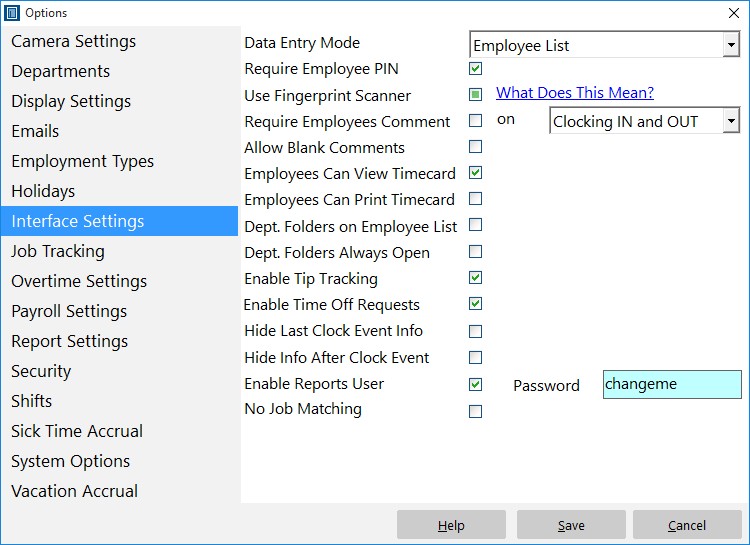
The Interface Settings Screen
This Time Clock MTS How To Article covers how to configure Time Clock MTS to allow your employees to record, track, and report on any tips they receive while working.
To enable employee tip tracking in Time Clock MTS just follow the steps below..
- Log into Time Clock MTS as the administrator. How you log in as the administrator was covered in this Time Clock MTS How To Article.
- Go to the Tools->Options->Interface Settings screen and you’ll be shown the screen at the top of this article.
- Check the Enable Tip Tracking checkbox.
- Select the Employee List Interface option from the Data Entry dropdown. Note that tip tracking does not currently work if you’re using the keypad interface.
- When you’re happy with your selection press the Save button to save the changes.
- Logout of the Time Clock MTS administrator account and you should see the employee time clock screen looking like it does above. Note that the Tips button is now visible. Your employees can now start recording tips received by clicking this button.
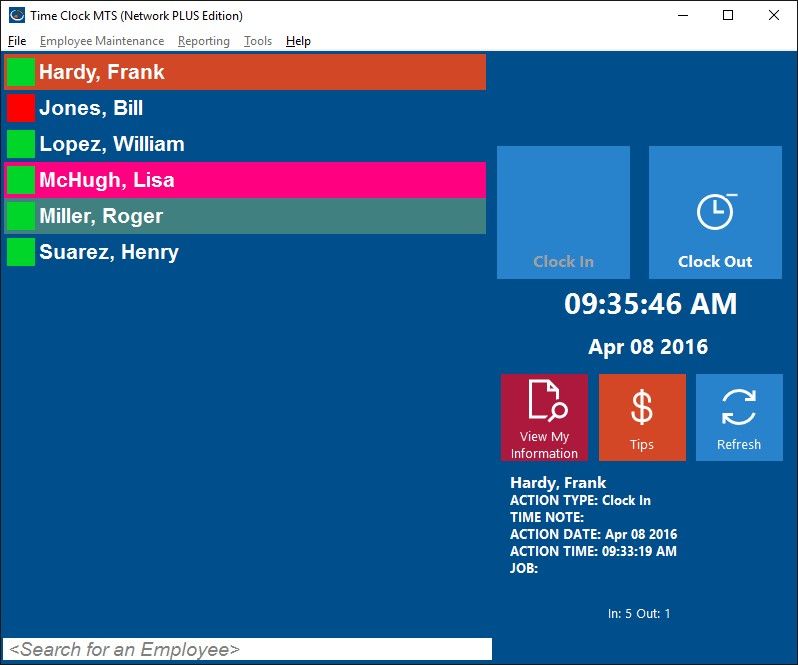
The Employee Time Clock Screen
We’ll cover how to record and report on employee tips in subsequent how to articles.
