
Typically in most companies there will be groups of employees for whom the same payroll and overtime rules apply. To speed up the creation of such employees in Time Clock MTS it is possible to copy an existing employee record to easily create a new one. This Time Clock MTS How To Article covers how to copy a Time Clock MTS employee.
To create a new employee by copying an existing employee just follow the steps below.
- Log into Time Clock MTS as the administrator. How you log in as the administrator was covered in this Time Clock MTS How To Article.
- Click on the employee in the employee list that you want to copy.
- Once you’ve selected the employee you want to copy go to the Employee Maintenance->Copy Selected Employee menu. This is shown in the image above.
- You’ll now be shown the Add Employee screen with all the details from the copied employee filled in already. The only differences will be the name and the employee ID / badge number. All you need to do is set the name to the correct name for the employee and assign them a PIN.
- Once you’ve done these couple of things to your satisfaction just click the Save Employee button to create the new employee record.
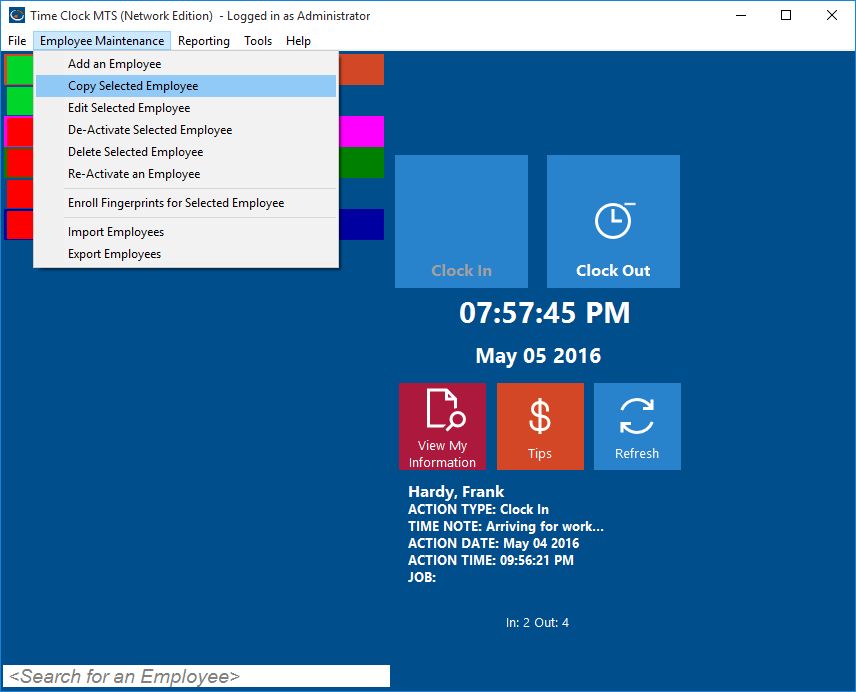
Copying an Employee
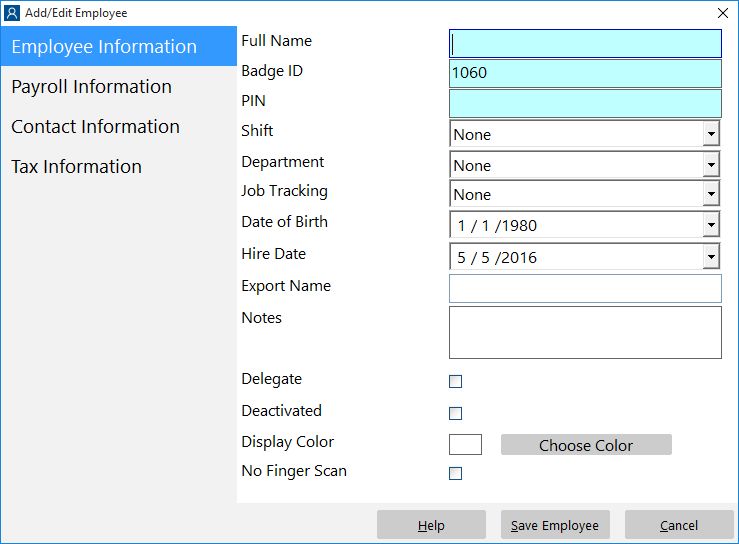
The Copied Employee
That’s all there is to it. To get more detailed help on what each field on each employee sub page does consult the online help file.
