
The employee list interface of Time Clock MTS is simple and easy to use when you have a mouse and keyboard available. However, when the list of employees becomes long it can be a chore to sort through it to find a name to be able to clock in or out. Time Clock MTS Version 2.0.1 introduces a new feature to allow you to easily find a name on the list with just a few keystrokes.
Using the Find Employee Box
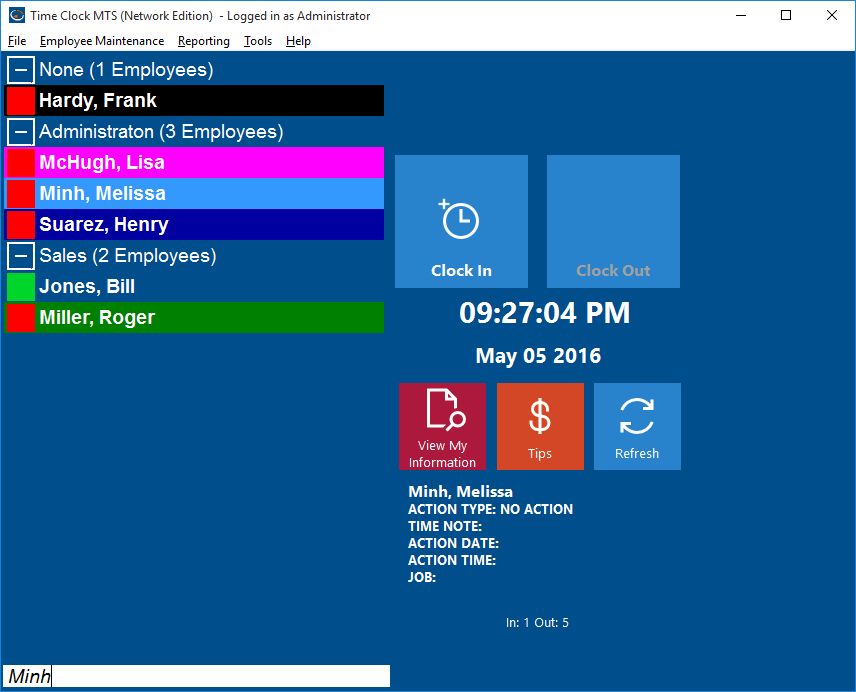
At the bottom of the employee list you can see a light blue colored text box, in its default state this box says <Search for an Employee>. If you type some letters in this box Time Clock MTS will find the first employee in the list whose name starts with those letters, the more letters you type the more refined the search will be.
For example, in the screenshot above lets say you type a ‘M’ into the box, Time Clock MTS will find the first person whose name starts with ‘M’ and select them (in this case McHugh, Lisa). If you then type an ” it will select the first person whose name starts with ‘Mi’ (Minh, Melissa).
If you want to find someone in the list whose name includes (rather than starts with) some text then start the search box with an asterisk (*) and then type the text you want to search for. For example, if you wanted to find someone named “Lisa” in the employee list shown above you’d type “*Lisa” into the search box.
So, if you have a long employee list, and need to find your own name (or someone elses ) quickly and easily, just select the Search for an Employee text box, type in the first few characters of their name, and you’ll be taken to their listing almost immediately.
