by Mark Nemtsas | Jun 14, 2008 | How To
The employee list interface of Time Clock MTS is simple and easy to use when you have a mouse and keyboard available. However, when the list of employees becomes long it can be a chore to sort through it to find a name to be able to clock in or out. Time Clock MTS Version 2.0.1 introduces a new feature to allow you to easily find a name on the list with just a few keystrokes.
Using the Find Employee Box
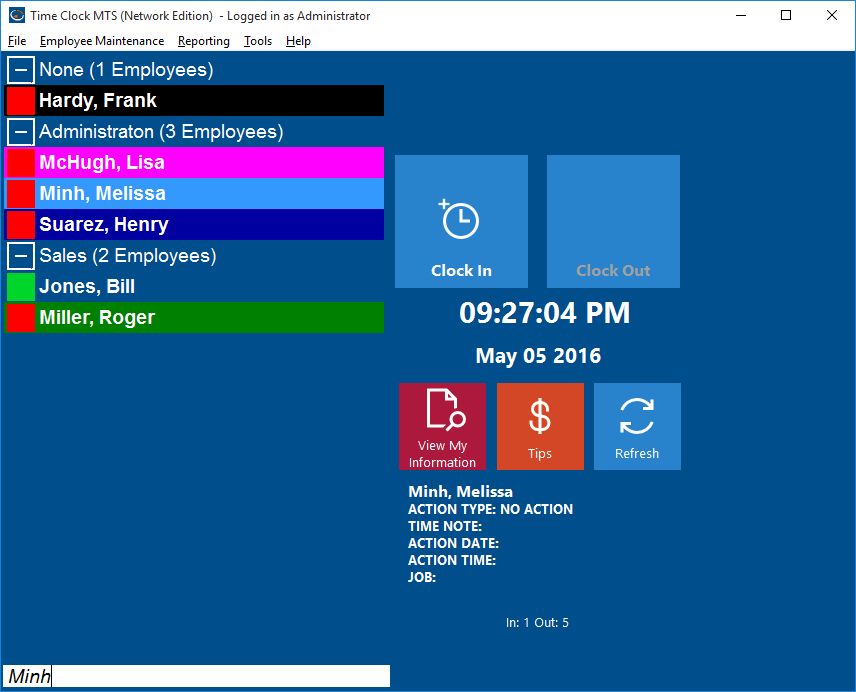
At the bottom of the employee list you can see a light blue colored text box, in its default state this box says <Search for an Employee>. If you type some letters in this box Time Clock MTS will find the first employee in the list whose name starts with those letters, the more letters you type the more refined the search will be.
For example, in the screenshot above lets say you type a ‘M’ into the box, Time Clock MTS will find the first person whose name starts with ‘M’ and select them (in this case McHugh, Lisa). If you then type an ” it will select the first person whose name starts with ‘Mi’ (Minh, Melissa).
If you want to find someone in the list whose name includes (rather than starts with) some text then start the search box with an asterisk (*) and then type the text you want to search for. For example, if you wanted to find someone named “Lisa” in the employee list shown above you’d type “*Lisa” into the search box.
So, if you have a long employee list, and need to find your own name (or someone elses ) quickly and easily, just select the Search for an Employee text box, type in the first few characters of their name, and you’ll be taken to their listing almost immediately.
by Mark Nemtsas | Jun 14, 2008 | How To, New Features, Tips and Tricks
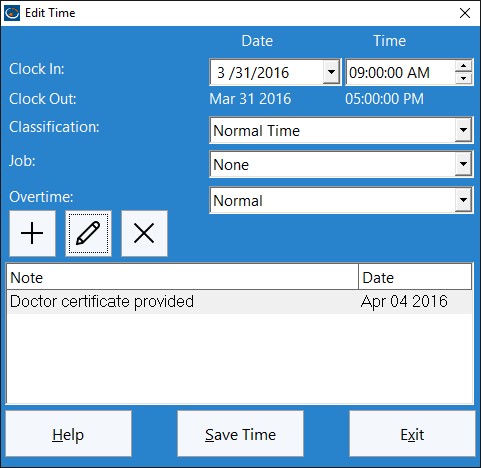
Time Clock MTS Versions 2.0.1 and higher feature a new setting to allow you to exclude a time pair from any overtime calculations. You can do this via the Tools->Edit Times menu. Just select the time pair you want to exclude from overtime calculations and click the Edit Time button and you’ll be shown the Edit Time screen.
The Edit Time Screen
To exclude a time from overtime calculations all you need to do is select the ‘Ignore for Overtime’ option for the time, and click the Save Time button to save the change. For overtime purposes this time will now be ignored for all overtime calculations regardless of other overtime settings. Let’s examine how this would work with some examples.
Example 1
Daily overtime set at 8 hours, weekly overtime limit set at 40 hours. Employee works a 5 day week of 10 hrs, 8 hrs, 8hrs, 8 hrs, and 8 hrs for a total of 42 hrs. The Time Clock MTS Administrator has flagged two hours of day one as ‘Ignore for Overtime’ because the employee was underpaid by two hours last week. Time Clock MTS will report this week as 42 normal hours only.
Example 2
Daily overtime set at 8 hours, weekly overtime limit set at 40 hours. Employee works a 5 day week of 8 hrs, 9 hrs, 9hrs, 8 hrs, and 8 hrs for a total of 42 hrs. The Time Clock MTS Administrator has flagged four hours of day 5 as ‘Ignore for Overtime’ because the employee went home sick during the day, the administrator wants the employee to be paid for these hours but not impact on overtime calculations. Time Clock MTS will report this week as 40 normal hours, and 2 daily overtime hours.
Why Use this Setting?
There are a few reasons why you’d want to make use of this setting:
1. It’s a way of helping administrators fix up underpayments from previous pay periods. You may want to just add a few hours to the current payroll period to make up for hours not paid previously, but you don’t want these added hours to impact on overtime for the current pay period.
2. You don’t want sick time or vacation time to impact on overtime calculations. Example 2 above covers this case.
3. It’s a way of employers paying employees for time they are making up. For example, an arrangement may be reached with an employee to have 4 hours off work one week on the understanding that they will make it up the next week. Of course you don’t want the make up hours to impact on overtime calculations for the second week.
by kathryn@timeclockmts.com | Jun 10, 2008 | New Releases, News
Well Version 2.0.1 is out. I wont talk about it too much here right now. You can read about it on the Official Time Clock MTS Version 2 Release Page or take a look at the Release Notes. Over the course of the next week or so I’ll cover one of the features of the new release in detail here each day, hopefully along with some explanatory screen shots.
A Note to Existing Time Clock MTS Users
If you’re an existing Time Clock MTS user the software will not update itself to Version 2. Because a new registration key is required and not everyone is eligible for a free registration key I decided to make it a manual process. If you want to upgrade to Version 2 you’ll need to download the admin program update installer and the client program update installer. Once you’ve downloaded these just run them on your installations of Time Clock MTS and it will update to Version 2.
Getting Version 2 Registration Keys
You can retrieve your own registration key for Version 2 of the software. You’ll need to know your Version 1 registration key to get it. Don’t worry too much if you cant pull your own registration key from our website, the database has a couple of holes in it that I am trying to fix up. Just send me an email with your current license details and if you’re eligible I’ll send you your Version 2 registration key ASAP.
by kathryn@timeclockmts.com | Jun 10, 2008 | New Releases, News
Time Clock MTS Version 1.7.4 has been released. It has been released in update form only rather than as a full install. This is the last release of version 1 of Time Clock MTS. The only change to the software is a message informing users that it is the last release of Version 1 of the software and to upgrade to Version 2 you’ll need to visit our website.
by Mark Nemtsas | Jun 10, 2008 | New Releases
Time Clock MTS Version 2 was released today. It contains a number of new features to significantly improve the ease of use of the software. These include a quick find box and an at a glance summary of employee attendance on the Employee List Interface. The reporting system has had a complete overhaul. You are now able to configure the format of all reports to your liking, and can choose what information you do and dont want to include in each one. There’s a number of other usability and speed improvements in the software, a completely re-vamped help file, and several bug fixes. For a complete list of changes in the new version take a look at the the release notes and be sure to read the Time Clock MTS Weblog for a detailed explanation of the key new features.
New Users – Getting Time Clock MTS Version 2.0.1
If you’re new to Time Clock MTS you dont need to do anything special to get it. Just download it and install it.
Existing Users – Upgrading to Time Clock MTS Version 2.0.1
Time Clock MTS is a free upgrade to existing Time Clock MTS users if they have a valid support contract. Users with valid support contracts are:
- Those who purchased Time Clock MTS or an upgrade to Time Clock MTS after June 1 2007
- Those who purchased Time Clock MTS or an upgrade before June 1 2007 and chose to renew their support contract in response to the reminder emails we have been sending out over the last several months.
If you are eligible for a free upgrade then you can just download the Time Clock MTS Version 2.0.1 update and install it. Once you run the software you’ll be given the chance to obtain a new license key from within the software itself, or you can do it manually by taking a look at this page.
If you are not eligible for a free upgrade then you can still try out Time Clock MTS Version 2.0.1 for 14 days. If you decide it’s worth the upgrade then you can purchase an upgrade at 50% off of the normal price. Just downgrade to Version 1.7.4.
