by Mark Nemtsas | May 24, 2008 | New Releases, News
Time Clock MTS Version 1.7.3 has been released containing a number of fixes to the recent problems we’ve been seeing with syncing the internal clock with internet time servers.
- The Maryland NIST time servers have stopped supporting the older TIME protocol, and this was the cause of the recent problems Time Clock MTS had with syncing with these servers. We’ve changed the protocol used for these servers to the NIST format.
- Time between queries to NTP Servers has changed to 30 minutes to stop flooding the servers.
- Query time out has reduced to 10 seconds rather than the previous 1 minute, to stop the software locking up on start up for a minute.
- Internet Time Syncing is now turned off by default to prevent this sort of problem for people who are just trialing the software.
by kathryn@timeclockmts.com | May 22, 2008 | News
We have been seeing problems with time synching to the Maryland NTP time servers in the last few days. If you’re seeing problems with this then please our dedicated time server. You can choose the time servers on the Tools->Options->Security page. If you need help choosing our dedicated time server you should take a look here.
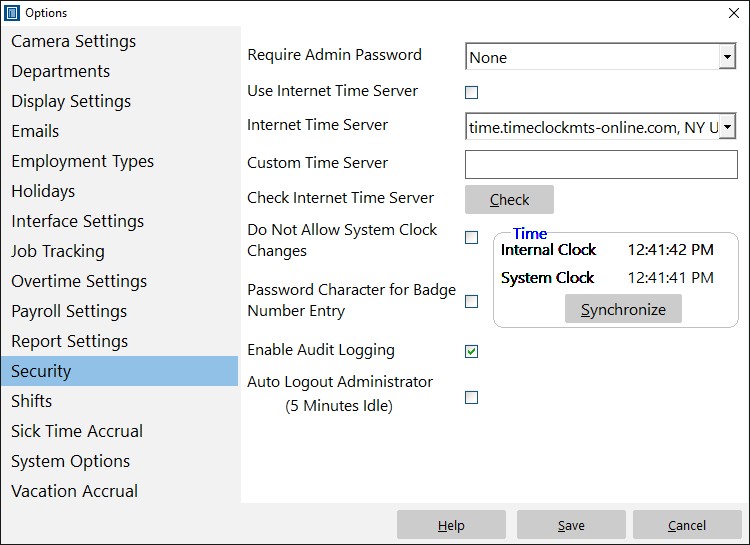
Setup security options here, such as password requirements, time audit logging and use of Internet time servers.
by Mark Nemtsas | May 20, 2008 | New Releases, News
A couple of bugs fixed and some new features added today.
- A setting has been added to allow Time Clock MTS to check for a newer version on software start up. This setting is off by default but can be turned on via the Tools->Options->Interface Settings page. Note that you’ll still need to update the software via the Tools->Check for Updates menu.
- When manually checking for updates and an update is available you’ll now be able to view the release notes for the new version. In fact you’ll be able to view the release notes for every version between the one you are currently running and the latest that is available from us.
- When Excel is not installed and you try to export a report to Excel the software explains that you need Excel to be installed. Formerly it gave a less than explanatory error message.
- Fix to both vacation accruals and sick time accruals. When the delay for an employee to start accruing set to accrue into the future the software calculated accrued sick time / vacation time incorrectly. This is now fixed.
by Mark Nemtsas | May 15, 2008 | New Releases, News
Three new features added to the version released today.
- A new setting has been added to allow all reports to display time activity in hours:minutes:seconds format as well as the old decimal hours format. You can turn this new method of report output on via the Tools->Options->Display Settings->Display Times As screen.
- A new setting has been added to vacation and sick time accruals. This new setting allows you to use the anniversary of an employee’s hire date to reset the vacation or sick time accrual instead of the fiscal year. You can turn this new method of accrual calculation on via the Tools->Options->Sick Time/Vacation Accrual->Use Hire Date not Fiscal Year page.
- A check has been put in place to prevent a second instance of either the Administrator or Client software from running on the same computer.
by kathryn@timeclockmts.com | May 7, 2008 | Tips and Tricks, Using the Software
Time Clock MTS has three levels of user access. That of the normal user or employee who just needs to clock in or out, the reports user, and that of the Administrator who needs to configure Time Clock MTS and run reports. To use Time Clock MTS as the adminstrator you need to log in as the Administrator using a password.
How Is the Administrator Password Set?
The administrator password is set by you when you first install and run the Time Clock MTS Administration program . The screenshot below shows where you enter the administrator password.
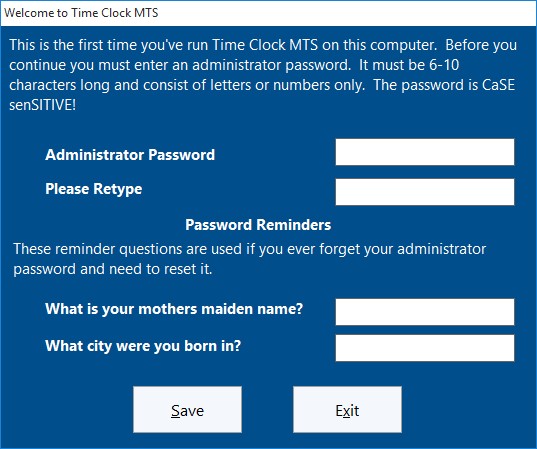
Set Administrator Password
How do I log in as the Administrator?
By simply using the File->Log in as Administrator menu.
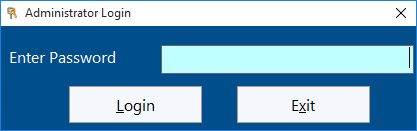
Administrator Login Screen
Can I Change the Administrator Password?
Yes you can change the administrator password any time you like. All you need to do is run the Time Clock MTS Administration program and log in as the administrator. Then go to the Tools->Options->System Options screen. For more help on this try taking a look at the System Options Help Topic.
I’ve Forgotten the Administrator Password What Do I Do?
If you know your password reminder question answers then you can simply reset the administrator password. If you have forgotten everything then you’ll need to send us your Time Clock MTS database so we can reset it for you.
