by kathryn@timeclockmts.com | Sep 23, 2008 | New Releases, News
A minor release today fixing up some problems that were introduced recently by the new setting that allows you set the time of day that your work week starts. Changes made include:
- Fix to the last 7 days selection and the month to date selection on the Edit Times screen. This was broken by the new setting described above.
- Fix to the last month selection on the Edit Times screen. I am not sure this ever worked *oops*.
- Fixed up an issue with the last action text alignment when using the keypad interface.
- Change the way the display last action works when clocking in or out. There were some cases where the incorrect action could be displayed, the new method has eliminated this problem and will result in faster operation and less database access.
by kathryn@timeclockmts.com | Sep 22, 2008 | New Releases, News
A new release of Time Clock MTS today including some new features requested by one of our users. Features added to this new version include:
- The employee list interface can now be completely customized to your local requirements via the Tools->Options->Interface Settings page. The customization will allow you to use non Latin character sets (such as Cyrillic, Korean, Japanese etc).
- The last employee note is now displayed along with the last action action details for the selected employee.
- If you happen to run the Time Clock MTS Client and Administrator program on the same computer you’ll find that the saved window positions are now separate for each program.
- The main Time Clock MTS Window can now be re-sized when you’re using the employee list interface. This will allow you to fill your entire monitor with the Time Clock MTS application.
I’ll cover the customization of the employee list interface in more detail in a subsequent post.
by Mark Nemtsas | Sep 22, 2008 | How To
You can now easily change the main clock in and clock out screen of Time Clock MTS to any language that you like. This is especially useful if your work force does not understand English and you want the software to be as easy as possible for them. You can now configure all of the text on the Time Clock MTS employee list interface to any text or language that you like (including non Latin characters like Japanese, Cyrillic, or Chinese).
To setup Time Clock MTS to use a different language on the employee list interface log in as the administrator and go to the Tools->Options->Display Settings screen. Select the Main Screen Label you want to edit from the drop down box and then enter the text you want to set to be displayed for that item on the Employee List Interface. When you’re done you can get a result like the following images.
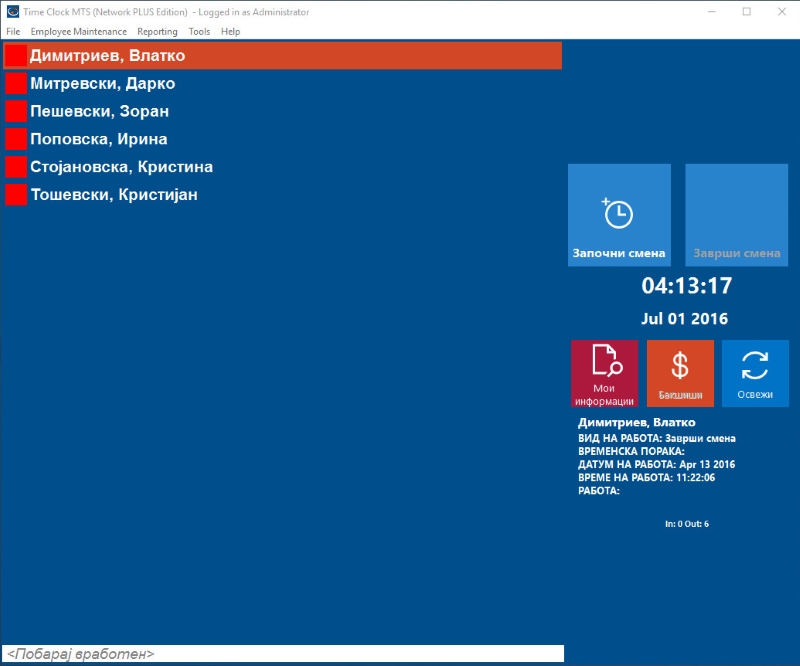
Time Clock MTS translated to Macedonian
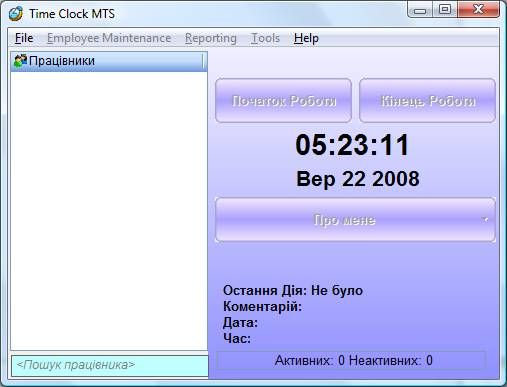
Time Clock MTS Translated to Ukrainian
by kathryn@timeclockmts.com | Sep 13, 2008 | New Releases, News
Some new features were added and minor bug fixes addressed in Version 2.1.0 of Time Clock MTS as released today. Changes made include:
- Users can now set a first day of week start time. So for whatever reason, you can have your work week (and all calculations) start at 9:00AM on Mondays if you require.
- You can now set any day of the week to be paid as overtime, so for example Sundays could be set to be paid as overtime if required. Note that clock ins or outs can be excluded from these calculations if you use the Exclude From Overtime setting on the Edit Times screen. Overtime will not be doubled up though, even if daily overtime limits are exceeded on a day paid as overtime.
- Employee name field on employee maintenance page now will display double byte characters (Cyrillic, Japanese etc).
- Employee badge number cannot be entered as a note. This is to prevent double scans of mag cards or barcodes while using the keypad interface.
- Fix to employee note screen that gave an unhandled error after a zero length note was entered.
by Mark Nemtsas | Sep 10, 2008 | Tips and Tricks, Using the Software
In the last weblog entry about time clock software and magnetic card readers I talked about using Time Clock MTS without a keyboard and using magnetic swipe cards to interact with this. In this entry I’ll cover the user of bar code readers with Time Clock MTS.
Bar codes allow the storing of normal text data in printed form and the data can be read by a bar code reader very quickly, and most importantly, reliably. Bar codes themselves can be printed from a normal printer on any computer, all you need is a bar code font package (which are very inexpensive) and then you’ll be able to print bar codes from various specialized applications or even from MS Word or Excel. The bar codes themselves can user different formats (such as Code 128, Code 25, or Pharmacode), but which one is used doesn’t matter much to Time Clock MTS.
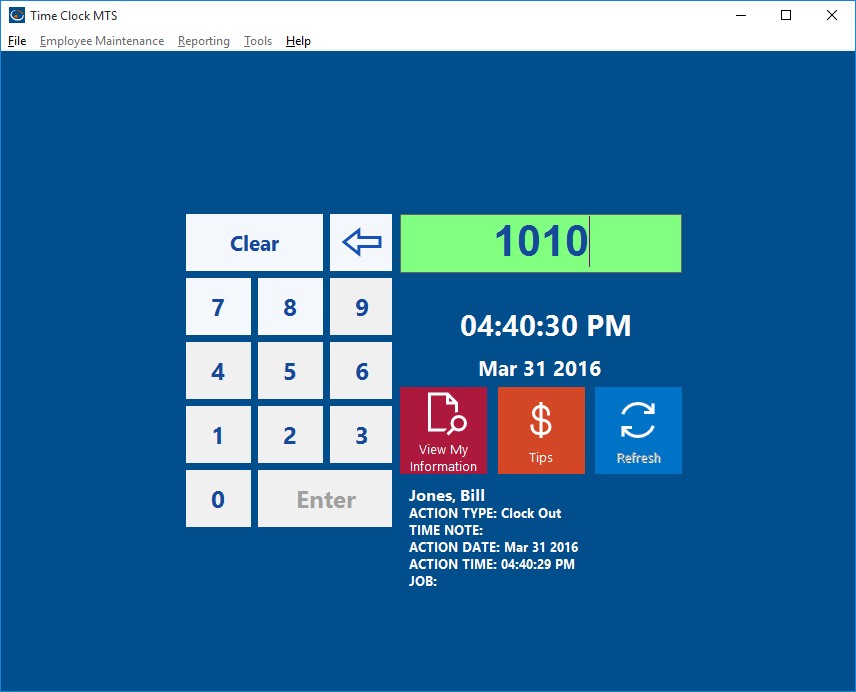
The Keypad Interface
You can use Time Clock MTS with a bar code scanner whether you’re using the Keypad Interface (see image above) or the Employee List Interface. This article deals with the setup required for the Keypad Interface and but if you want to use a barcode scanner with the Employee List Interface you should follow the detailed instructions show in this article instead.
Similar to magnetic card readers, the simplest bar code readers can plug into the keyboard port (PS2 Port) or USB port of a PC and output characters to the PC in exactly the same manner as a keyboard would. If your reader can’t do this then you’ll most likely find that it comes with some software that once installed allows it to output data to your computer like a keyboard. In addition, like a mag card reader they will usually put a return character at the end of the stream of data they read to signify that they have finished reading the information from the bar code. So, if you setup Time Clock MTS to use the Keypad Interface and you use a barcode reader to scan in the badge number of an employee then you’ll be able to clock them in or out very quickly and easily.
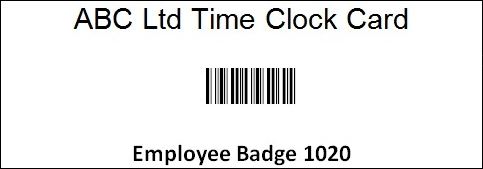
Example of a Simple Barcode Badge
Here’s some basic steps to take when wanting to setup Time Clock MTS with a barcode reader:
- Look for a bar code reader reader that can plug into the keyboard port (PS2) or USB port of your PC and output text exactly like a keyboard. This is typically known as a reader with a keyboard wedge. If your scanner doesn’t come with a keyboard wedge then it will most likely come with some software that once installed allows it to act as a keyboard, which is known as a software wedge.
- Get a reader that can output a return (or line feed) character at the end of the stream of read data, most will do this by default or you will be able to configure them to do so.
- Get some card stock printed up with your barcodes that are encoded with the Time Clock MTS Badge/Employee ID’s. These ID’s are setup on the Employee Information Screen. It doesn’t matter much with bar code format you use, but make sure your bar code reader can read it, Code 25 or Code 128 are good choices. It may be a good idea to get the cards laminated to extend their useful life.
- Stick to the default employee numbering in Time Clock MTS (which starts at 1000 and increments by 10 for each new employee). This will allow you to pre-print a number of cards that can be used as your company expands. So your cards would be encoded with the numbers 1000, 1010, 1020 etc etc.
Further reading see our entry on a barcode employee attendance system for under $250.
