« May 2008 | Main | July 2008 »
June 26, 2008
Time Clock MTS Version 2.0.3 Released
Just a minor release today. For some reason the default settings for report section templates we not being set. This is now fixed.

Posted by mnemtsas at 11:19 AM | Comments (0)
June 20, 2008
Using a Webcam with your Time Clock Software
A key problem with any time clock system is that of employees that clock in and out for each other. This is known as 'buddy punching' and is the main method by which employees try to manipulate their time card information. The use of magnetic cards, proximity devices, and PINs can help reduce buddy punching, but of course it does not prevent employees sharing their card, prox device, or even their PIN with a co-worker and still providing fraudulent data.
There are a couple of ways of eliminating buddy punching, one of these is capturing an employee image at the time of clocking or out. Using a computer along with Time Clock MTS and cheaply available web cameras allows you to have a very secure time and attendance solution that can largely eliminate buddy punching and help reduce your payroll costs accordingly.
Camera Hardware Requirements
You don't need anything special to allow Time Clock MTS to capture images when employees clock in and out. Time Clock MTS will work with almost any sort of USB web camera, if your version of MS Windows can detect your web camera then Time Clock MTS can probably use it.
Software Requirements
There are no additional software requirements, if you have Time Clock MTS Version 2.0.2 or newer then you have all the software you require to use a camera with Time Clock MTS. You can always download Time Clock MTS from here.
Setting Up Time Clock MTS to Use a Web Camera
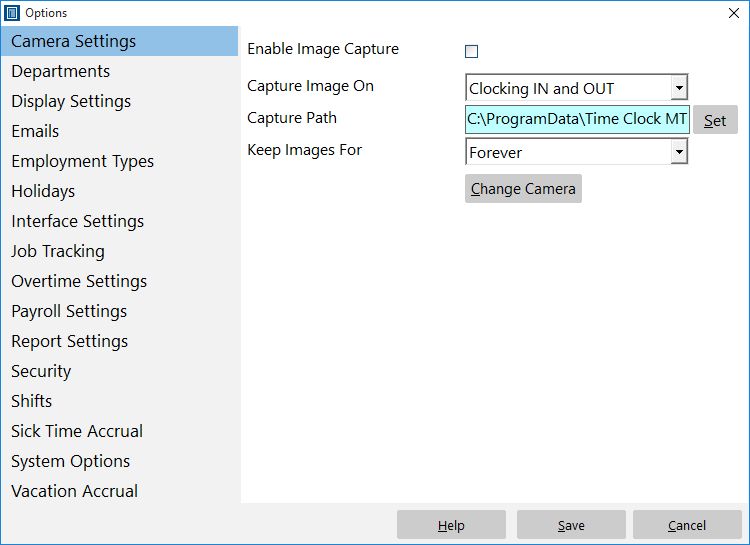
Just make sure your web camera is plugged into your computer and then run Time Clock MTS and log in as the administrator. Go to the Tools->Options->Camera Settings page. You'll see the following screen:

If your camera is connected properly and is accessible by Time Clock MTS just check the Enable Image Capture check box. See below for a range of configuration options to setup image capture to suit your requirements:
- You can decide when you want to capture images (clock in, clock out or clock in and out), it is recommended that you capture images on both events for maximum security.
- The image capture location can be easily set using the Set button. By default it will have the location set to the same directory that your Time Clock MTS database is stored in.
- Because captured images take up disk space you may decide to only keep the recorded images for a certain amount of time. Time Clock MTS can delete older images based on their age, you can decide to keep images for a week, a month, 6 months, or forever.
- If you have more than one camera attached to your Time Clock MTS computer you can choose which one to use by clicking the Select Camera button. Time Clock MTS will default to the first camera attached to your computer if the selected camera is no longer attached to the PC.
- Currently Time Clock MTS captures images into BMP format, which means that for bigger images the file size can be quite large. To help combat this you can select the captured image size by clicking the Select Image Size button. It is recommended you choose the smallest available capture size.
Viewing Captured Images
If you suspect that buddy punching is going on in your work place then you can view captured images easily from within Time Clock MTS. While you are logged in as the administrator go to the Tools->Edit Times screen.
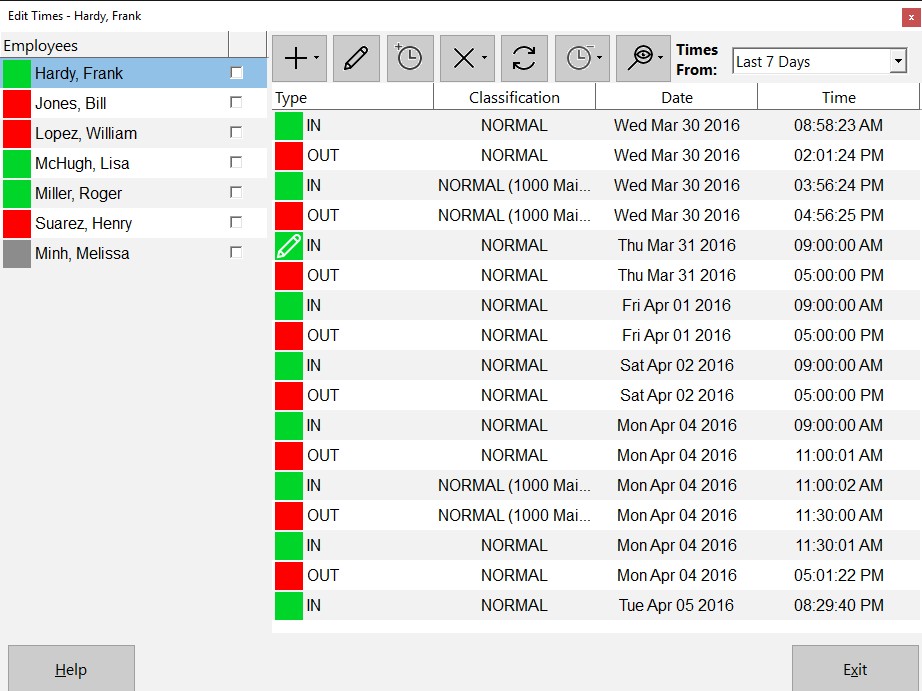
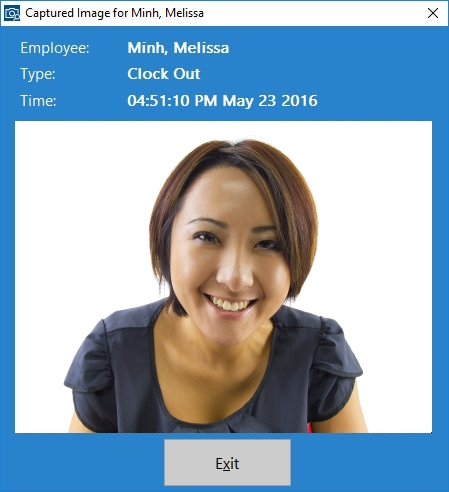
You will see a button in the toolbar above the list of times with a camera icon on it. Just select the time you wish to view the captured image for, and then click the camera button. You'll then be shown the following screen showing your captured image along with the clock in/out and user details that are associated with the captured image.

(In case you're wondering no that's not me!)
That's all there is to it. If you have a web camera and want to ensure that your time clock information is secure and accurate then I'd strongly recommend using this feature to help reduce your payroll costs!
Posted by mnemtsas at 8:15 AM | Comments (0)
June 19, 2008
Time Clock MTS Version 2.0.2 Released
I've just released Version 2.0.2 which contains a number of fixes to problems introduced by the last release plus adds one major new feature. Changes made include:
- A new security feature which allows you to use a camera attached to any Time Clock MTS computer to capture an image when users clock in or clock out. Administrators can then view the captured image associated with a clock in or out and verify that the correct person performed the action. This should allow you to stop buddy punching.
- A fix to the Version 2 database updates for SQL Server and MySQL that didn't work correctly.
- Fix to the last action display text to allow non English characters to be displayed.
Posted by mnemtsas at 6:57 AM | Comments (0)
June 18, 2008
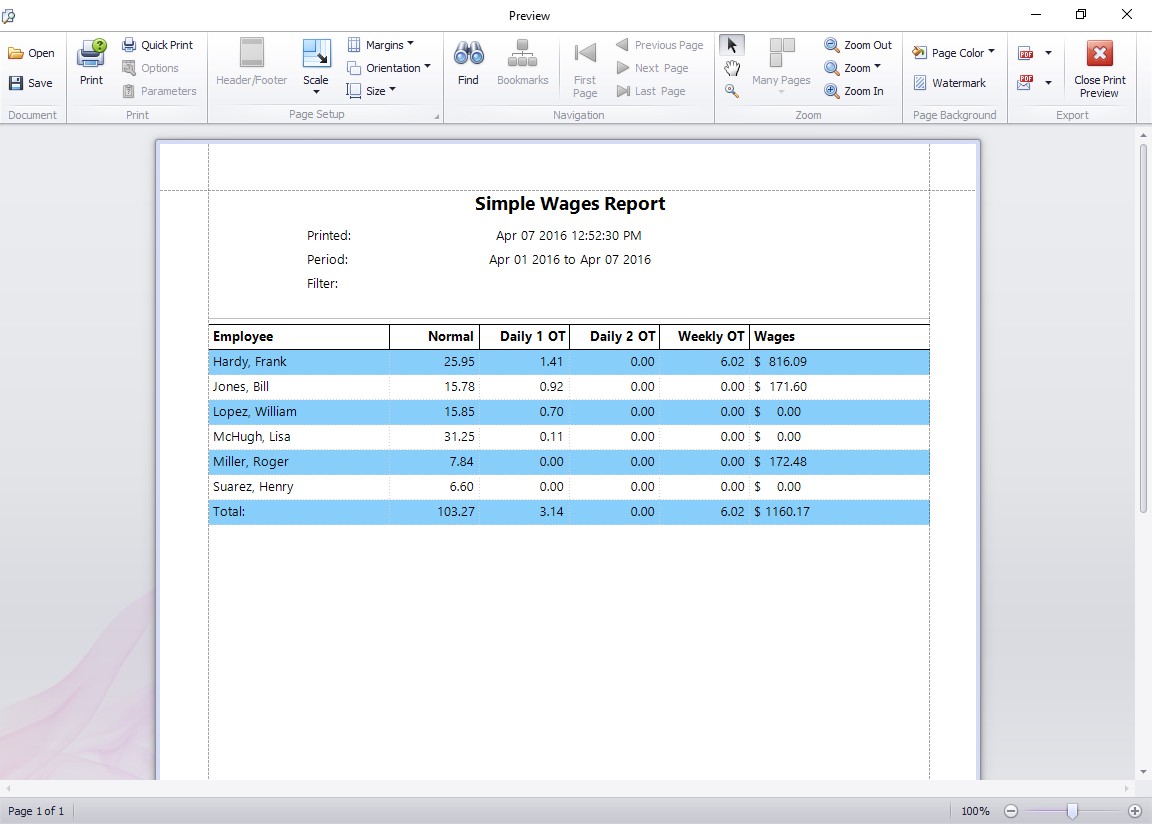
The Simple Wages Report
The Simple Wages Report is a new addition to Version to of Time Clock MTS.
Available from the report configuration screen gives a simple summary of activity across a time period. The summary is a simple line per employee. You can see at a glance the hours worked for the week, the hours of daily overtime, and the hours of weekly overtime. Total salary payable is also displayed.
This report is useful for supply to payroll departments for entry into payroll software, or even as a simple management report that gives key information without too much detail.
Posted by mnemtsas at 11:26 AM | Comments (0)
June 17, 2008
Creating Employees the Easy Way
One change to Time Clock MTS is simply a new item added to the Employee Maintenance menu. This deceptively simple menu item Copy Selected Employee fixes up one of the most common complaints I had about Time Clock MTS. Usually the complaint went something like this:
"How can I add employees to Time Clock MTS without having to type in all the details for every single one?"
Well, prior to Version 2, the answer to this question was you just can't add a number of employees quickly and easily. Right though, with the addition of the menu item above the job of adding many employees to Time Clock MTS has suddenly become a lot easier.
Here's how to quickly add an employee using another employee record as a template:
- Add the employee you want to use as a template, give them all the settings you require including payroll, assigning to a department, a shift, and whatever else you need. For the sake of this example we'll call this employee 'John Smith'.
- Select the employee 'John Smith' in the employee list and then select the Employee Maintenance->Copy Selected Employee menu item.
- The employee maintenance screen will now been displayed with all the details already filled in, the name of the employee will be set to 'Copy of John Smith'. All you need to do now is edit the details you want to change for this employee (such as the name, address, and PIN) and in just a few seconds you've created a new fully configured employee.
Posted by mnemtsas at 7:23 AM | Comments (0)
June 14, 2008
Easily Finding Employees on the Employee List Interface
The employee list interface of Time Clock MTS is simple and easy to use when you have a mouse and keyboard available. However, when the list of employees becomes long it can be a chore to sort through it to find a name to be able to clock in or out. Time Clock MTS Version 2.0.1 introduces a new feature to allow you to easily find a name on the list with just a few keystrokes.

At the bottom of the employee list you can see a light blue colored text box, in its default state this box says <Search for an Employee>. If you type some letters in this box Time Clock MTS will find the first employee in the list whose name starts with those letters, the more letters you type the more refined the search will be.
For example, in the screenshot above lets say you type a 'J' into the box, Time Clock MTS will find the first person whose name starts with 'J' and select them (in this case John Smith). If you then type an 'o' it will select the first person whose name starts with 'Jo' (again John Smith). If you refine the search further by entering a 's' it will select the first person whose name starts with a 'Jos' (this time Jose Martinez is selected).
So, if you have a long employee list, and need to find your own name (or someone elses ) quickly and easily, just select the Search for an Employee text box, type in the first few characters of their name, and you'll be taken to their listing almost immediately.
Posted by mnemtsas at 3:46 PM | Comments (0)
June 12, 2008
Excluding Times from Overtime Calculations
Time Clock MTS Versions 2.0.1 and higher feature a new setting to allow you to exclude a time pair from any overtime calculations. You can do this via the Tools->Edit Times menu. Just select the time pair you want to exclude from overtime calculations and click the Edit Time button and you'll be shown the Edit Time screen.

To exclude a time from overtime calculations all you need to do is select the 'Ignore for Overtime' option for the time, and click the Save Time button to save the change. For overtime purposes this time will now be ignored for all overtime calculations regardless of other overtime settings. Let's examine how this would work with some examples.
Example 1
Daily overtime set at 8 hours, weekly overtime limit set at 40 hours. Employee works a 5 day week of 10 hrs, 8 hrs, 8hrs, 8 hrs, and 8 hrs for a total of 42 hrs. The Time Clock MTS Administrator has flagged two hours of day one as 'Ignore for Overtime' because the employee was underpaid by two hours last week. Time Clock MTS will report this week as 42 normal hours only.
Example 2
Daily overtime set at 8 hours, weekly overtime limit set at 40 hours. Employee works a 5 day week of 8 hrs, 9 hrs, 9hrs, 8 hrs, and 8 hrs for a total of 42 hrs. The Time Clock MTS Administrator has flagged four hours of day 5 as 'Ignore for Overtime' because the employee went home sick during the day, the administrator wants the employee to be paid for these hours but not impact on overtime calculations. Time Clock MTS will report this week as 40 normal hours, and 2 daily overtime hours.
Why Use this Setting?
There are a few reasons why you'd want to make use of this setting:
1. It's a way of helping administrators fix up underpayments from previous pay periods. You may want to just add a few hours to the current payroll period to make up for hours not paid previously, but you don't want these added hours to impact on overtime for the current pay period.
2. You don't want sick time or vacation time to impact on overtime calculations. Example 2 above covers this case.
3. It's a way of employers paying employees for time they are making up. For example, an arrangement may be reached with an employee to have 4 hours off work one week on the understanding that they will make it up the next week. Of course you don't want the make up hours to impact on overtime calculations for the second week.
Posted by mnemtsas at 1:15 PM | Comments (0)
June 11, 2008
Forcing Time to be Paid as Overtime
Time Clock MTS Versions 2.0.1 and higher include a new setting to allow you to force a time pair to be paid as overtime. You can do this via the Tools->Edit Times menu. Just select the time pair you want to force as overtime and click the Edit Time button and you'll be shown the Edit Time screen.

To force a time to be paid as overtime all you need to do is select the 'Force Overtime' option for the time, and click the Save Time button to save the change. For overtime purposes this time will now be forced to be paid as overtime regardless of other overtime settings. Let's examine how this would work with some examples.
Example 1
No daily overtime, weekly overtime limit set at 40 hours. Employee works a 5 day week of 8 hrs, 8 hrs, 8hrs, 8 hrs, and 6 hrs for a total of 38 hrs. The last day of 6 hours happens to fall on a holiday for which the employee is entitled to overtime rates. The Time Clock MTS Administrator has flagged the time pair as 'Force Overtime'. Time Clock MTS will report this week as 32 normal hours, and 6 hours of daily over time.
Example 2
No daily overtime, weekly overtime limit set at 40 hours. Employee works a 5 day week of 9hrs, 9 hrs, 8hrs, 8 hrs, and 8 hrs for a total of 42 hrs. The employee has agreed to fill in for someone else for 4 hours on the last day and the employer has agreed to pay them overtime rates for doing this. The Time Clock MTS Administrator has flagged the time pair as 'Force Overtime'. Time Clock MTS will report this week as 36 normal hours, with 4 hours of daily over time on day 5, and 2 hours of weekly overtime on day 5. You can see in this case the employee still gets their weekly overtime entitlements as well as the time forced as overtime.
Why Use this Setting?
There are a few reasons why you'd want to make use of this setting:
- It's a way of giving employees overtime rates on holidays. Many employers do not pay employees for holidays not worked, but if the employee does work on the holiday they are entitled to overtime rates. The holiday pay system in Time Clock MTS wont handle this sort of system by default, so this new setting is a way of achieving what is required.
- You may have some sort of overtime regime that is not handled properly by Time Clock MTS, this new setting pretty much allows you infiinite flexibility to assign any amount of time to be paid as overtime.
- It allows for ad-hoc agreements between employers and employees. For example, you might not have an overtime policy but sometimes agree to pay employees at a higher rate for doing extra work, for performing unusual duties, or simply as a method of rewarding them.
Next time I'll take a look at the other new overtime setting for individual times, the 'Ignore for Overtime' setting.
Posted by mnemtsas at 11:58 AM | Comments (0)
June 10, 2008
Time Clock MTS Version 2.0.1 Released
Well Version 2.0.1 is out. I wont talk about it too much here right now. You can read about it on the Official Time Clock MTS Version 2 Release Page or take a look at the Release Notes. Over the course of the next week or so I'll cover one of the features of the new release in detail here each day, hopefully along with some explanatory screen shots.
A Note to Existing Time Clock MTS Users
If you're an existing Time Clock MTS user the software will not update itself to Version 2. Because a new registration key is required and not everyone is eligible for a free registration key I decided to make it a manual process. If you want to upgrade to Version 2 you'll need to download the admin program update installer and the client program update installer. Once you've downloaded these just run them on your installations of Time Clock MTS and it will update to Version 2.
Getting Version 2 Registration Keys
You can retrieve your own registration key for Version 2 of the software. You'll need to know your Version 1 registration key to get it. Don't worry too much if you cant pull your own registration key from our website, the database has a couple of holes in it that I am trying to fix up. Just send me an email with your current license details and if you're eligible I'll send you your Version 2 registration key ASAP.
Posted by mnemtsas at 7:55 PM | Comments (0)
Time Clock MTS Version 1.7.4 Released
Time Clock MTS Version 1.7.4 has been released. It has been released in update form only rather than as a full install. This is the last release of version 1 of Time Clock MTS. The only change to the software is a message informing users that it is the last release of Version 1 of the software and to upgrade to Version 2 you'll need to visit our website.
Posted by mnemtsas at 10:59 AM | Comments (0)
June 8, 2008
Time Clock MTS Version 2 Release Imminent
In the next few days I'll be releasing the first build of Time Clock MTS Version 2. This will contain a number of new features to make the software a lot easier to use. It will also contain a major re-vamp of the reporting area to allow you to configure all reports to suit your exact requirements. The second build of Version 2 will contain a powerful new security feature to help eliminate buddy punching. The third build will add the ability for Time Clock MTS to operate over the web, so soon you'll be able to collect data anywhere with an internet connection and process it centrally in your head office! Stay tuned for these new releases in the upcoming weeks.
On an administrative and commercial note Version 1 license keys will not function with Time Clock MTS Version 2. However, anyone who has purchased the software within 12 months of June 1 2008 or has purchased an update to their support contract will be eligible for a free upgrade. Users who do not have a valid support contract or purchased outside of this time period will be eligible for a 50% discount on purchasing Time Clock MTS Version 2 licenses. I've tried to make this upgrade process as painless as possible but of course there will be hiccups and I apologize in advance for this. You can already see if you're eligible for a free upgrade by taking a look at the Get Time Clock MTS Version 2 License Key Page. Just paste your Time Clock MTS license key into the text box on this page and click the button and you'll be told all you need to know. By the way don't try to use the Version 2 license key in Version 1 of the software, it wont work!
Posted by mnemtsas at 11:02 AM | Comments (0)