by Mark Nemtsas | Jul 9, 2008 | How To, Tips and Tricks, Using the Software
Version 2 of Time Clock MTS included a complete re-work of the way reports functioned, and allowed you do configure the appearance of reports to suit your requirements. In this weblog entry I’ll cover the basic elements of customizing reports, in subsequent entries I’ll take a look in detail each aspect of doing so.
Report Structure
Each Time Clock MTS report has the same basic structure, this is best illustrated by the following simple diagram.
<Report Header>
<Company Header>
<Employee Header>
<Employee Details>
<Report Data>
<Employee Summary>
<Employee Accruals>
<Payroll Information>
The first 2 report sections are displayed once per report, the last 6 sections are displayed for each employee you choose to run the report on. All of these report sections except the <Report Data> section can be customized to your requirements. The report data section contains the data for the report that you are currently running.
How Are Report Sections Customized?
Reports are customized by configuring each report section using the Tools->Options->Report Settings page.
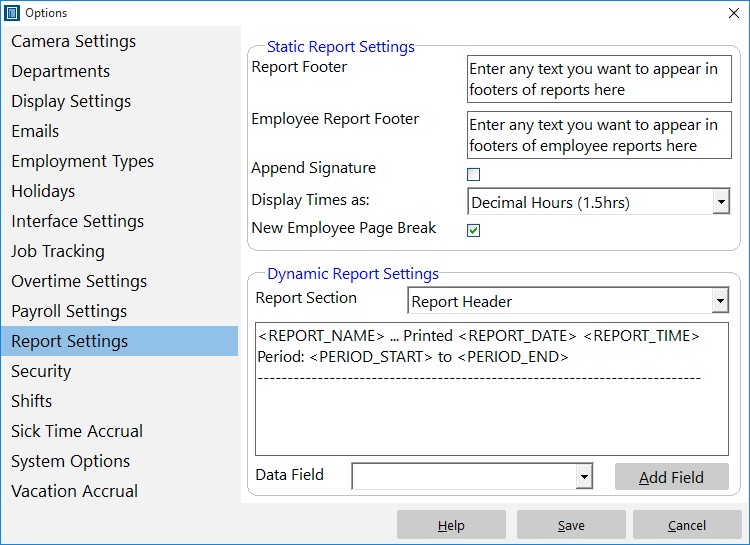
Control how reports are formatted to suit your requirements.
You can read more about this page in the Report Settings help topic. In basic terms you use this screen to customize report sections by selecting a report section, and configuring the section template using either free text or by inserting data fields using the Add Field button and drop down.
What is a Section Template?
A section template is simply the text that defines the format of a Report Section. A section template can contain any text you like and can contain Data Fields. Each section template has a number of Data Fields that can be added to it.
What is a Data Field?
A Data Field is text that can be included in a section template that is automatically replaced by Time Clock MTS when reports are generated. For example, if you include the Data Field in your section template it will be replaced by the name of the report when your report is run.
Next time, in part 2 of report customization I’ll cover some of the report sections and the data fields that are available to each.
by Mark Nemtsas | Jul 2, 2008 | Tips and Tricks, Using the Software
A common question I get is how exactly does payroll time rounding work? So I thought it would be worthwhile to cover it in some more detail to help Time Clock MTS users.
How is Report Rounding Turned On?
You can turn on report rounding on the Tools->Options->Payroll Settings page. For more information take a look at the Time Clock MTS Payroll Settings help topic.
How Does Rounding Work?
Rounding is applied to time information at report time only. The rounding used is just normal arithmetic rounding. Here’s an example, let’s say we have the time rounding set to 15 minutes and the normal clock in time for your employees is 7:30 AM. In this example, anything on or before 7:37:29 AM is rounded down to 7:30 AM, and anything on or after 7:37:30 is rounded up to 7:45 AM.
What Does the Least Quantity Checkbox Do?
Checking this box over-rides the rounding scheme as shown above. The most basic way of explaining it is that all clock ins are ROUNDED UP and all clock outs are ROUNDED DOWN. So, in our example above any employee clocking in after 7:30:00 AM will have their time rounded up to 7:45:00 AM. Let’s say the normal clock out time for the above example is 4:30:00 PM. When the Least Quantity check box is marked, any employee clocking out between 4:30:01 PM and 4:44:59 PM will have their clock out time rounded down to 4:30:00 PM. The practical effect of the Least Quantity check box is that the hours worked are minimized.
What Effect Does Rounding Have on Stored Time Information?
None, clock in and clock out data is still stored to the nearest second, the rounding takes effect when you run a report. In fact, you can now generate reports and suppress the rounding so you can view your raw time information. To do this all you need to do is check the Turn Off Rounding checkbox on the Report Configuration screen.
Why Would you use Time Rounding?
To comply with either your workplace payroll rules or government payroll regulations. A lot of workplaces have a minimum amount of payable overtime, so rounding can be easily used to prevent employees accumulating small amounts of overtime by clocking in slightly early, or clocking out slightly late. Another reason could be to allow for some leeway in clocking in or out, clearly not everyone can clock in exactly on time so time rounding allows for this. For example, Californian labor law allows for some leeway in rounding of time, allowing employers to not pay overtime for employees who clock in slightly early or out slightly late (provided they are not actually working of course).
That about sums it all up, if you have any questions, as always post a comment or email us.
