by Mark Nemtsas | Nov 27, 2008 | News
We’ve released a new version of Time Clock MTS today. All of the new features are focused on improving the usability of the software.
- I’ve added two administrator password reminder questions. You can either answer these when you first install the software or on the Tools->Options->System Options screen.
- An administrator password reset screen has been added on the File->Reset Administrator Password menu. You can use this screen if you’ve answered the password reminder questions mentioned above.
- Added links to various help topics on the Time Clock MTS website on various screens. For example, added a link to the software registration tutorial on the Help->Registration page.
- Added a link to the online help on the Help menu. This is a work-around for users who don’t seem to be able to view the integrated help.
- Expanded the contents of the tips file.
- There is now a link to the integrated help file installed in the program shortcut menu when you install the software.
I’ll be doing a more comprehensive post on the reset password feature later today. Stay tuned!
by kathryn@timeclockmts.com | Nov 7, 2008 | New Releases, News
Just one small change today. A new setting has been added to shifts allowing you to restrict when employees can start clocking in for that shift. It’s a change that is worthy of it’s own post. You can read more about stopping employees clocking too early for their shifts.
by Mark Nemtsas | Nov 7, 2008 | How To, Tips and Tricks, Using the Software
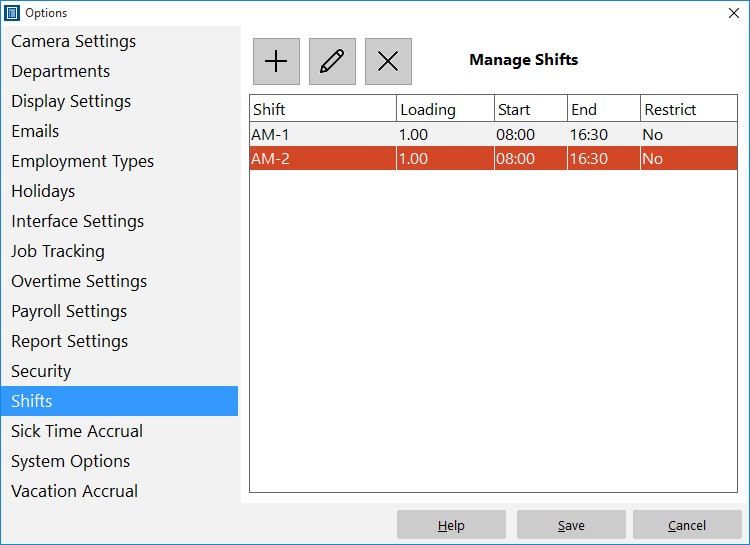
Add, edit, and delete shifts.
Time Clock MTS has a system built in to prevent employees punching in too early. To set this up you must be logged in as the time clock administrator and then navigate to the Tools->Options->Shifts page (see image above and the shifts help topic). Click the new shift  button and you’ll be taken to the Add/Edit shift screen as shown below.

Shifts can be used to control when employees can punch in.
At the bottom of this screen you can see the new setting Restrict First Clock in to XX before shift. All you need to do is make a selection of None, 1 minute, 6 minutes, 15 minutes, and 30 minutes from the drop down. Obviously if you select none then there will be no restriction on when an employee can clock in. However, if you select one of the time limits then any employee assigned to that particular shift will be prevented from clock in any earlier that the chosen limit before the shift start time. So, for example, in the shift above, any employee will not be able to clock in any earlier than 7.30AM.
The clock in must be the first one of the day for the restriction to take effect.
