
Recording Sick and Vacation Time
In some previous tutorials we learned about Sick Time Accruals and Vacation Accruals. This tutorial will lead you through the process of actually recording taken sick and vacation time against an employee.
The Edit Times Screen
Firstly let’s log into Time Clock MTS and go to the Tools->Edit Times screen.
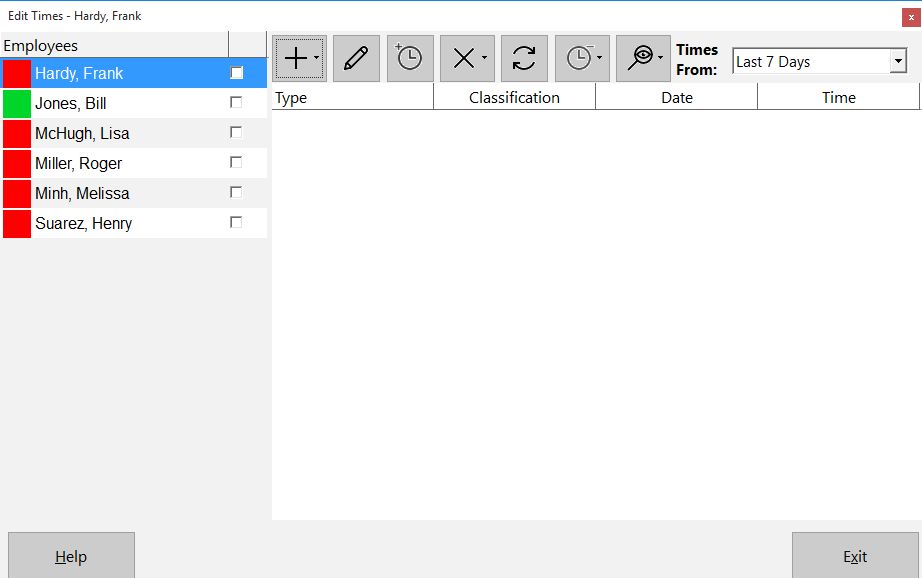
The Edit Times Screen
On this screen you can see a list of employees down the left and their recorded times on the right. If you want more information on how to use this screen take a look at the Edit Times help topic.
Add a Time
Select the employee in the list you want to add sick or vacation time for. Then click the  button to add a time pair for that employee. You will then be shown the Add Time screen.
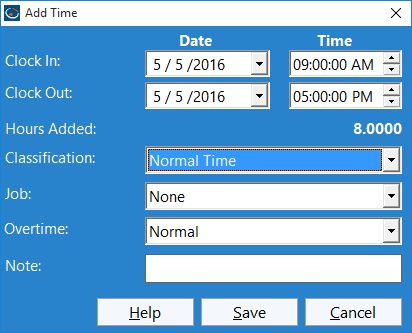
Adding Time Punches
Let’s take a look at this screen. You can see a start date and time for the time pair and an end date and time for the time pair. You can also see a time classification box. If an employee is setup to accrue sick or vacation time this is where you can select the time type. If you can’t see the time type you are looking for in this dropdown it’s because the employee is not setup to accrue it.
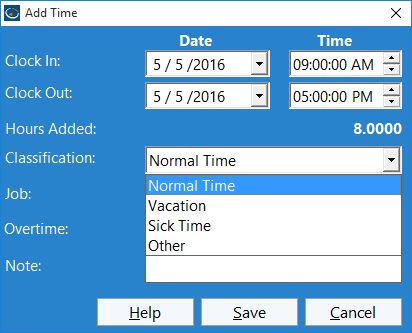
Selecting a Time Classification
We’ll go ahead and create some sick time and for reference we’ll also add a note reminding ourselves of why we did this.
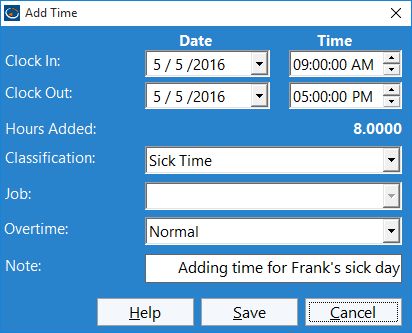
Adding a Sick Day
When happy we can now click the Save Time button and this will add the time. The new time is visible when we are returned to the edit times screen.
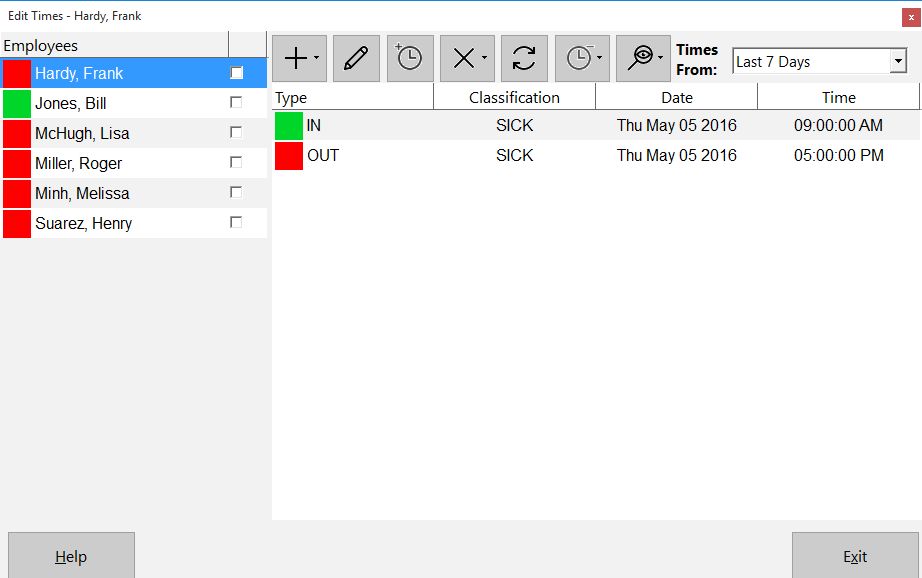
The Sick Day is Added
Conclusions
We now know how to setup employees to accrue sick and vacation time, and then record taken sick and vacation time. The last step is to report on it. This is a subject for another day.
Time Clock MTS
The Easy Time Recording System
Time Clock MTS
The easy to use time recording software with a fully functional 30 day trial.
Buy Time Clock MTS
Purchase a registration key from our online shop. Only buy once, no monthly fees.
