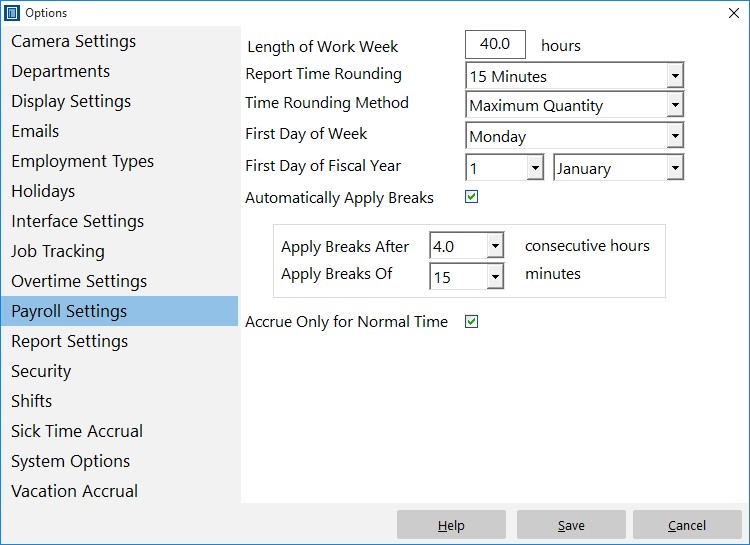
The payroll settings page is where you can define your global payroll rules. It can be found via Tools->Options->Payroll Settings. Here you can define when and how overtime is calculated, whether to round time, what the work week comprises, and automatic break application. For more information please see the following table:
| Length of Work Week | Enter the length of your work week here. This is used to calculate the equivalent hourly rate for salaried employees. |
| Report Time Rounding | Select an option here if you want to use rounding for reporting purposes. You can round to the nearest minute, 1/10th of an hour, 7.5 minutes, 15 minutes, or 30 minutes. The actual roudning method is determined by what is selected in the Time Rounding Method dropdown. Fo example, if you have the rounding set to 30 minutes and the NORMAL rounding method selected and someone punches in before 8:45:00 AM their time will be rounded down to 8:30:00AM. If someone clocks in on or after 8:45:00AM their time will be rounded up to 9:00:00AM. |
| Time Rounding Method | If you've chosen to round time punches on reports then you can choose from four different rounding methods. The first is NORMAL which is normal arithmetic rounding to the increment specified above. The second type of rounding is MINIMUM QUANTITY which will result in all IN punches being rounded up and all OUT punches being rounded down to the nearest increment. The third type is MAXIMUM QUANTITY which will result in all IN punches being rounded down and all OUT punches being rounded up to the nearest increment. The final rounding method is Seven Eight 15 Minute. This method only applies to 15 minute rounding increments. Times up to and including 7 minutes and 59 seconds will be rounded DOWN and 8 minutes an zero seconds up to 15 minutes will be rounded UP. |
| First Day of Week | Select the first day of your work week here. |
| First Day of Fiscal Year | Set the first day of the fiscal year here, this date is used for vacation/sick time accruals. |
| Automatically Apply Breaks | If you want to apply breaks automatically to employee times check this box. Note that any global automatic break settings can be overridden for each employee on the Payroll Information screen. |
| Apply Breaks After | Select a number of consecutive hours after which you wish to apply breaks here. If an employee works more than this time without a clock out then a break will automatically be applied. Note that any global automatic break settings can be overridden for each employee on the Payroll Information screen. |
| Apply Breaks Of | Select how long in minutes you want your automatically applied breaks to be here. Note that any global automatic break settings can be overridden for each employee on the Payroll Information screen. |
| Accrue Only for Normal Time | When checked only normal time (not vacation, sick, or other) will accrue sick or vacation time. Of course, accruals must actually be set up for this setting to have any effect. |