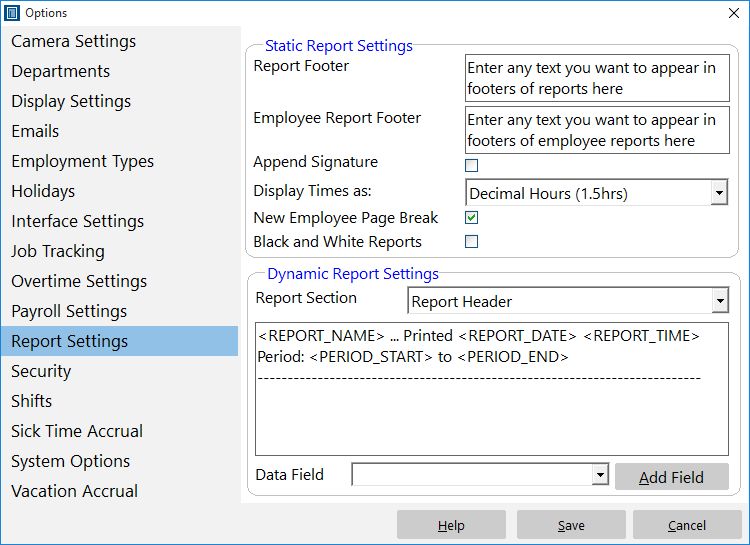
The report settings screen in Time Clock MTS is found via Tools->Options->Report Settings. It controls how time is displayed in the software and what information is shown on reports. See the following table for details on the individual settings on this page.
| Static Report Settings | Static report settings control elements of reports that do not vary depending on what the information is being reported on. |
| Dynamic Report Settings | Time Clock MTS allows you to completely control the appearance of several sections of the reports. These sections contain dynamic information that is derived when the report is run. |
| Report Footer | Enter a footer you want displayed at the bottom of all administrator generated reports here. |
| Employee Report Footer | Enter a footer you want displayed at the bottom of all employee generated reports here. |
| Append Signature | Check this box to display a 'name', 'signature', and 'date' field at the bottom of every printed report. |
| Display Times as: | Make a selection from this dropdown to set how elapsed times are displayed in reports. Elapsed times can be displayed as decimal hours (for example 1.5 hours) or hours and minutes (for example 1:30). |
| New Employee Page Break | Check this box to insert a page break between employees when printing reports. |
| Black and White Reports | Check this box to display and print reports in black and white. |
| Report Section | Use this drop down box to select the different report sections that can be configured to suit your desired report format. |
| Section Template | Use this text box to enter the template for the report section you are currently working on. Items surrounded by the > and < symbols will be replaced by real data when reports are run. You can either type these data fields in manually, or more simply pick and add them using the Data Field drop down and Add field button. |
| Data Field | Use this drop down box to select a data field to be added to the Section Template. |
| Add Field | Click this button to add the selected data field to the Section Template. |