by Mark Nemtsas | Oct 8, 2012 | Tips and Tricks, Using the Software
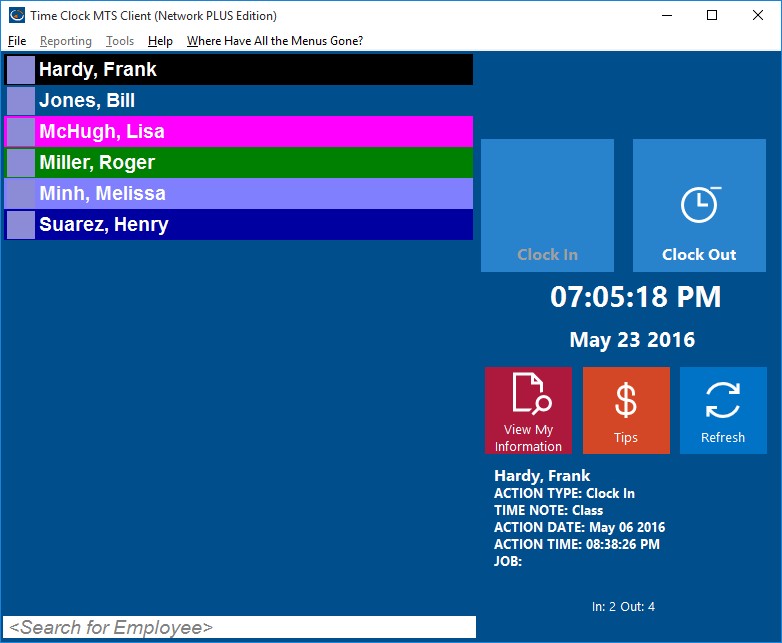
Time Clock MTS Client in Idle State
Above you can see a screenshot of the Time Clock MTS Client that has entered the idle state. You can tell this because the status icons have turned blue. Usually these icons are either red (indicating the employee is clocked out) or green (indicating the employee is clocked in). However, the Time Clock MTS client enters an idle state 60 seconds after any activity (such as someone moving a mouse or clocking in or out) to reduce network traffic. When someone clicks on an employee name in the employee list the Time Clock MTS client will query the Time Clock MTS database to get the employee’s state to ensure that they can only clock in or out as appropriate.
This idle state behaviour of the Time Clock MTS client is turned on by default, but if you find this confusing it can be turned off via a setting in the Time Clock MTS administrator program. To do this go to the Tools->Options->Interface Options screen and check the No Idle Client State checkbox. This will ensure that every 60 seconds every Time Clock MTS client program on your network will update the status of your employees in the employee list.
by kathryn@timeclockmts.com | Oct 6, 2012 | Using the Software
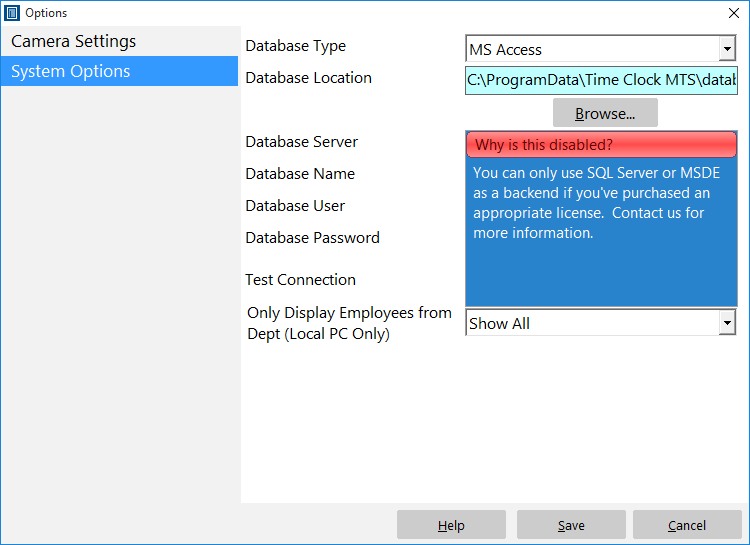
Disabled Database Server Settings
At least a couple of times a month we get emails from users complaining that they are unable to share their Employee Time Clock data between computers because the database settings are disabled in the software. Above you can see a screenshot sent to us by a user showing the disabled database settings.
What’s going on here is easily explained. In standard form Time Clock MTS uses an MS Access data file ,which you can setup on multiple computers and share data by following these instructions. On the screenshot above you’d connect to a shared data file by clicking the Browse button. The settings that are disabled are only for those who want to use Time Clock MTS with SQL Server or MySQL. They are only available if you’re using the Time Clock MTS Network PLUS Edition or if you’re using Time Clock MTS during the free 30 day trial period. So the fact that the settings are disabled does not mean you cannot use Time Clock MTS on multiple computers and share data between them.
If you’re wondering why you’d want to use SQL Server or MySQL with Time Clock MTS instead of the standard MS Access data file then you should take a look at this article we wrote a while back discussing Time Clock MTS backend databases.
