by Mark Nemtsas | Jan 7, 2011 | How To, Tips and Tricks
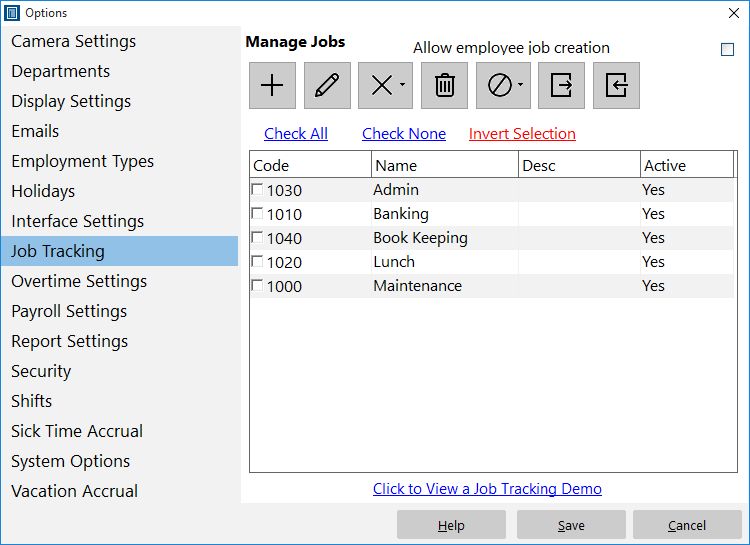
Job Tracking Setup Screen
Generally you’d want a time clock administrator to setup new jobs for the Time Clock MTS Job Tracking System but sometimes it’s useful to allow employees to create their own jobs on the fly during the work day. If you work from daily job sheets that have many small jobs that might just run to a few hours you would quite likely find this useful because of the lower administrative overheads. This Time Clock MTS How To Article covers how to allow your employees to create new jobs.
To allow employees to create new Time Clock MTS jobs just follow follow the steps shown below.
- Log into Time Clock MTS as the administrator. How you log in as the administrator was covered in this Time Clock MTS How To Article.
- Go to the Tools->Options->Job Tracking screen and you’ll be shown the screen at the top of this article.
- Check the Allow Employee Job Creation checkbox.
Once checked employees entering a new job code when clocking or switching jobs will automatically create new job with that job code. Of course the time clock administrator will need to then name and manage the jobs appropriately via the Tools->Options->Job Tracking screen.
by kathryn@timeclockmts.com | Jan 1, 2011 | Using the Software
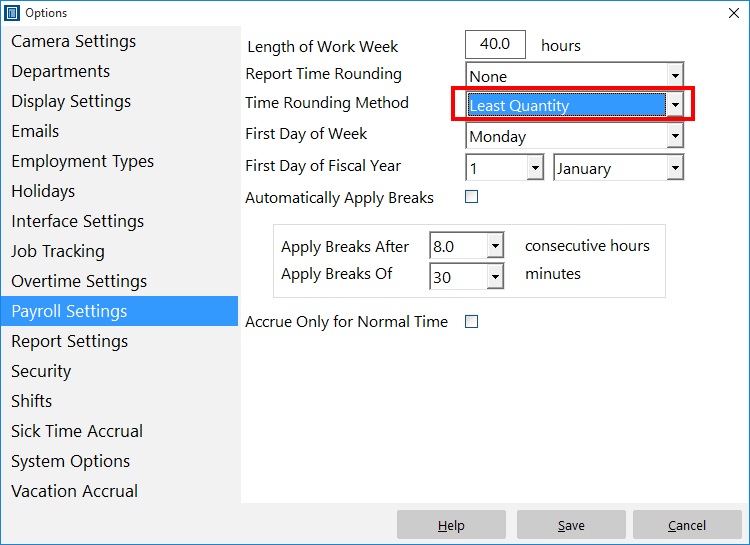
The Payroll Settings Screen
There’s a time rounding method available on the Payroll Settings screen labelled “Least Quantity”. Some Time Clock MTS users have been asking some questions about what it does. It’s actually pretty simple. If you’ve got report time rounding turned on and the least quantity rounding method is selected then it will do the following at report generation time:
1) All clock ins will be rounded UP to the nearest unit set in the Report Time Rounding dropdown box.
2) All clock outs will be rounded DOWN to the nearest unit set in the Report Time Rounding dropdown box.
The practical upshot of this is that the elapsed time for clock in/out pair is minimized. There’s a three things to be aware of if you’re wanting to use this setting. Firstly, it wont work unless you have a time unit set in the Report Time Rounding dropdown box. Secondly, like all report time rounding in Time Clock MTS the rounding is applied at report time only, the actual recorded times for the clock in/out are stored accurate to the nearest second. Finally, and a big caveat on this one, is that you should be careful that your local payroll laws allow for this sort of report rounding, there are many that do not.
