
What Computer is Your Employee Clocking in or Out From?
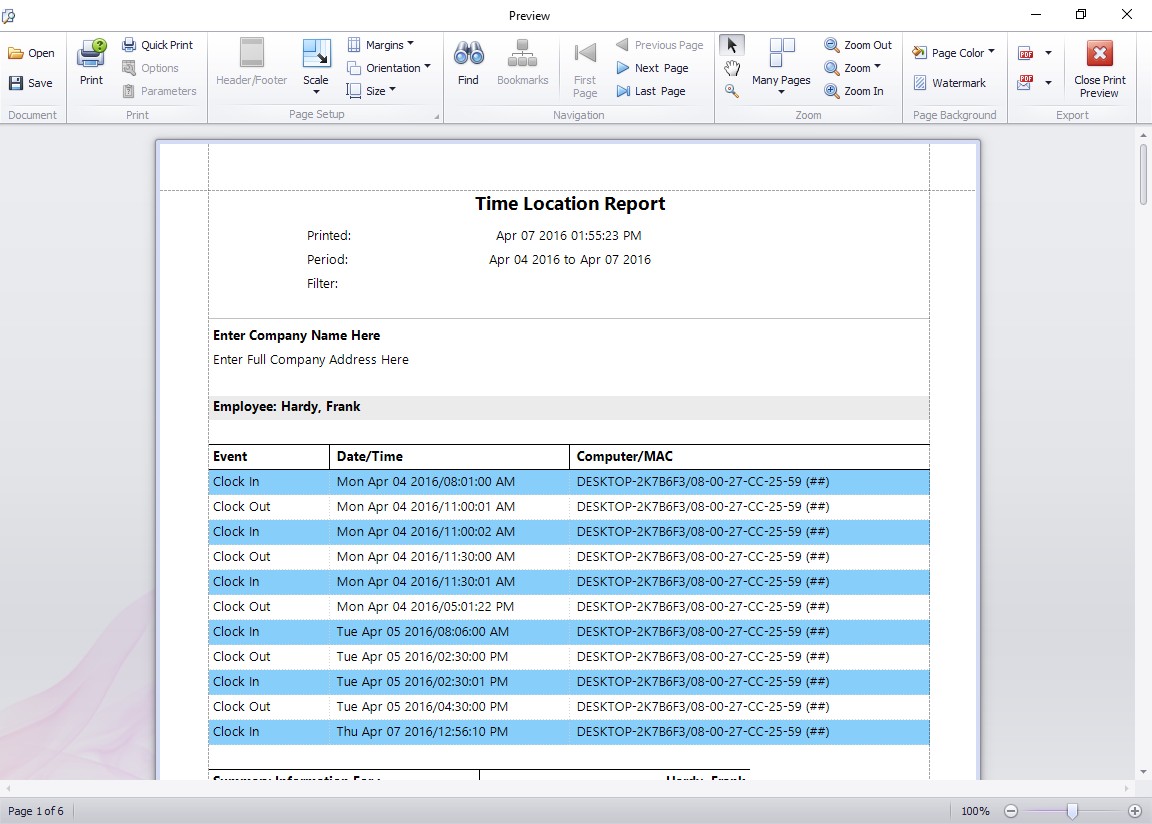
This report shows you what computer your employee has clocked in or out from.
One of the most common forms of employee time clock fraud is buddy punching. This is simply when one employee clocks in or out for another one. Time Clock MTS has a number of methods built into it to help you reduce or eliminate this practice including fingerprint security, image capturing, and employee PINs. Version 2.2.12 saw a new feature added to the software to help further eliminate buddy punching.
When an employee clocks in or out Time Clock MTS now records the Computer Name and Network MAC address along with the time record. Each computer on your network will have a unique computer name and the network cards in these computers all have a unique MAC address. Armed with these two pieces of information you or your network admins can determine exactly which PC an employee clocked in or out from. To give you this information in an easy to read format there’s a new report, the Time Location Report. You can run this report in the same way as you run all the other Time Clock MTS reports, from the Report Configuration Screen. An example of this new report is shown above. Each time recorded for the employee has it’s own line and each time shows the computer name and MAC address of the computer the employee clocked in or out from.
So, if each of your employees is supposed to clock in and out from their own PC, and you suspect someone is clocking in or out for someone else, then this new feature can help you detect this practise. Just run the Time Location Report and you can see quickly and easily where an employee is clocking in or out from!