by kathryn@timeclockmts.com | Jan 21, 2009 | New Releases, News
A quick release today fixing up a couple of problems introduced in the new version yesterday and fixing up another problem with reports that I have been trying to track down for a while.
- Fix to divide by zero error that occurred when running a report that included sick/vacation accrual data. Only occurred when an employee was assigned to a sick or vacation accrual scheme with a zero ‘accrues every time period’ setting.
- Fixed up an error introduced to the calculation of working hours in the last version (did not effect payment amount)
- Fixed up a problem with the ‘always pay salary’ setting that was added in the last version.
by kathryn@timeclockmts.com | Jan 20, 2009 | New Releases, News
A new release of Time Clock MTS to make it fully compliant with California overtime rules and to try to fix up a few niggling problems that I’ve not been able to get to the bottom of until now.
- A new setting on the Employee Maintenance->Payroll Information screen. Salaried employees have a new setting called ‘Always Pay Wages’. With this setting turned on the wages paid to employees is calculated based on the report period rather than the hours worked. So, if a salaried employee with this setting turned on has a payroll report run across a period of a week then they will get 1 weeks wages rather than a prorated amount dependent on how many hours they worked.
- A new setting on the Employee Maintenance->Payroll Information screen called ‘waive automatic breaks’. When this setting is turned on the selected employee will not be allocated automatic breaks if they have been configured.
- A new setting for each employee defining overtime rate 2.
- A new global overtime setting for a second tier of daily overtime. When this is turned on daily overtime above the new limit is paid at overtime rate 2.
- A new global overtime setting to turn on seventh day overtime. This includes a limit, under which seventh day overtime will be paid at overtime rate 1 and over which will be paid at overtime rate 2.
- Three new fields added to the payroll summary report section template. These display hours worked, rate and earnings for the new overtime rate 2.
- Time Clock MTS now refreshes the connection to it’s database every 20 minutes.
- Fix to secret question answers on Tools->Options->System Settings page.
- Fix to prompt on enter note screen.
- Fixed vacation and sick time starting balances not copying correctly when the copy employee command was used.
I will have a more detailed post up shortly covering the details of the new overtime settings and how these apply to California overtime rules.
by Mark Nemtsas | Jan 20, 2009 | How To, New Features, Tips and Tricks, Using the Software
In part 1 of configuring Time Clock MTS to comply with Californian Overtime Regulations I covered how to setup the software to calculate this sort of overtime automatically. In this second part I’ll cover how it is displayed in reports.
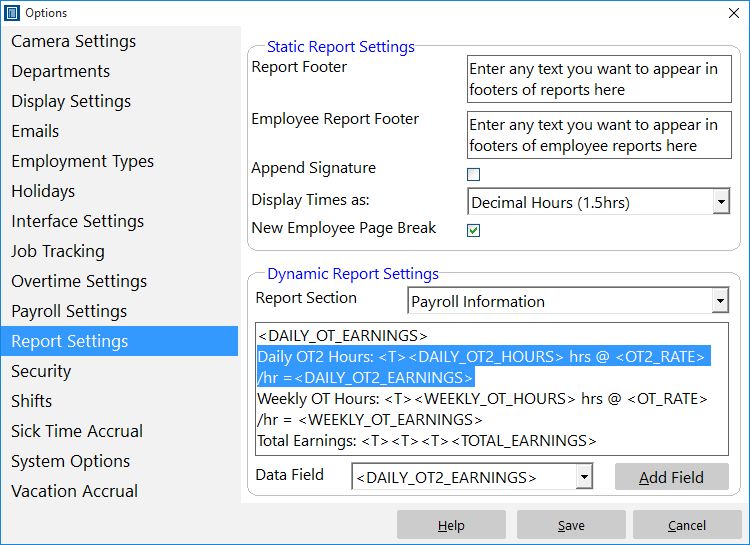
Report Template Changes to Show Overtime Rate 2
Modifying Report Templates
If you have only just started using Time Clock MTS then you will not need to modify your reports to display overtime rate 2 as the software will have set it up by default. You can therefore ignore this part of this article. However, if you are an existing user of Time Clock MTS upgrading an old version of the software to a newer version that supports the Californian Overtime Regulations then you will need to modify the Payroll Information report section template. In the image above you can see the relevant section that I have added to the report section template. I have added this immediately under the line that was already there that displayed the overtime rate 1 information. The line I have added is:
Daily OT2 Hours: <T><DAILY_OT2_HOURS> hrs @ <OT2_RATE> /hr = <DAILY_OT2_EARNINGS>
Basically this displays the heading ‘Daily OT2 Hours:’ along with the actual hours worked at overtime rate 2, the rate of pay for overtime rate 2 (which should be set to double time) and the earnings at overtime rate 2. If you don’t understand what the report section templates are then you should take a look at my posts on customizing Time Clock MTS reports in part 1, part 2, and part 3.
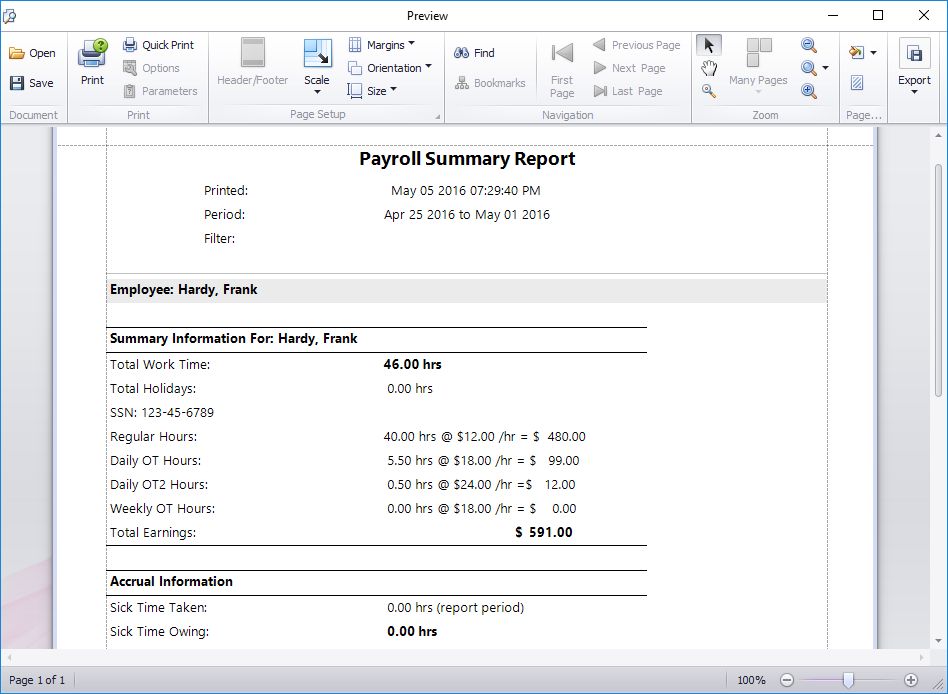
Overtime Rate 2 Report Date in Payroll Summary Section
Viewing Overtime 2 Payment Amounts in Reports
If you choose to display the payroll summary section in a report (or run the payroll summary report) then you will be shown the new overtime rate 2 payment information as per the image above. You can see in this example that the employee is entitled to 1 hour of overtime at overtime rate 2 which is set to double the normal rate.
So, that’s all there is to it. It is very simple to configure Time Clock MTS to comply with the Californian overtime regulations. Doing so will give you significant productivity improvements come payroll calculation time, and will help to you do reduce and eliminate payroll errors. As always please email me if you have any questions.
by Mark Nemtsas | Jan 20, 2009 | How To, New Features, Tips and Tricks, Using the Software
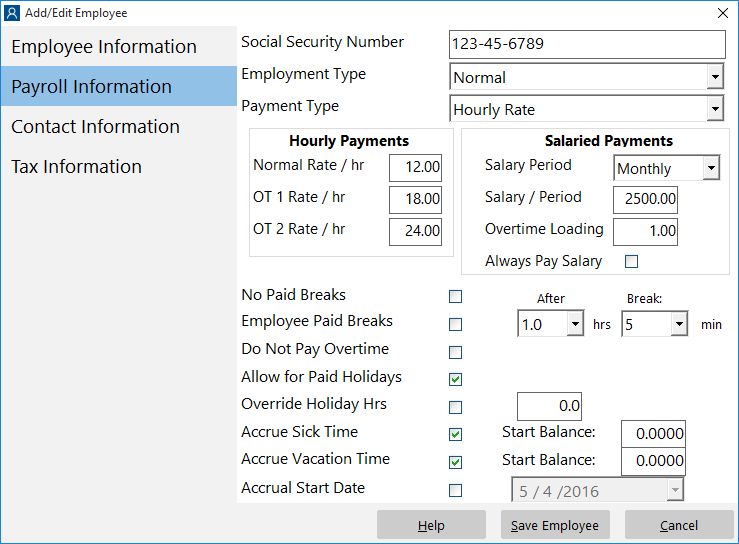
Employee Settings to Suit California Overtime Regulations
California has it’s own set of peculiar regulations for payment of overtime to employees. They are reasonably complex and are tedious when you have to apply and calculate them manually. As of Version 2.1.11 Time Clock MTS is now fully compliant with these regulations saving you a lot of time calculating your payroll and overtime pay. You can read about these regulations in detail on the Californian Department of Industrial Relations website. The relevant section of the page that applies (given that an employee is not subject to an exemption or exception) is:
1. One and one-half times the employee’s regular rate or pay for all hours worked in excess of eight hours up to and including 12 hours in any workday, and for the first eight hours worked on the seventh consecutive day of work in a workweek; and
2. Double the employee’s regular rate or pay for all hours worked in excess of 12 hours in any workday and for all hours worked in excess of eight on the seventh consecutive day of work in a workweek.
Thus overtime can be split into two parts:
- Daily Overtime: hours worked between 8 and 12 in a single day are subject to 1.5 times the normal rate of pay. Hours worked in excess of 12 hours in a single day are subject to 2.0 times the normal rate of pay.
- Seventh day overtime: If an employee works for the first 6 days of a work week then they are eligible for overtime if they work on the seventh day of the work week. The first 8 hours of work on the seventh day are subject to 1.5 times the normal rate of pay. Hours worked in excess of 8 hours are subject to double the normal rate of pay.
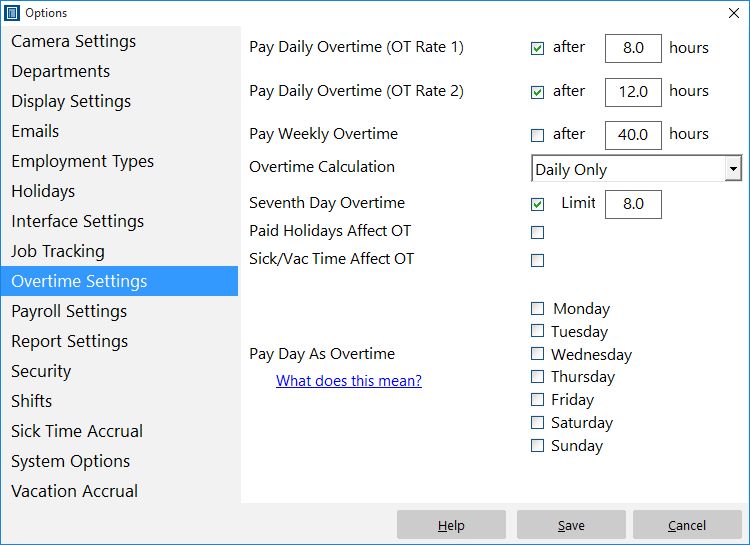
Overtime Settings to Suit California Overtime Regulations
Setting up Time Clock MTS to comply with these regulations is simple. Firstly, you must edit the employee payroll information for each employee that is to receive overtime. In the first image in this post you can see an employee configured with overtime rate 1 set to 1.5 times the base rate of pay, and overtime rate 2 to double the base rate of pay. Once this is done for each employee you can then move on to the global overtime settings.
The second screenshot in this post shows Time Clock MTS configured to calculate overtime as per the Californian stipulations. Daily over time rate 1 is set to trigger at 8 hours and over time rate 2 is set to trigger at 12 hours. Weekly overtime is turned off and the calculation of overtime is set to daily overtime only. Lastly, the seventh day overtime setting is checked and the limit set to 8 hours.
In part 2 of our California overtime regulations compliance I’ll cover modifying the Time Clock MTS report section templates to display the new payment amounts covered by overtime rate 2.
by Mark Nemtsas | Jan 13, 2009 | News
As I mentioned a couple of weeks ago I’ve finally identified a hardware vendor that produces the quality fingerprint scanners that I was looking for. Digital Persona are one of the best known manufacturers in the industry, with their hardware and software drivers rapidly becoming the standard for the biometric software industry. Their popular U.are.U 4000 USB fingerprint scanner has recently been superseded by the newly designed U.are.U 4500 model and it is this model that I have settled on. I am in the process of integrating Time Clock MTS with this scanner, and in the short term at least, this and the 4000 model are going to be the only biometric devices that will work with Time Clock MTS.
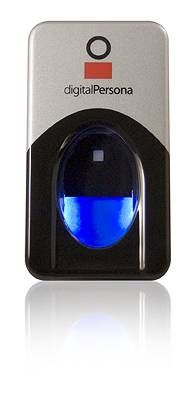
A Digital Personal USB Finger Scanner
Currently Digital Persona bundles up the fingerprint scanner with some software that you can use to manage user accounts on your Windows PC and that will also manage your web passwords and so on. They currently have this bundle available at just US$69.95 which is an insanely good price considering how much it cost me for a single scanner for development purposes! You can purchase the scanners directly from the digital persona website. Please note that I am not affiliated with Digital Persona in any way, and do not currently sell their hardware so if you have any problems with the scanner then you’ll need to deal with them rather than with anyone at Timesheets MTS Software.
Stay tuned for a new version of Time Clock MTS that works with these fingerprint scanners very soon!
Update: quite a bit has changed since we wrote this entry more than five years ago. Of course Time Clock MTS has had fingerprint security for a long time. And second, Digital Persona seems to have under-gone a re-branding and no longer sells directly to consumers. If you wanted to buy a Digital Persona 4500 scanner to use with Time Clock MTS then we recommend you purchase from California PC. At the time this update was written (November 2014) it looks like a suitable fingerscanner could be purchased for under US$100.
