by kathryn@timeclockmts.com | Mar 14, 2012 | New Releases, News
Time Clock MTS version 3.3.4 has just been uploaded. This update includes two minor changes to the Reports->Export Data->Data Export Formats screen. There’s a new setting called “Single Employee Entry” for Aggregate Data Exports. When checked aggregate exports will produce a single entry for each rate code for each employee over the export time period. When not checked an entry is produced for each day during the export time period. The second change allows users to have a multiple line header.
by Mark Nemtsas | Mar 14, 2012 | Using the Software
You’ve probably noticed over the last month or so that we’ve been writing about the sorts of companies that use our employee time clock system, including Gyms, Childcare Centers, Optometrists, and Schools. Continuing on in this theme today I thought I’d examine our sales database to look for automotive related businesses that use our software. It turns out that about 125 different companies from this business sector use Time Clock MTS. This includes auto service companies, auto sales companies, smash and body repair companies, and tire and auto care companies.
When you consider the method which these types companies employ their staff it’s no real surprise that a low cost and easy to use time clock system like ours has proved to be popular. Automotive companies generally employee their mechanics and technicians on an hourly basis, they will typically offer some sort of overtime scheme, and depending on state awards may have to offer and track both sick and vacation accruals for those employees. Time Clock MTS can meet all of these needs and provides very low on-going costs and can complete eliminate mechanical time clocks or paper based timesheets. If it sounds like Time Clock MTS is what you’re looking for why not download the free 30 day trial!
by Mark Nemtsas | Mar 10, 2012 | Using the Software
Good employers are always looking for ways in which to simplify the equipment equipment and processes used in a business as well as saving cost. Recording employee attendance data is one area in which there are real cost savings and efficiency gains to be realized. The advent of low cost biometric finger scanning has proven very useful in simplifying both the processes and equipment required for a robust employee time clock system.
A fingerprint clocking in system can help your business in more ways than one. Once the workers are clocking in and out using their fingerprints, there won’t be any need for ID badges and other security badges. Depending on the number of employees in the business, you will save money on the materials needed to make these badges each year, not to mention the cost of replacing them if they get lost or damaged.
If you’re worried about buddy punching in the workplace, a fingerprint clocking in system is a great way to completely eliminate this. As the employees need to clock in and out using their fingerprints, they will only ever be able to clock themselves in and out, rather than other employees. It will also stop unauthorized people entering the workplace, as they won’t be able to get in without fingerprints that are recognized.
Security is taken very seriously in any business, and if you’re hoping to eliminate payroll fraud and buddy punching among your employees, you might want to consider fingerprint scanners which can be used alongside Time Clock MTS. The only fingerprint scanners which will work are Digital Persona 4000/4500 USB scanners, and these can be easily plugged into your computers. The combination of fingerprint scanners and Time Clock MTS will give you the ideal biometric time clock station for your business.
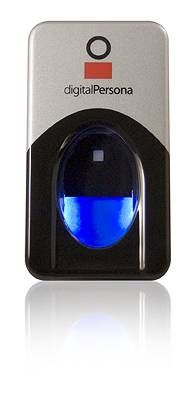
A Digital Personal USB Finger Scanner
by kathryn@timeclockmts.com | Mar 10, 2012 | How To, Using the Software
We’ve had an interesting question from a Time Clock MTS user who uses the software with two different databases to track two distinct departments in their workplace. The user asked if there was an easier way to have the Time Clock MTS administrator program connect easily to the two different databases with out having to make use of the Change button on the System Options screen. It turns out there is an easier way. Here’s what we suggested (these instructions will not work on Windows XP).
1. On the Time Clock MTS administrator program make two copies of the file:
c:\Program Data\Time Clock MTS\timeclock.ini
And call them timeclock_location1.ini and timeclock_location2.ini
2. Open up both of these files in Windows Notepad and change the setting DatabaseLoc in each file to the path to your two Time Clock MTS databases.
3. Save both files.
4. Create a batch file and enter the following commands into it.
copy “c:\Program Data\Time Clock MTS\timeclock_location1.ini” “c:\Program Data\Time Clock MTS\timeclock.ini”
“c:\Program Files (x86)\Time Clock MTS\timeclockmts.exe”
Save the batch file as “timeclockmts_database1.bat”.
Note: If you’re not running a 64 bit version of Windows use the path c:\Program Files\Time Clock MTS\ rather than c:\Program Files (x86)\Time Clock MTS\timeclockmts.exe.
5. Create another batch file and enter the following commands into it.
copy “c:\Program Data\Time Clock MTS\timeclock_location2.ini” “c:\Program Data\Time Clock MTS\timeclock.ini”
“c:\Program Files (x86)\Time Clock MTS\timeclockmts.exe”
Save the batch file as “timeclockmts_database2.bat”.
Note: If you’re not running a 64 bit version of Windows use the path c:\Program Files\Time Clock MTS\ rather than c:\Program Files (x86)\Time Clock MTS\timeclockmts.exe.
6. Create a Shortcut to both batch files on your Windows desktop. Call one “Time Clock MTS Database1” and the other “Time Clock MTS Database2”.
7. All you need to do to open up Time Clock MTS connected to either of the two databases is double click on the appropriate shortcut.
These instructions require more advanced computer knowledge than Time Clock MTS usually requires of it’s users but it’s a complex setup required by very few. If you’re unclear about anything in this article just Contact Us and we’ll try to help you out.
by Mark Nemtsas | Mar 6, 2012 | Using the Software
When we look at the types of businesses that are using Time Clock MTS, it comes as a surprise to us that there are a lot of childcare centers. It’s a common misconception that time and attendance tools are only required if the company is a large one with hundreds or even thousands of employees. Contrary to this, a good time clock system will come in handy for a variety of companies, both small and large. After some in-depth research into the different users of Time Clock MTS, it was discovered that at least 150 different childcare and daycare centers use Time Clock MTS across the U.S.A.
The time clock software can be used for tracking staff and employees hours worked, overtime and vacations but did you know that you can also use the system to keep track of the children being cared for in the center. You can track the time the children are in the center and you now also have a list of the children inside the center at any point in time. This would be very useful to make sure that everybody is safe in the event of a fire or other emergency. If parents clock their children in and out themselves, it will save time for other employees, keeping them free for the more important tasks thus helping the center to run more efficiently.
It can be difficult to find quality time clock software for childcare centers, but Time Clock MTS can help provide you with the perfect system -for staff and the children you care for, just as it has for 150 other centers.