« December 2011 | Main | February 2012 »
January 23, 2012
Time Clock MTS Version 3.3.1 Released
There's been some usability enhancements made to version 3.3.1 of our time card software as well as some small tweaks and a change to sick and vacation time accruals. The details of the changes made to this new version are shown below.
- The job selection screen now remembers the last window size when it is re-loaded.
- You can now sort the columns on the job selection screen by clicking on the column headers.
- Fixed up some minor layout issues on the vacation and sick time accrual screens.
- Added the "Apply Starting Balance Annually" setting to both sick time and vacation accruals. When checked this will start each years available sick or vacation time with the "Starts With" balance for the accrual schema. Note that this setting will only take effect if the "Carry Balance Forward Yearly" setting is not checked. Note also that the date the balance is applied depends on your "Use Hire Date Not Fiscal Year" setting.
Posted by at 10:41 AM | Comments (0)
January 17, 2012
How to Setup Weekly Overtime

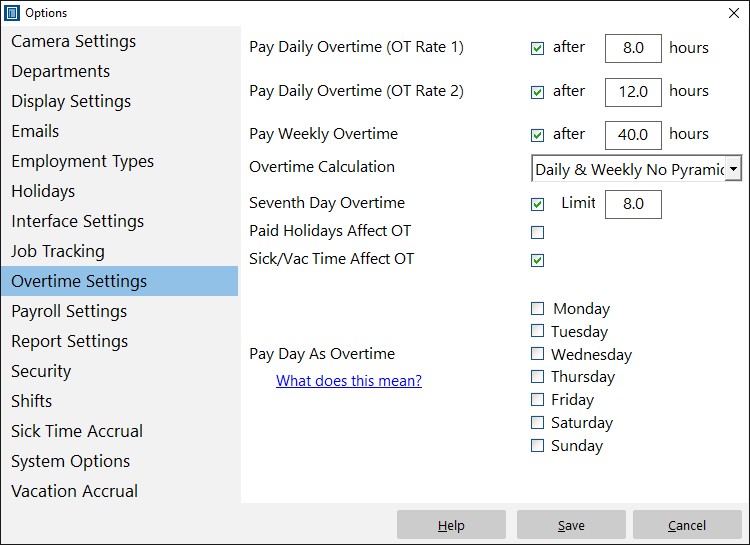
Overtime Settings Screen
When running a business with several employees, one of the things you might need to do is setup weekly overtime. Time Clock MTS allows you to do this without having to worry about calculation errors. Once you've entered the required information, the time and attendance tool will work out the rest and help you to get an accurate and reliable calculation of all your employees' wages.
This Time Clock MTS How To Article is a step-by-step guide for setting up weekly overtime for your employees using Time Clock MTS.
- Start off by logging in as the administrator. This can be done by selecting File -> Log In As Administrator menu.
- Select Tools -> Options from the menu bar at the top of the window. Once a new window has opened, have a look down the left-hand menu and choose "Overtime Settings"
- Check the box titled "Pay Weekly Overtime". You can then type in how many hours you want the employee(s) to work in the week before receiving overtime pay. For example, if you choose 40 hours, the employee(s) will be paid regular pay for the first 40 hours and then overtime pay for the hours worked after that.
- Choose the employee for whom you want to set the weekly overtime pay. Select Employee Maintenance -> Edit Selected Employee.
- Once the new window opens, select "Payroll Information" from the left-hand side and look for a box on the right-hand side labeled OT 1 Rate / hr. Type in the amount that you want the employee to receive for each hour worked overtime.
It's very easy to manage your employees and their payroll information using Time Clock MTS. An efficient time clock tool will come in handy for a lot of things and will help you to easily pay your employees with the assurance of having accurate calculations.
Posted by at 12:26 PM | Comments (0)
Time Clock MTS Version 3.2.13 Released
Time Clock MTS version 3.2.13 has just been released. Detailed changes for this new version can be found below.
- Fixed the Add Employee Tip screen that could leave the bottom employee in the list scrolled off of the bottom of the screen.
- A scroll bar is now displayed on employee bulletins that are more than 5 lines long.
- A fix has been put in place to stop the main application window disappearing when a very long report is generated. The same problem seems to be happening when using the Edit Times screen but I'm trying to get to the bottom of that.
- Stopped the double expiry warning message when in the last 10 days of the trial period.
Posted by at 11:51 AM | Comments (0)
January 9, 2012
Free Time and Attendance Tools
This website contains a number of free time and attendance tools that can make the task of tracking your employee's time and attendance data much simpler. The first tool is Time Clock MTS itself. If you've got three or fewer employees and want to use the software on one computer then Time Clock MTS is the perfect free time and attendance tool.
If you're looking for something a bit simpler then we're happy to provide you with our free time card calculator. This 100% online tool allows you to enter your attendance data for a week and it will total up your number of work and break hours. You can then print your time card for later reference.
Finally, if you're just after a very basic free time and attendance tool to record your attendance data you might like to take a look at our free timesheet templates. These well laid out timesheets are available 100% free to download in several popular file formats including Microsoft Word, Microsoft Excel and Adobe PDF. Once downloaded they can easily be printed out and supplied to your staff to record their timesheets.
Of course if you're wanting a more advanced (but not free) time and attendance tool you should take a look at our time clock software, Time Clock MTS. It's suitable for most businesses, small and large and is currently being used by many thousands of companies around the world. If an online time and attendance tool is more suitable to your requirements then try signing up for a free 30 day account of Online Time Clock MTS.
Posted by at 1:44 PM | Comments (0)
January 8, 2012
How to Setup Daily Overtime

Overtime Settings Screen
If you've got several employees in your business who are receiving different amounts of hourly pay, it can be difficult to keep track of it all manually. Time Clock MTS is a simple and easy time clock system that helps you manage the information of all your individual employees.
Overtime is one of those things that's well-known for getting slightly confusing. However, with a effective and easy-to-use time and attendance tool, you can set the hourly overtime rate for each employee (even if it varies from one employee to another) and let the computer work out the rest!
This Time Clock MTS How To Article is a step-by-step guide for setting up daily overtime for your employees using Time Clock MTS.
- Log in as the Administrator. You can do this buy choosing File > Log In As Administrator. Tap in your password and you're ready to go.
- Once you're logged in, select Tools > Options. A new window will open and you'll see a list on the left-hand side. Choose Overtime Settings from the list.
- Set the amount of hours the employees must work before receiving overtime pay. You can do this by checking the box next to "Pay Daily Overtime (OT Rate 1)" and then typing in the number of hours. For example, if you type "8" in the box, this means that the employee has to work eight hours before starting to receive overtime pay. Click the Save button to save the changes and close the Options window.
- The final thing to do is to actually set the hourly overtime rate. To do this, start by highlighting the employee on the "Employees" list. Select Employee Maintenance > Edit Selected Employee. A new window will open and you should see a list of four different categories on the left-hand side. From this list, choose "Payroll Information". Look for "Hourly Payments" half way down the page on the right-hand side of the window.
Type the hourly overtime rate in the box labeled "OT 1 Rate / hr" and click "Save Employee".
Posted by at 7:37 AM | Comments (0)
January 4, 2012
Time Clock MTS Version 3.2.12 Released
The rollover to January 2012 has thrown up some reporting issues for reports run across two calendar (and I suspect two fiscal) years. I've been very keen to jump on these problems immediately and have spent the last several hours putting fixes in place and testing those fixes. Version 3.2.12 of our timecard software is the result and it's just been uploaded to our servers. Changes made in this version are:
- A fix to available vacation and sick time for annual accruals when report was run in a different annual accrual period to the reporting period.
- A fix to the
, , and fields that were using the date the report was run to determine the fiscal period rather than the report date. - Fix to weekly overtime calculations when a public holiday falls in a week and the Public Holidays Affect OT setting is not checked.
- Fix to the normal hours total on the Time Breakdown Report.
- Adjusted the holiday hours report total column width on the Time Breakdown Report.
- Adjusted some of the coordinates on the First Run Tutorial.
Posted by at 3:25 PM | Comments (0)
January 2, 2012
2011 - The Year in Review
Well another year has passed us by and I thought it might be fun to have a slightly different year in review post for 2011. So, here it goes....
Number of Time Clock MTS Releases in 2011 - 24
Best New Report Added in 2011 - The Departmental Simple Wages Report
My Favourite New Feature of 2011 - Employee Tip Tracking
My Favourite Time Clock MTS Question of 2011 - "Please add tip summary fields to reports". The result was 6 new fields that could be included in the report footer section template.
The Best Testimonial of 2011 - "hi my name is s**** and i would like to start by saying i love the fact that you made a program that can grow with my business."
Time Clock MTS Growth From 2010 to 2011 - 27%
I hope that 2012 is a prosperous and happy year for you all!
Posted by at 10:28 AM | Comments (0)
Setting Up Time Clock MTS in Multi User Mode - SQL Server
Getting Time Clock MTS to work with SQL Server or SQL Express isn't too difficult. This article takes you through the process of doing so and should have you up and running in fairly short order.
1. Creating the SQL Server DatabaseThe first step in setting up Time Clock MTS to work with SQL Server is to create a database using the standard employee attendance database (MS Access) as a template. To accomplish this you must have the Administrator version of Time Clock MTS installed, you must have an accessible installation of SQL Server (or SQL Express) and you must have installed SQL Server Management Studio.
- Using SQL Server Management Studio (SSMS) create a new database that Time Clock MTS will use.
- Right Click on the new database in SSMS and select the Tasks option and then select the Import Data option. This will start the SQL Server Import and Export Wizard.
- Click Next in the Wizard and choose the Data source as "Microsoft Access".
- Click the Browse button and navigate to your Time Clock MTS Access database. This will most likely be in this location: c:\Program Data\Time Clock MTS\Database\timeclock.mdb. However, if you've changed the location then you'll know where your file is. Remember if you cannot find the directory that you might have to Show Hidden Files and Folders to see it.
- Click the Next button in the Wizard and choose the SQL Server location, database, and login details and then click the Next button.
- The next step of the Wizard allows you to either copy your data directly from the Access database to you SQL Server database or generate a script that you can run later. The choice is yours but in this case we'll copy the data directly. Click the Next button.
- This step allows you to choose which tables you want to copy from the MS Access database. Choose all of them and click Next.
- Choose Run immediately and click Finish.
- SSMS will now display a progress window showing you how the import data process is going. Hopefully it'll go smoothly and you'll have a functional SQL Server database that Time Clock MTS can work with.
- In some cases the import process does not create the table primary keys and identity columns properly. This is easily rectified using SSMS. Each table created by the import process has a column called lngID, this column must be the table primary key and must be set as the table identity column. You can see what this looks like in SSMS by viewing this image.
- If you're running the 30 day trial of Time Clock MTS or you're a licensed user who purchased Enhanced Database Support then you'll be able to connect Time Clock MTS to a SQL Server database.
- Run Time Clock MTS and log in as the administrator and go to the Tools->Options->System Options screen.
- Configure the SQL Server details on this screen. You'll need to know your server name (or IP address), your database name and your SQL Server login details. Note that the SQL Server user must have permissions to add, modify, and delete both data and tables.
- When you're happy with the server details click the Test SQL Connection button and check that a connection can be made to the database.
- Select "SQL Server" from the Database Type drop down and then click the Save button to save the changes.
Warnings: If there's a red box covering the server detail fields then you're not licensed for Enhanced Database Support. You should Contact Us for help.
3. Configuring the Time Clock MTS Client Program to Work with SQL Server- If you're still in your Time Clock MTS trial period or if you chose the "Enhanced Database Support" option when you purchased Time Clock MTS you'll be able to connect the Time Clock MTS client program to a SQL Server backend database.
- Install and run the Time Clock MTS client software.
- The first time you run the Time Clock MTS client software you'll be shown the Database Connection Wizard.
- Selected the SQL/MSDE database option and enter all of the appropriate database server details into the fields provided. When you're happy with the details click the Test Connection button to make sure you've entered the details correctly and that you can make a connection to the database. Remember that the SQL Server user must have permissions to add, modify, and delete both data and tables.
- Click the Wizard finish button and when you're done the Time Clock MTS client should be connected to your SQL Server database.
Posted by at 8:25 AM | Comments (0)
Time Clock MTS Version 3.2.11 Released
Version 3.2.11 of Time Clock MTS is uploading as a write this entry. This very minor release includes a fix to the Total Work Hours column of the Departmental Wages Report and adjusts the column widths of the same report.
Posted by at 8:21 AM | Comments (0)