« September 2011 | Main | November 2011 »
October 31, 2011
Weekly Overtime and Irregular Pay Periods

Report Run Tuesday to Sunday
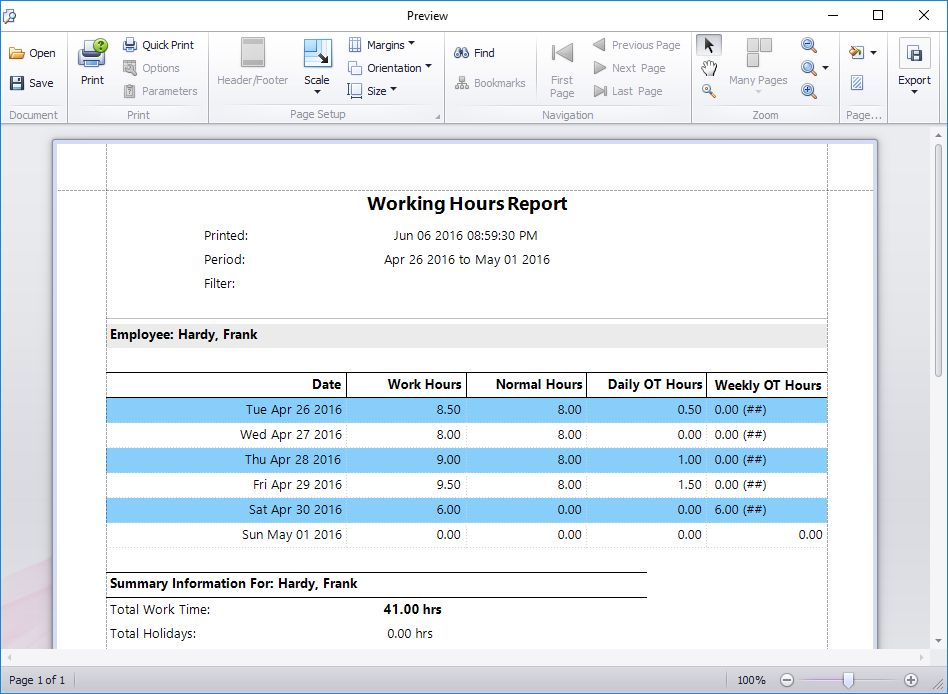
Above you can see a working hours report run for a period from Tuesday 11 October through to Sunday 16 October. In this case our multi-user time clock software is setup with the first day of the week being Monday and to adhere to California Overtime Rules, with overtime paid after 8 hours in a day and after 40 normal hours in a week.
Close examination of the Weekly OT Hours column shows what appears to be, at first glance, what appears to be a mistake. On Saturday 15 October the software has calculated that the 6 work hours are all to be paid at Weekly OT rates. However, if we add up the hours in the Normal Hours column it appears that this employee has only worked 32 normal rate hours to that point, which clearly doesn't exceed the 40 hour limit stated above. So what is going on here?
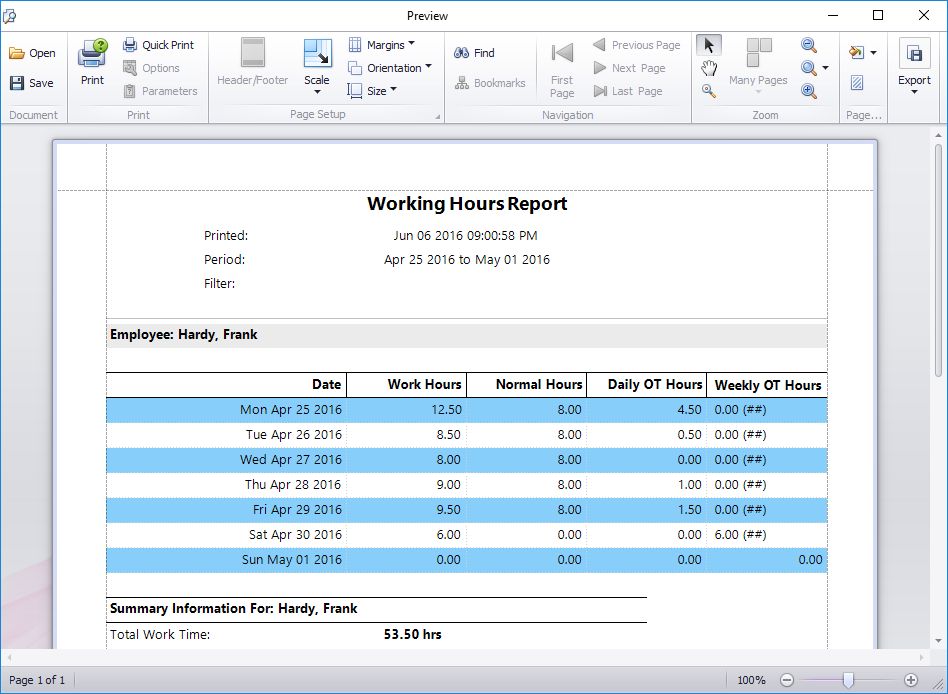
What is going is that even though the report isn't showing the times for Monday 10 October Time Clock MTS is still taking those hours into account to calculate the weekly overtime. Let's look at the report including Monday's data.

Report Run Monday to Sunday
We can see that the employee has worked 11 hours on Monday. This takes the normal hours tally for Saturday 15 October up to 40 hours and Time Clock MTS is indeed correct in calculating those 6 hours as weekly overtime.
I've written about this example to highlight that Time Clock MTS calculates weekly overtime using ALL of the data from a given week regardless of the report period you've chosen to display. This is of particular importance to employers who use irregular pay periods like bi-monthly or monthly. Employers with pay periods like these that do not always start on the same weekday could easily end up with cases where hours from the previous pay period impact on overtime calculations for the current pay period.
Posted by at 10:44 AM | Comments (0)
October 25, 2011
How to Export Payroll Reports

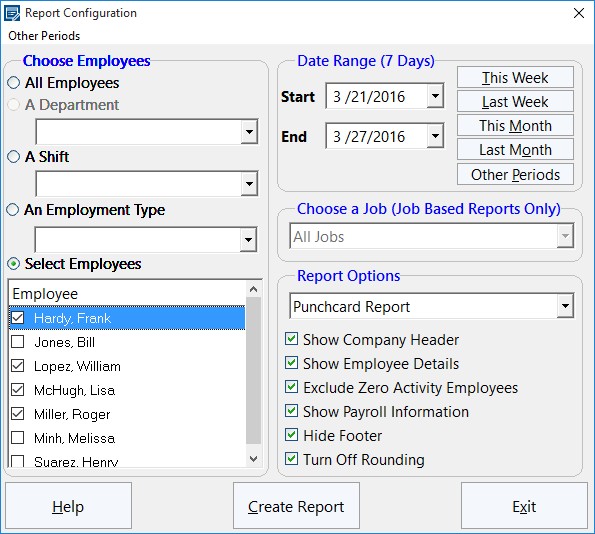
The Generate Payroll Reports Screen
One of the features that businesses look for when choosing an employee attendance tool is the ability to export data to other software programs. Many people that use a time clock system will often need to export data to spreadsheets, word processors and other such database packages. If this can be done easily, quickly and effectively, it will save time and hassle for the business. This Time Clock MTS How To Article covers the steps to follow if you want to create a payroll report and export it to another software program.
- Open Time Clock MTS and log into your administrator account. Once you are logged in, go to Reporting -> Payroll Reports. This is the part of the time clock tool that allows you to control which reports are created. This is where you should go whenever you need to create any sort of report. You can create reports on employees, departments, shifts and many other things. If you don't want reports generated on all of the employees (or departments etc.), you can choose the ones you want to see reports about from a list.
- Once you have opened the Report Configuration screen, you can choose what report you want to create (here is a Full List of Time Clock MTS Reports). You can select different employees, departments, shifts and employment types. Additionally, you can choose a specific date range and the type of report that you would like. You can choose the type of report by using the drop-down menu on the right-hand side of the screen. There are various other options on the screen that you can choose, for example, you can choose whether you want the company header to be displayed on the report, the employee details and any other information.
- Now that you have chosen exactly what you want the reports to be about, you can go ahead and create it. To create the reports, simply click Create Report at the bottom of the screen. The report will appear almost instantly and will contain information such as the total hours worked, total vacation time and total earnings.
- Once the screen containing the report has appeared, you can now export the data by clicking any of the buttons at the bottom of the screen, e.g. Export CSV.
You can choose either Export CSV, Export Tab or Export Excel. Exporting the data takes a few seconds and exports the report(s) onto the software of your choice. You may also choose to print the report, which can be done by clicking Print.
Time Clock MTS has many features like this that make it an ideal time and attendance tool for both large and small businesses. By following the above steps, you can create reports for whatever you want and export it in a matter of a few seconds.
Posted by at 11:34 AM | Comments (0)
Time Clock MTS Version 3.2.6 Released
Another minor release of Time Clock MTS today. This one fixes up a problem with the main application window disappearing when a report that takes a long time to generate was run. The other fixes are to some report section template fields that were not displaying correctly or not aligning properly when printed on reports. If you're not sure what the report section template fields are then you should take a look at the blog entry on Customizing Time Clock MTS Reports.
Posted by at 11:29 AM | Comments (0)
October 18, 2011
Comparing Time and Attendance Software - Part 2

The Vacation Accruals Screen
Many businesses that are searching for useful and easy-to-use time and attendance software don't want to spend a great deal of money. You can download a free trial of the Time Clock MTS in order to try it out and see if you like it and if it works for your business. If you have three employees or less, you can continue using the tool for free; however, if you want to use it for more than three employees, you will have to consider buying the software.
When businesses are searching for the perfect time and attendance tool, they often want to know how the software operates. This is perfectly understandable, and we aim to provide as much information as possible about Time Clock MTS so that users are able to find out everything that they need to know before purchasing it. This is the second part of a two part series about how to compare time and attendance software and will explain certain aspects of sick time and vacation accruals, exporting data and updates and support that are available.
Are there sick time & vacation accruals?
For most businesses, it is very important to have a tool that caters for sick time and vacation accruals as it will help to prevent calculation errors which often cause the company to lose of money over a period of time. Because Time Clock MTS will work out most of these calculations for you, your business will not have to pay as many people to sort out the finances of the company. The sick time and vacations that employees are allocated will be worked out automatically once you have entered the details, and each employee will be able to see how many days they are allowed to have off work. Because they will have a much better understanding of their wages, work time and the way that the business operates with employees, the work place can run more smoothly.
Yearly accruals are allowed, as well as accounts for any employees who already have existing balances for any vacation pay which they have not yet received.
Can data be exported easily?
Being able to export data easily is often a feature required by businesses. Time Clock MTS has this feature, making it even more convenient and useful for the majority of companies. Data can be easily exported to payroll software using the tool, and further analysis can be carried out for anything that you need. All reports can be exported to Microsoft Excel or text files, depending which one is easiest for the business to use. You can export data for just one employee or a number of different employees. You can add your own custom export format by simply clicking a button when using the tool. Additionally, you can edit the export formats that you have already created.
Is the software regularly updated and supported?
Time Clock MTS is updated every two months or so. Every time it is updated, the software will usually contain new features for users to make use of and benefit from. Additionally, when it is updated, any bugs are sorted out and any issues and problems that users have reported can be resolved. The Time Clock MTS website provides many articles a lot of information for anybody who wants to know more about the software. New articles are always being added to the website, so you can read about the most up-to-date features.
Furthermore, email support is offered to anybody with questions that they cannot find answers to on the website.
Conclusions
We hope that the six factors we've discussed when comparing time and attendance software prove to be useful when you're doing your own evaluation. We've designed Time Clock MTS to be strong in each of the key areas and with more than 8000 companies using the software we're sure it would be useful for you!
Posted by at 5:39 AM | Comments (0)
October 13, 2011
Employee Scheduling Software
It's not unusual for a time clock software package like Time Clock MTS to include a employee scheduler because in a lot of cases employee scheduling or time tabling go hand in hand. However, we've always wanted Time Clock MTS to be a low cost and easy use and maintain employee time and attendance system. Because of this we've never added an employee scheduler to it. However, we're happy to say that we've been working with a company (Sensible Software) in New York state who have been developing their own employee scheduling software called Employee Scheduling Pro. We've got a long standing relationship with Sensible Software and we were involved in the testing process for Employee Scheduling Pro and we've found it to be just like Time Clock MTS, powerful yet simple to use. It's ideal for any company wanting to develop and schedule their employee work times and we heartily recommend it to anyone looking for a employee scheduler to complement Time Clock MTS.
Posted by at 2:49 PM | Comments (0)
California Overtime Clarifications
A while back I wrote about setting up Time Clock MTS to comply with California overtime legislation. An interesting question has come up from a user this week that is worth looking into further. The question relates directly to California Labor Code Section 500-558 (which you can see here). In particular it relates to this text:
Any work in excess of eight hours in one workday and any work in excess of 40 hours in any one workweek and the first eight hours worked on the seventh day of work in any one workweek shall be compensated at the rate of no less than one and one-half times the regular rate of pay for an employee.
It is easy to assume on reading this that all hours worked during a week are used in calculating hours in excess of 40 being worked. However, this is not the case as is illustrated by this memorandum from the Californian Department of Industrial Relations. The section of particular interest in this memorandum is this:
The statute also provides that "nothing in this section requires an employer to combine more than one rate of overtime compensation in order to calculate the amount to be paid to an employee for any hour of overtime work." This is consistent with DLSE's enforcement of the pre-1998 wage orders. It simply means that there is no "pyramiding" of separate forms of overtime pay for the same hours worked. Once an hour is counted as an overtime hour under some form of overtime, it cannot be counted as an hour worked for the purpose of another form of overtime. When an employee works ten hours in one day, the two daily overtime hours cannot also be counted as hours worked for the purpose of weekly overtime.
The basic upshot of this is that one an hour has been used towards calculating daily overtime it cannot be used to calculate weekly overtime. In practical usage this means that only Normal rate hours are used to calculate overtime due to exceeding the weekly work limit of 40 hours.

Above you can see how Time Clock MTS handles this situation. In this example the employee actually exceeds 40 hours worked on Friday 3 October but 4 hours have already been counted towards daily overtime and thus cannot be used to calculate the weekly overtime limit. In fact, the employee exceeds 40 normal hours worked after half an hours work on Sunday 9 October and the remainder of work on that day (6.5 hours) is counted as weekly overtime.
I hope this example explains how Time Clock MTS handles overtime calculations when configured to suit California Overtime Regulations.
Posted by at 2:09 PM | Comments (0)
Time Clock MTS Version 3.2.5 Released
I've posted up a very minor update to Time Clock MTS with what should be the final fix to the pesky least quantity rounding that I seem to be completely unable to get working correctly. I'm confident it's working ok now though! (fingers crossed).

Posted by at 2:04 PM | Comments (0)
October 10, 2011
Comparing Time and Attendance Software - Part 1

Time Clock MTS with Departmental Folder View
Choosing the right time and attendance software for your business can be a difficult task. Employers and entrepreneurs are often looking for software that is easy to use, affordable and effective. As the employees will be using the software as well, it needs to be easy to understand in order that they can use it without difficulty. Affordability is another key factor, especially if the business looking to invest in the software has a low budget or is only a small business. A large number of businesses notice an immediate improvement after purchasing time and attendance software. It has a lot to offer both large and small businesses, and the tools have proven to reduce payroll errors and absences as well as motivating employees to turn up on time and work harder. Overall, quality time and attendance tools will assist the business in keeping more organized, and payroll, time and attendance data can be managed much more easily.
This two part article aims to cover six key points that must be considered when comparing time and attendance software.
Can you share data between time & attendance computers?
It is important to save data in the same place when managing employees' timetables and attendance records. This helps prevent data entry errors and stops a lot of calculation errors which could occur. Time Clock MTS enables employers to record and share their employees' time and attendance data easily and effectively between computers. Additionally, individual employees are able to clock in and out using their own computers rather than all of the employees using the same one. Nobody in the workplace will have to keep returning to one main computer or workstation in order to record, alter and share time and attendance data. As a result, it will save time and money for the business and will be easy to manage and hassle-free.
Do you need extra hardware?
Although time and attendance software is fairly modern and is being used worldwide each day by businesses of all different sizes, it is by no means technical and difficult to manage. While it is advanced software that has proven to be extremely useful to thousands of companies, it does not require extra components in order to work. The only thing you will need is an ordinary computer; there is no need for additional mechanical and electronic devices such as punch clocks. However, good computer time clocks are often compatible with bar code readers, magnetic card readers and fingerprints scanners.
If you want to set up Time Clock MTS with a bar code reader, you will need to find one that will plug into either the USB port or keyboard port of your computer. Once it is set up, you can give each of the employees an ID card with the bar codes printed onto them. This will enable each employee to access the software by scanning the bar codes.
Is Biometric Security an option?
In order to prevent employee fraud, many employers choose various methods of security. One of the most popular types of security which can be used in conjunction with time and attendance tools is biometric security. There is a biometric security option for anybody using Time Clock MTS. Fingerprint scanning hardware such as biometric scanners can be purchased fairly cheaply and can be used with Time Clock MTS to make it more secure and to avoid payroll fraud and other forms of employee fraud.
If you choose biometric security, employees will be required to scan their fingerprints each time they clock in or out. This means that each employee will only be able to clock themselves in and out (rather than other employees doing it for their colleagues). Biometric security and fingerprint scanning is the ultimate way to prevent employee fraud in the workplace and keep the business as safe as possible.
This article is continued in Comparing Time and Attendance Software - Part 2.
Posted by at 1:16 PM | Comments (0)