by kathryn@timeclockmts.com | Jan 31, 2011 | New Releases, News
Thanks to a pair of observant Time Clock MTS users a couple of small bugs were brought to my attention in the last few of days that have been fixed up in version 3.0.10 of Time Clock MTS which I’ve just uploaded . The first problem was with the calculation of overtime rate 2 hours (there are two daily overtime limits available in Time Clock MTS). On some occasions the OT2 hours from one employee could be carried over onto the totals for the subsequent employee. The second issue was a layout problem with the Add Multiple Times screen. The time classification and total for times 6 and 7 were swapped.
by kathryn@timeclockmts.com | Jan 31, 2011 | Using the Software
Just recently a Time Clock MTS user picked up an issue with the Payroll Summary Report that he believed was due to a calculation error by Time Clock MTS. Here’s the part of the report in question:
————————————————————————–
Payroll Summary Report … Printed Jan 26 2011 05:08:25 PM
Period: Jan 11 2011 to Jan 25 2011
————————————————————————–
Employee: Smith, Janice
————————————————————————–
Summary Information For: Smith, Janice
Total Work Time: 86.18 hrs
Total Holidays: 0.00 hrs
SSN: 888-88-8888
Regular Hours: 79.63 hrs @ $16.13 /hr = $ 1284.43
Daily OT Hours: 5.23 hrs @ $24.20 /hr = $ 126.57
Total Earnings: $ 1453.58
————————————————————————–
On first glance it appears that Time Clock MTS has indeed made a calculation error with this employee. Notice that the Regular Hours and Daily OT hours do not add up to the Total Work Time figure and the Total Earnings Amount is more than the Regular and Daily Earnings Amounts. However, if we drill down a little we find that the Time Clock MTS user has configured his overtime settings to pay two tiers of overtime (OT and OT2) but there’s no sign of the OT2 hours or earnings in the report. Now we can examine the Payroll Information Report Section Template on the Report Settings screen and we see the following:
Summary Information For: <FULL_NAME>
Total Work Time: <T><TOTAL_WORK_TIME> hrs
Total Holidays: <T><TOTAL_HOLIDAYS_TIME> hrs
SSN: <SSN>
Regular Hours: <T><REGULAR_HOURS> hrs @ <NORMAL_RATE> /hr = <NORMAL_EARNINGS>
Daily OT Hours: <T><DAILY_OT_HOURS> hrs @ <OT_RATE> /hr = <DAILY_OT_EARNINGS>
Total Earnings: <T><T><T><TOTAL_EARNINGS>
It’s clear from this that this calculation error isn’t an error at all, it’s simply that the OT2 related fields are not being displayed in the report. So, we can make a few quick changes to the report section template and we get the following:
Summary Information For: <FULL_NAME>
Total Work Time: <T><TOTAL_WORK_TIME> hrs
Total Holidays: <T><TOTAL_HOLIDAYS_TIME> hrs
SSN: <SSN>
Regular Hours: <T><REGULAR_HOURS> hrs @ <NORMAL_RATE> /hr = <NORMAL_EARNINGS>
Daily OT Hours: <T><DAILY_OT_HOURS> hrs @ <OT_RATE> /hr = <DAILY_OT_EARNINGS>
Daily OT2 Hours:<T><DAILY_OT2_HOURS> hrs @ <OT2_RATE> /hr = <DAILY_OT2_EARNINGS>
Total Earnings: <T><T><T><TOTAL_EARNINGS>
Now we can re-run the report and the payroll summary report for the employee looks a lot better:
————————————————————————–
Payroll Summary Report … Printed Jan 31 2011 02:38:02 PM
Period: Jan 11 2011 to Jan 25 2011
————————————————————————–
Employee: Smith, Janice
————————————————————————–
Summary Information For: Smith, Janice
Total Work Time: 86.18 hrs
Total Holidays: 0.00 hrs
SSN: 888-88-8888
Regular Hours: 79.63 hrs @ $16.13 /hr = $ 1284.43
Daily OT Hours: 5.23 hrs @ $24.20 /hr = $ 126.57
Daily OT2 Hours: 1.32 hrs @ $32.26 /hr = $ 42.58
Total Earnings: $ 1453.58
————————————————————————–
Notice now that the total for hours and earnings now total up correctly!
by kathryn@timeclockmts.com | Jan 22, 2011 | New Releases, News
I’ve just released a new version of the software fixing up a couple of errors that a helpful user identified for me today. The first, fixes up a hard crash seen on the Time Breakdown Report and the Simple Attendance Report when the time format was set to HH:MM:SS rather than decimal hours. The second fix was to overtime calculations where the “pay day as overtime” setting was set for a weekday AND the daily overtime limit was exceeded. The final fix was to the simple time report that could display an incorrect normal hour total when the daily overtime limit was exceeded and the times for the day were classified as OTHER.
by kathryn@timeclockmts.com | Jan 21, 2011 | New Releases, News
A new version of Time Clock MTS (V3.0.8) has been released today fixing up a problem with the Paid Holidays Affect OT setting that can be found on the Time Clock MTS Overtime Settings screen. The setting worked fine when it was switched on but unfortunately it didn’t turn off when the box was unchecked. For those of you that were wondering what the setting does then perhaps it is best explained by an example:
Bob Smith works 9 hours a day in the four days leading up to Christmas Day. He has a paid holiday on Christmas day and is credited with 8 hours of pay for that day. Bob’s workplace pays weekly overtime after 40 hours of work.
Scenario 1 – Paid Holidays Affect Overtime is OFF – in this case a payroll report for Bob for the week of Christmas Day will report 44 normal hours worked (no overtime). In fact for Bob to earn any overtime he’d need to work over 40 hours in just the 4 days leading up to Christmas, the credited holiday hours do not affect OT calculations at all.
Scenario 2 – Paid Holidays Affect Overtime is ON – in this case a payroll report for Bob for the week of Christmas Day will report 40 normal hours worked and 4 hours of overtime. When the setting is turned on the holiday hours are included in overtime calculations
by Mark Nemtsas | Jan 20, 2011 | How To, Tips and Tricks, Using the Software
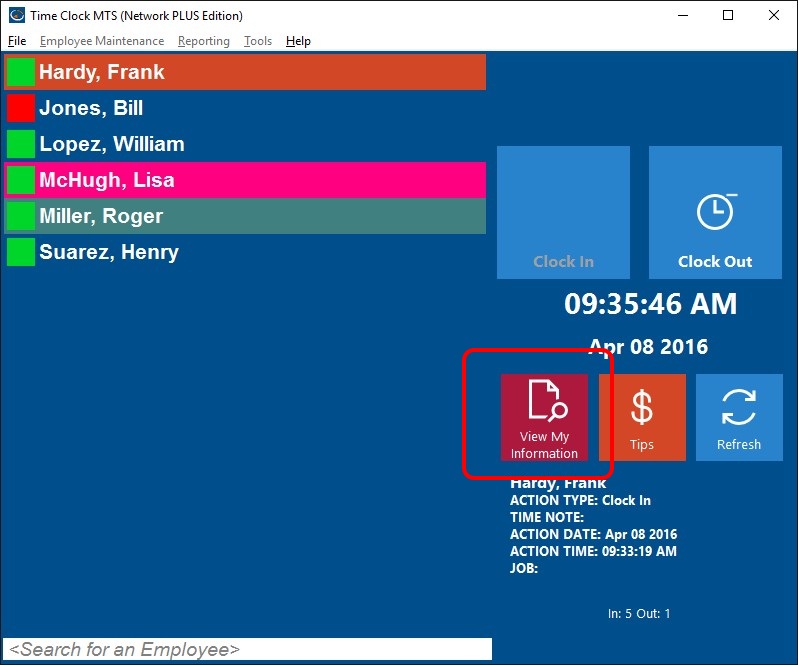
Employees can view their own information and print their own timesheet.
If you’ve ever uninstalled Time Clock MTS then you would have noticed that a web based survey pops up in your browser window asking you why you’re uninstalling the software. This is a valuable tool for you to tell us about bugs in the software that we are not aware of or to work out if there’s an annoying aspect to the software that a lot of people are bothered by. We’ve found the results of these surveys extremely useful but from time to time we get an uninstall survey response that tells us that a particular user decided not to purchase the software because they believe the software doesn’t do something it actually does. Most of the time when I get one of these responses I’ll pop up a blog entry covering the topic. Today the following feedback came in from an uninstall survey:
wish the employee could print out their timesheets without being log in as admin because as admin you can change time which I do not like….this is the reason I uninstalled and did not buy
Of course you can configure the software to allow employees to print their own timesheets without having them log in as the administrator and here’s how to do it:
There it is, two simple steps. Your employees will now be able to view their own timecards and then print those timecards to a printer or export them to Excel. Of course if you’ve enabled employee PIN’s or Passwords then your employees will need to enter their PIN before they can view their timecard.
