
From time to time it may be necessary to temporarily deactivate an employees’ Time Clock MTS account. This could be because the employee has left the company and you want to maintain their payroll records in the short term for reporting purposes. Or it could be to stop an employee clocking in and out for administrative reasons. This Time Clock MTS How To Article covers how to temporarily deactivate a Time Clock MTS employee. This De-Activation and Re-Activation feature in Time Clock MTS in earlier versions of the software used to be labelled disable and re-enabling employees.
It may be beneficial to use this deactivation feature instead of the delete employee option as employee deletion is permanent and unrecoverable.
To deactivate an employee in Time Clock MTS just follow the steps shown below.
- Log into Time Clock MTS as the administrator. How you log in as the administrator is covered in this Time Clock MTS How To Article.
- Click on the employee in the employee list that you want to deactivate.
- Once you’ve selected the employee go to Employee Maintenance->De-Activate Selected Employee. This is shown in the image above.
- You’ll now be asked to confirm the deactivation.
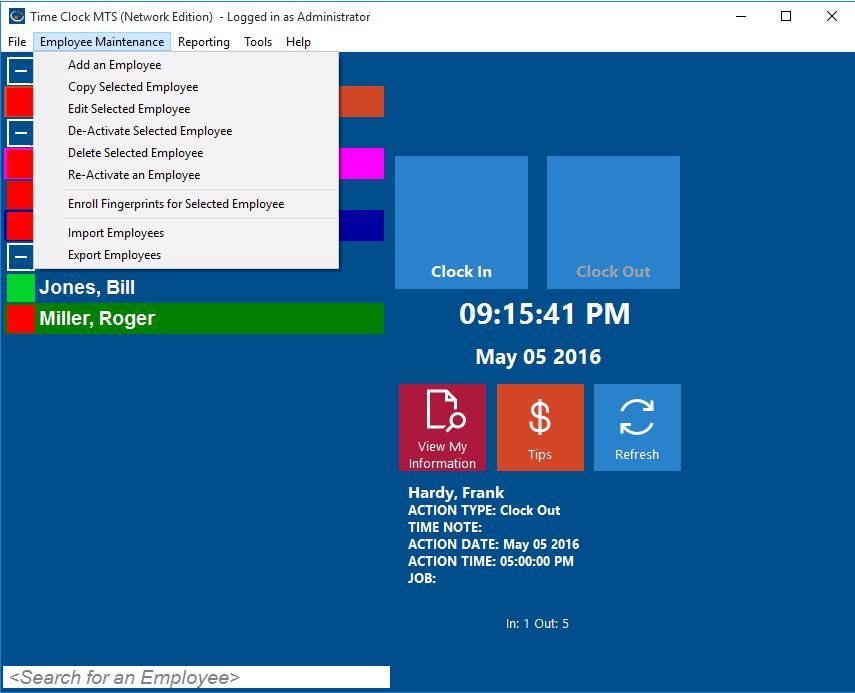
Employee Maintenance Dropdown
You can easily see which employees are deactivated on the employee list when you’re logged in as the administrator, they have a gray status icon next to their names in the employee list. If they are not shown, right-click over the employee list and Show Deactivated Employees.
Once deactivated an employee will not show in the employee list nor will they be able to clock in or out using the keypad interface. Attendance data of the deactivated employee will still be available for payroll reports.
To reverse this process and reactivate the employee see the How To Article Reactivate a Deactivated Employee in Time Clock MTS.
