« May 2009 | Main | July 2009 »
June 30, 2009
Time Clock MTS Version 2.2.16 Released
A new release of Time Clock MTS today that adds a new report and a new report printing setting.
- The new report setting can be found on the Tools->Options->Report Settings screen. Called New Employee Page Break when set reports will print out with a single page per employee. When not set reports will be printed continuously with no page breaks.
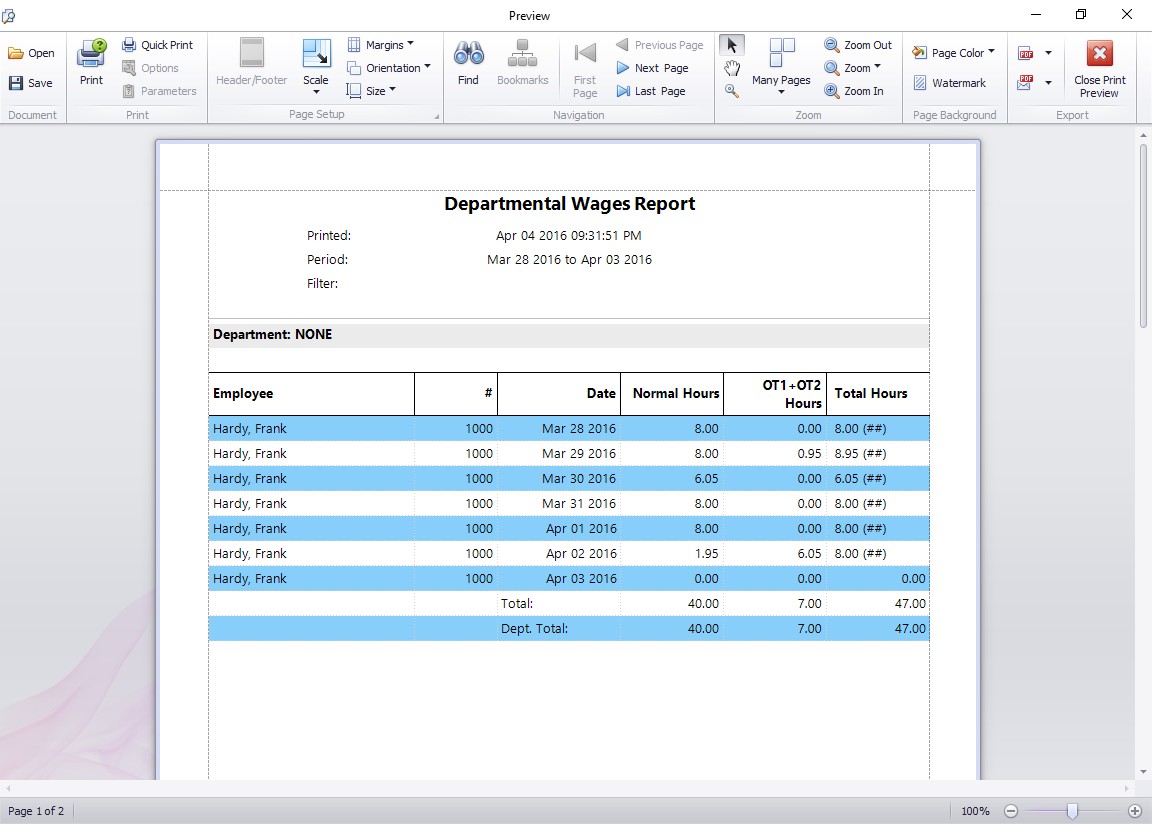
- The new report is called the Departmental Wages Report and is shown above. This report shows a simple break down of hours worked by employee, employees are sorted into departments and a departmental subtotal of hours worked is shown for each department. As usual you can access this report from the Tools->Payroll Reports menu.

Departmental Wages Report
Posted by at 8:30 AM | Comments (0)
June 15, 2009
Deleting an Employee from Time Clock MTS
From time to time it may be necessary to delete an employees' Time Clock MTS account. Most likely this would be be because the employee has left the company and you no longer have any need for their time and attendance records to be reported on in Time Clock MTS. This Time Clock MTS How To Article covers how to delete a Time Clock MTS employee.
To delete an employee in Time Clock MTS just follow the steps shown below.
- Log into Time Clock MTS as the administrator. How you log in as the administrator was covered in this Time Clock MTS How To Article.
- Click on the employee in the employee list that you want to delete.
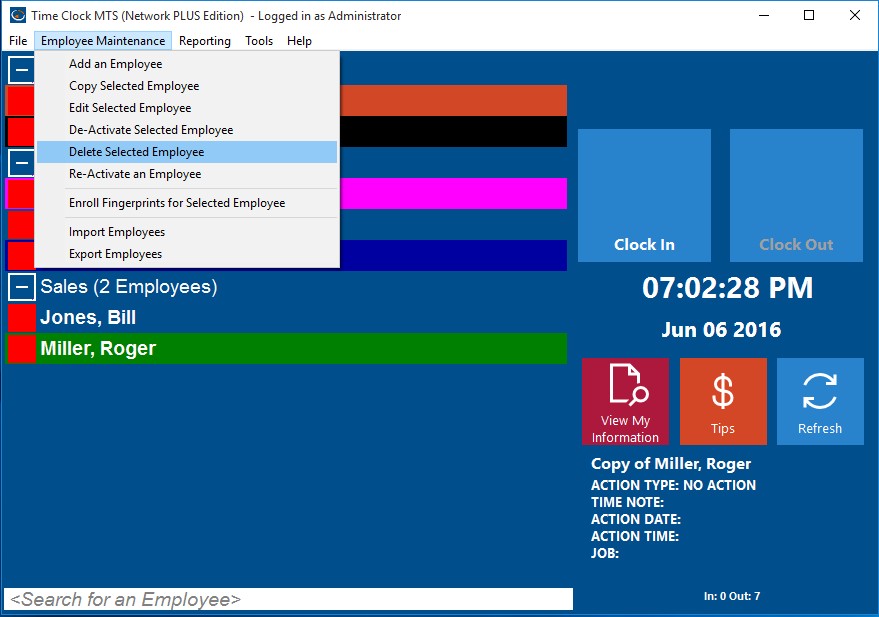
- Once you've selected the employee go to the Employee Maintenance->Delete Selected Employee menu. This is shown in the image above.
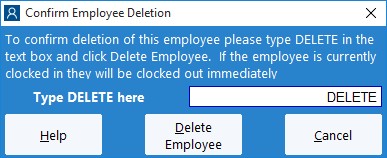
- You'll now be shown the Delete Employee screen. Deletion of an employee can only be reversed by our support staff so a confirmation procedure is required to delete an employee. On this screen to confirm the deletion of the employee just type DELETE into the text are in capitals.
- Once you've entered the confirming DELETE into the text box just click the Delete Employee button to delete the selected employee.

Deleting an Employee

Deleting an Employee
Once deleted an employee will not be able to clock in or out. Their time records will no longer be available for reporting purposes and the employees name will no longer appear on any lists within the software. Note that an employee can be un-deleted by Time Clock MTS support staff, just contact us for more information.
Posted by at 3:13 PM | Comments (0)
Time Clock MTS Version 2.2.15 Released
A minor release today fixing up two small bugs and adding an extra screen to catch database file permissions errors. Changes are detailed below.
- Fixed up a situation where the 'Generate MySQL Script' menu item would be hidden despite the software being licensed for enhanced database support.
- Fixed up a problem with automatic employee ID incrementing. This only occurred when the Copy Selected Employee' menu item was used.
- Added some new checks on startup to determine if database connection failure is due to insufficient file or folder permissions. If this is determined to be the case a new explanatory pop up window is displayed rather than the (not very helpful) 'Cannot Connect to Database' message.
Posted by at 2:35 PM | Comments (0)
June 11, 2009
Disabling an Employee in Time Clock MTS
From time to time it may be necessary to temporarily disable an employees' Time Clock MTS account. This could be because the employee has left the company and you want to maintain their payroll records in the short term for reporting purposes. Or it could be to stop an employee clocking in and out for administrative reasons. This Time Clock MTS How To Article covers how to temporarily disable a Time Clock MTS employee.
To disable an employee in Time Clock MTS just follow the steps shown below.
- Log into Time Clock MTS as the administrator. How you log in as the administrator was covered in this Time Clock MTS How To Article.
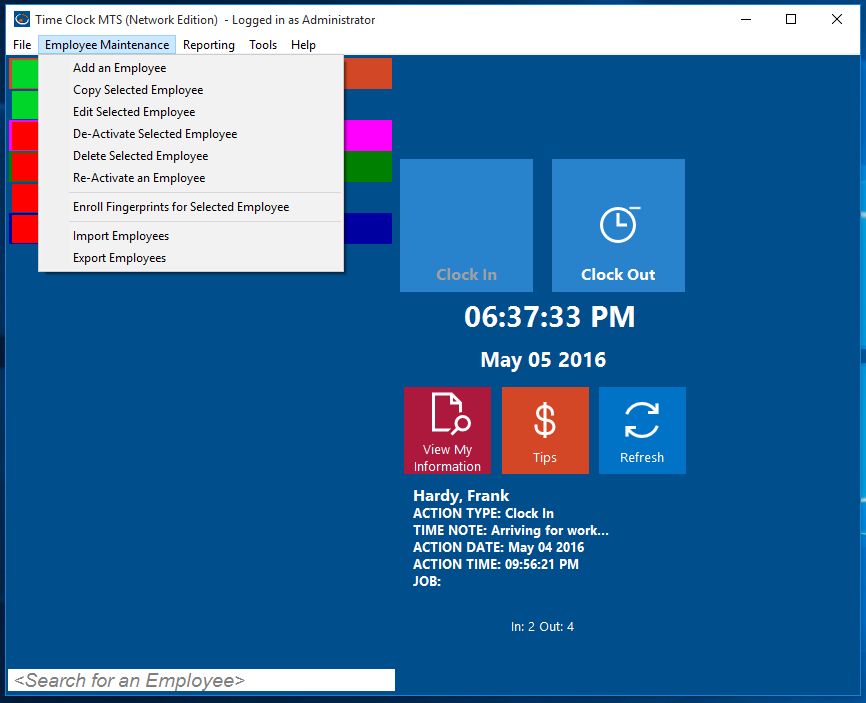
- Click on the employee in the employee list that you want to disable.
- Once you've selected the employee go to the Employee Maintenance->Disable Selected Employee menu. This is shown in the image above.
- You'll now be shown the Disable Employee screen. Despite the fact that you can easily re-enable an employee you still need to go through a confirmation process to disable an employee to stop it happening by accident. On this screen to confirm the disabling of the employee just type DISABLE into the text are in capitals.
- Once you've entered the confirming DISABLE into the text box just click the Disable Employee button to disable the selected employee.

Disabling an Employee

Disabling an Employee
Once disabled an employee will not show in the employee list nor will they be able to clock in or out using the keypad interface. Note that disabled employees will be displayed in the employee list when you're logged in as the administrator. Their attendance data will also still be available to payroll reports.
Posted by at 3:26 PM | Comments (0)
Copying an Employee in Time Clock MTS
Typically in most companies there will be groups of employees for whom the same payroll and overtime rules apply. To speed up the creation of such employees in Time Clock MTS it is possible to copy an existing employee record to easily create a new one. This Time Clock MTS How To Article covers how to copy a Time Clock MTS employee.
To create a new employee by copying a existing employee just follow the steps below.
- Log into Time Clock MTS as the administrator. How you log in as the administrator was covered in this Time Clock MTS How To Article.
- Click on the employee in the employee list that you want to copy.
- Once you've selected the employee you want to copy go to the Employee Maintenance->Copy Selected Employee menu. This is shown in the image above.
- You'll now be shown the Add Employee screen with all the details from the copied employee filled in already. The only differences will be the name and the employee ID / badge number. All you need to do is set the name to the correct name for the employee and assign them a PIN.
- Once you've done these couple of things to your satisfaction just click the Save Employee button to create the new employee record.

Copying an Employee

Copying an Employee
That's all there is to it. To get more detailed help on what each field on each employee sub page does consult the online help file.
Posted by at 2:20 PM | Comments (0)
Adding an Employee to Time Clock MTS
For an employee to be able to clock in and out of Time Clock MTS you must create an employee account that they can use. This Time Clock MTS How To Article very briefly covers how to create a Time Clock MTS employee.
To create a new employee in Time Clock MTS just follow the steps show below.
- Log into Time Clock MTS as the administrator. How you log in as the administrator was covered in this Time Clock MTS How To Article.
- Once you're logged in go to the Employee Maintenance->Add an Employee menu. This is shown in the image above.
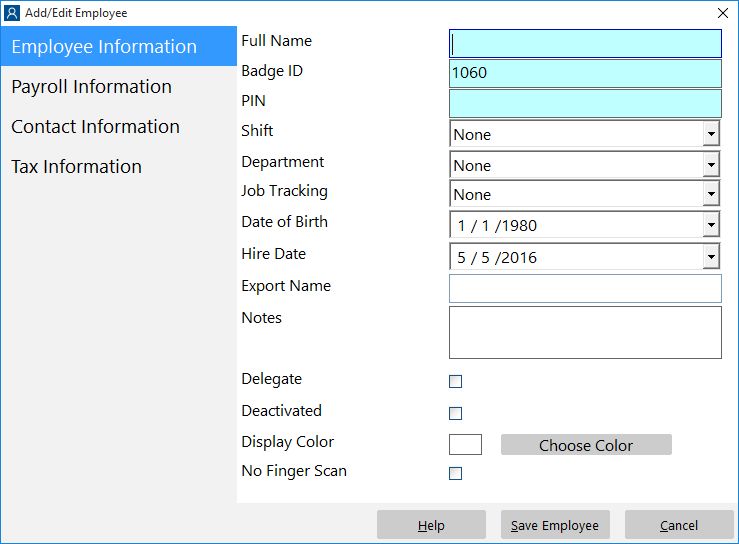
- You'll now be shown the Add Employee screen. This screen is split into 4 sub pages, the Employee Information page, the Payroll Information page, the Contact Information page, and the Tax Information page. The only things you must enter to create a new employee is the employee's full name, a unique badge ID, and a PIN (or password) for the new employee.
- Once you've setup the employee to your satisfaction just click the Save Employee button to create the new employee record.

Adding an Employee

Adding an Employee
That's all there is to it. To get more detailed help on what each field on each employee sub page does consult the online help file or click on the links show in Step 3 above.
Posted by at 2:07 PM | Comments (0)
June 9, 2009
What is the Keypad Interface?

Keypad Interface
Time Clock MTS provides two different interfaces to allow employees to clock in and out. The first of these is the Employee List interface designed to be used with a computer mouse, the second is the Keypad interface designed to be used with a touchscreen or input device such as a bar code read or magnetic card reader. This Time Clock MTS How To Article covers the keypad interface.
The Keypad interface is selected by the Time Clock MTS Administrator on the Tools->Options->Interface Settings page (read about it in the help file). The keypad interface comprises two main areas. The keypad (which can be used with a computer mouse or touch screen) on the left, and the entry text box and employee status area on the right. To use the keypad interface to clock in or out an employee simply enter their employee ID (or badge number) using the keypad and clicks Enter when they are ready to clock in or out. Time Clock MTS will clock the employee in or out depending on what their last action was. When they are successfully clocked in or out the details of the action will be displayed in the status area.
The real advantage of the Keypad interface is that it can be used with data readers such as bar code readers or magnetic card readers. All you need to do is encode your barcode badges or magnetic cards with the Time Clock MTS employee badge ID's and scan in the data. The data reader will populate the entry text box with the employee Badge ID and at the end of the data read (usually) a data reader sends the return code (the same as pressing the return key on the keyboard). This will press the Enter button on the Keypad interface and clock the employee in or out.
Posted by at 1:56 PM | Comments (0)
What is the Employee List Interface?

Employee List Interface
Time Clock MTS provides two different interfaces to allow employees to clock in and out. The first of these is the Employee List interface designed to be used with a computer mouse, the second is the Keypad interface designed to be used with a touchscreen or input device such as a bar code read or magnetic card reader. This Time Clock MTS How To Article covers the Employee List interface.
The Employee List interface is selected by the Time Clock MTS Administrator on the Tools->Options->Interface Settings page (read about it in the help file). You can see what the employee list interface looks like above. The screen is split into two main sections, an alphabetically sorted list of the active Time Clock MTS employees on the left, and the clock in / out buttons and current employee status area on the right.
The sorted employee list contains a line for each active Time Clock MTS employee along with a status icon next to each name. An employee with a green icon is clocked in and with a red icon clocked out. To save on network traffic the Time Clock MTS Client only maintains the status icons for each employee for 60 seconds before the icons all change to gray. As you select an employee in the list the status light will update automatically showing you the most up to date status for that employee. The clock in / out buttons on the right side will be enabled or disabled depending on the status of the selected employee, so an employee that is clocked in will only be able to clock out and vice versa. The status of the employee will also be updated showing the time and date (and any note) for the last action performed by the selected employee. At the bottom of the employee list is a light blue search box that allows you to enter a few letters and be quickly taken to that employee in the employee list. This is a quick way of finding employees if you have a very long employee list.
On the right hand side of the screen the employee selected in the employee list can clock in or out using the Clock In or Out buttons. The current date and time is shown below the Clock In / Out buttons. If the Time Clock MTS administrator has enabled it, the employee may also be able to view their own time cards by clicking the View My Information button. Note that on the Time Clock MTS Client there is an additional button entitled 'Refresh' that will update the status icons in the employee list. The status area shows the name of the currently selected employee and the details of the last action that employee performed.
Posted by at 1:11 PM | Comments (0)
Logging in as the Administrator
To access payroll reports and to be able to configure Time Clock MTS you must be using the software in Administrator mode. This Time Clock MTS How To Article covers how to log into Time Clock MTS as the administrator and thus access the Administrator mode.

Logging in as Administrator
When Time Clock MTS is operating in Normal mode and you want to log in as the administrator you must use the File->Log in as Administrator menu as shown in the image above. Once you've selected this menu item you'll be shown the Enter Administrator Password screen as shown below.

Administrator Login Screen
Your administrator password was set by you when you first installed Time Clock MTS. Remember that is is cASe SenSITive and that you (or someone else with administrator access to Time Clock MTS) may have changed it. Once you've entered the password correctly and clicked the Login button you'll be logged in correctly and Time Clock MTS will be operating in Administrator mode. If you've forgotten your password then you'll need to reset your administrator password.
Posted by at 12:09 PM | Comments (0)
What is Administrator Mode?

Time Clock MTS in Administrator Mode
Time Clock MTS operates in two main modes. Normal mode, which is used by employees to clock in and out, and Administrator mode, which is used by the administrator to configure the software and run payroll reports. This Time Clock MTS How To Article covers administrator mode.
You can get into the Time Clock MTS Administrator by logging in as the administrator via the File->Log In As Administrator menu (this will be covered by an up-coming How To Article). Once you're logged in as the administrator you'll have access to all the menus in Time Clock MTS. In the image above you can see that all menus are enabled. Note that in the Time Clock MTS Client, most of these menus are not available. While you're operating Time Clock MTS in the Administrator mode you can perform all of the reporting and maintenance functions of the software, a short list of the sorts of things you can do follows. Please note that this is by no means a full listing of all the things you can do within Time Clock MTS!
- Create, edit, disable and delete employees using the Employee Maintenance page.
- Setup fingerprint security for employees using the Employee Maintenance page.
- Run payroll reports using the Report menu.
- Search, backup, and restore the Time Clock MTS database using the Tools menu.
- Setup employee bulletin notices using the Tools menu.
- Configure the software using the Tools->Options menu.
- Access help resources and register the software using the Help menu.
Posted by at 11:33 AM | Comments (0)
What is Normal Mode?
Time Clock MTS operates in two main modes. Normal mode, which is used by employees to clock in and out, and Administrator mode, which is used by the administrator to configure the software and run payroll reports. This Time Clock MTS How To Article covers normal mode.

Employee List Interface in Normal Mode
The normal mode of operation in Time Clock MTS is the mode in which it will operate almost all of the time. By far the most common activity that will be carried out in the normal mode of operation is employees clocking in or out. A key indicator that Time Clock MTS is currently in normal mode of operation is that all the menus at the top are disabled apart from the File menu and the Help menu. When operating in Normal mode with the employee list interface enabled Time Clock MTS will look like the image above. Note that most of the menus are disabled. Using the employee list interface employees may also be able to view their own time cards and you can see the last activity each employee carried out.

Keypad Interface in Normal Mode
When using the keypad interface employees can only clock in and out using the numeric keypad. There are no other activities available to them while operating in normal mode. You can see what the keypad interface looks like while operating in normal mode in the image above. Note again that most of the menus are disabled.
Posted by at 10:55 AM | Comments (0)
June 4, 2009
Time Clock MTS How To Guides
I'm in the process of creating a new 'how to' guide for Time Clock MTS. This will be very different to the current Help File that is available online and that ships with the software. The current help file is what I'd called 'screen based'. It describes each screen and what each element on the screen does, but it doesn't really tell you directly how to do perform a given task in Time Clock MTS. The new 'how to guide' will be very task based, and any new user to the software should be able to use it to learn how to perform almost any task within the software. You'll be able to see the how to guide here in the weblog. I've created a master index on the site that categorizes each how to guide entry so that you can find what you need to do more easily. You can view the How to Guide Master Index here. I'll try to add one article a week to this guide.
Posted by at 10:46 AM | Comments (0)
Time Clock MTS User Question : Yearly Accruals
I've done this a couple of times before, Time Clock MTS users sometimes ask interesting questions that are worth sharing with the rest of the user community. I got a good question this morning so I'll post up here along with a solution.
Question:
I am beginning the program in the middle of the year. My employees began the year with 80 hours vacation. They each have various amounts of vacation left right now. I can't get the program to show each employees individual vacation hours that are available. This is not on an accrual basis. Everyone starts the year with 80 hours vacation on January 1 of each year. How do I get the program to calculate properly?
The answer is pretty simple. Firstly, the user needs to setup a yearly accrual scheme which I've spoken about previously. There's a subtle variation here though, this yearly accrual scheme needs to start on 1 January for all employees. So rather than checking the 'Use Hire Date, not Fiscal Year' you'd leave this unchecked. You'll then need to go to Tools->Options->Payroll Settings screen and set the First Day of Fiscal Year to 1 January.
Adjusting the starting balance for each employee is required because the Time Clock MTS user will not be starting use of the software on 1 January. This is pretty simple again, just adjust each employees starting vacation balance using the Employee Maintenance->Edit Selected Employee->Payroll Information screen.
That's how it's done. It's a fairly simple thing but does require you to change settings across a few different screens in Time Clock MTS. Got any more tricky accrual questions? Why not contact me and tell me what your question is and I'll post up a solution here so everyone can benefit!
Posted by at 9:27 AM | Comments (0)