by Mark Nemtsas | May 26, 2009 | News
If you’ve visited the site before you’ll have noticed that last weekend the design of the Time Clock MTS site changed completely. The new design is much cleaner and removes almost all of the clutter that made the last design hard to read and navigate. The new design moves most of the clutter into the drop down menus just under the Time Clock MTS logo. Using these menus now allows you to access many more pages of the website without having to dig through several levels of pages. The key menu is the Help & Support menu, you can now access very useful resources like how to reset your administrator password, and how to retrieve your license code in just a couple of clicks! I really hope you find this new design easier to use.
If you find any broken links or odd things on the site please email me and I’ll get it all fixed up.
by kathryn@timeclockmts.com | May 25, 2009 | New Releases, News
A minor release today with just one fix. I’ve finally tracked down and fixed a bug that caused the last clock in/out details for the selected employee to not display properly. There was a reasonably complex sequence of steps you had to make to actually get the bug to show up and it’s taken me a while to figure out what those steps were. Finally pinned them down and fixed up the problem. It was a display only problem and didn’t effect the data being recorded, despite what the screen said!
by Mark Nemtsas | May 24, 2009 | How To, Tips and Tricks, Using the Software
Changing the Windows System Time
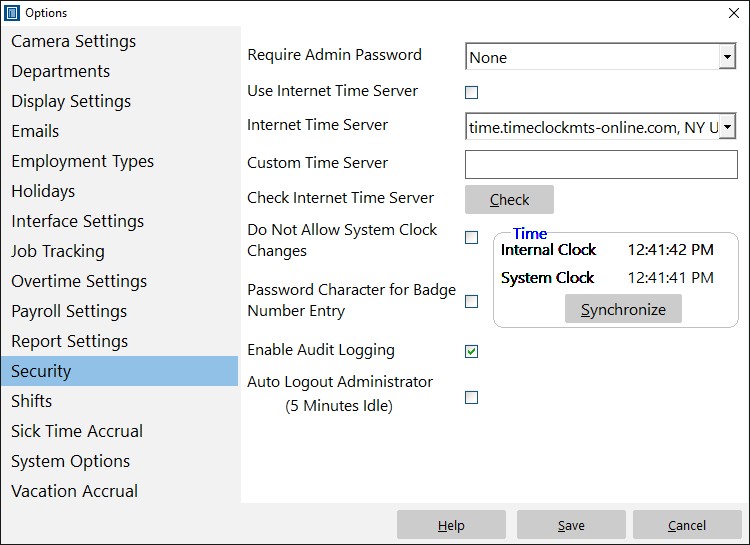
You may well know that Time Clock MTS can determine the internal time used for clocking in and out from an Internet time server. This is a pretty foolproof way of preventing time clock fraud as the times recorded are completely independent of the local PC clock setting. You can turn on this feature in the Time Clock MTS administrator program on the Tools->Options->Security Settings page. Just tick the Use Internet Time Server checkbox, then pick our dedicated time server (time.timeclockmts-online.com) from the dropdown box and click SAVE to save the change. You can read about how to do this in more detail in this blog entry
The above works well, but for whatever reason very infrequently it doesn’t work in a fool-proof fashion. This won’t result in incorrect employee attendance data but it can prevent employees from clocking in or out. Time Clock MTS will actually prevent employees from clocking in and out if it cannot contact the Internet time server for an hour (this is to stop employees just pulling a network cable to get around the Internet Time Server setting). Sometimes the reason Time Clock MTS cannot contact the time server can’t easily be determined, it may be network congestion, it might be firewall problems, or it might be problems with the time server itself. When these sorts of problems occur frequently it may be adopting a different solution to setting the system time using Windows itself. Here’s what you’ll need to do:
- Turn off the Use Internet Time Server setting in Time Clock MTS. This will result in Time Clock MTS determining all times from the local PC clock.
- Change the Windows settings to have the local pc clock time determined from an Internet time server. How you do this will depend on the version of Windows you are running. For example, in Windows Vista/7/8 you can do it by simply right clicking on the Taskbar clock and then selecting Adjust Date/Time from the popup menu.
- Change the Windows user account permissions that Time Clock MTS is run from to prevent changing the Windows System time. How you do this is well beyond the scope of this entry as it will vary tremendously depending on the version of Windows you are running and any sort of network management software you happen to be using.
That’s all there is to it. What you’ve done is set the local PC clock to get accurate time from an Internet time server and Time Clock MTS will get it’s clock in and out times directly from this. By adjusting the Windows user account permissions you’ve prevented employees from changing the system clock of the PC in an attempt to provide fraudulent time clock data.
by Mark Nemtsas | May 21, 2009 | Tips and Tricks, Using the Software
Update 24 November 2014 – This setting was removed from Time Clock MTS with the release of version 5. The content of this blog only apply to versions of Time Clock MTS BEFORE version 5.
I’ve had a couple of Time Clock MTS users send in emails about the same thing in the last week and it worth covering the issue here. Basically the symptom is this, when running reports (say for a week), sometimes it appears that the reports pick up a time or two from the next weeks report. When they run the next weeks report it is missing these times that show up on the previous weeks report. When you examine these times that seem to mysteriously appear on the wrong weeks report it turns out that the clock in time was before the usual clock in time for the day. The reason this is happening is because employees are clocking in BEFORE the First Day Starts At setting used by Time Clock MTS to determine when the work day (and thus work week) starts.
So, for example, lets say you have the First Day Starts At setting in Time Clock MTS (set on the Tools->Options-> Payroll Settings page) set to 8:00am. Now lets say an employee clocks in at 7.30am on Monday AND you dont have report rounding time turned on. Time Clock MTS considers the time worked between the clock in and the time when the employee clocks out to OCCUR ON SUNDAY rather than Monday. The time of clock in determines the day on which the recorded time occurs. This is complicated a little if you have report rounding turned on. If you have report rounding set to, say 15 minutes, then an employee can clock in up to 15 minutes prior to 8:00am on Monday to have their time to be reported on Monday. If they clock in more than 15 minutes prior to 8:00am then the time will be reported on Sunday.
There’s a couple of ways of preventing this sort of thing happening in Time Clock MTS.
- Examine if you need to actually use the First Day Starts At setting. It is really only useful if you run shifts or if you want to restrict clock in times to stop employees clocking in early. If you dont need to use the setting leave it set to 12:00am (again you can change this setting on the Tools->Options->Payroll Settings screen.
- Turn on report rounding and restrict clock in times to the same period as you’ve set report rounding for. So, for example, if you set report rounding to 15 minutes set the clock in restriction to 15 minutes before shift start. To restrict clock in times you must assign an employee to a shift and then set the clock in restriction on the Tools->Options->Shifts screen.
by kathryn@timeclockmts.com | May 3, 2009 | New Releases, News
I’ve just released version 2.2.12 of the software. This version contains some new logging and a new report. When an employee clocks in or out Time Clock MTS now records the Network Name and the Network Card MAC address of the computer along with the time data. There’s also a new payroll report (the Time Location Report) that displays this information along with each time. The idea behind this report is to allow administrators to detect any odd clocking behavior among employees. For example, if your employees are supposed to clock in and out from their own computers and one employee consistently clocks in an out from another PC then there may be some buddy punching happening.
For more detailed information covering the application of this new feature please read this how-to article.
